Catalogue Image Import (AI-Powered)
The Product Import feature lets you add products to your store in bulk — without entering them one by one.
You can either upload a formatted CSV file or take a photo of your printed catalogue, and let the North AI extract the products. Both methods follow the same review-and-edit flow before anything is published to your store.
Navigating to the Product Import Section
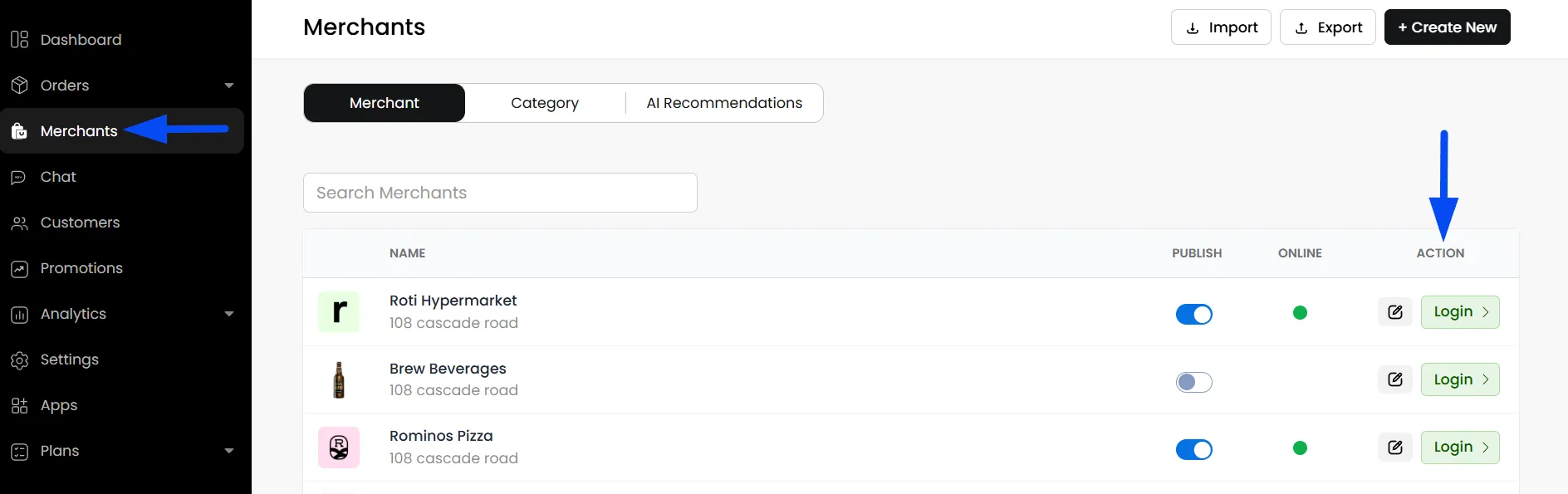
- To import products, go to Admin Panel > Merchants, and use the Auto-Login option to access the merchant panel.
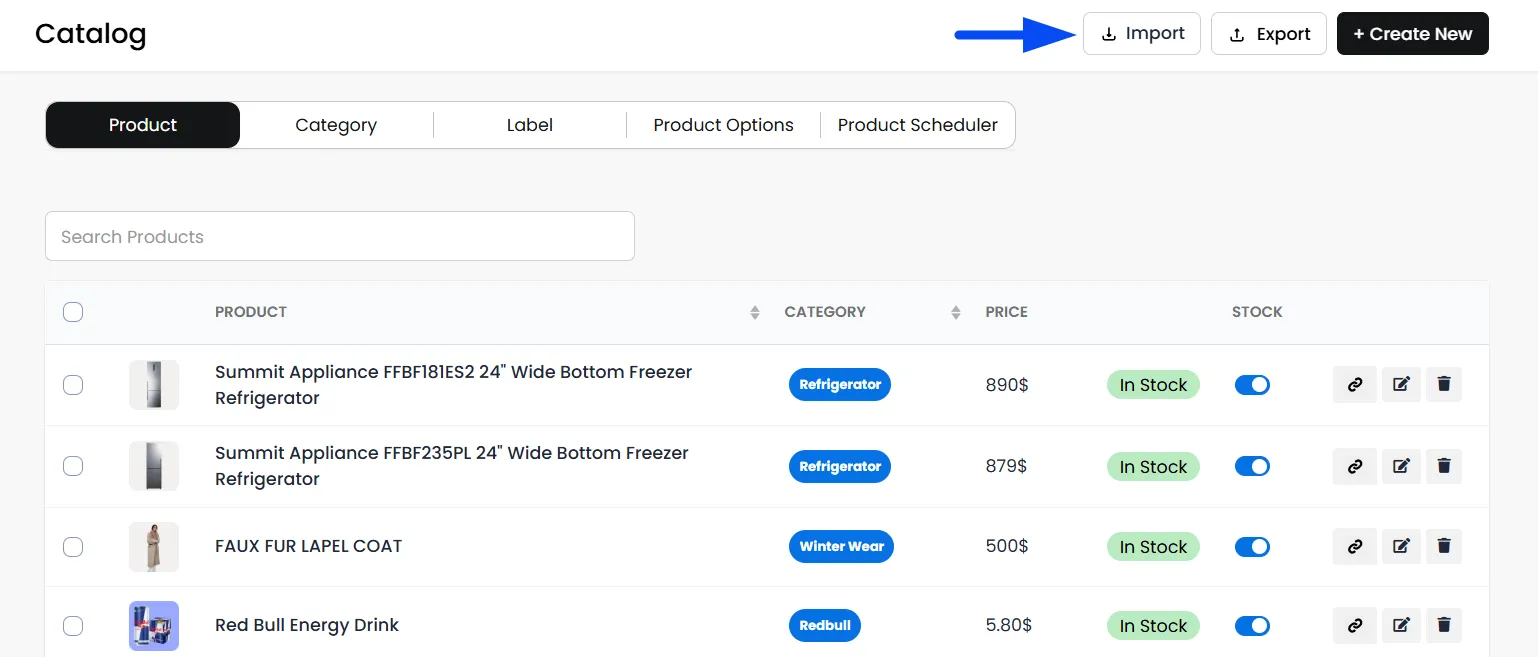
- In the merchant panel, go to the Catalogue section and click on Import to select your preferred import method.
Choose Import Method
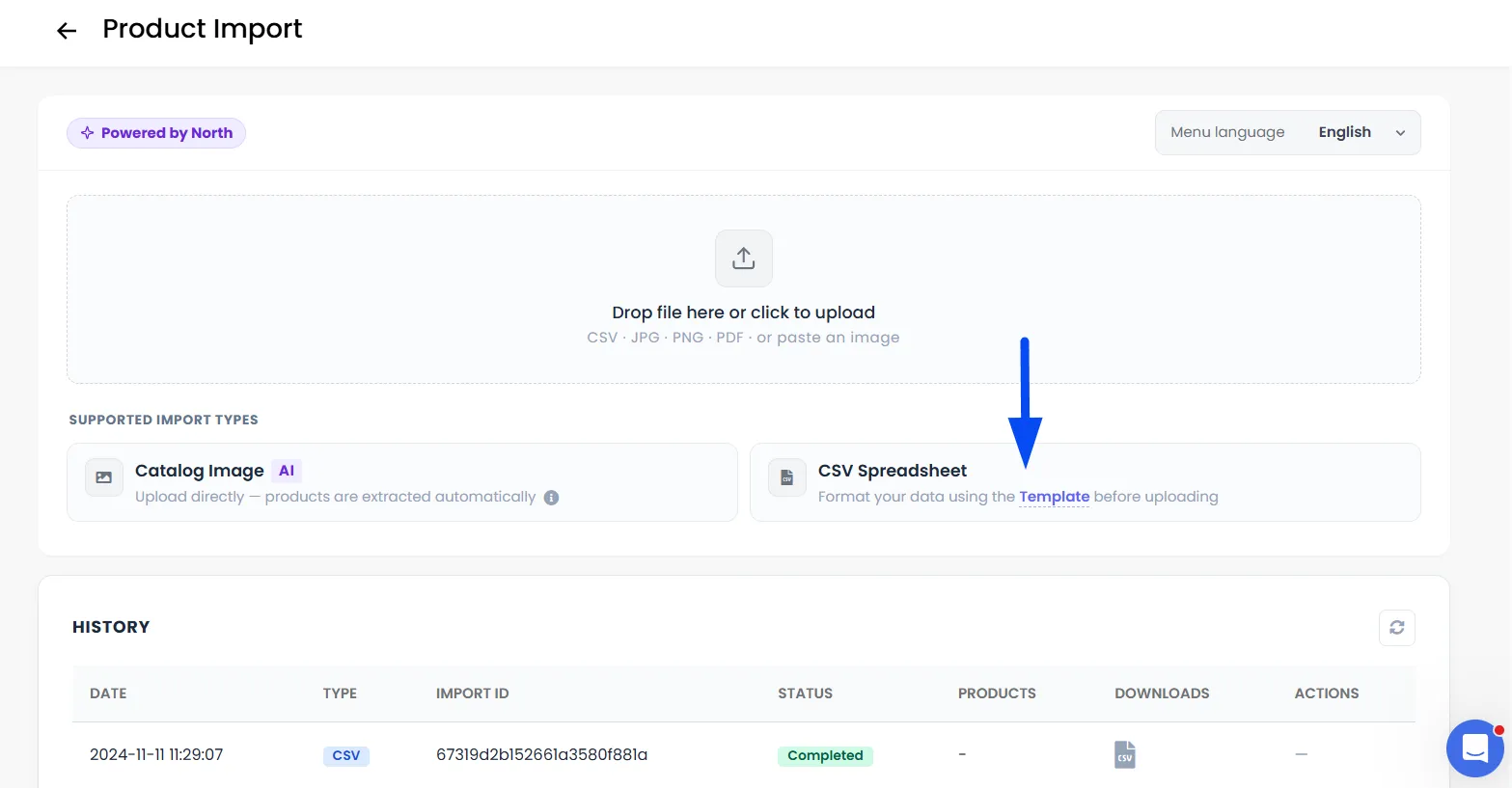
Select how you want to import your products based on your data source. You can either upload a structured CSV file or use AI to extract products from a catalogue image or PDF.
CSV Import
A method for adding products using a structured spreadsheet file. You download the template, fill it in with your product data, and upload it. Best for merchants who already have their product catalogue in a spreadsheet.
For Product Import via CSV, you can refer to this detailed guide. If you prefer uploading products using a CSV file, this guide will help you prepare, format, and upload your data correctly.
Catalogue Image Import (AI)
A method powered by North AI that reads your physical or digital catalogue and extracts products automatically. You upload a photo or PDF of your catalogue; the system does the reading. Best for restaurants or cafés importing directly from a printed catalogue.
Supported Formats (Catalogue Image Import): You can upload your catalogue using JPG, PNG, or PDF files, or simply paste an image directly from your clipboard.
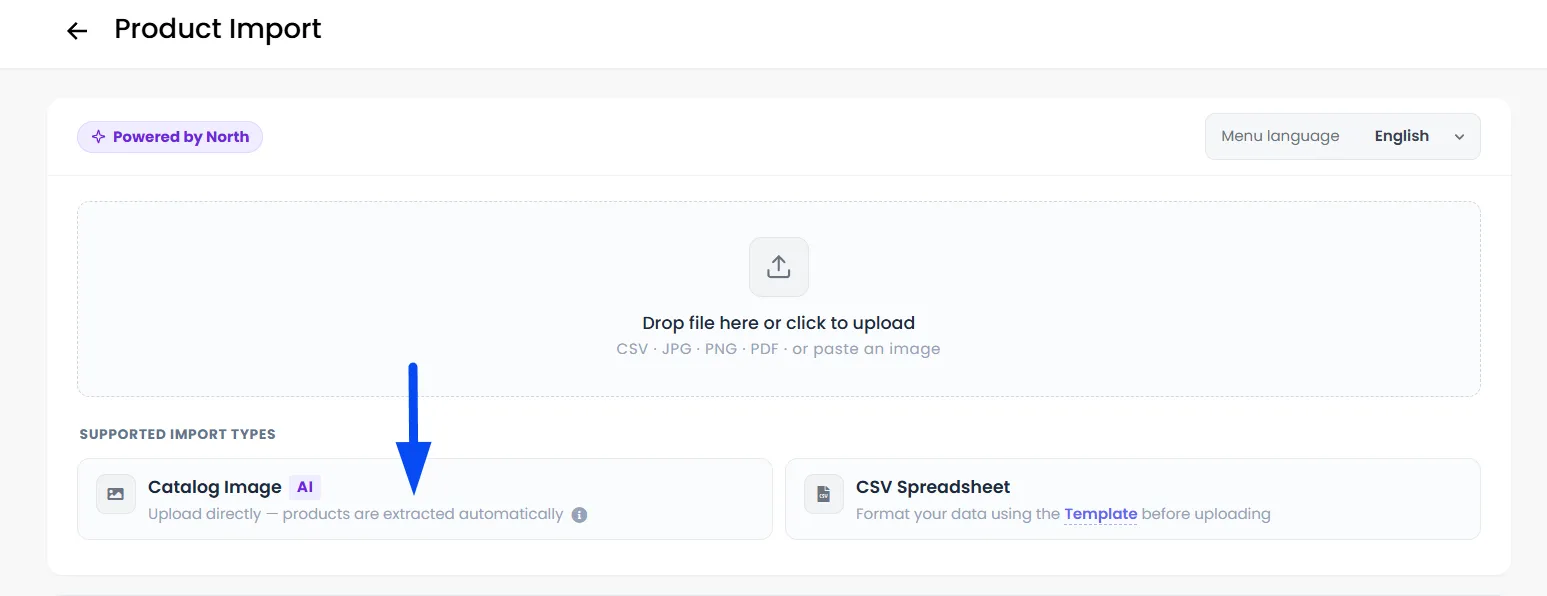
Catalogue Image Import Flow
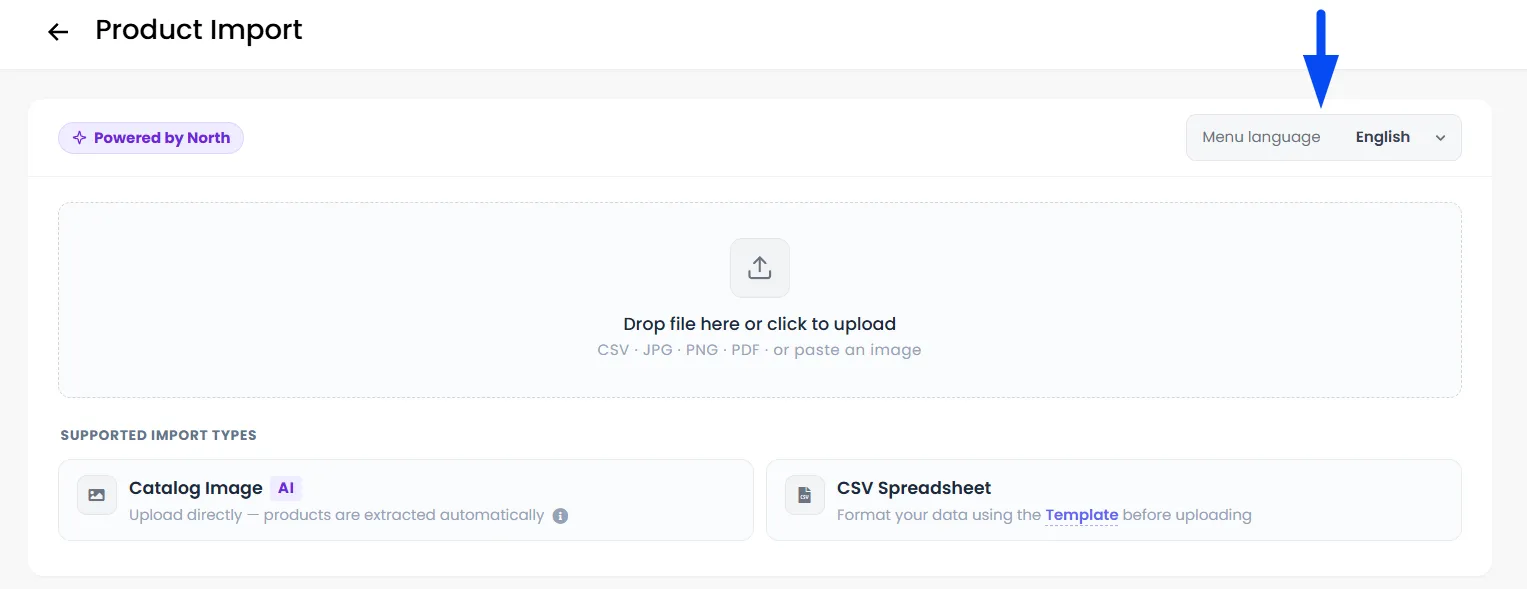
- Select the correct Catalogue language using the language picker in the top-right of the card. This tells the AI what language to expect.
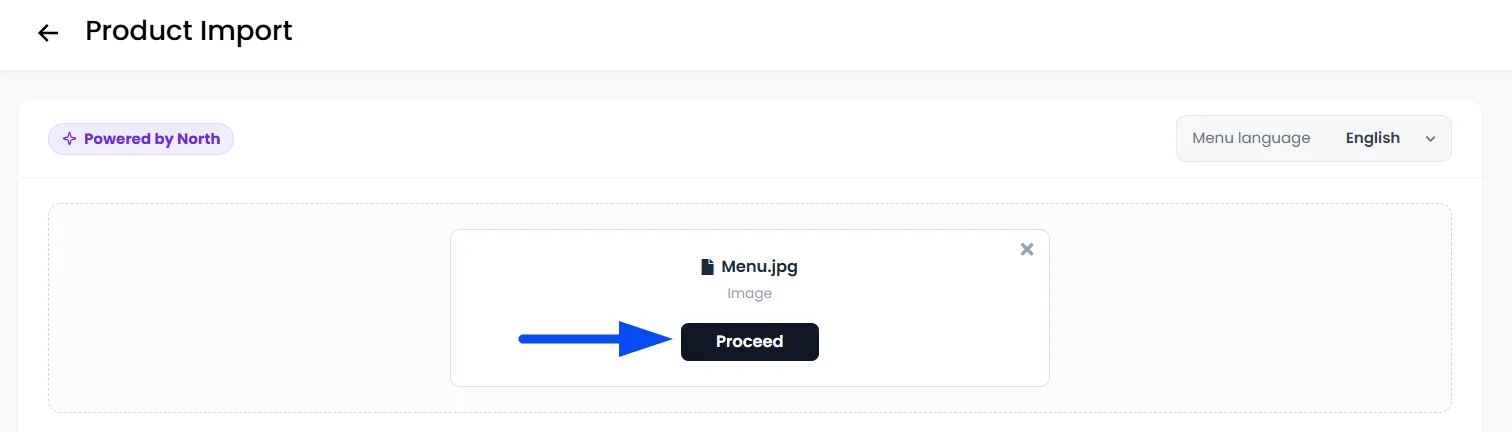
- Click the drop zone or drag your catalogue image (JPG, PNG) or PDF onto it. Click Proceed to initiate AI extraction and wait for the processing to complete.
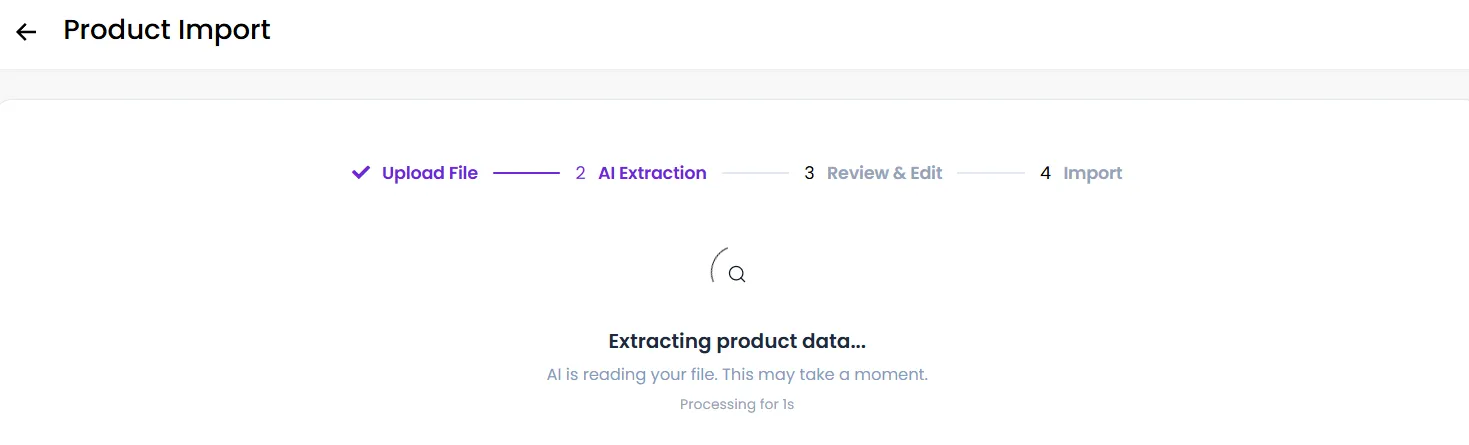
- A step indicator will show your progress: Upload File > AI Extraction > Review & Edit > Import.
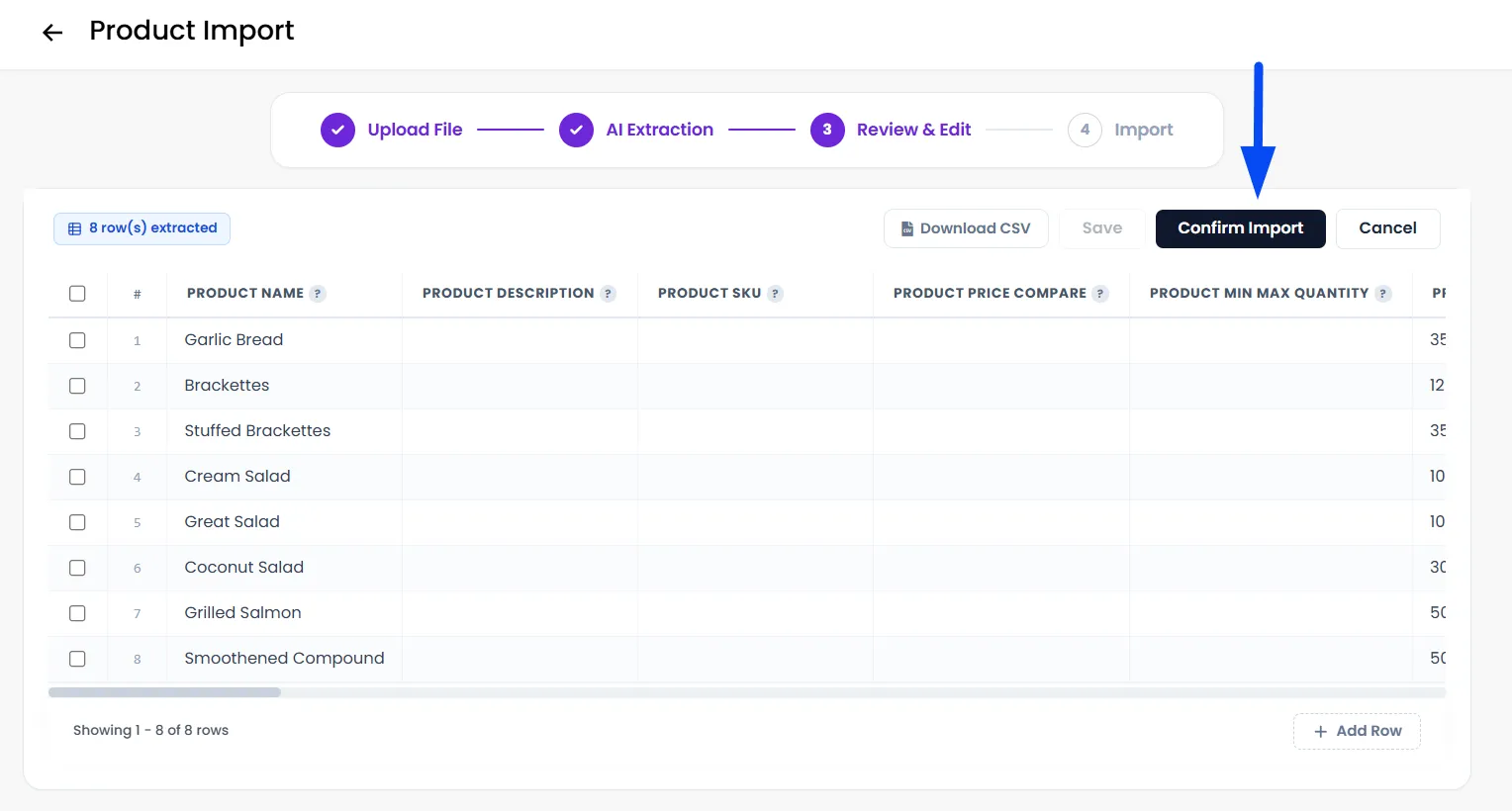
- Once extraction finishes, you are taken to the Review & Edit screen. Check the extracted products in the spreadsheet editor. Make any necessary corrections and then click Confirm Import once everything is accurate.
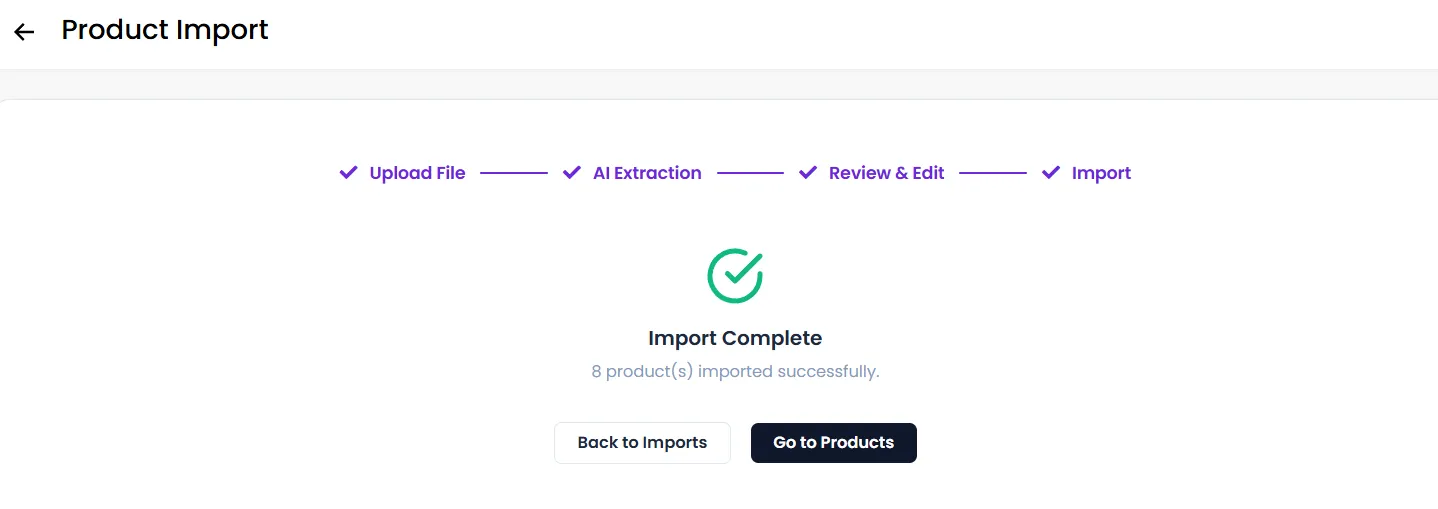
- Wait for the import to finish. You will see a count of products successfully created. Accordingly, you can proceed as desired to review the products imported.
Note: For a multi-page catalogue, combine all pages into a single PDF before uploading. Uploading multiple separate images is not supported.
Review & Edit (Spreadsheet Editor)
This screen appears for both import methods after the file has been processed. It is your last chance to check the data before products are created.
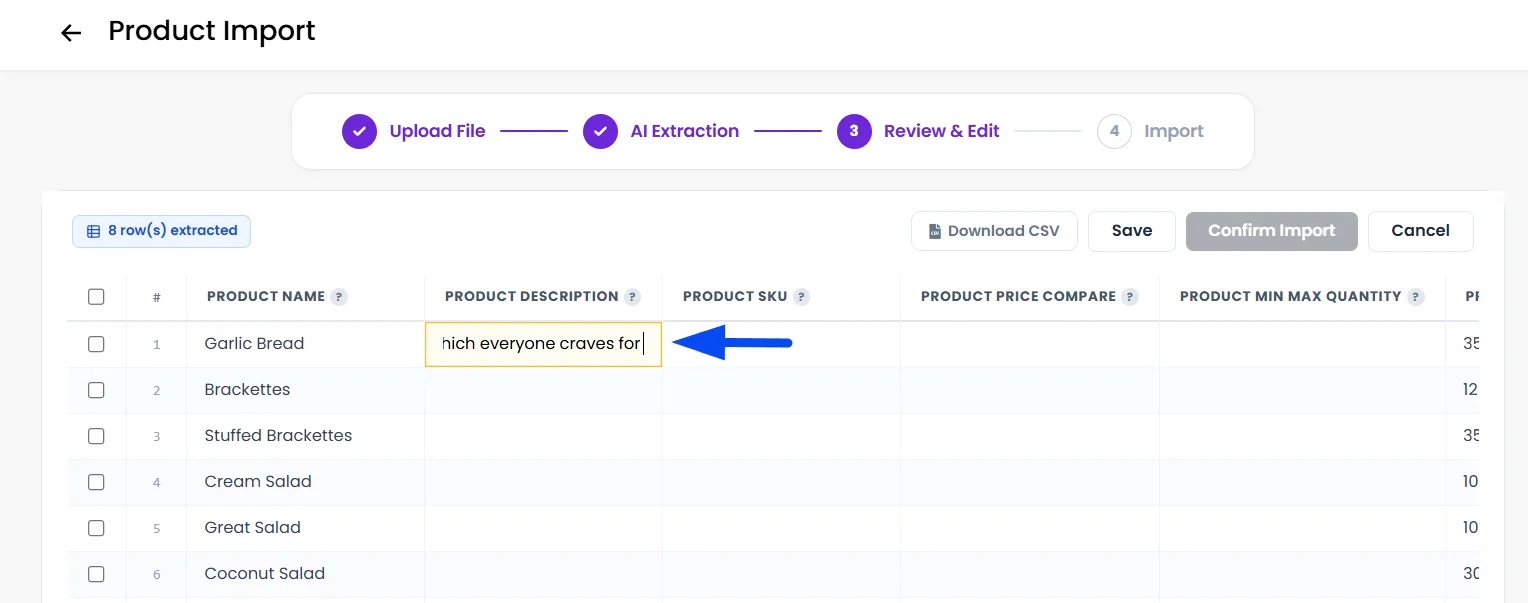
Edit any cell
Click directly into a cell and type to correct values.
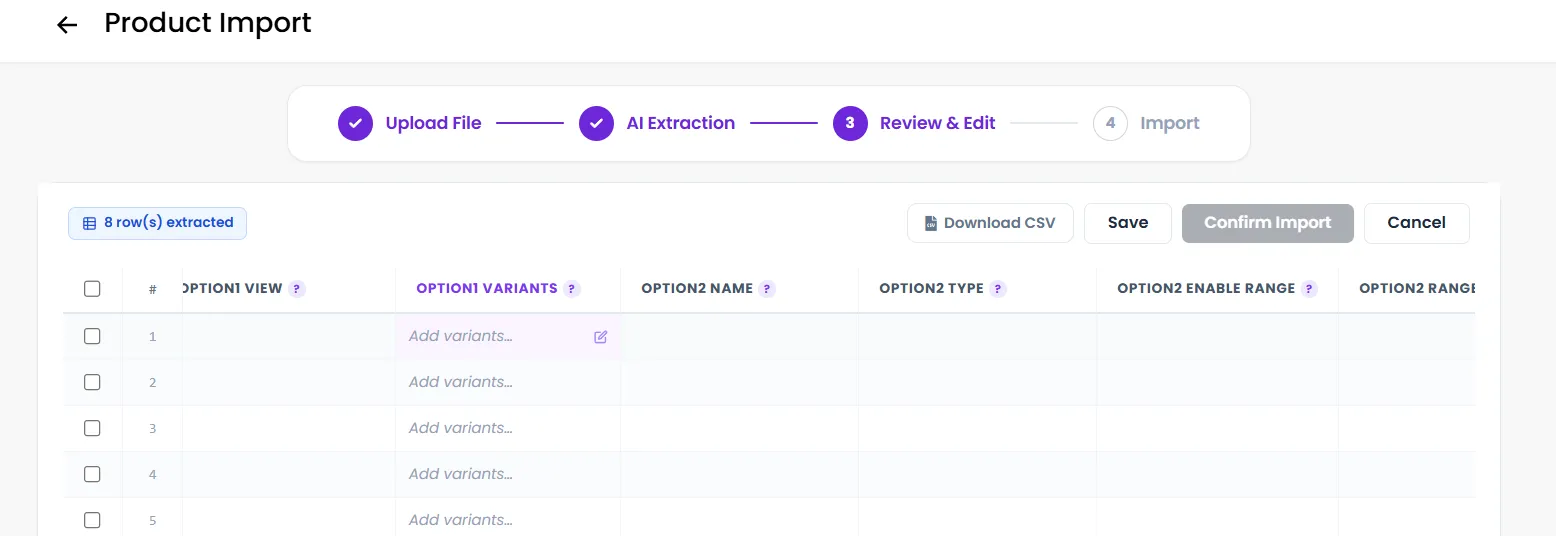
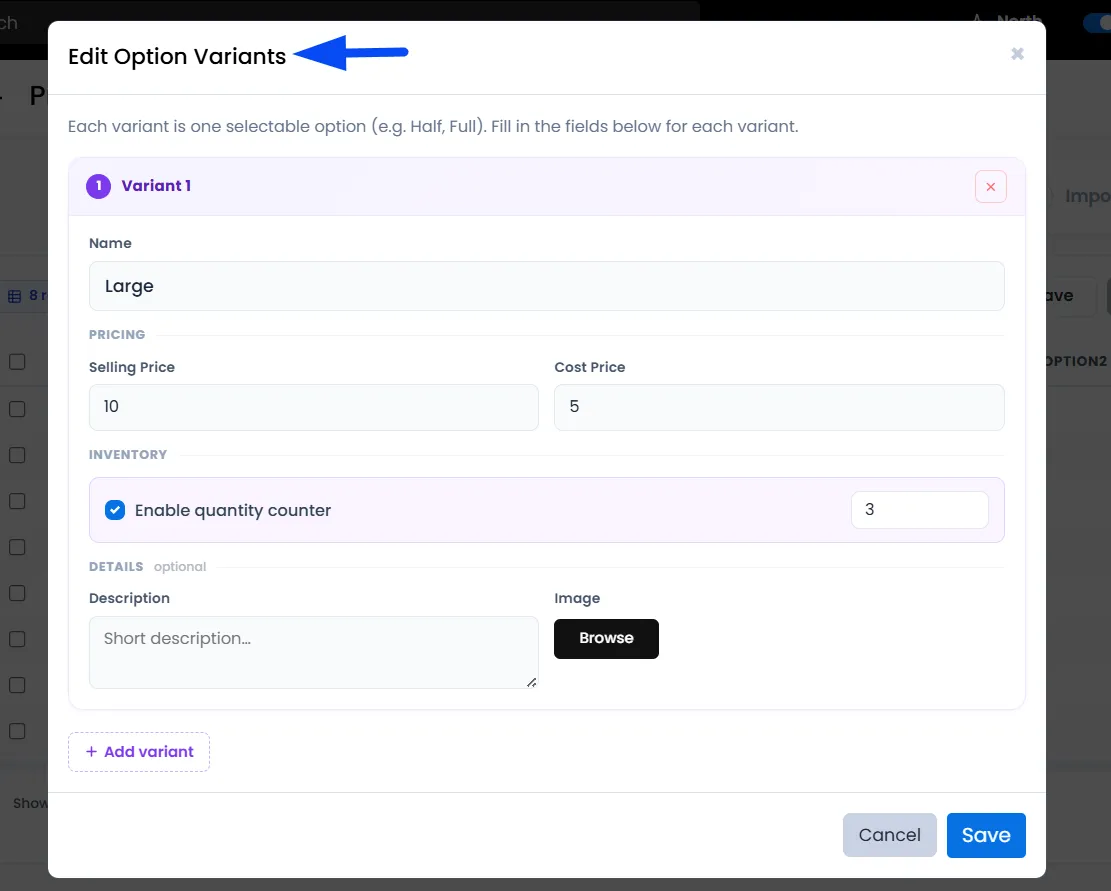
Edit variants
Click the variants cell to open a pop-up editor for sizes, prices, and inventory per variant. You can define each variant’s name (e.g., Half, Full, Large), set selling and cost prices, manage inventory (quantity counter), add descriptions, and upload images for each variant.
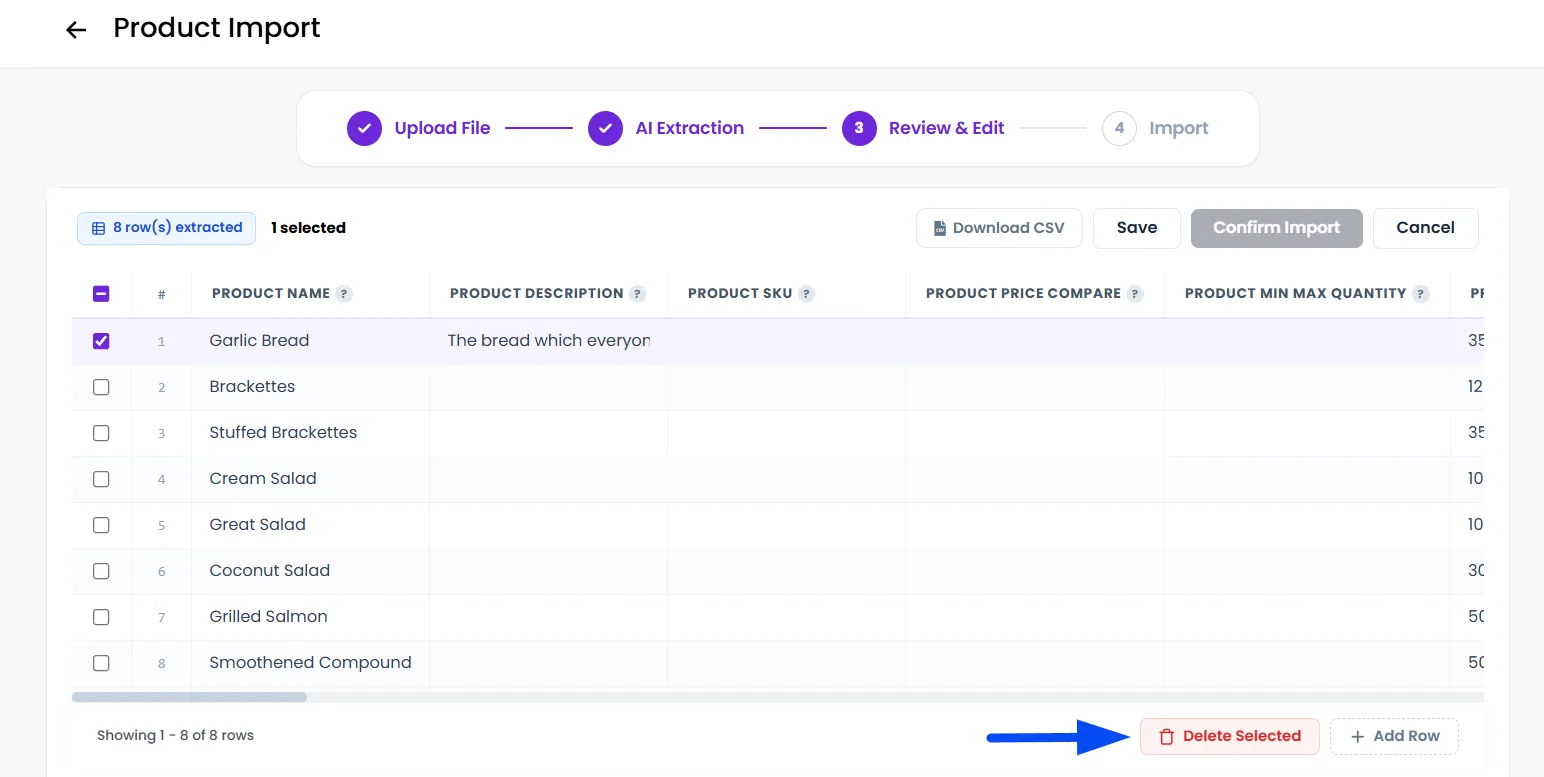
Delete rows
Select rows using the checkboxes and click Delete Selected to remove unwanted products.
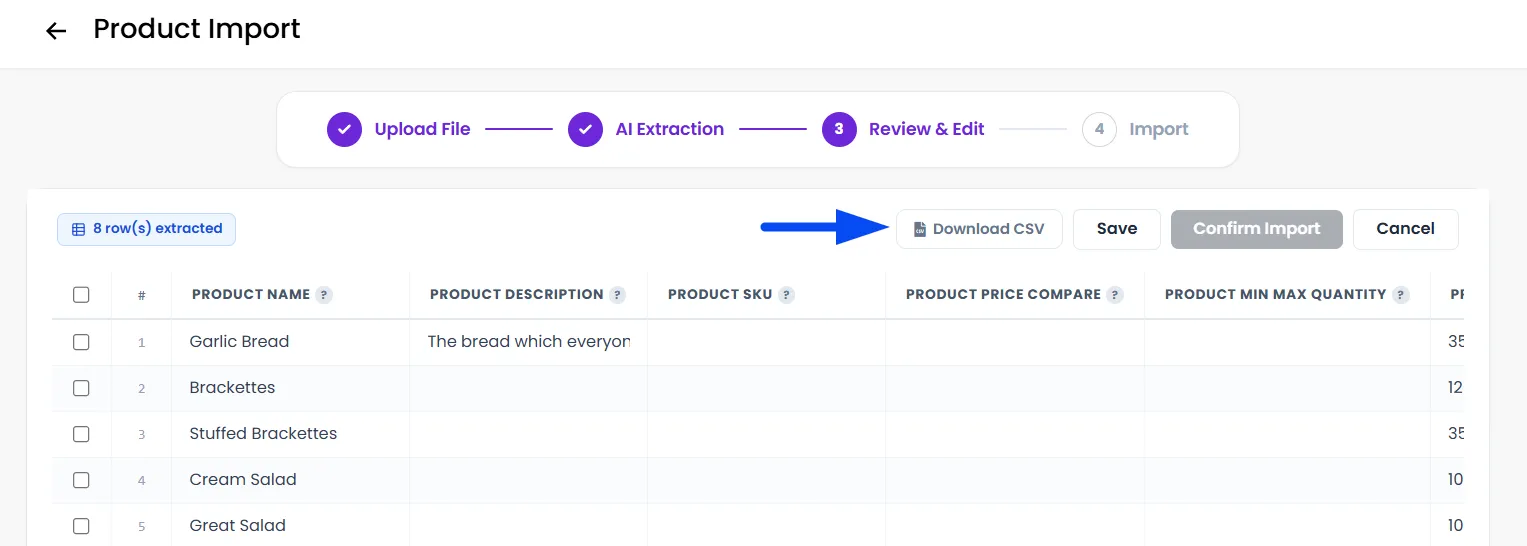
Download CSV
Click Download CSV in the toolbar to save a local copy of the current data.
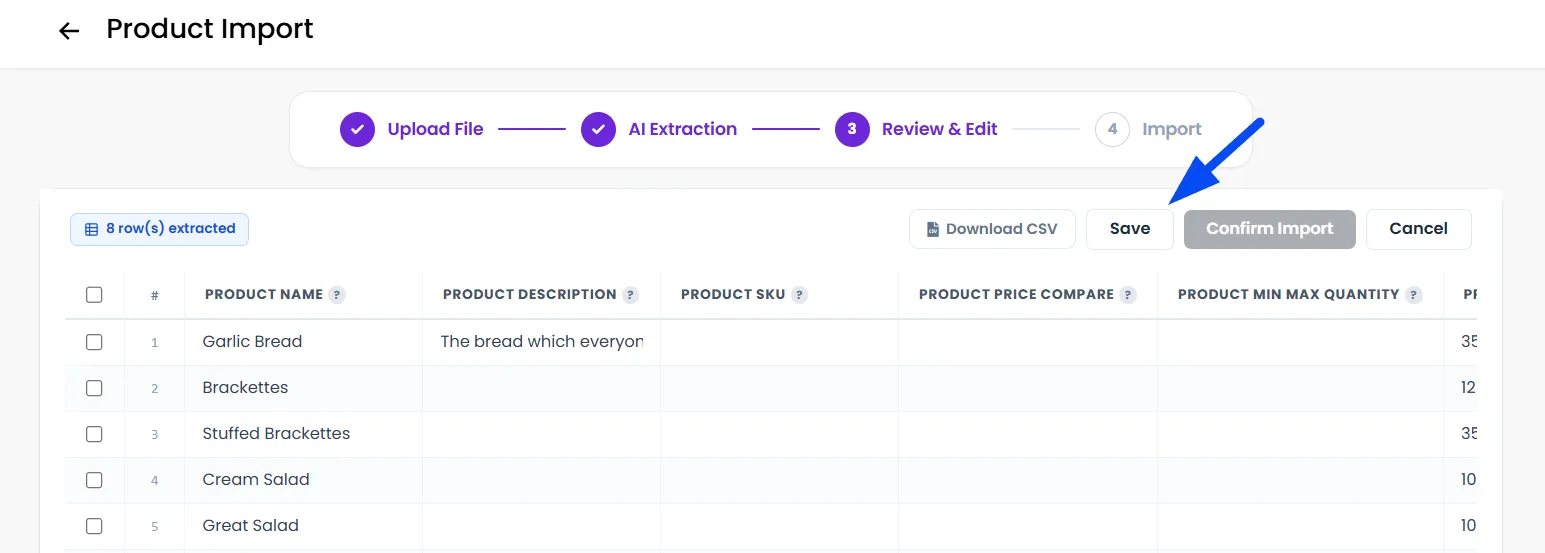
Save progress
Click Save to save your edits without confirming yet. You can return later and resume by selecting Review from the Import History section.
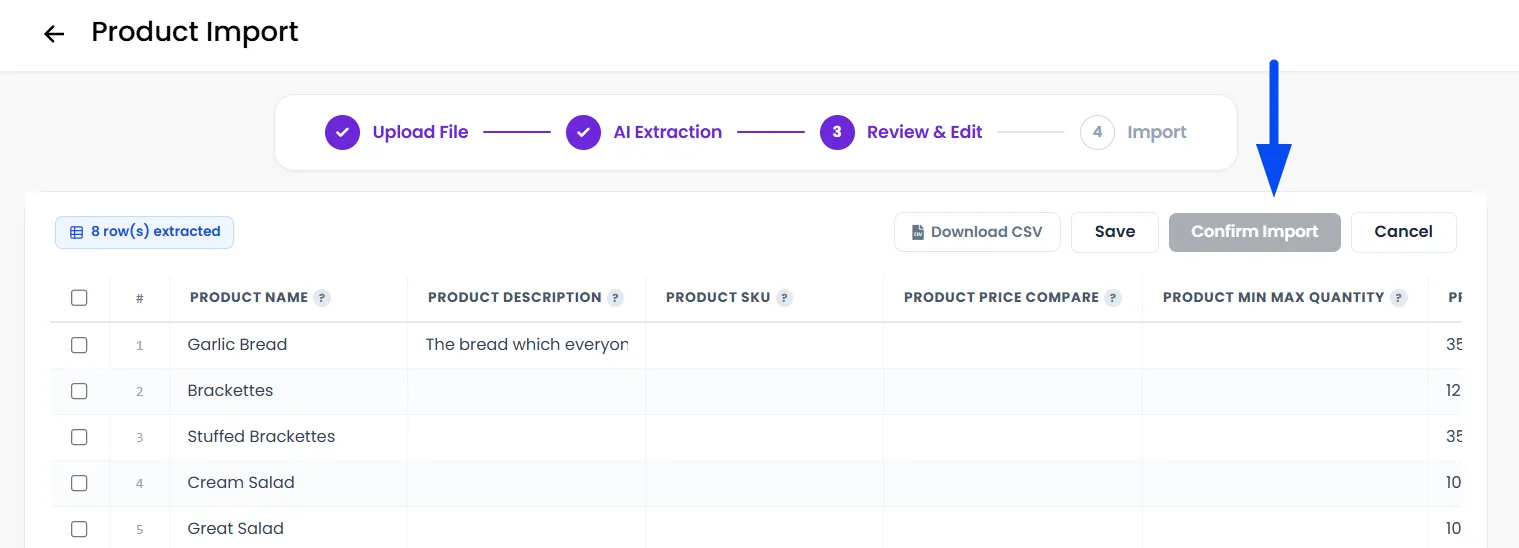
Confirm Import
Click Confirm Import when ready. This starts the final import process and creates the products.
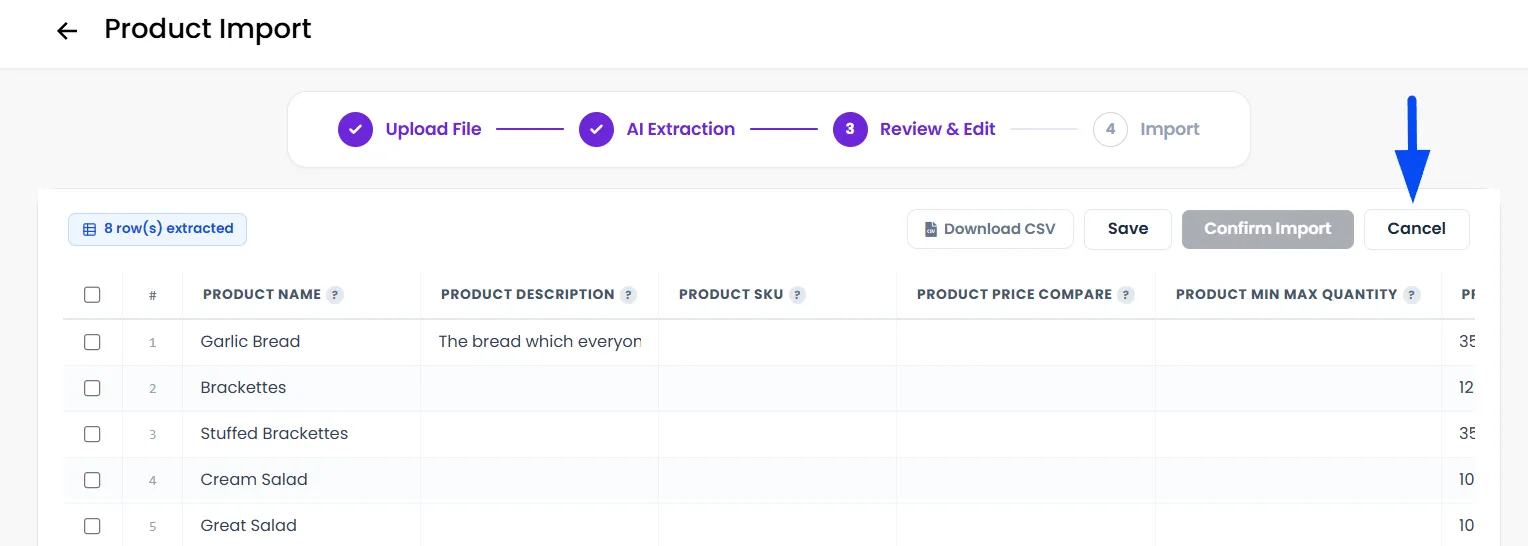
Cancel Import
Click Cancel to discard this import. This action cannot be undone.
Managing Your Imports
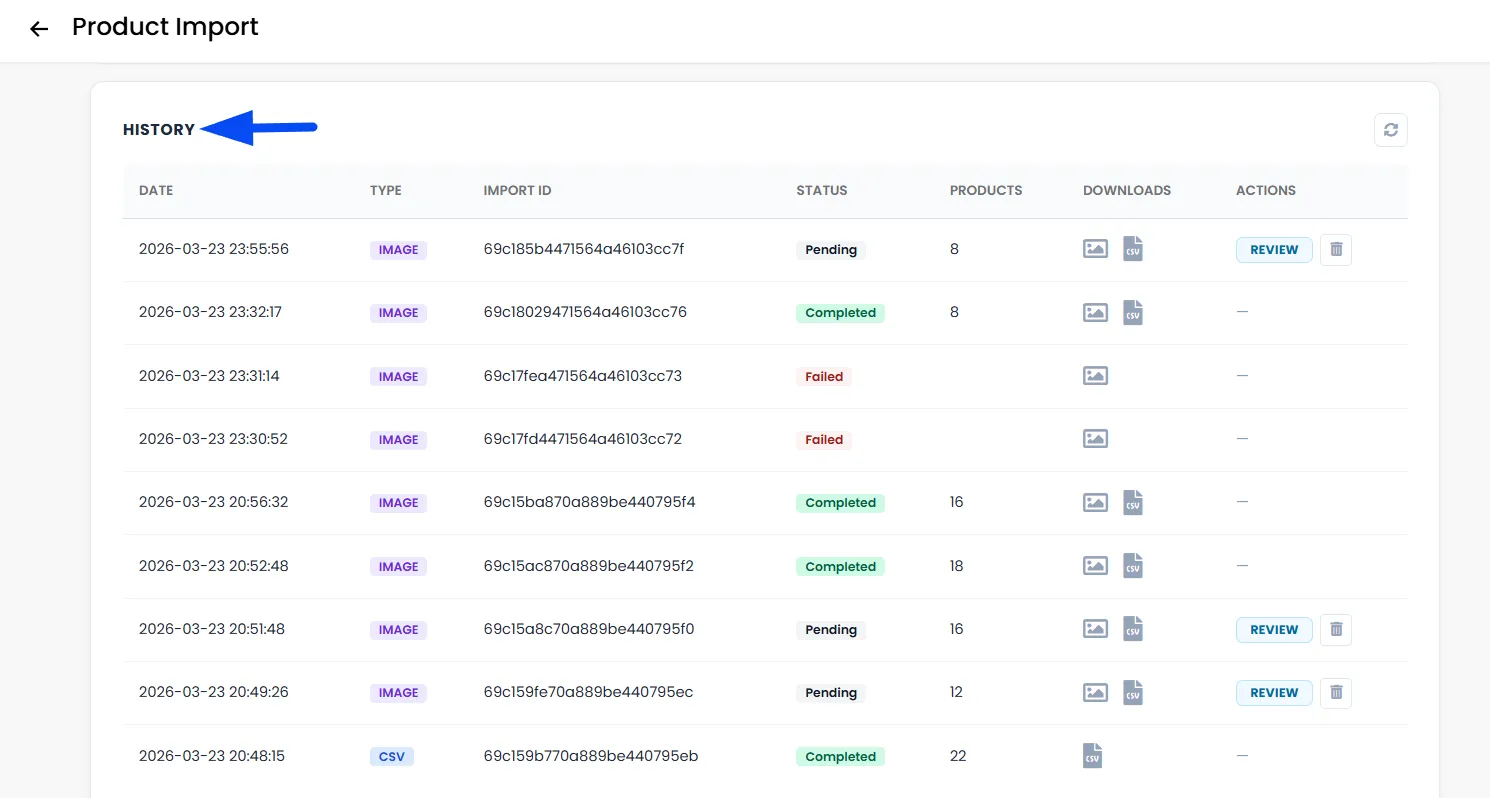
The History table below the upload area shows all past and active imports. Each row displays
- Date - When the import was created.
- Type - CSV or IMAGE
- Status - Completed, Processing, Pending, Failed, or Discarded
- Products - The number of products extracted or imported
- Downloads - Download the source file or the mapped CSV
- Actions: Resume, Review, or View Progress, depending on the current stage.