CSV Product Import
Bulk Import Products Using CSV
Bulk import is the fastest way to add many products at once. Instead of creating items one by one, you fill a CSV file (Excel/Google Sheets) and upload it.
Navigating to the Product Import Section
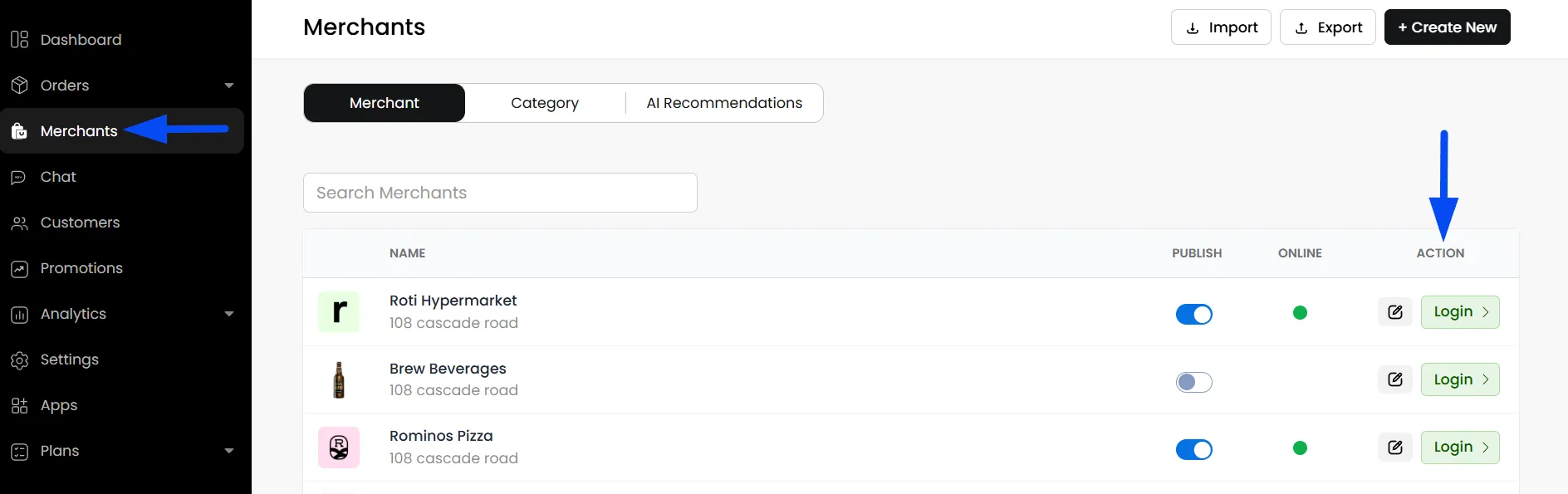
- To import products, go to Admin Panel > Merchants, and use the Auto-Login option to access the merchant panel.
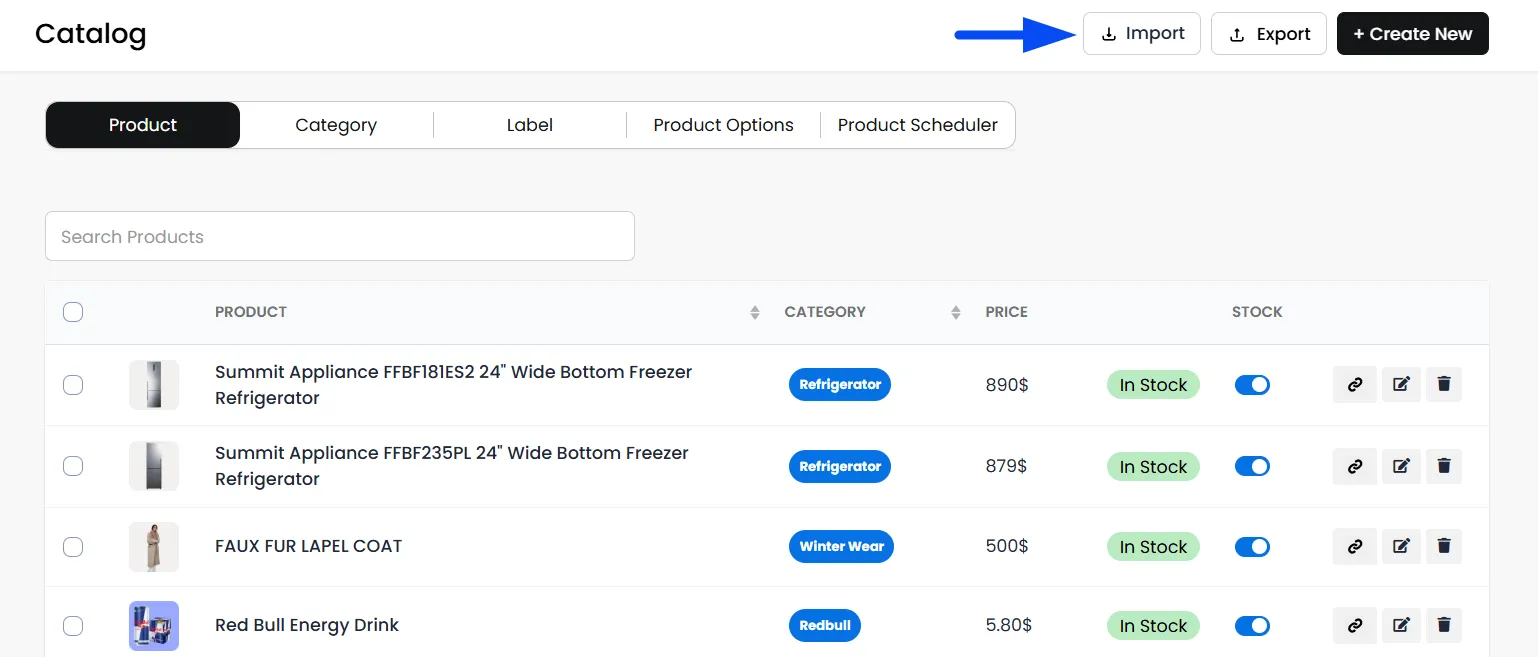
- In the merchant panel, go to the Catalogue section and click on Import to select your preferred import method.
Required Fields for Successful Product Import
Important: The following fields MUST be filled for a product to import successfully. If any of these are missing, the import will fail.
Mandatory Fields
- Product Name
- Selling Price
- Cost Price
- Product Category
Product ID (Product.ID)
The Product.ID column needs to be blank. It will be filled automatically as the system generates the product ID for each product.
Product Name (Product.Name)
What this column is: The name of the product as customers will see it.
Rules:
- Required
- Plain text
- One product per row
Example: "Pizza"
Description (Product.Description)
What this column is: A short explanation of the product.
Rules:
- Optional
- Text only (no HTML required)
Example: "Classic pizza with tomato sauce and mozzarella cheese"
Importing Product Names and Descriptions in Multiple Languages via CSV
To add product names and descriptions in additional languages, first import your product CSV successfully. Once the import is complete, export the existing product CSV from the platform.
In the exported file, update only the Product Name and Product Description fields with the translations for your desired language. Do not modify any other fields or product data within the CSV.
After updating the translations, navigate back to the Import Products section. Before uploading the file, ensure that the menu language dropdown in the top-right corner matches the language used in the translated CSV. For example, if the product names and descriptions have been translated into French, select French as the menu import language.
Once imported, the platform will match the existing products and automatically add the translated product names and descriptions for the selected language without creating duplicate products.
SKU (Product.SKU)
What this column is: A unique identifier for your product (used internally and in reports).
SKU can be nullable, but cannot be duplicated
Rules:
- Optional but recommended
- Must be unique per product
Example: "PIZZA-MARG-001"
Price Compare (Product.Price.Compare)
What this column is:
Shows the “original price” crossed out (used for discounts/marketing).
Customers will see something like: $18.99 $14.99
Rules:
- This should be higher than your selling price
- Numeric only (no currency signs)
Example:
- Price (Sell): 14.99
- Price Compare: 18.99
If you don’t want to compare pricing → leave its value blank.
Min Quantity / Max Quantity (Product.Min.Max.Quantity)
What it does: Controls how many units of the product a customer can add to the cart per order.
- Min Quantity = the minimum customer must buy
- Max Quantity = the maximum customer can buy
Examples (Pizza):
- Min Quantity: 1
- Max Quantity: 5 (customer can buy up to 5 pizzas)
- Therefore, in the CSV file, you have to write it as 1,5
Base Price (Product.Price.Selling)
What this column is: The base price of the product before add-ons.
Rules:
- Numeric value
- No currency symbol
Example: 12.99
Cost Price (Product.Price.Cost)
What this column is: Internal cost price (used for reports only).
Rules:
- Optional
- Numeric value
Example: 5
Tax Percent (Product.Tax_Percent)
What it does: Adds tax to the product price based on a percentage.
If your catalog items have a fixed tax, it's recommended to use Global Tax through Custom Charges. If the product tax varies by item, utilize this feature to configure the tax percentage accordingly.
How to fill it:
- Enter only the number
- Don’t use %
Example:
- Tax Percent: 10 → means 10% tax
Status (Product.Status)
What this column is: Controls whether the product is visible.
Values:
- active
- inactive
Inventory (Product.Inventory)
What it does: How many units are available.
Example:
- Inventory Quantity: 30 (30 pizzas available)
Labels (Product.Labels)
What it does: Labels are usually used for store-facing filters/highlights like:
- “Best Seller”
- “New”
- “Popular”
- “Chef Special”
Category (Product.Category)
What this column is: The category under which the product will appear in your store.
Example: "Fast Food" category for "Pizza"
Tags (Product.Tags)
What it does: Tags help with internal organization + filtering/search (and can be used for better discovery depending on your setup).
Good tags are descriptive, like:
- “Vegetarian”
- “Cheese”
- “Spicy”
Image URL (Product.Images)
What this column is: A publicly accessible image URL for the product.
Rules:
- Must be a valid, publicly accessible link
- HTTPS recommended
Example: "https://img.freepik.com/free-psd/pictou-county-pizza-isolated-transparent-background_191095-32844.jpg"
Product Options / Variants
Product options allow you to add choices to a product. In the CSV, each option is defined first, and its variants are defined afterward in a specific format.
Option Name (Option1.Name)
This is where you define what choice the customer is making.
Example -
Option Name: "Pizza Size"
Option Type (Option1.Type)
Defines how many variants can be selected.
Allowed values:
- Single → User can select only one
- Multiple → User can select multiple
Option Enable Range (Option1.Enable_Range)
Controls whether min/max selection rules apply.
Allowed values:
- NO → No min/max restriction
- YES → Min/max selection required
Option Range (Option1.Range)
Used only if ENABLE_RANGE = YES.
Example: If the range is enabled, then define it as 1,3, indicating "1" is the minimum quantity and "3" is the maximum quantity. If the enable_range = "NO", then simply define here as 0,0
Option Required (Option1.Required)
Whether the customer must select this option.
Allowed values: "Yes" OR "No."
Option View (Option1.View)
Controls how options are displayed on the app.
Allowed values:
- LIST
- CARD
Basic Variant Structure (Option1.Variants)
Each variant follows this format:
Variants are separated by semicolons ;
Example from Your CSV (Simplified)
Multi-Level Add-ons (Nested Options)
This is where advanced customization happens.
Nested options are defined inside curly braces {}
CSV Rules for Nested Add-Ons
- If you do not want to define a value in the Multi-Level Variants(such as minQty, maxQty, price, description, or image), do not remove it. Instead, leave it empty by adding commas. Example: Medium,0,0,,
- Commas ( , ) are used to separate values within the same option or variant. Even empty values must keep their comma position.
- Semicolons ( ; ) are used to indicate that one variant is finished and the next variant begins. Each variant must be separated using a semicolon.
- Curly brackets { } are used to define nested or multi-level add-ons. Every opening { must be closed with }, otherwise the import will fail.
- Once all variants of an option are defined and the final closing } is added, that option is considered complete.
- After completing one option (for example, OPTION1), you can move on to define the next option (OPTION2, OPTION3, etc.) using the same structure.
Understanding the Syntax
Symbol | Meaning |
|---|---|
, | Separates values inside a variant |
; | Separates multiple variants in a nested add-ons |
{ } | Indicates a child option exists |
( ) | Contains child variants |
Nested Option Structure
The symbol "{" indicates the child options, and the symbol "(" indicates the child variants within the child options.
NOTE: Child option range must be in format "[min, max]" with square brackets enclosed in double quotes, e.g., " [0,0]" or " [1,3]".
Real Example (Toppings inside Size)
Here is another example demonstrating two levels of add-ons:
Real Example: Size → Crust (2 Levels)
Review & Edit (Spreadsheet Editor)
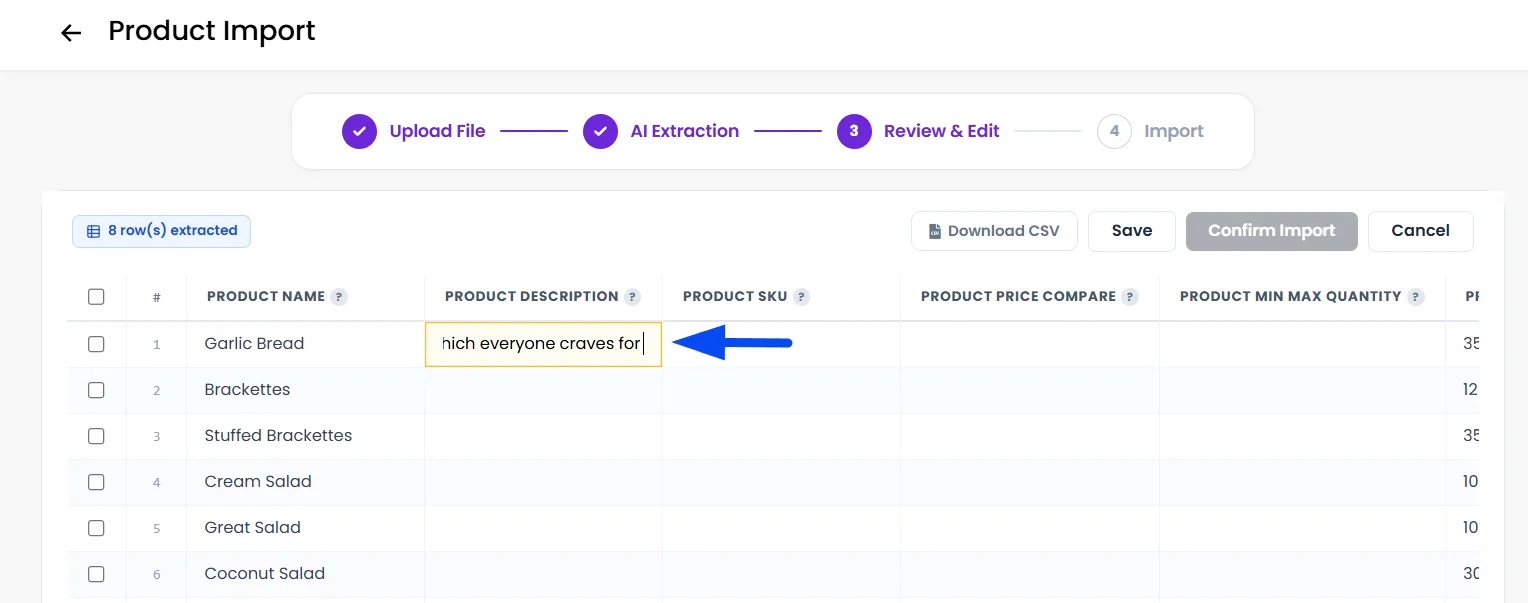
Once the items have been uploaded in the CSV and imported, this screen appears for both import methods after the file has been processed. It is your last chance to check the data before products are created.
Edit any cell
Click directly into a cell and type to correct values.
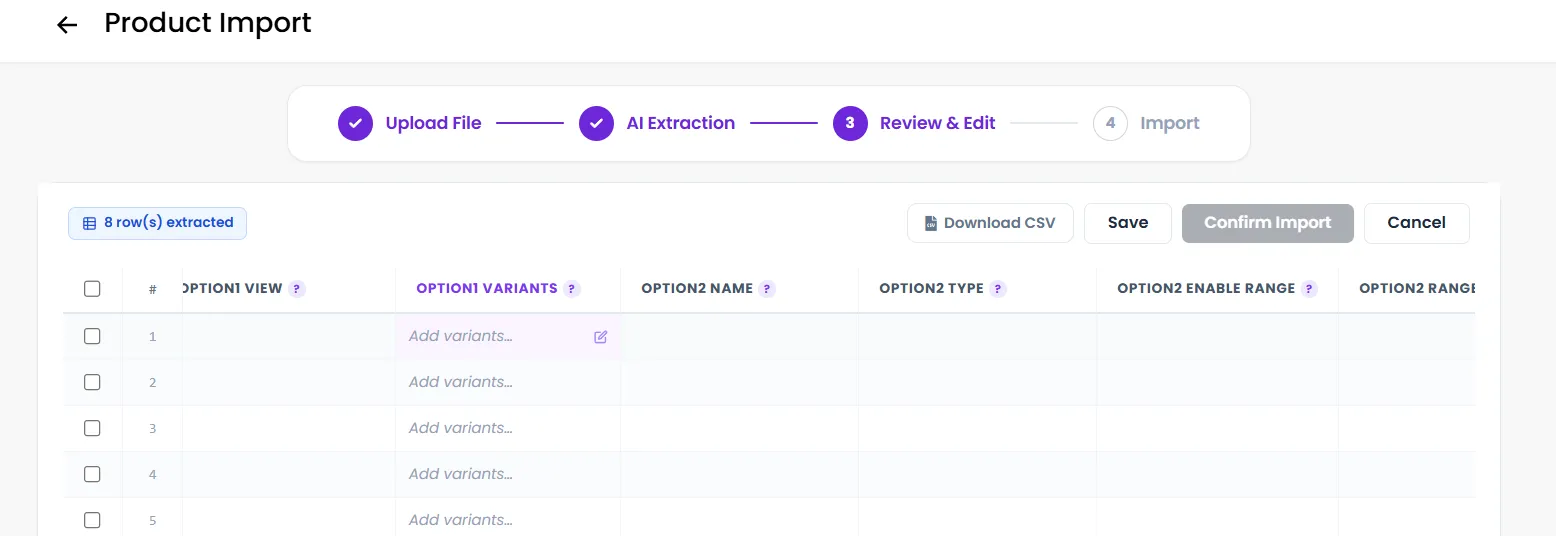
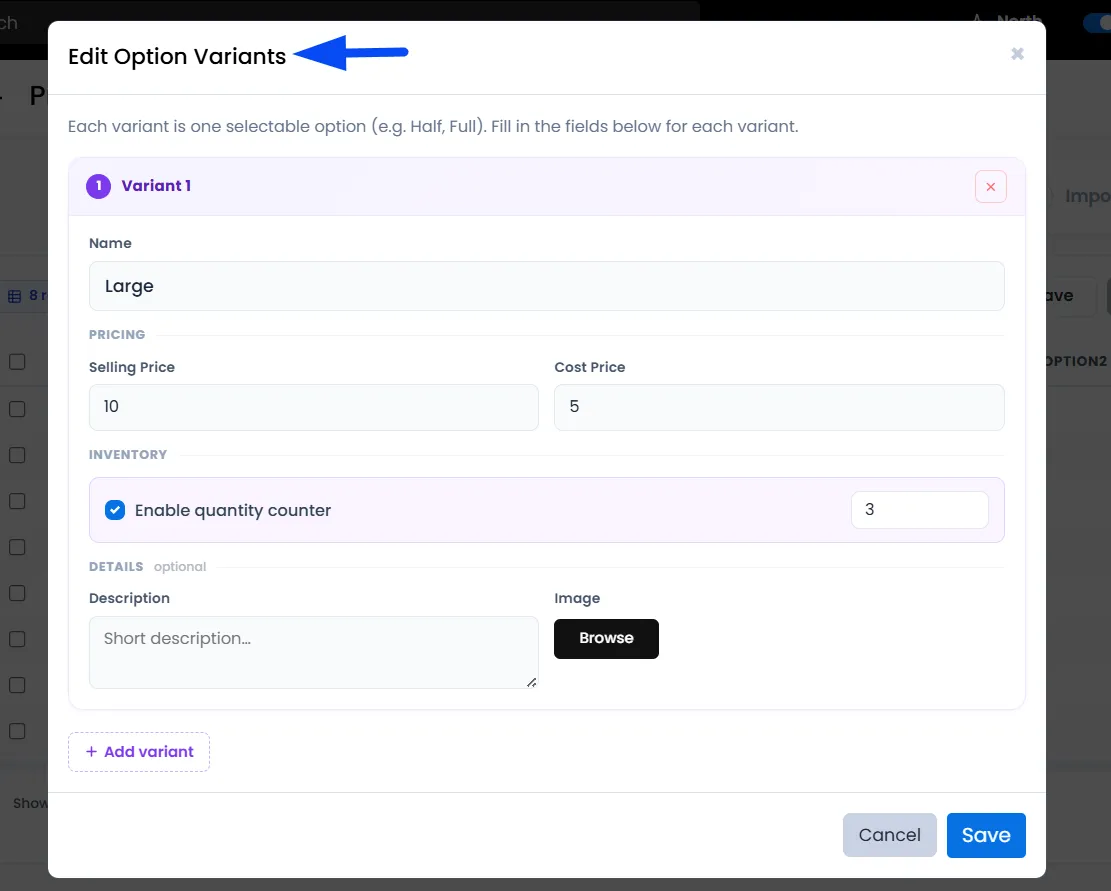
Edit variants
Click the variants cell to open a pop-up editor for sizes, prices, and inventory per variant. You can define each variant’s name (e.g., Half, Full, Large), set selling and cost prices, manage inventory (quantity counter), add descriptions, and upload images for each variant.
Delete rows
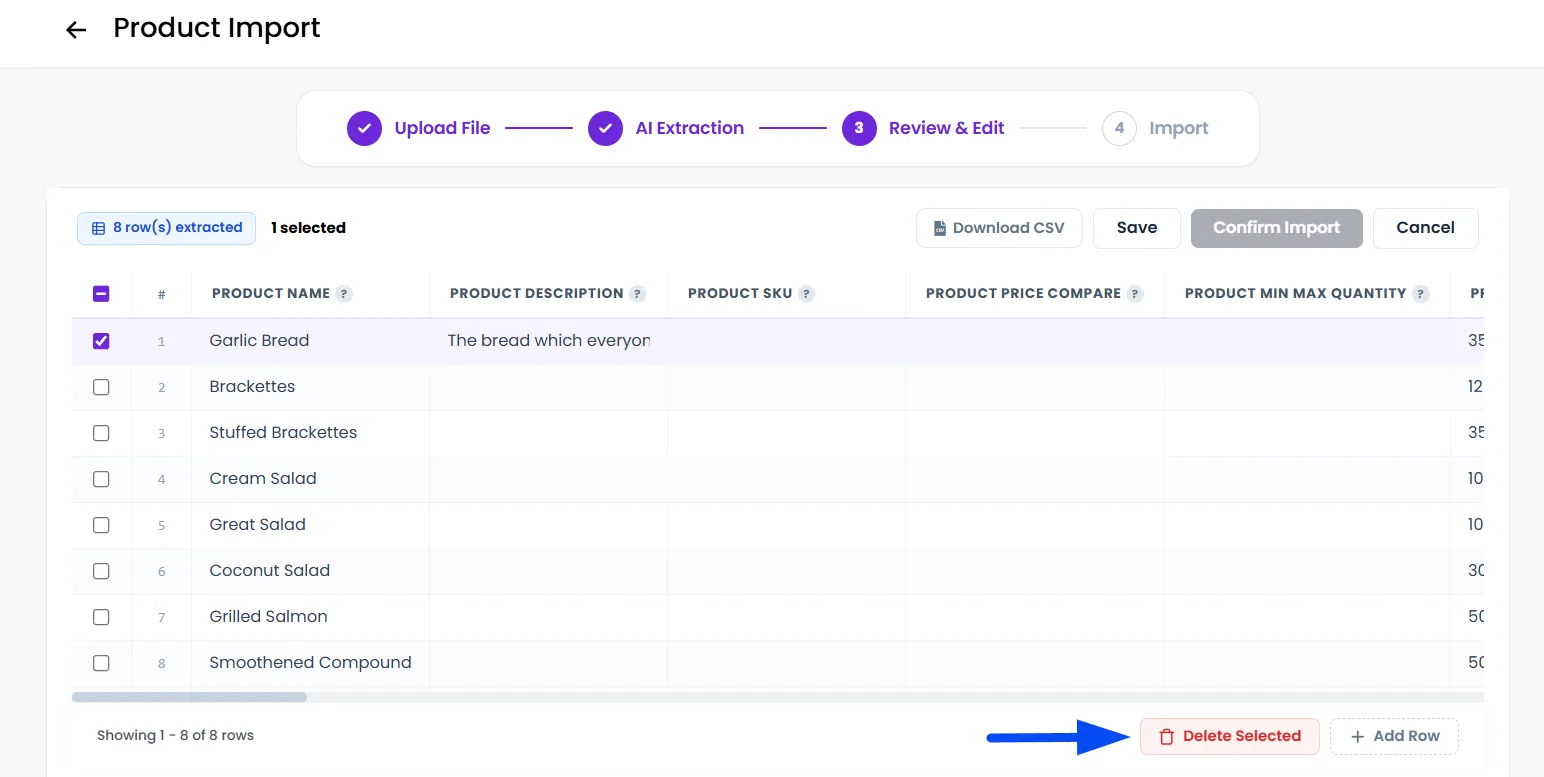
Select rows using the checkboxes and click Delete Selected to remove unwanted products.
Download CSV
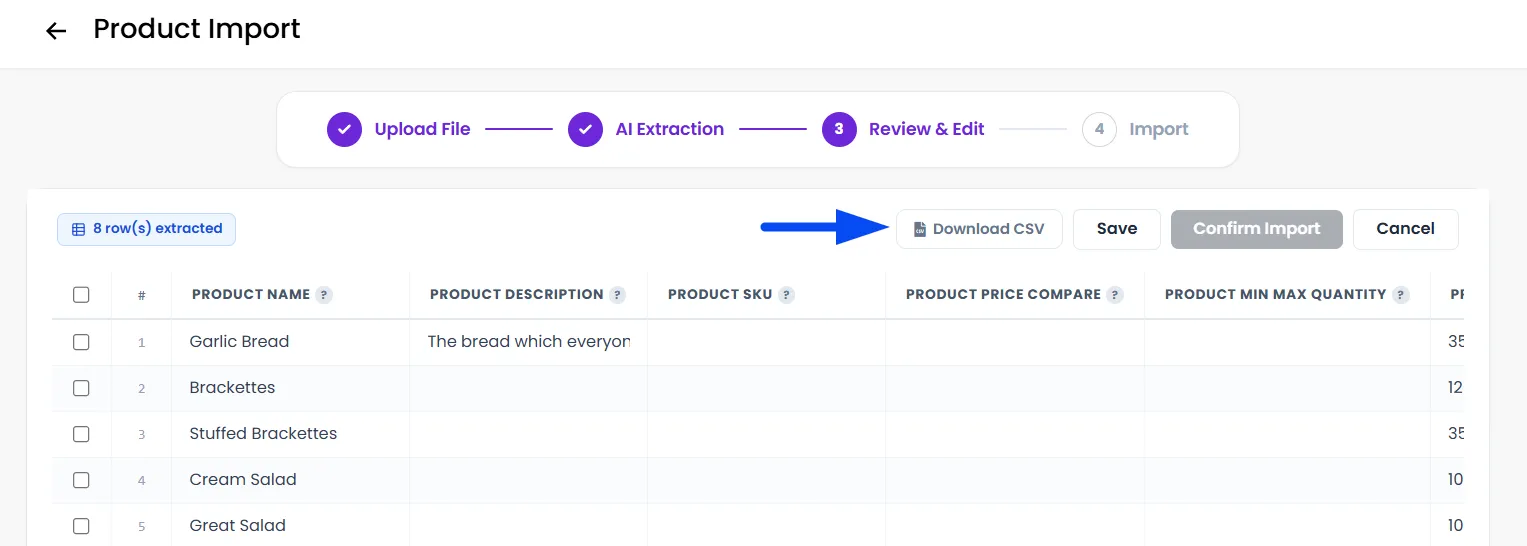
Click Download CSV in the toolbar to save a local copy of the current data.
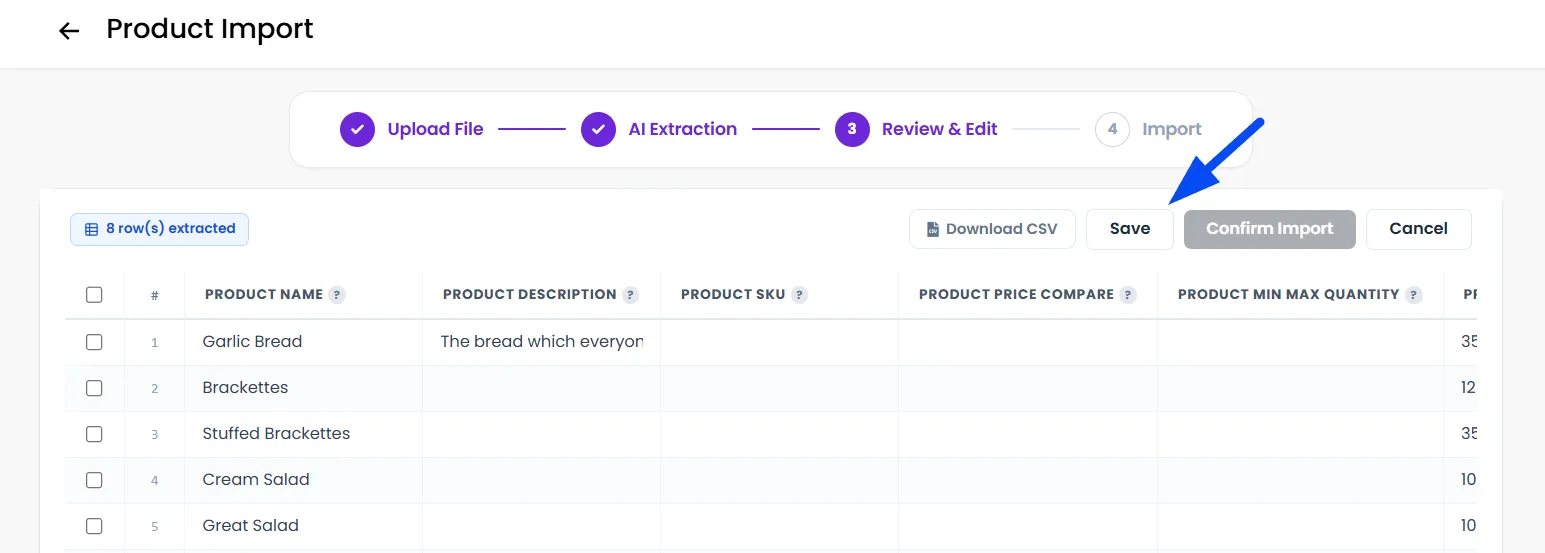
Save progress
Click Save to save your edits without confirming yet. You can return later and resume by selecting Review from the Import History section.
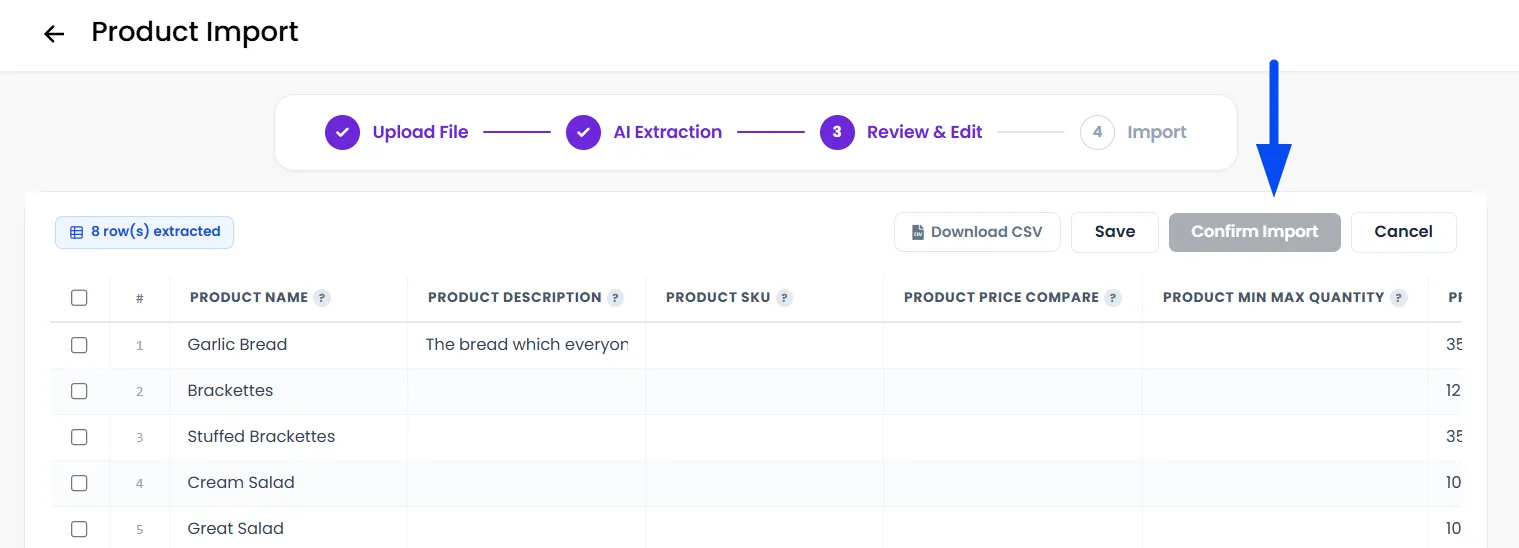
Confirm Import
Click Confirm Import when ready. This starts the final import process and creates the products.
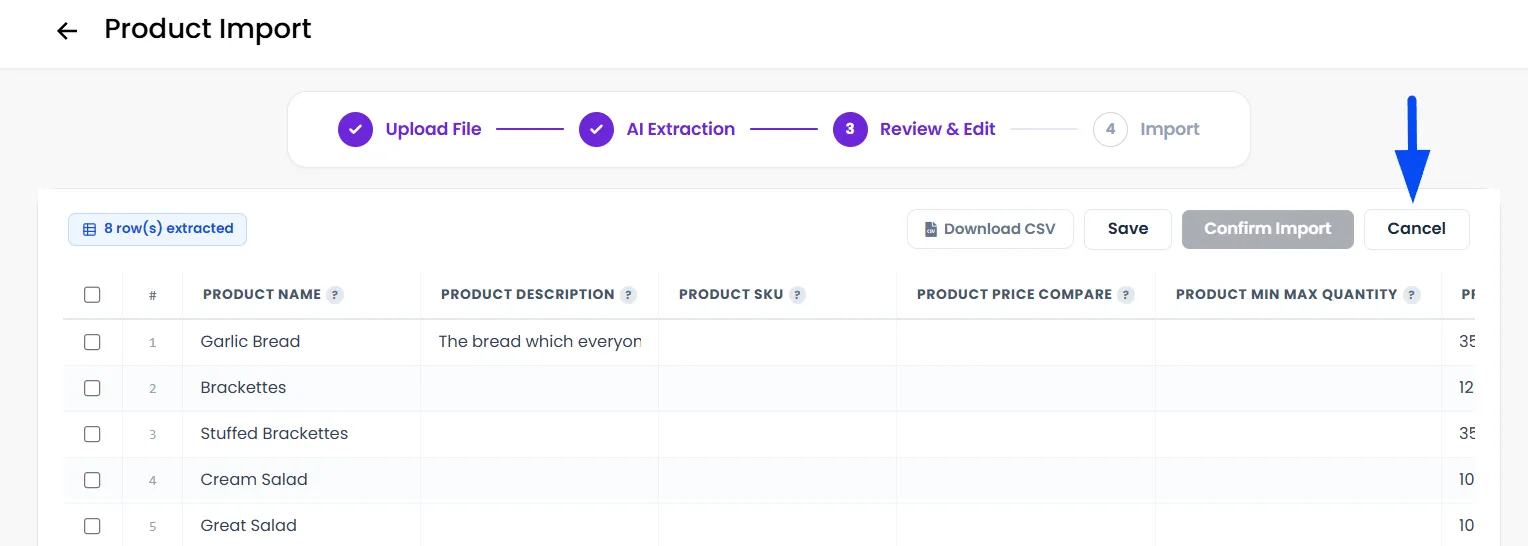
Cancel Import
Click Cancel to discard this import. This action cannot be undone.
Managing Your Imports
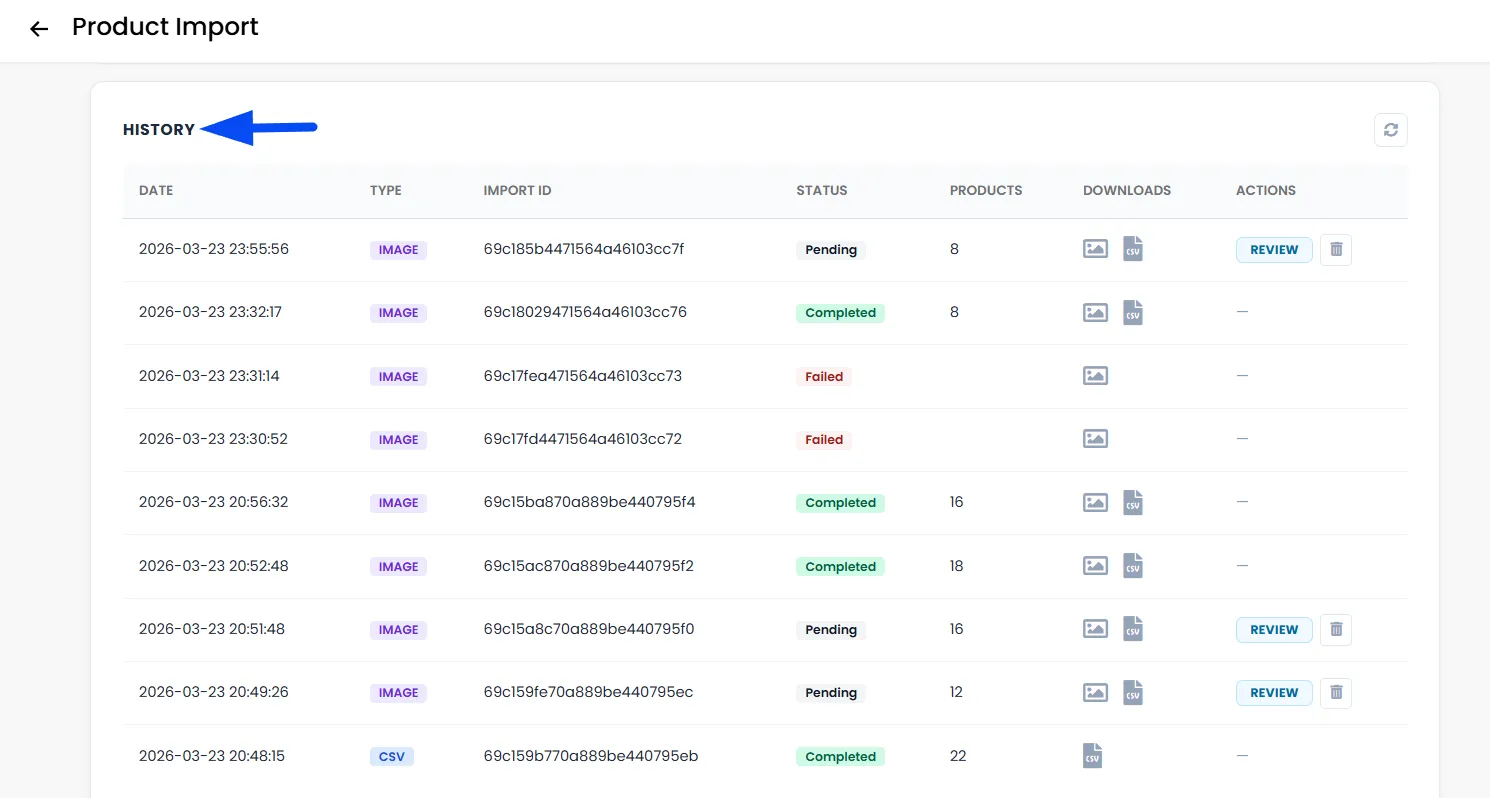
The History table below the upload area shows all past and active imports. Each row displays
- Date - When the import was created.
- Type - CSV or IMAGE
- Status - Completed, Processing, Pending, Failed, or Discarded
- Products - The number of products extracted or imported
- Downloads - Download the source file or the mapped CSV
- Actions: Resume, Review, or View Progress, depending on the current stage.