Admin Panel
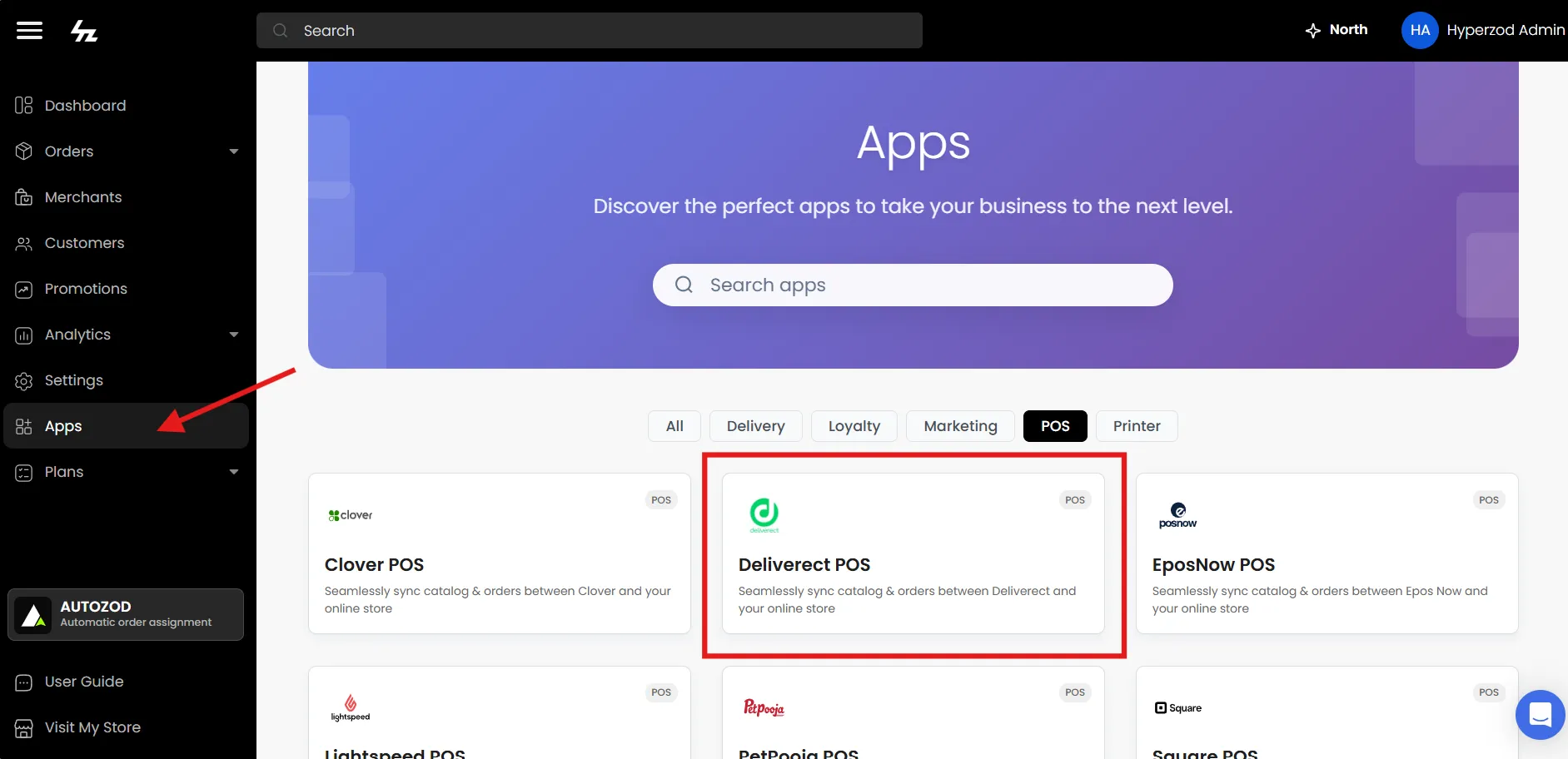
Apps
Deliverect POS Integration
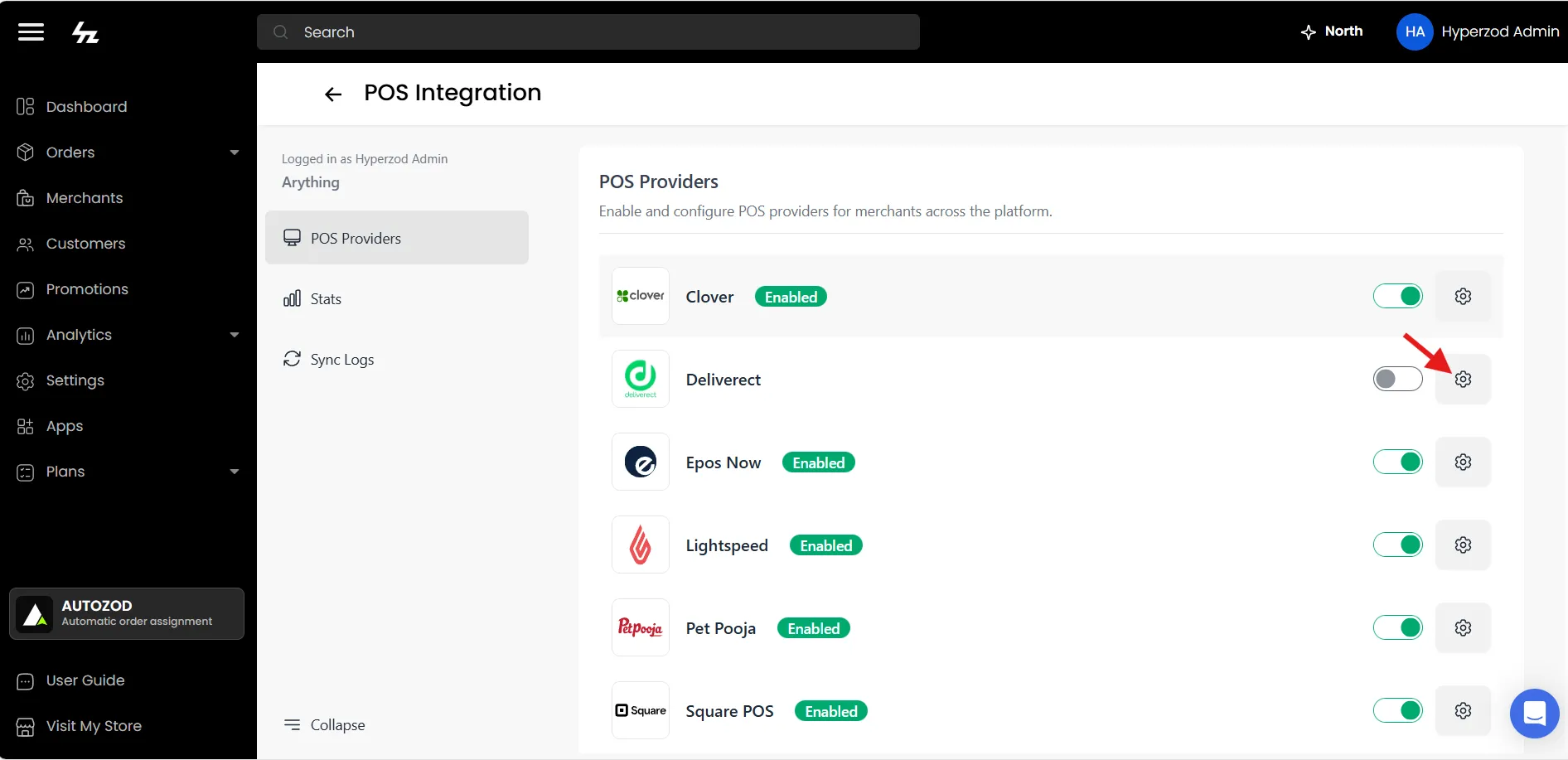
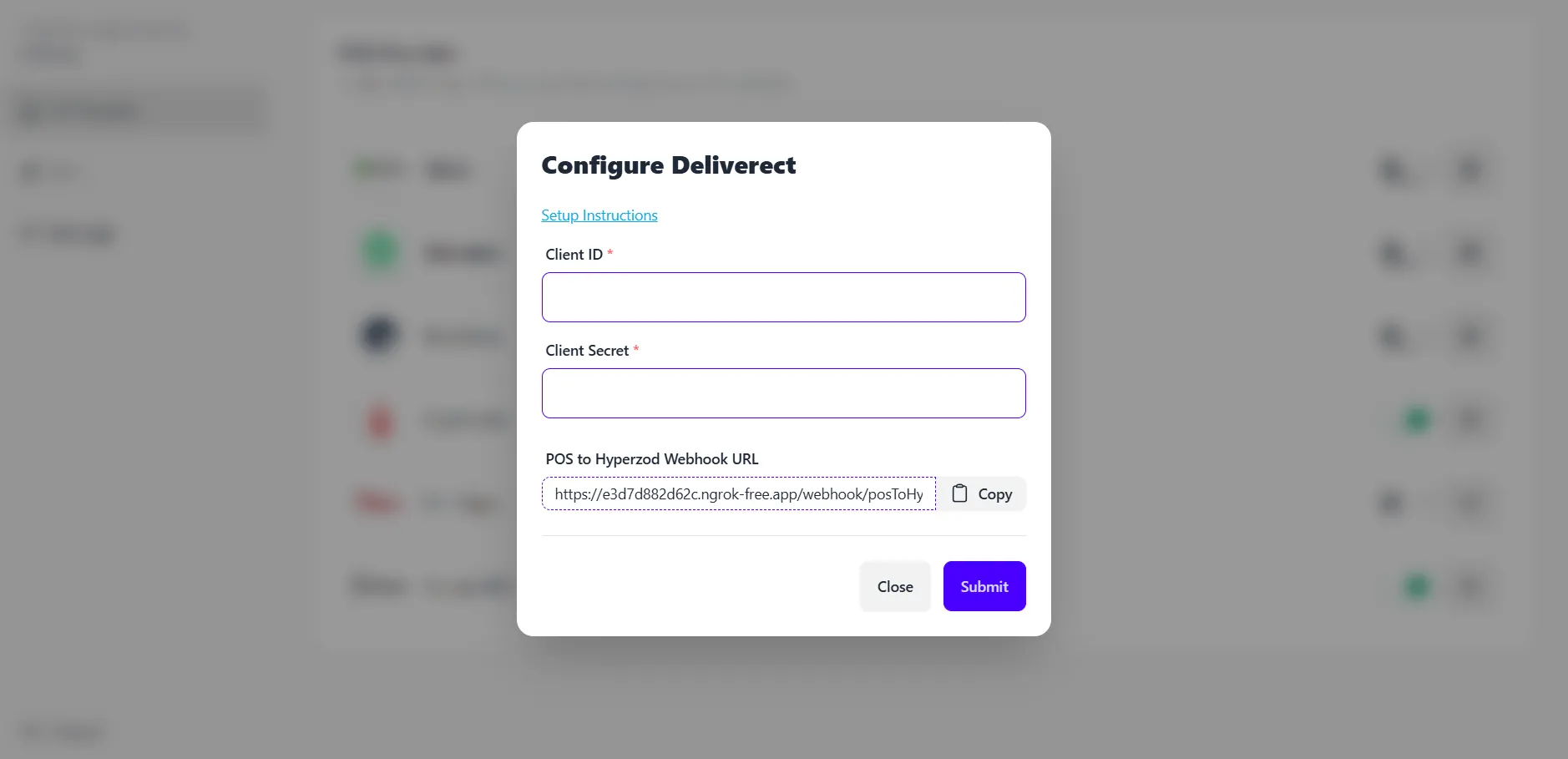
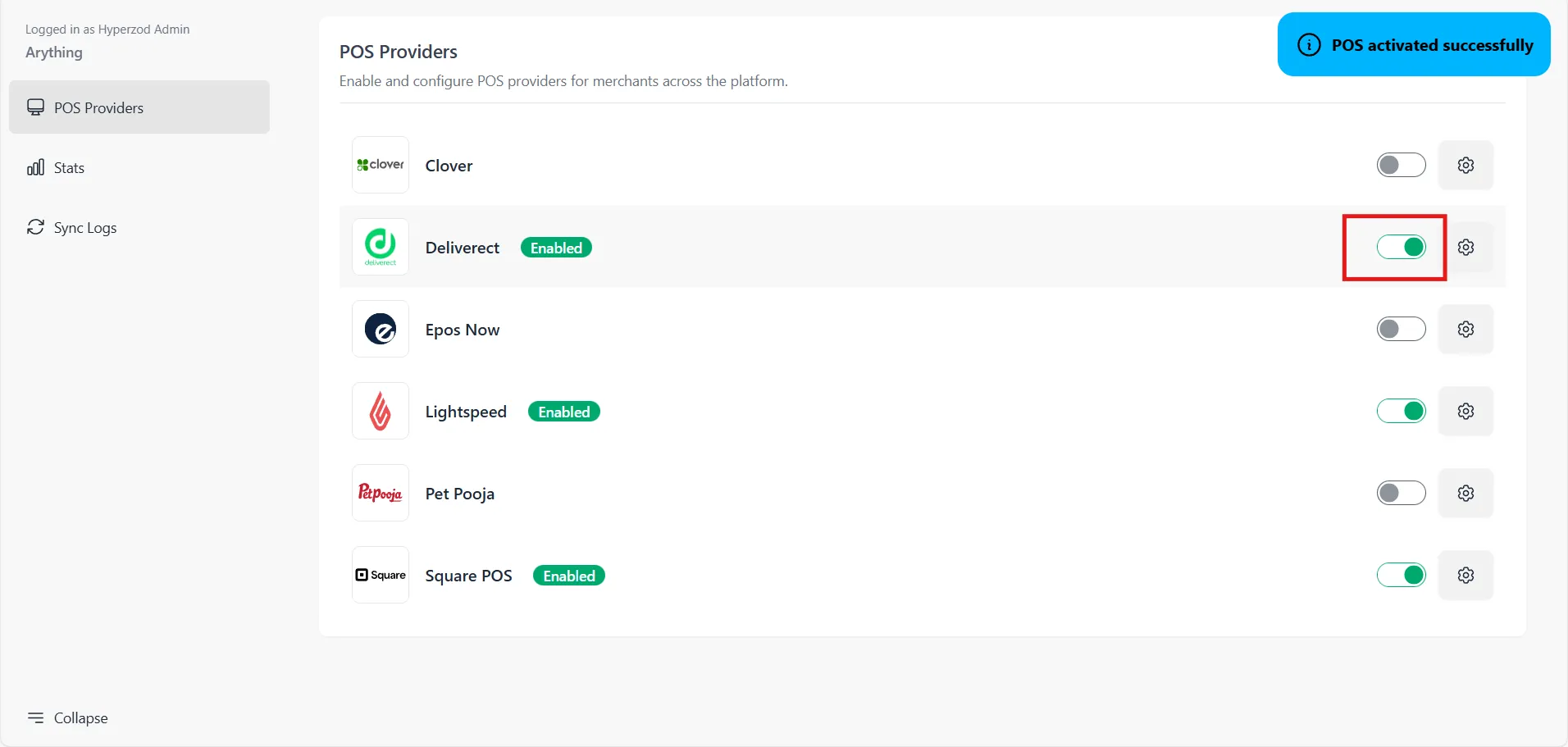
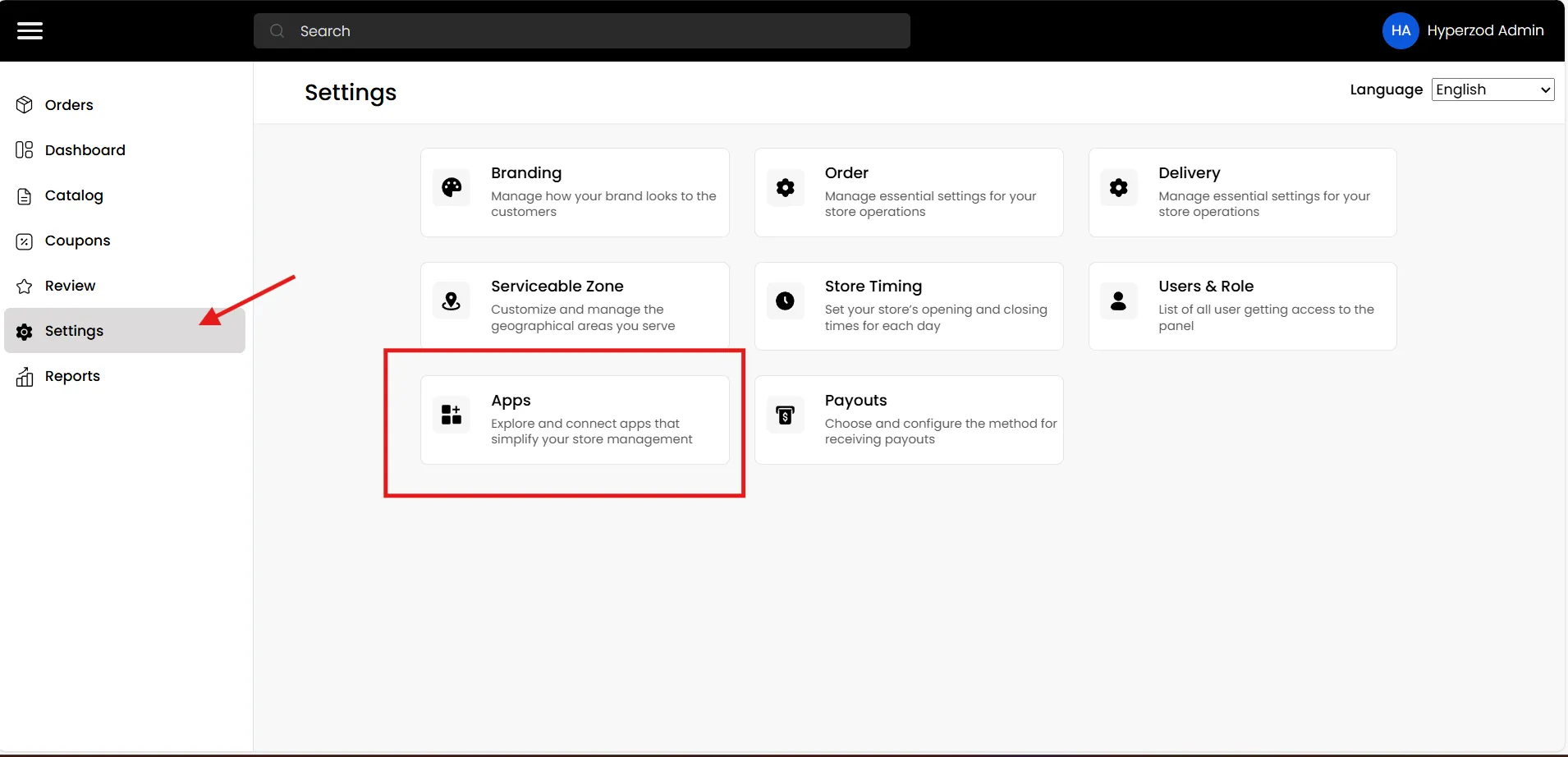
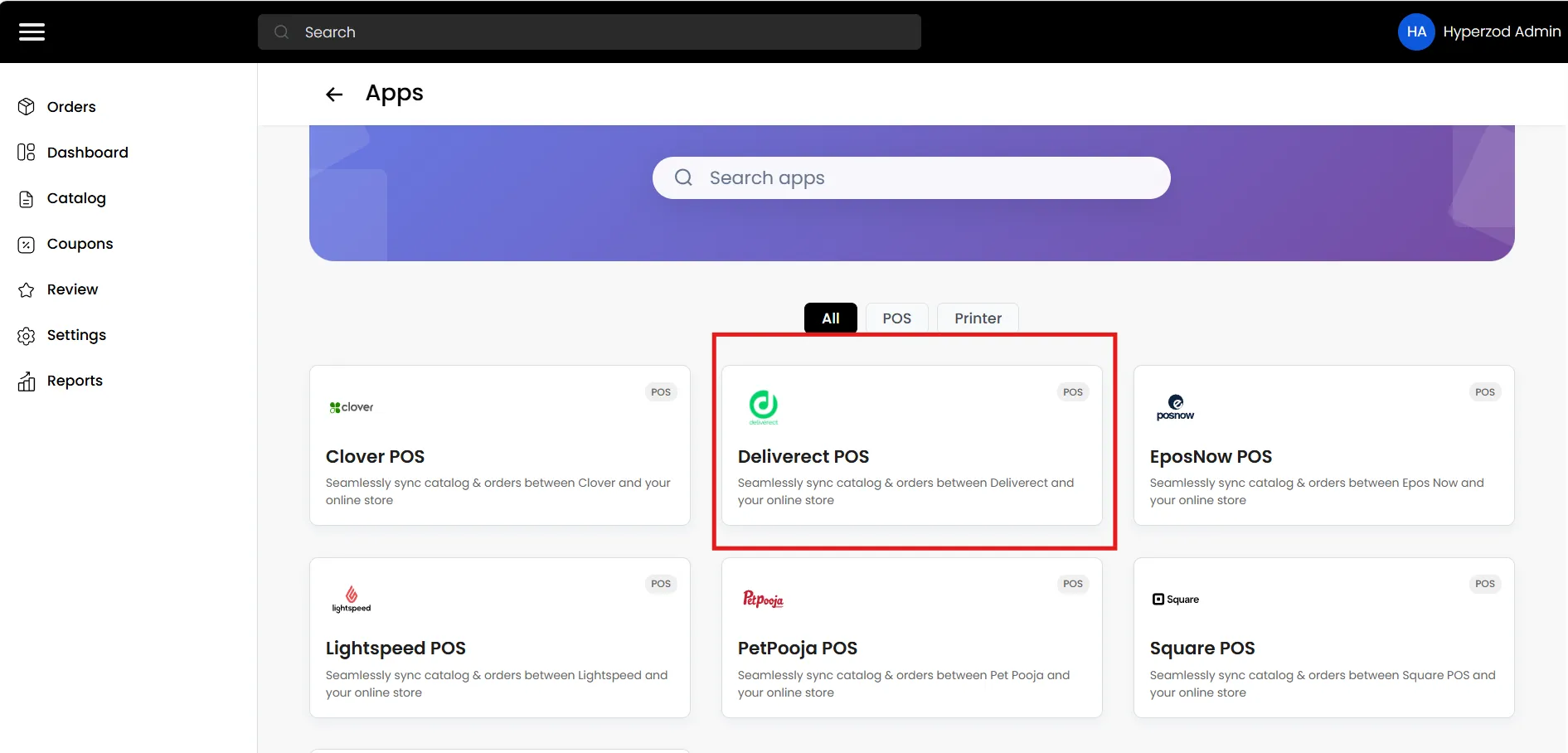
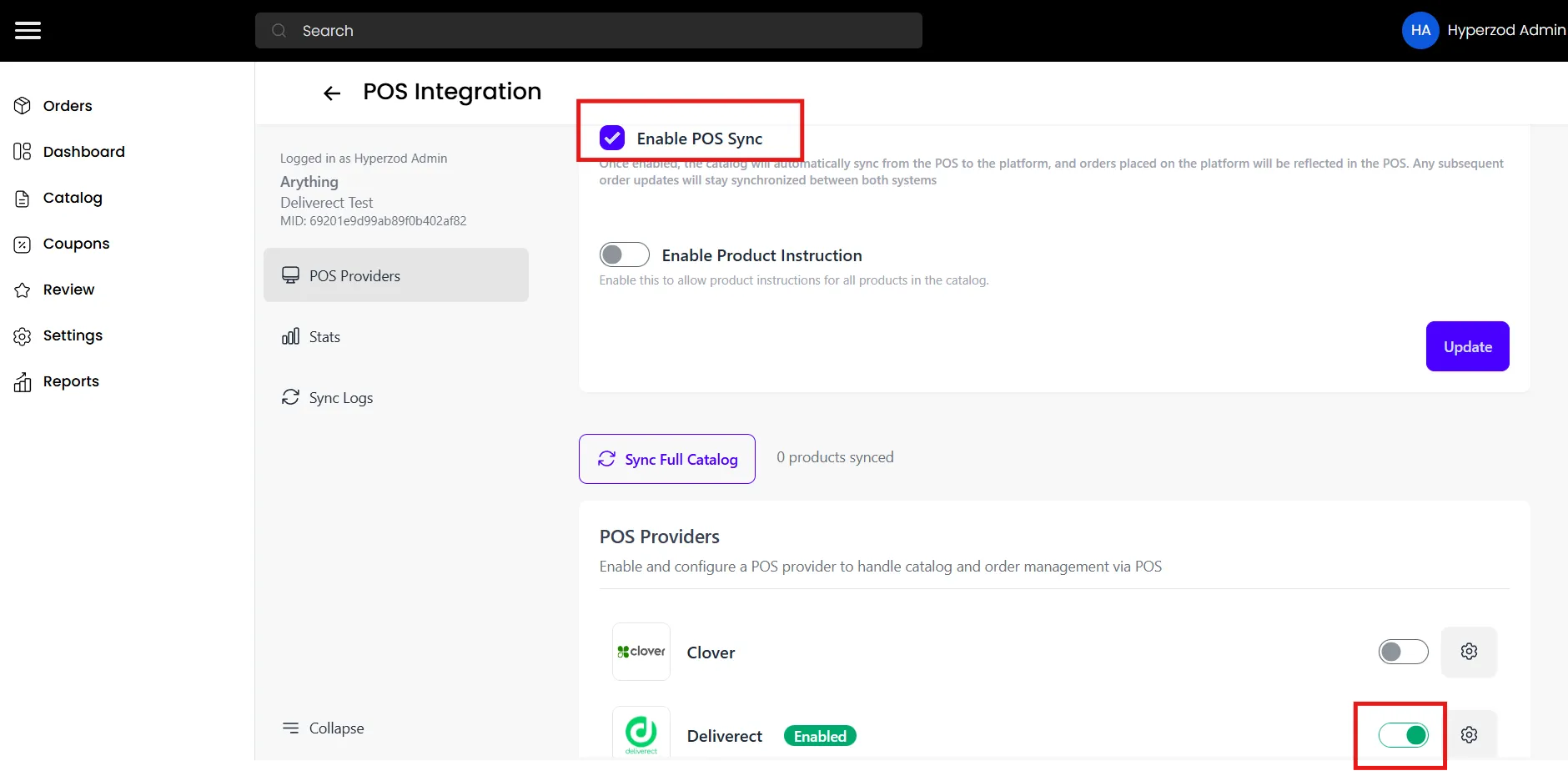
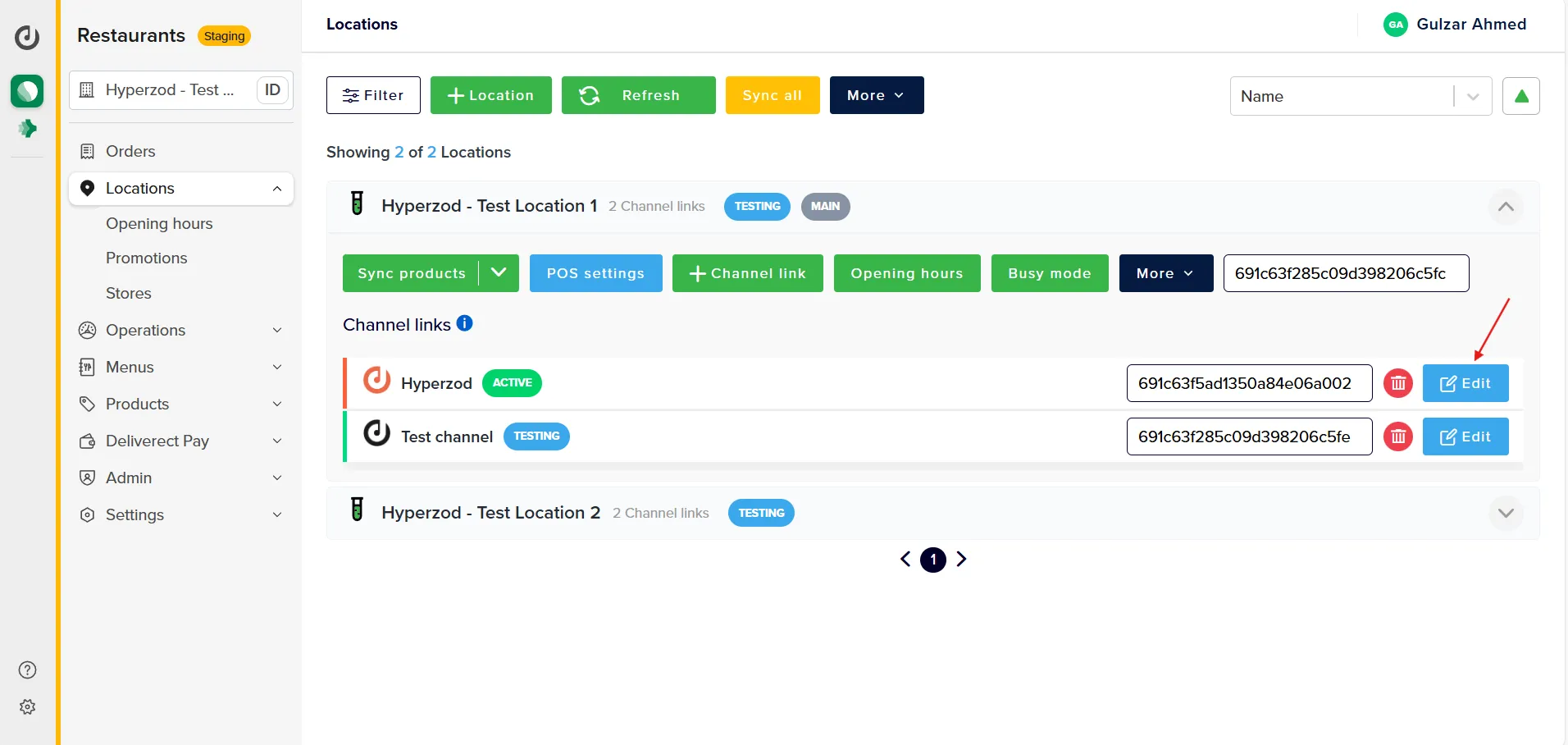
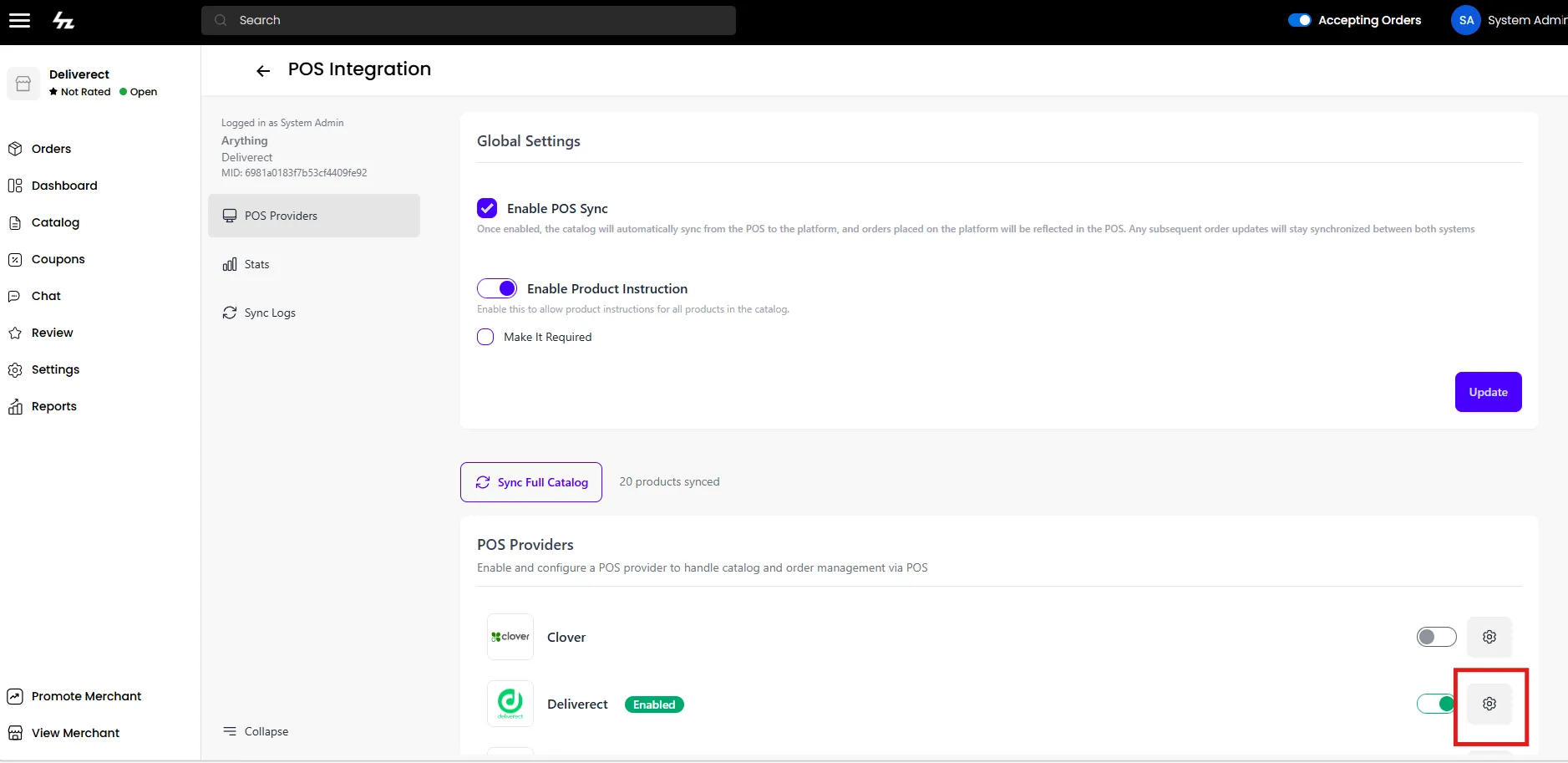
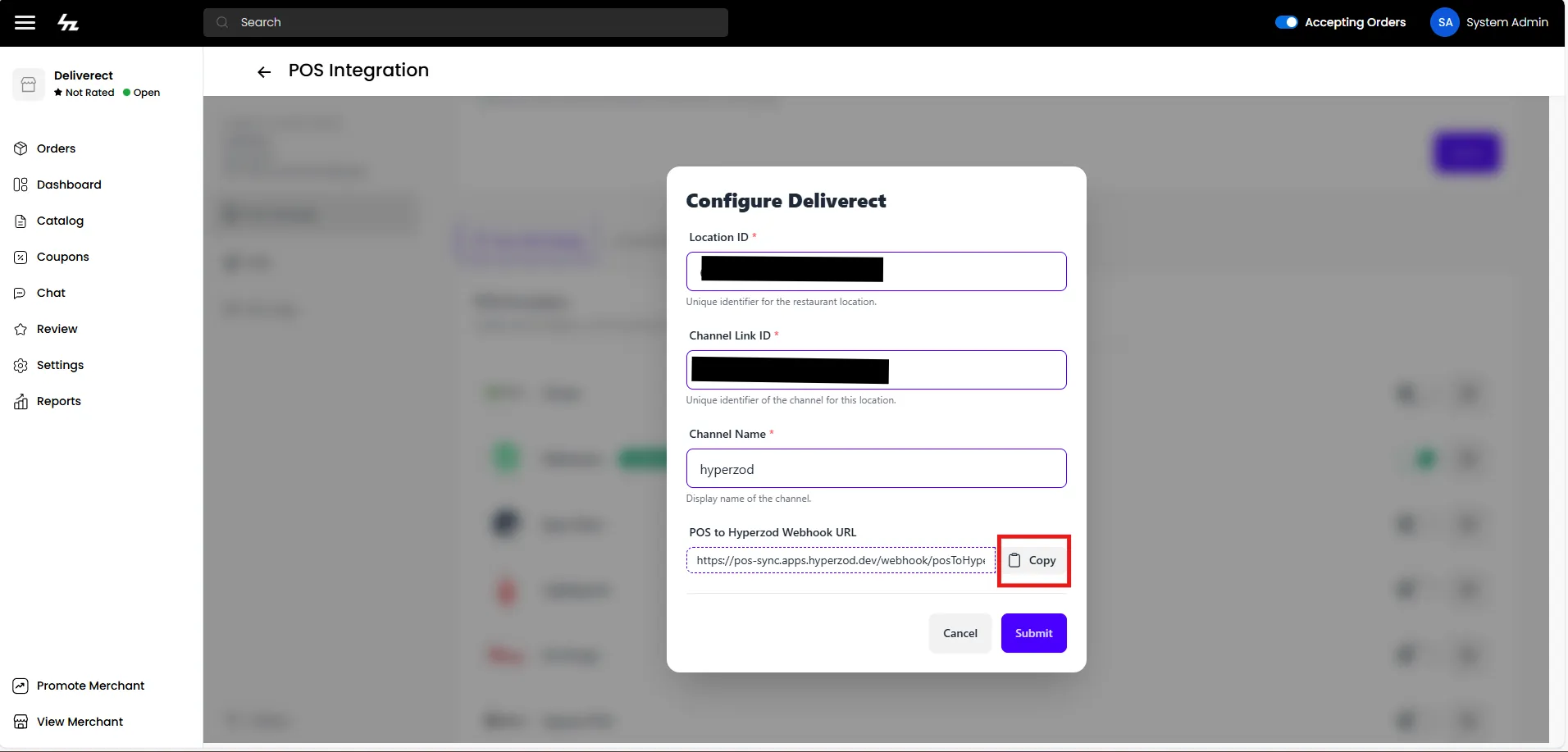
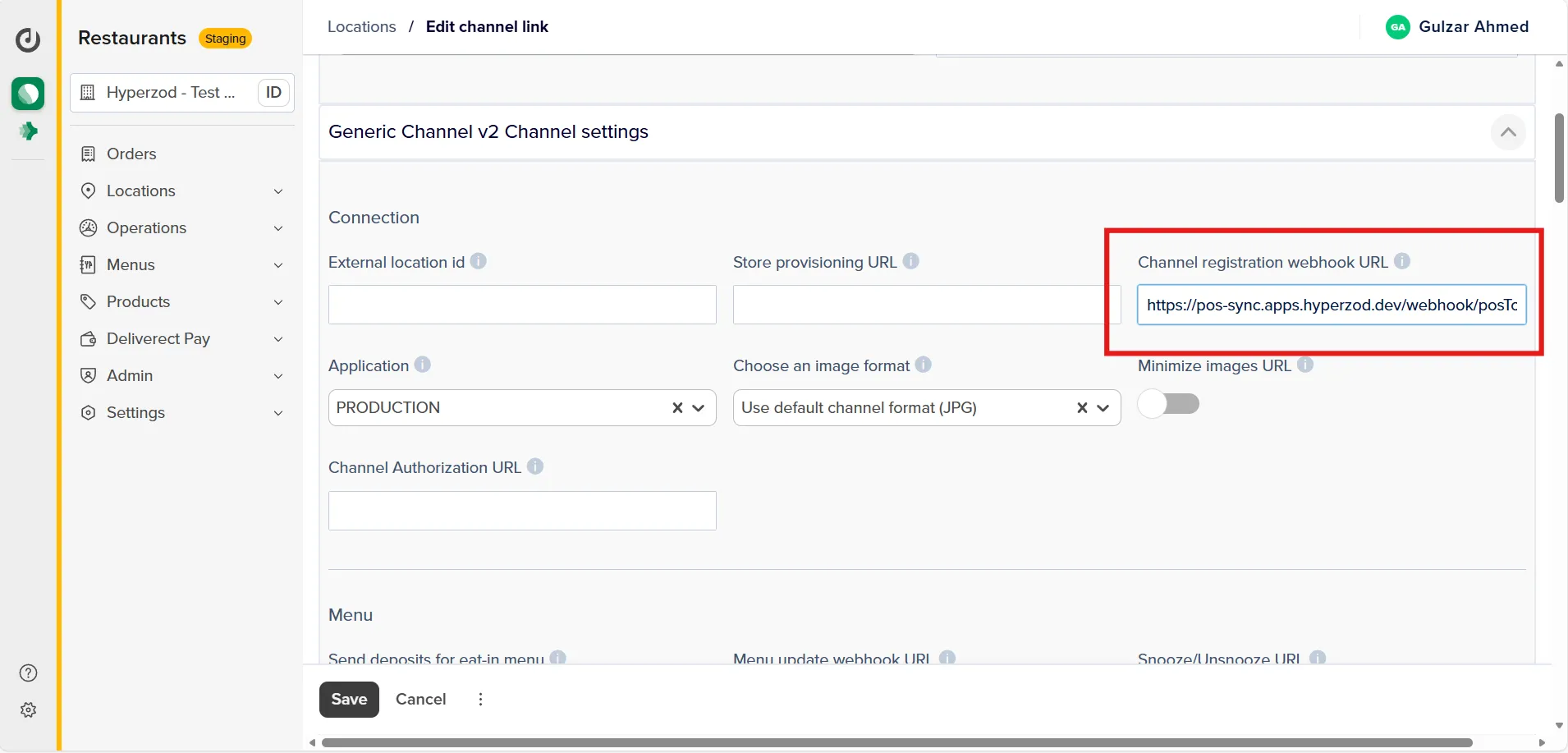
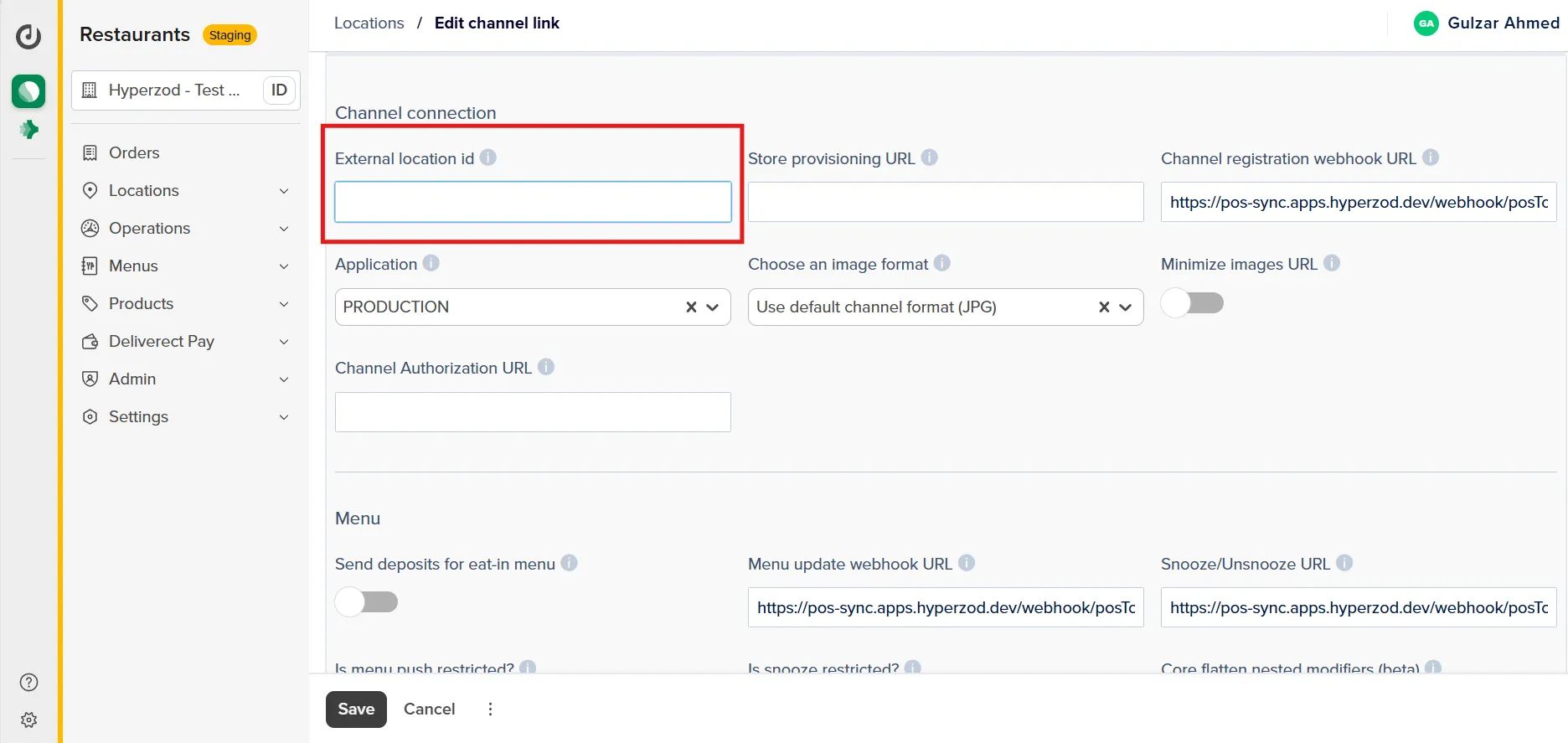
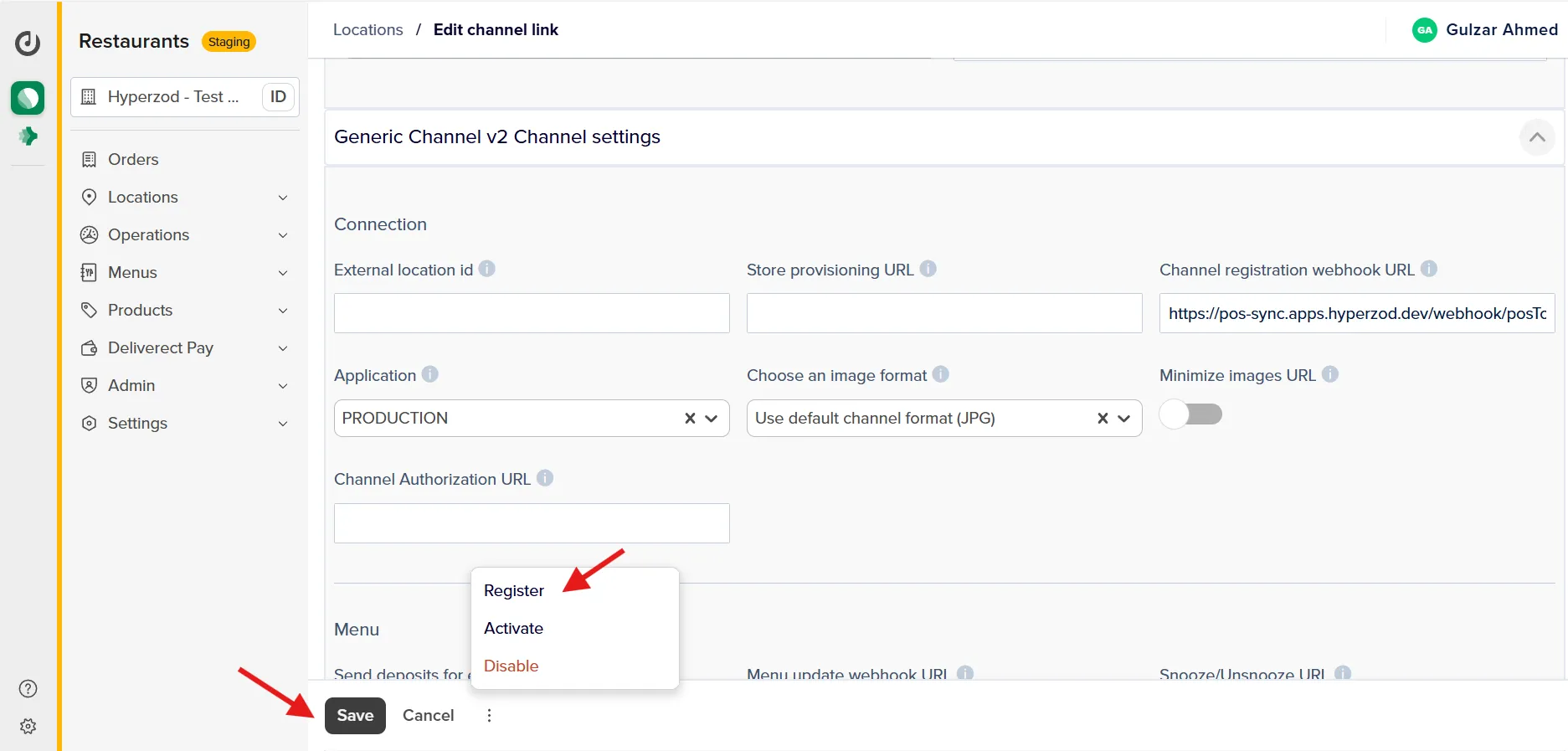
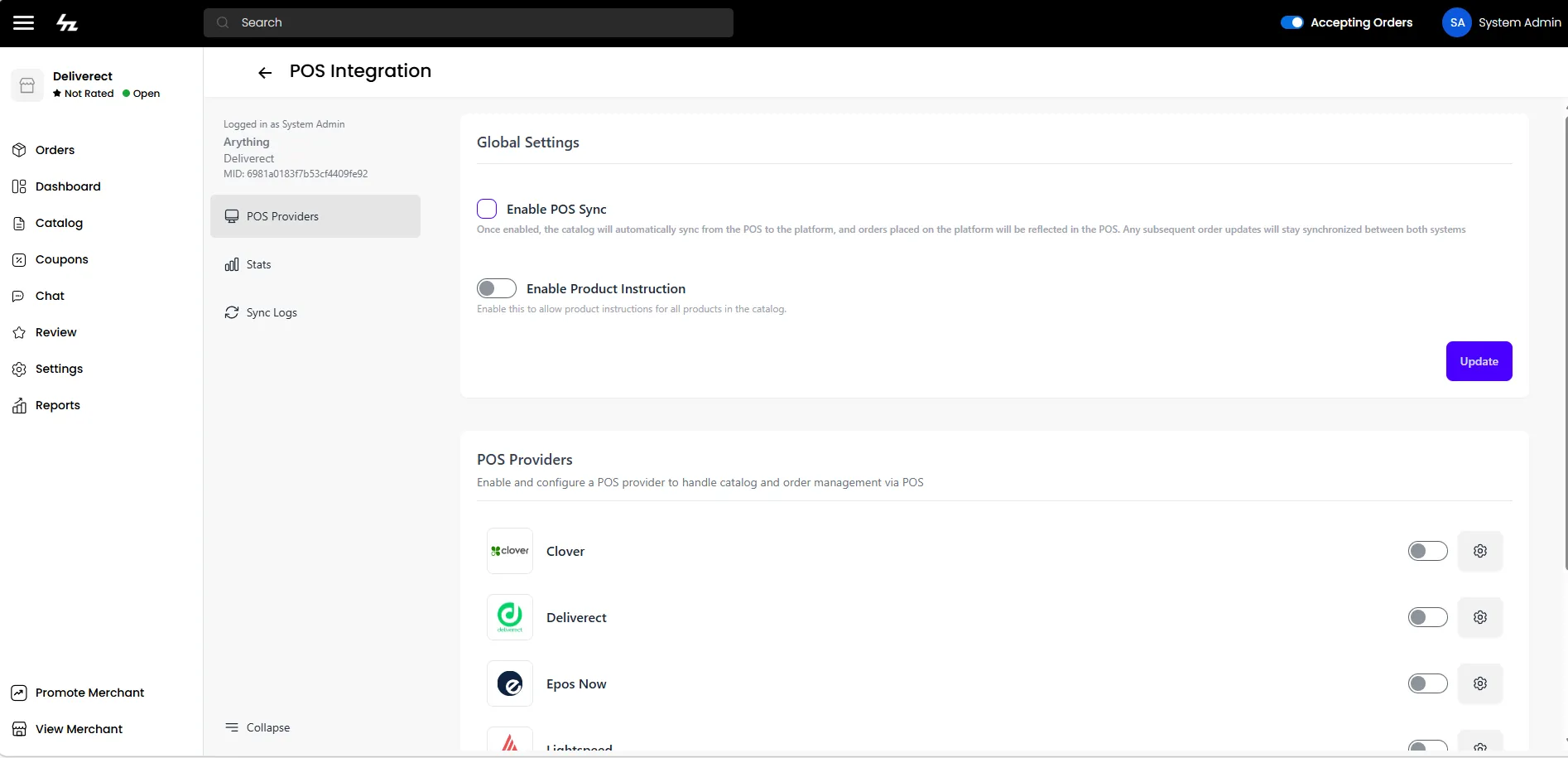
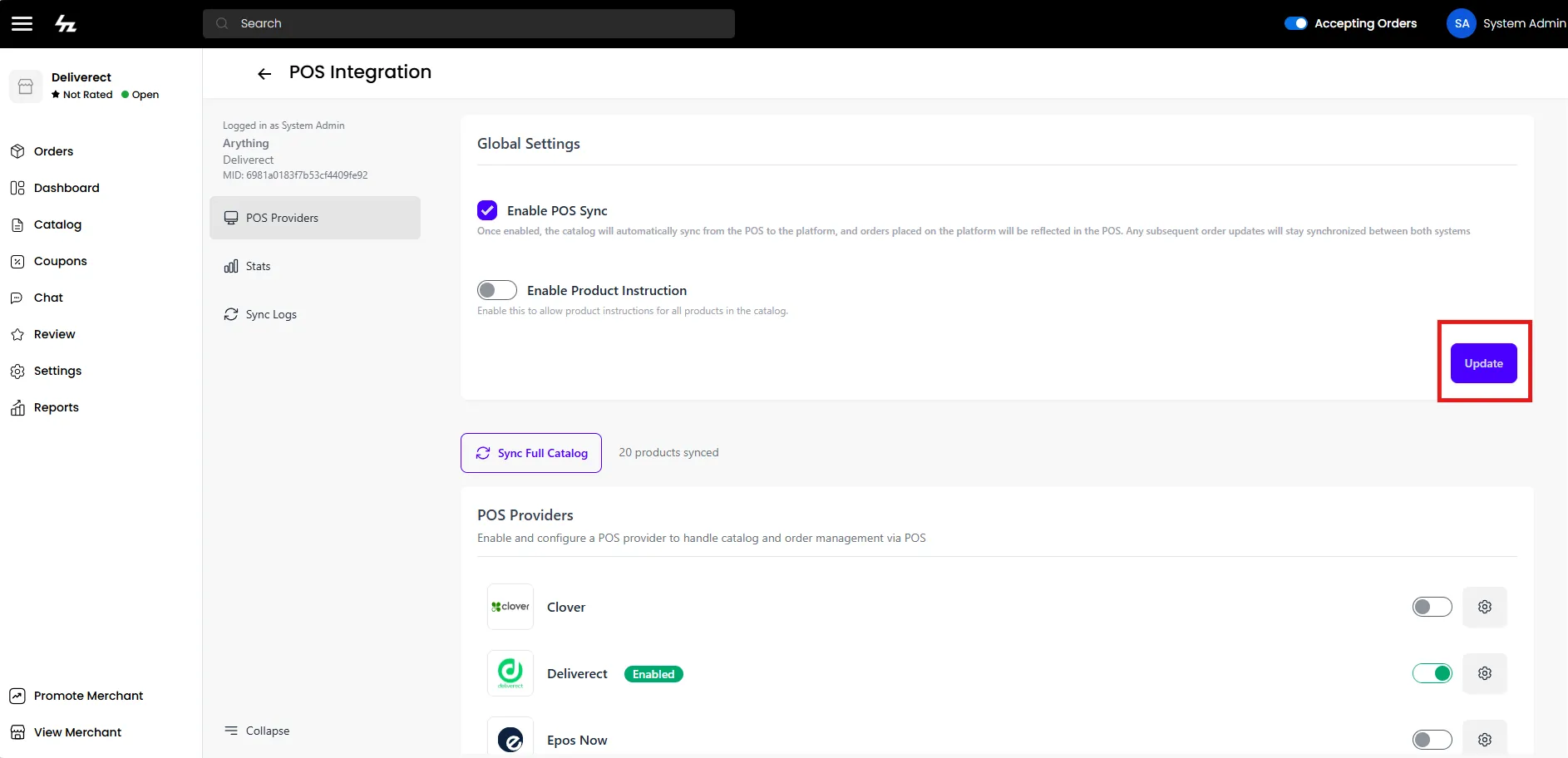
admin panel step 1 configure deliverect pos in hyperzod apps enter the client id and client secret provided by deliverect in the fields below step 2 configure webhooks after saving the deliverect configuration, reopen the configuration and click configure webhooks this will automatically set up the webhooks in hyperzod step 3 activate deliverect for merchants deliverect webhook configuration step 1 retrieve your tenant id step 2 register webhooks in deliverect log in to your deliverect dashboard for each webhook below, copy the url and replace {tenant id} with your actual tenant id channel registration webhook url https //pos sync apps hyperzod com/webhook/postohyperzod/{tenant id}/deliverect/syncmerchantopenstatus menu update webhook url https //pos sync apps hyperzod com/webhook/postohyperzod/{tenant id}/deliverect/synccatalog snooze / unsnooze webhook url https //pos sync apps hyperzod com/webhook/postohyperzod/{tenant id}/deliverect/syncproductstatus busy mode url https //pos sync apps hyperzod com/webhook/postohyperzod/{tenant id}/deliverect/syncmerchantopenstatus order status webhook url https //pos sync apps hyperzod com/webhook/postohyperzod/{tenant id}/deliverect/syncorderupdated merchant panel step 1 configure deliverect merchant account log in to the merchant panel go to settings → apps → deliverect pos note the deliverect app will be visible only if it has been enabled from the admin panel click configure deliverect step 2 retrieve deliverect channel details from the deliverect dashboard , copy the following details location id channel link id channel name step 3 configure channel details in merchant panel return to the merchant panel → deliverect pos configuration enter the following details location id channel link id channel name step 4 activate finally, activate the deliverect and enable pos sync option from global settings