Clover POS Integration
Admin Panel
STEP 1: Create a Clover App (Optional)
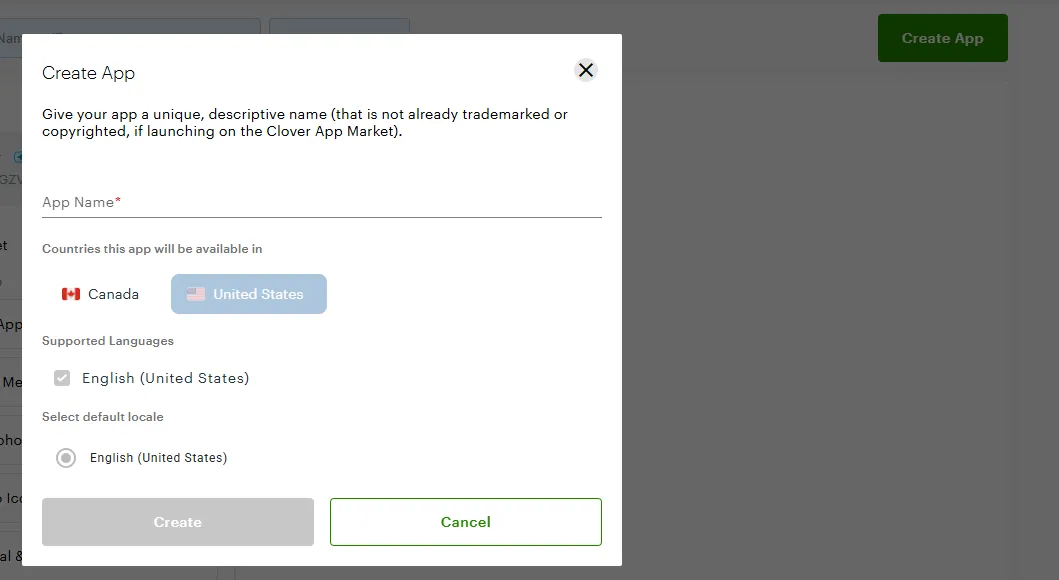
- Create and configure a Clover app from the Clover Developer Dashboard.
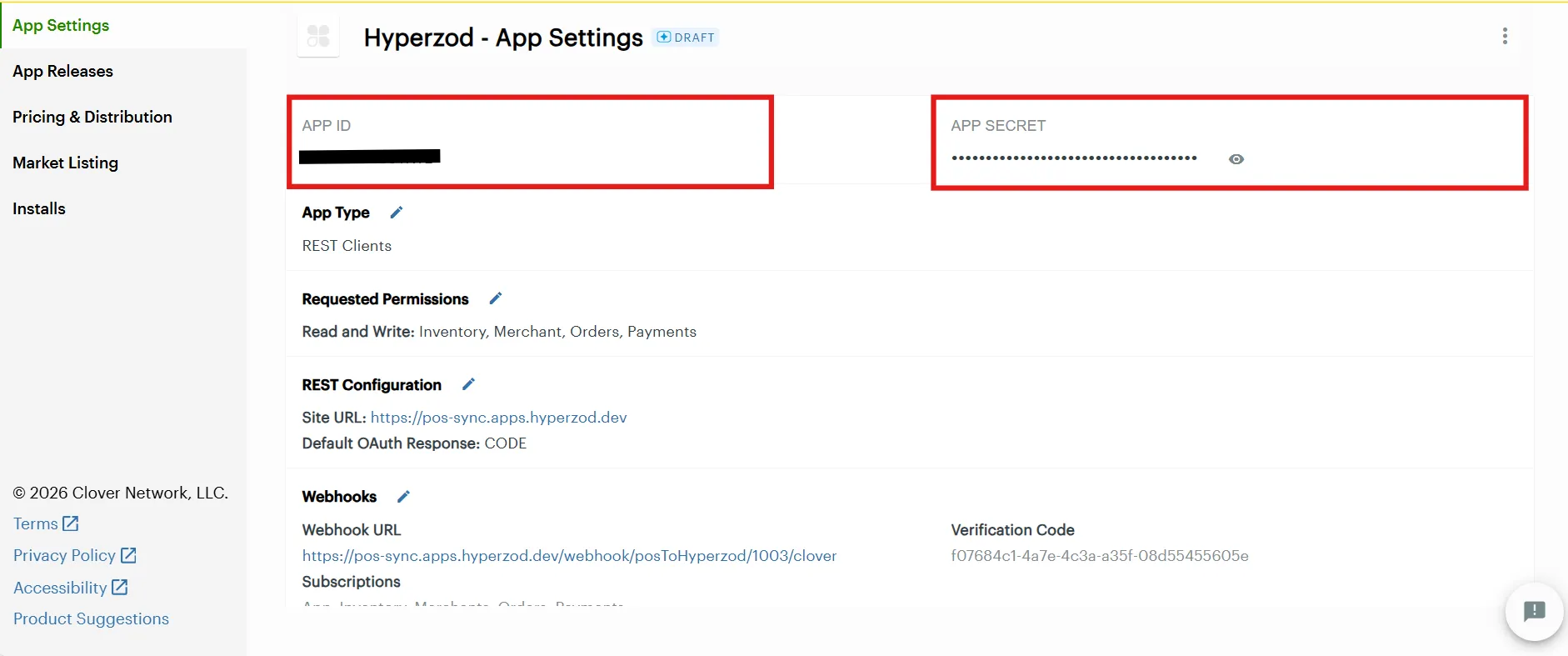
- Copy the App ID and App Secret
- Note: This step is optional. If you do not create/configure a Clover app, you can skip this step. App ID and App Secret will not be required
STEP 2: Configure Clover POS in Hyperzod Apps
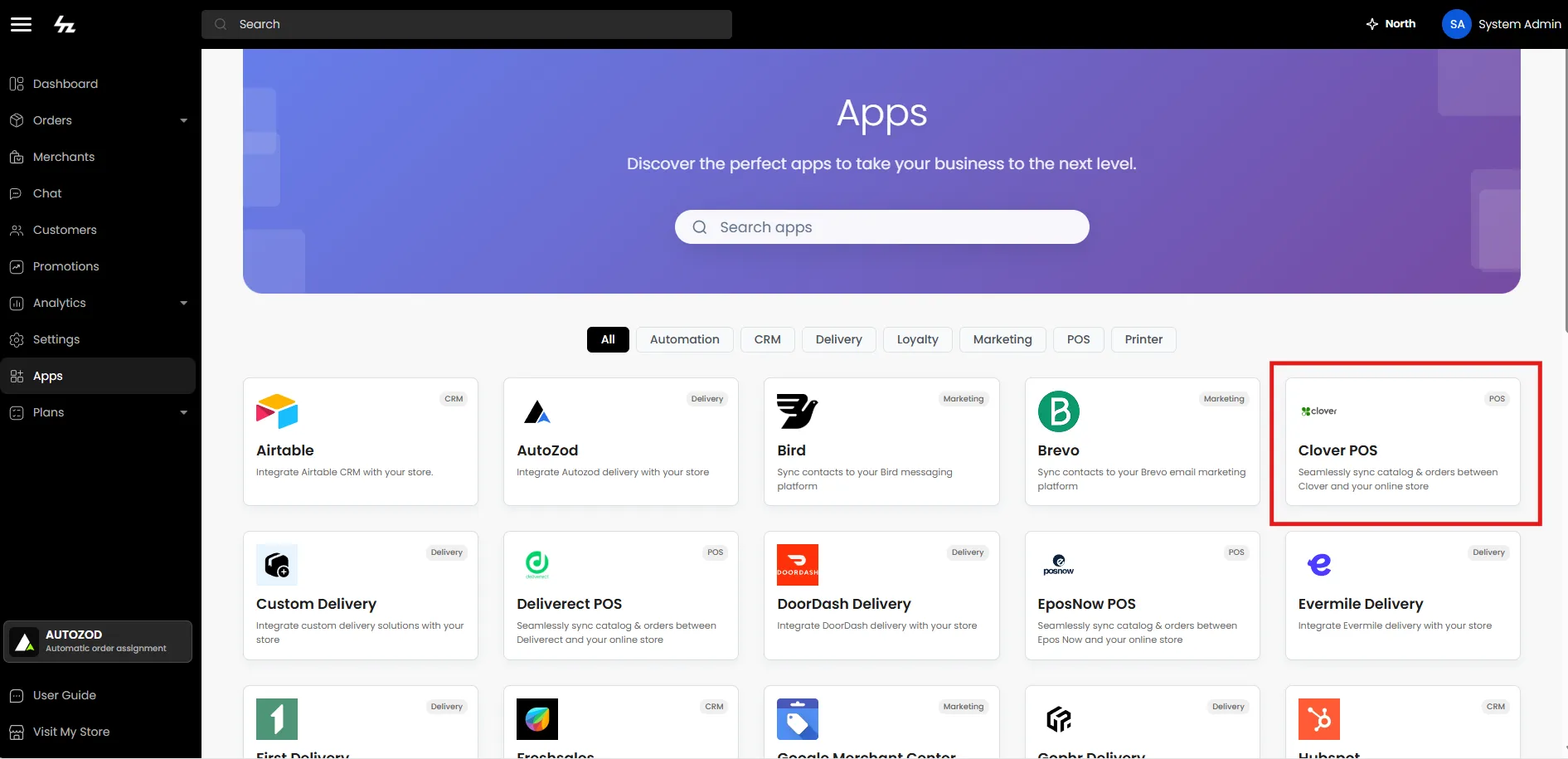
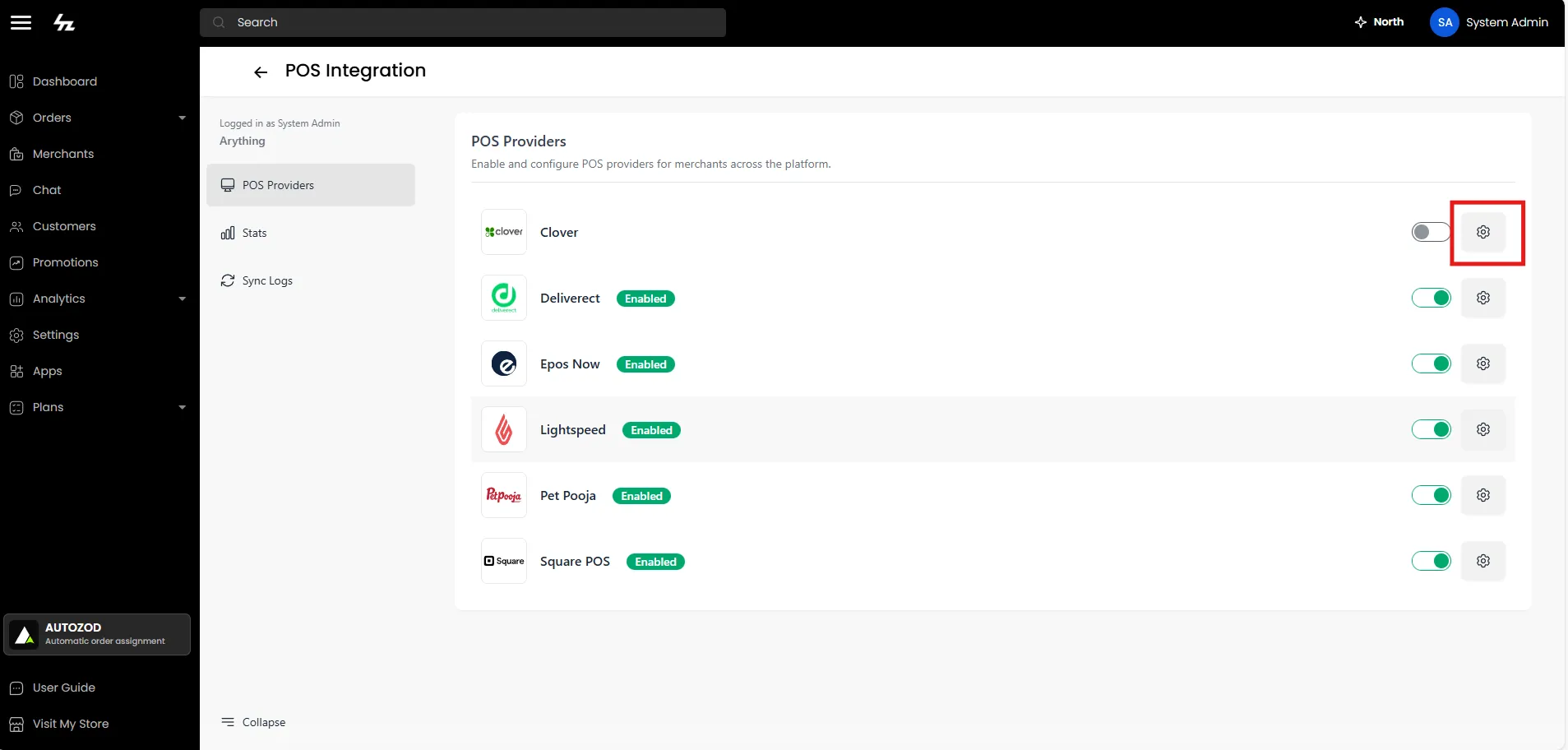
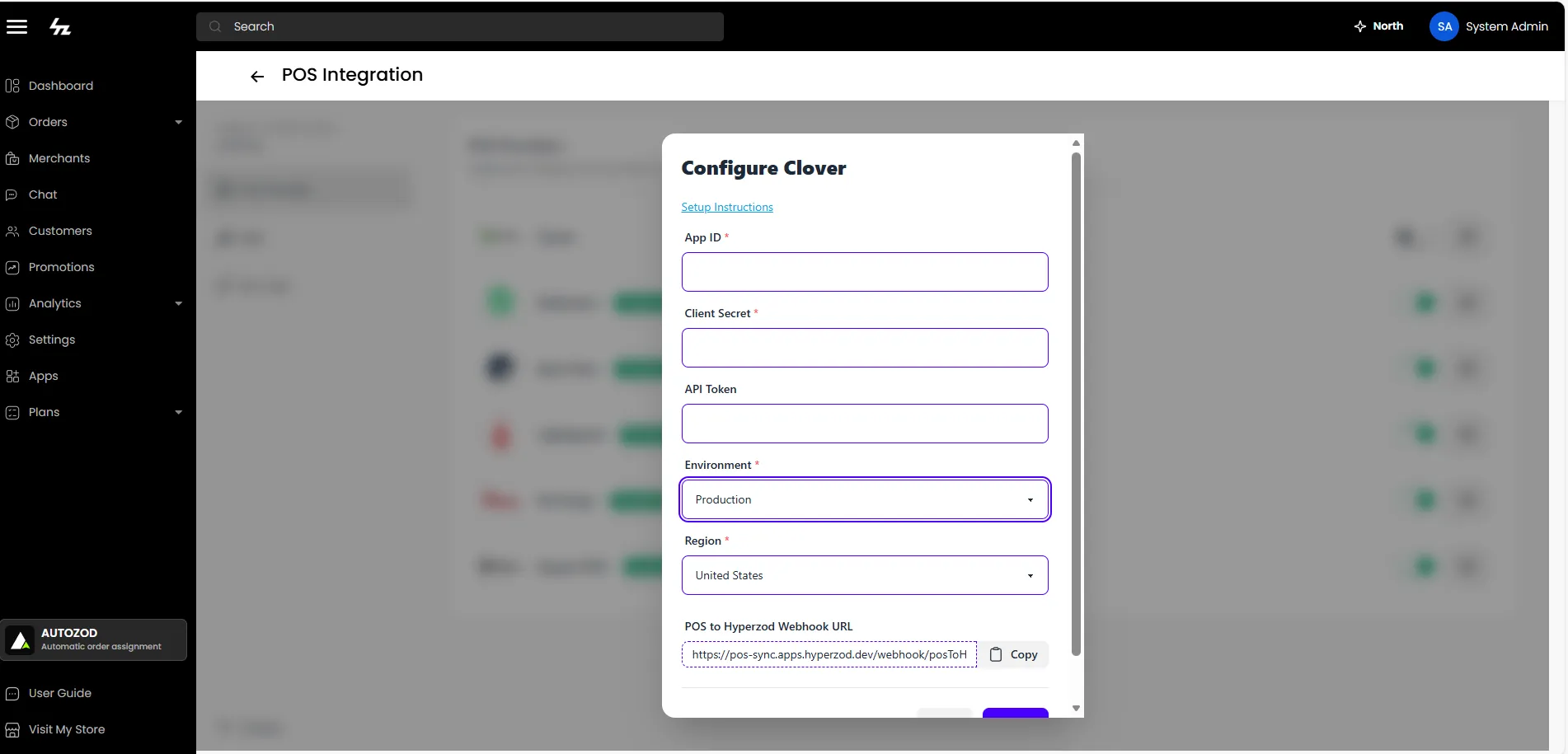
Provide the following details:
- Environment (Required)
- Region (Required)
- App ID (Required if Clover app is configured)
- App Secret (Required if Clover app is configured)
Click Submit to save the configuration.
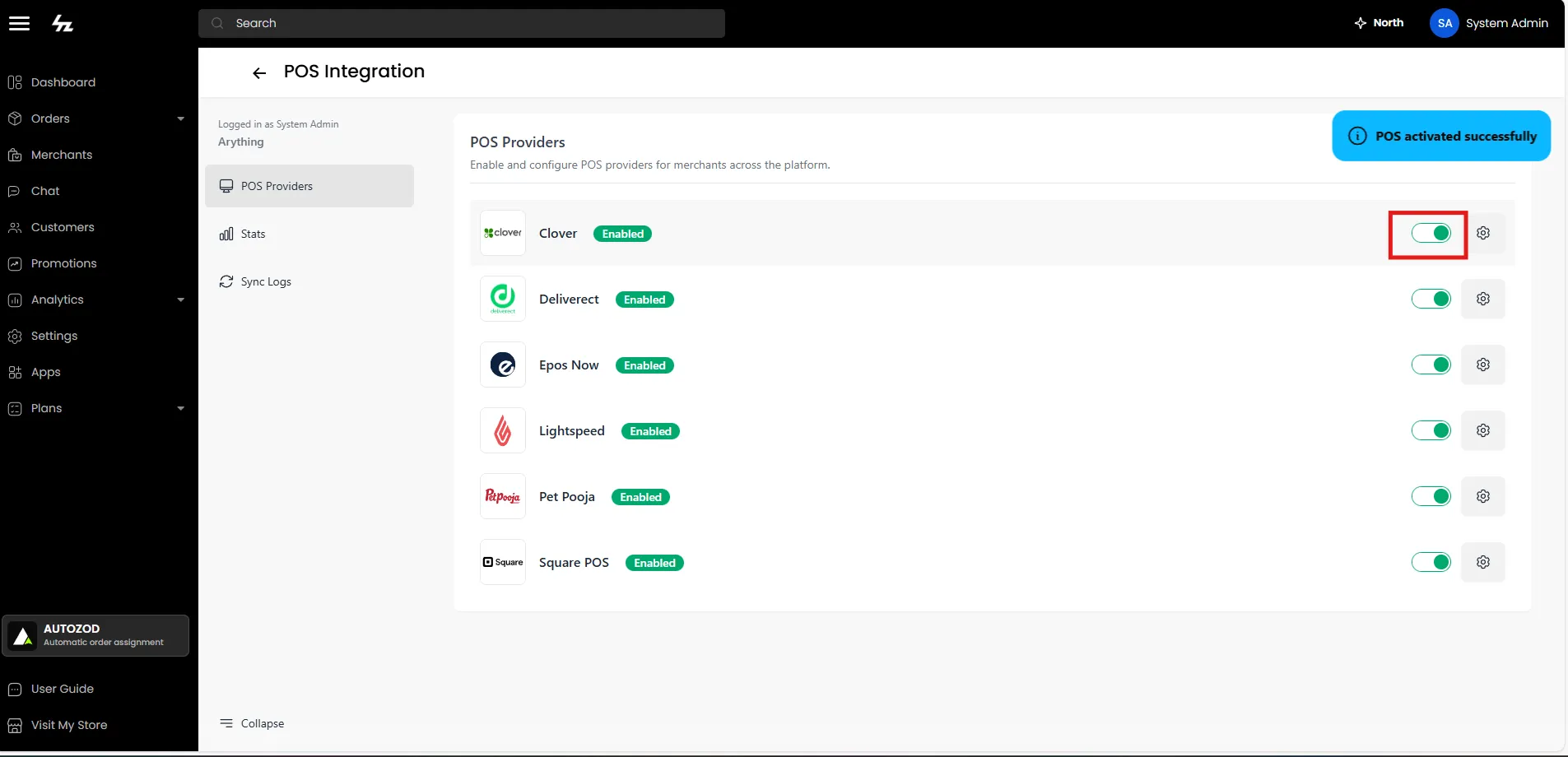
STEP 3: Activate Clover POS for Merchants
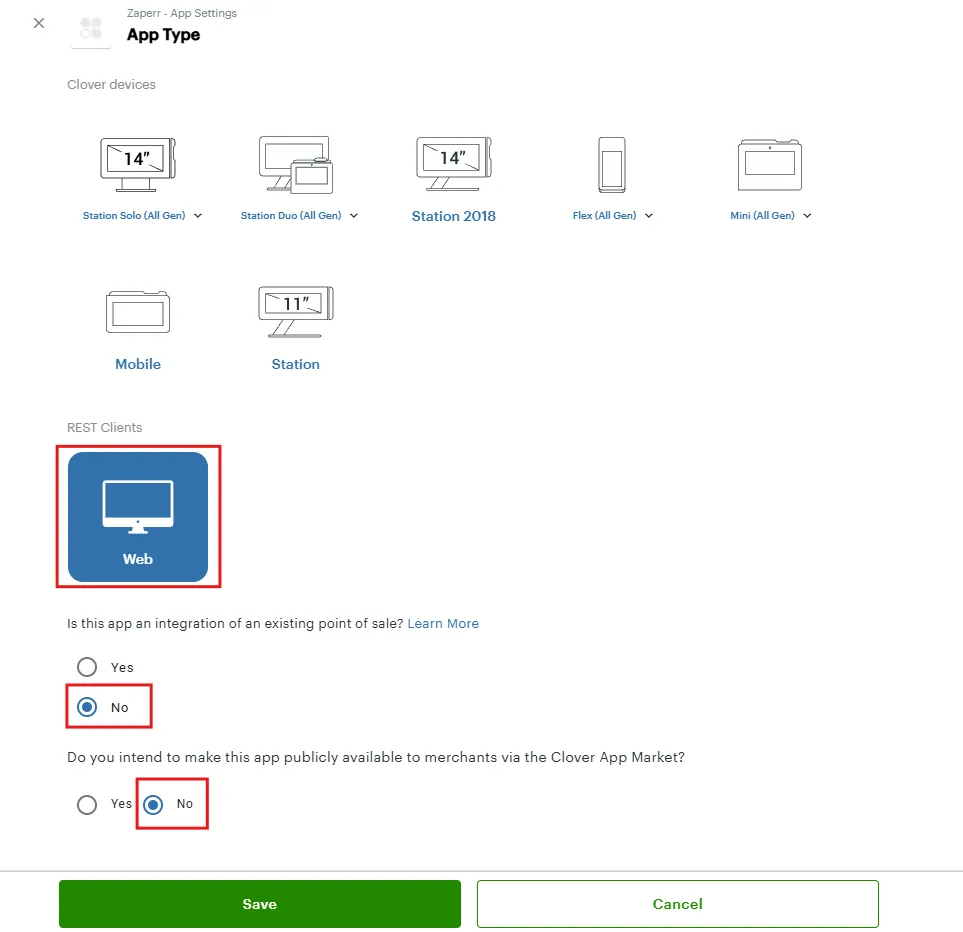
STEP 4: Configure App Type (Optional)
Note: This step is required only if you created/configured a Clover app
STEP 5: Edit Requested Permissions (Optional)
Note: This step is required only if you created/configured a Clover app

STEP 6: Edit REST Configuration (Optional)
Note: This step is required only if you created/configured a Clover app
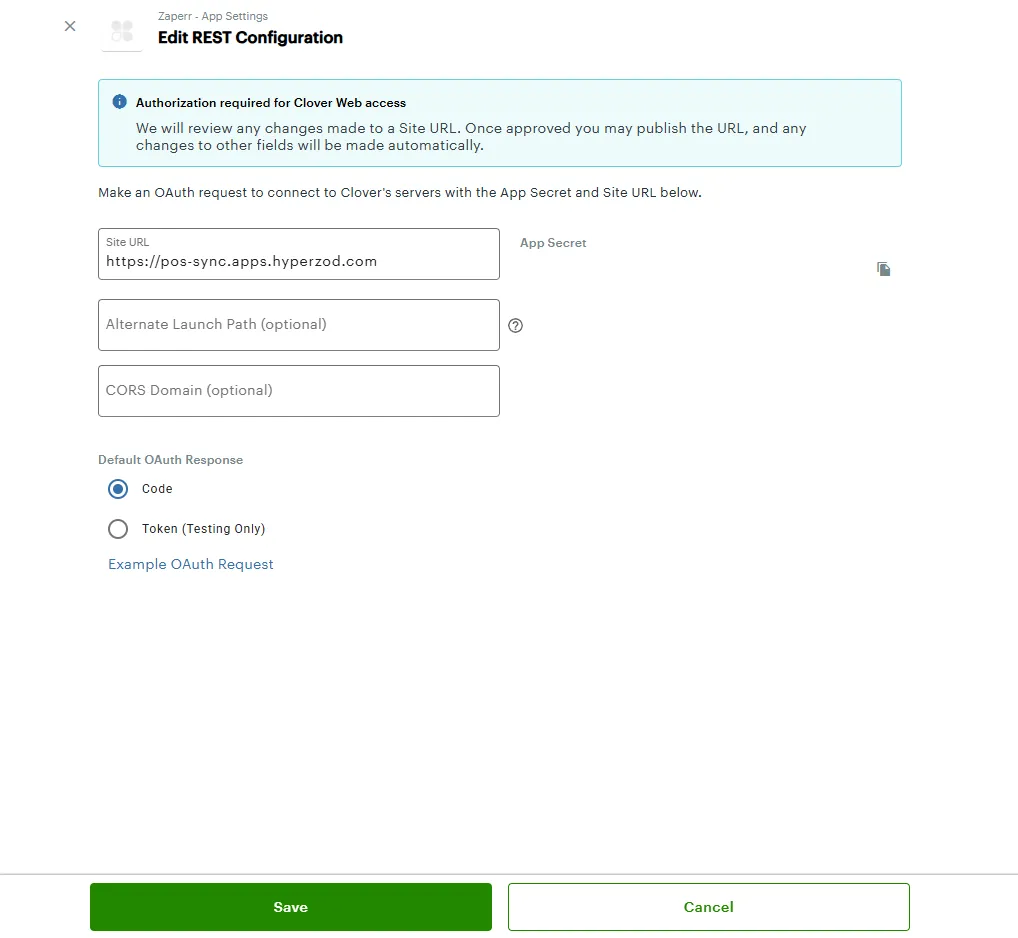
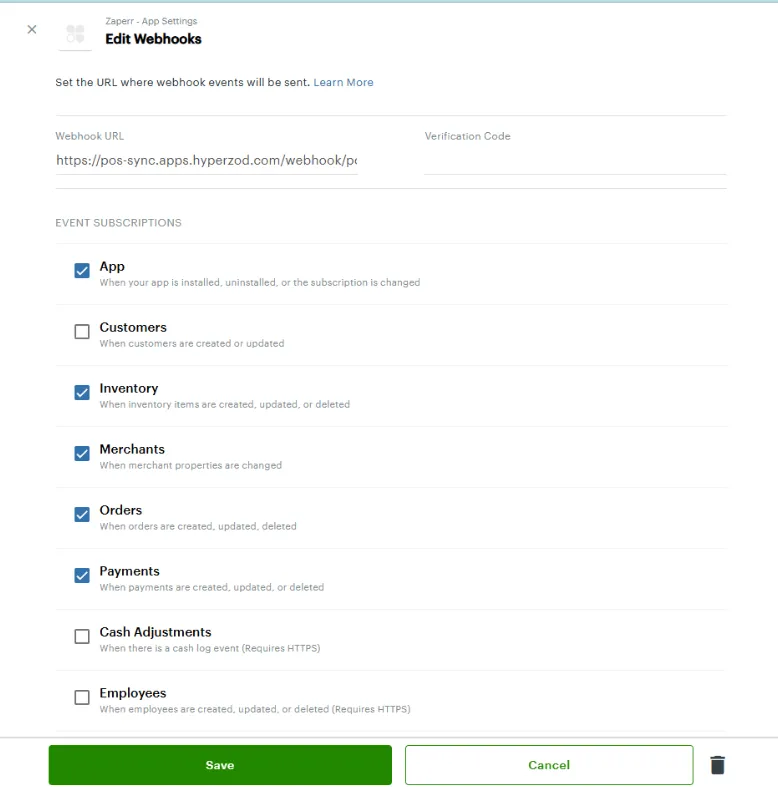
STEP 7: Edit Webhooks (Optional)
Note: This step is required only if you created/configured a Clover app
- Copy the webhook from Hyperzod to Clover
- Click "Send Verification Code"
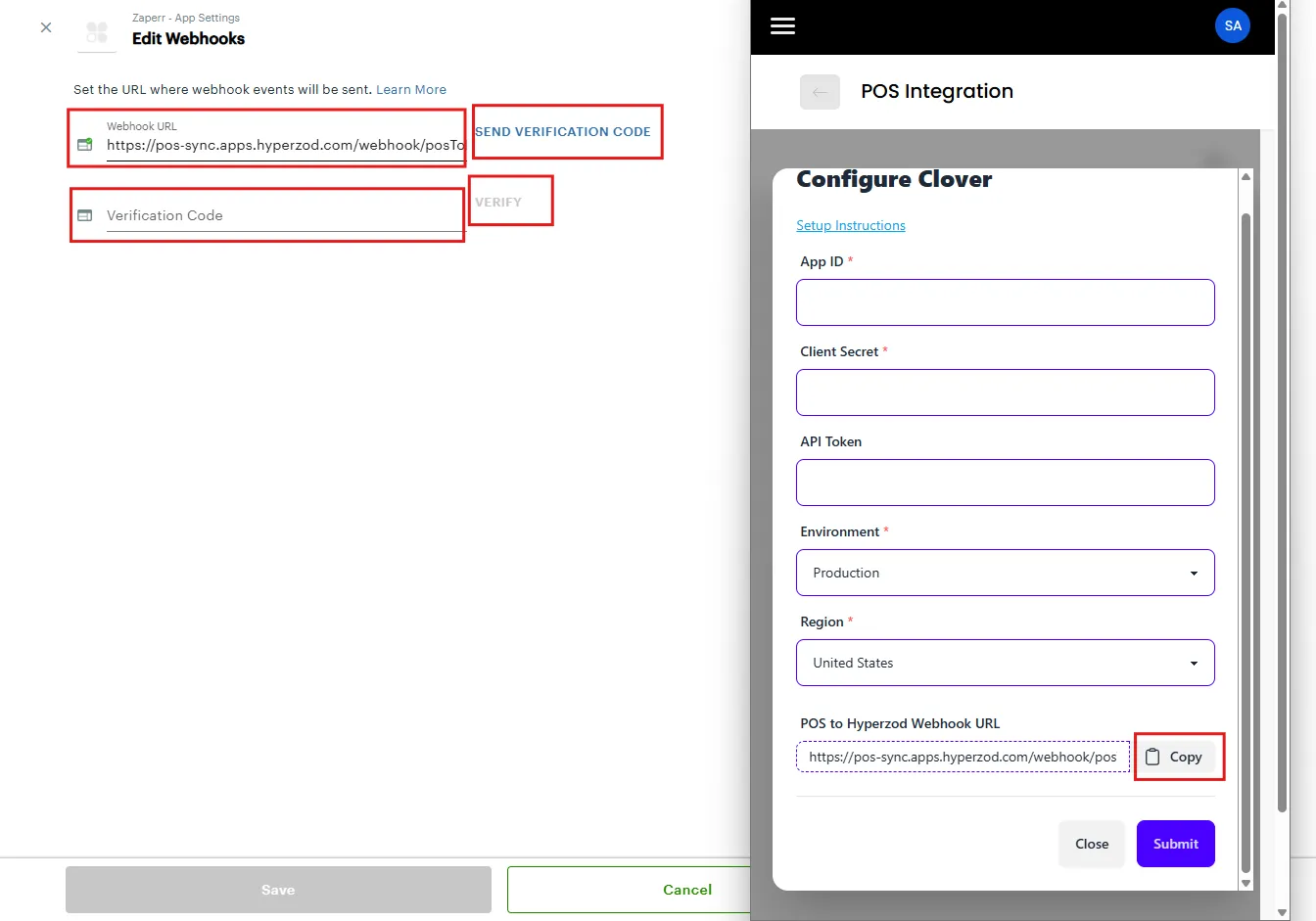
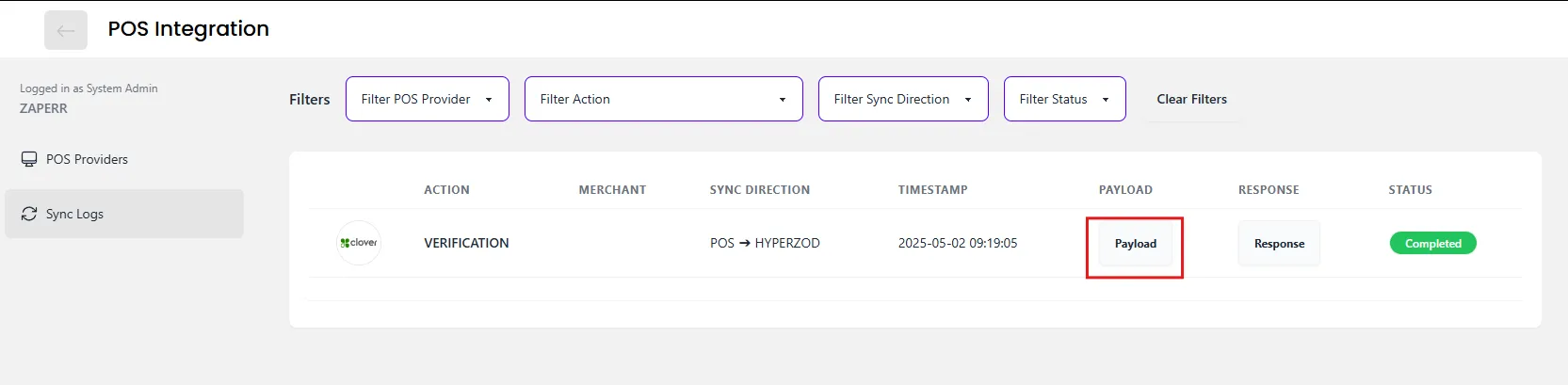
- Copy the verification code from Hyperzod POS Sync Logs
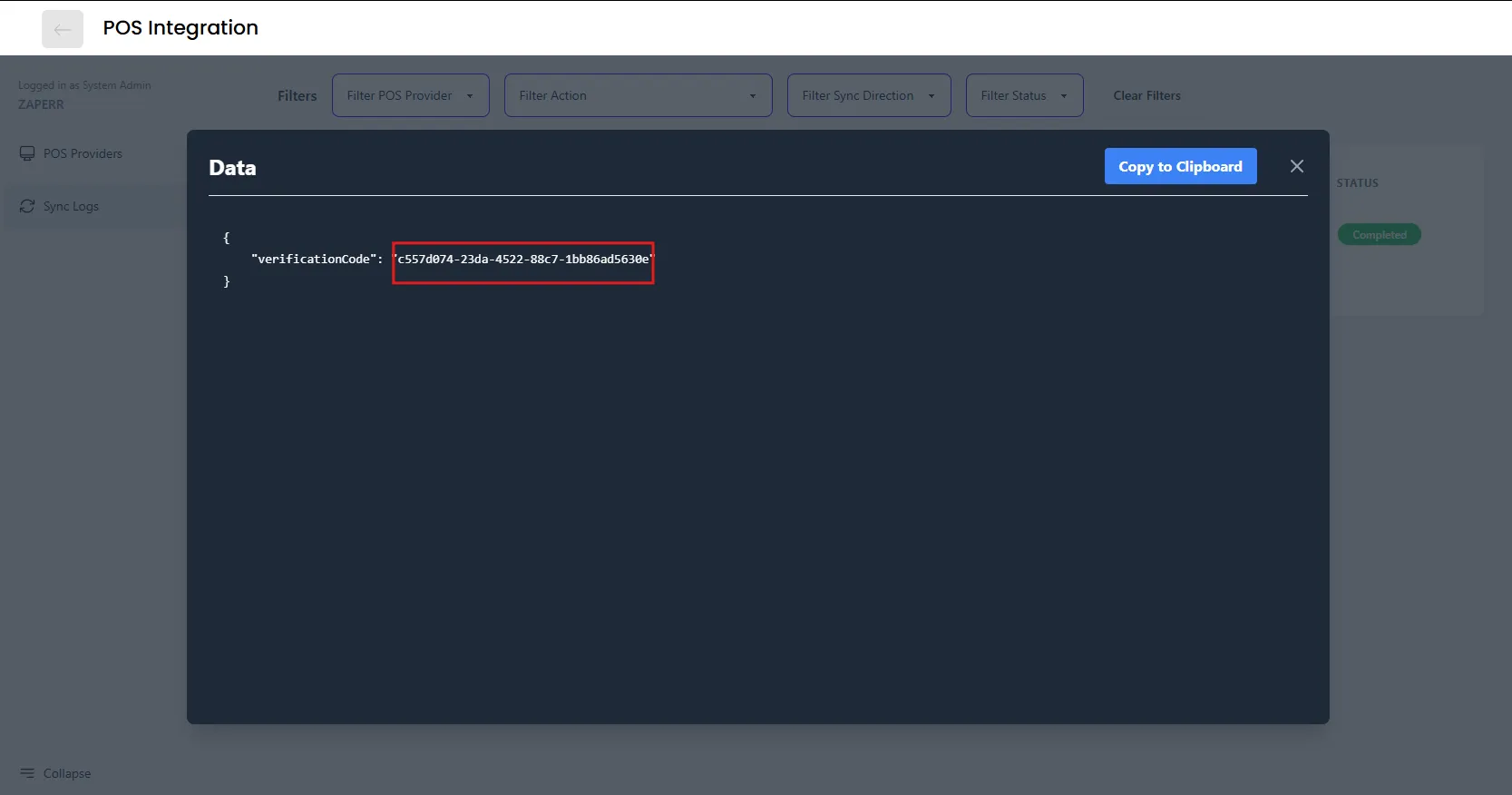
- Paste the verification code on Clover and click "Verify"
- Subscribe to the following webhook events
Merchant Panel
STEP 1: Authorize Clover Merchant Account
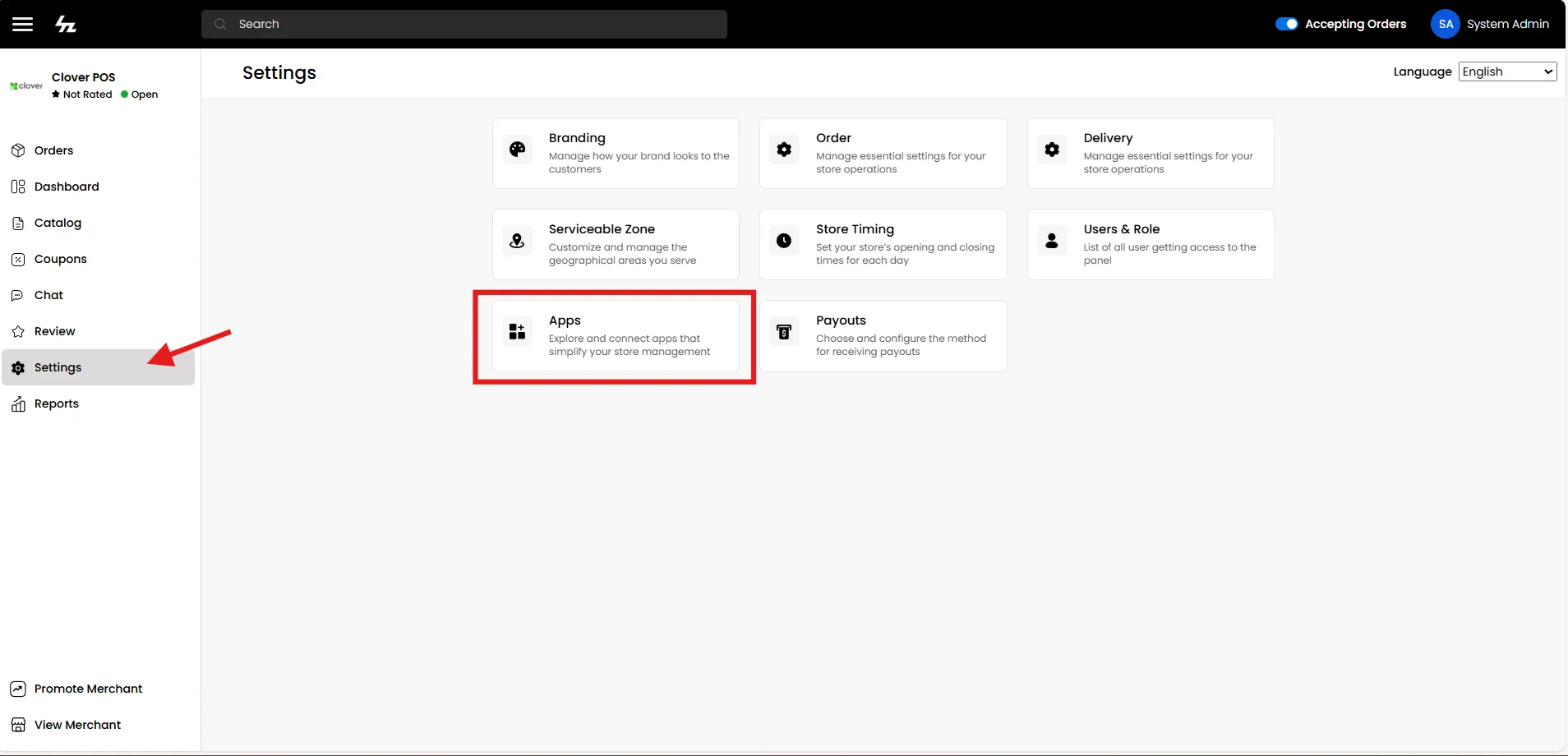
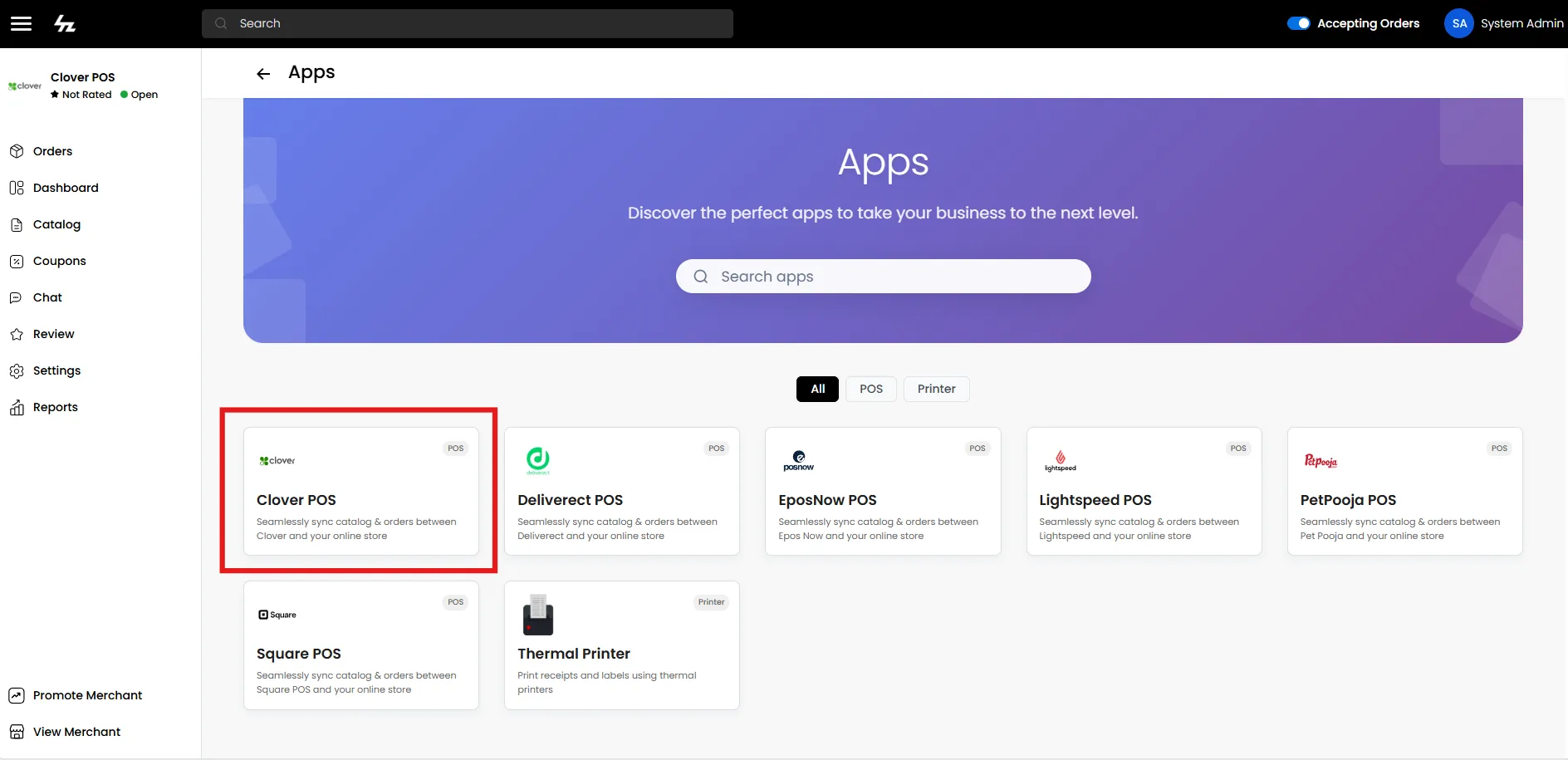
- Navigate to Settings → Apps → Clover POS in the merchant panel
- Note: Clover POS will only appear if it has been enabled by the admin
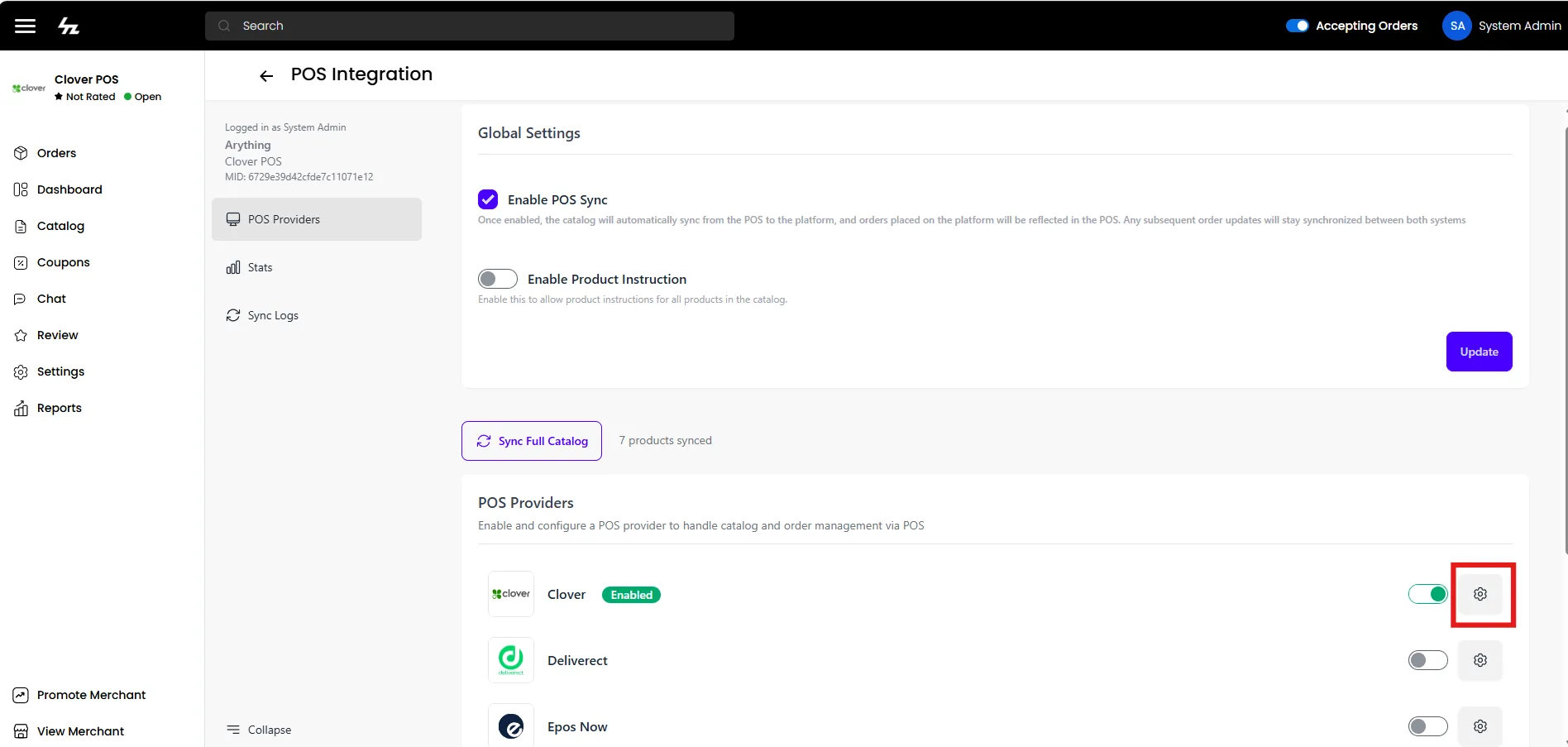
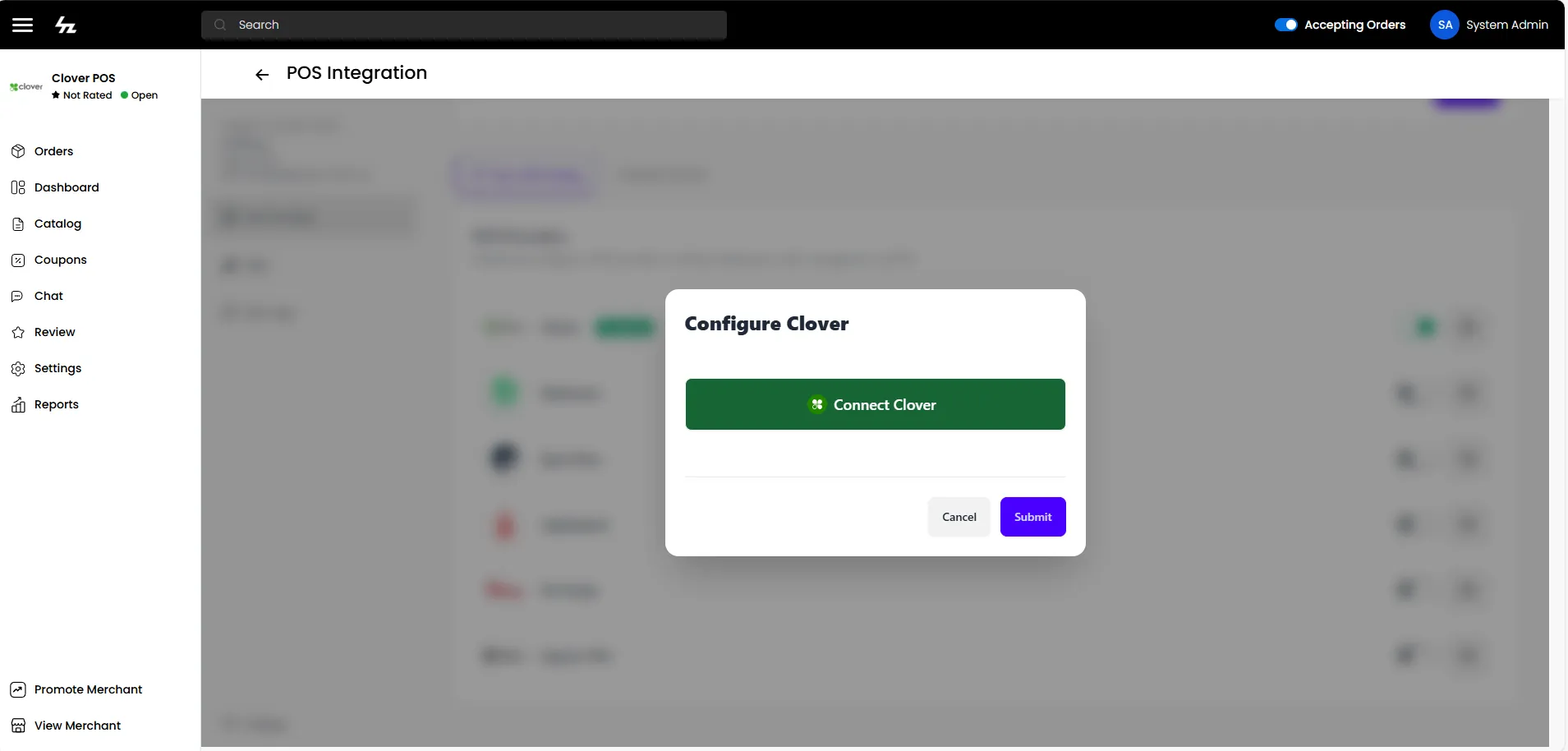
- Click Configure Clover POS
- Click the Connect Clover button to authorize your Clover Merchant account
STEP 2: Create Order Types in Clover
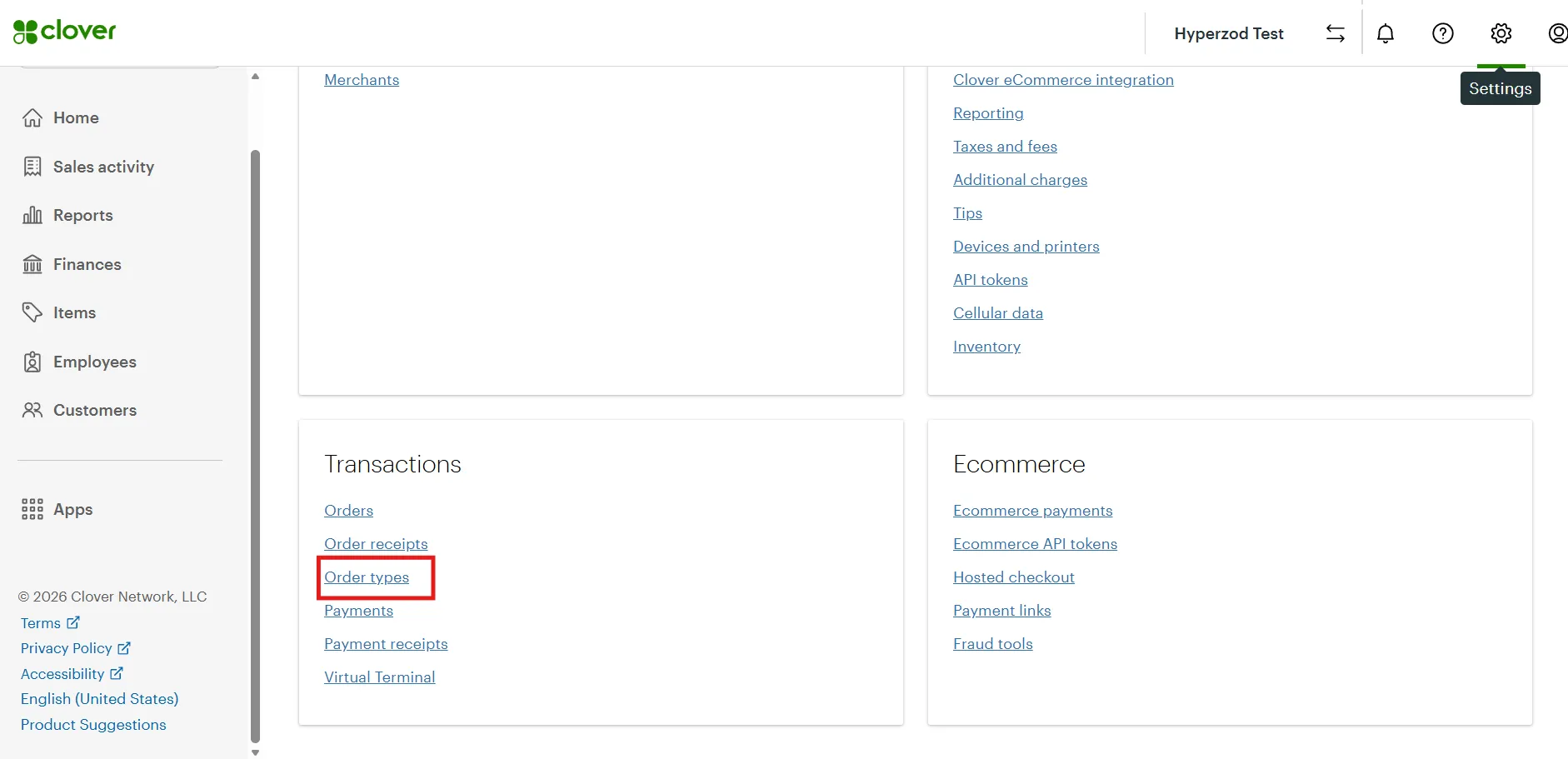
- Log in to your Clover Merchant Dashboard
- Go to Settings → Order types (under the Transactions section)
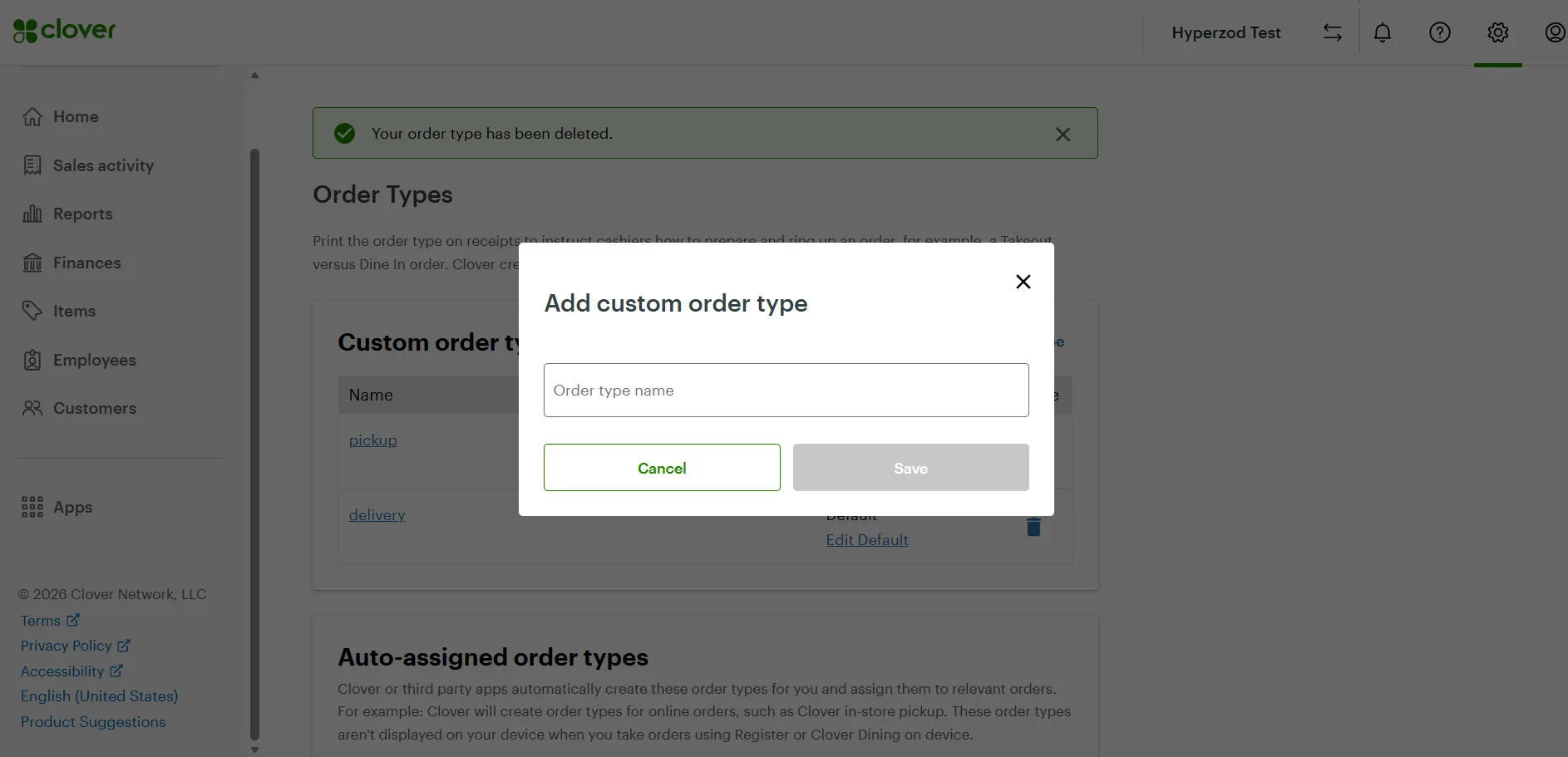
- Add custom order types (e.g., pickup, delivery) and save
STEP 3: Select an Order Type
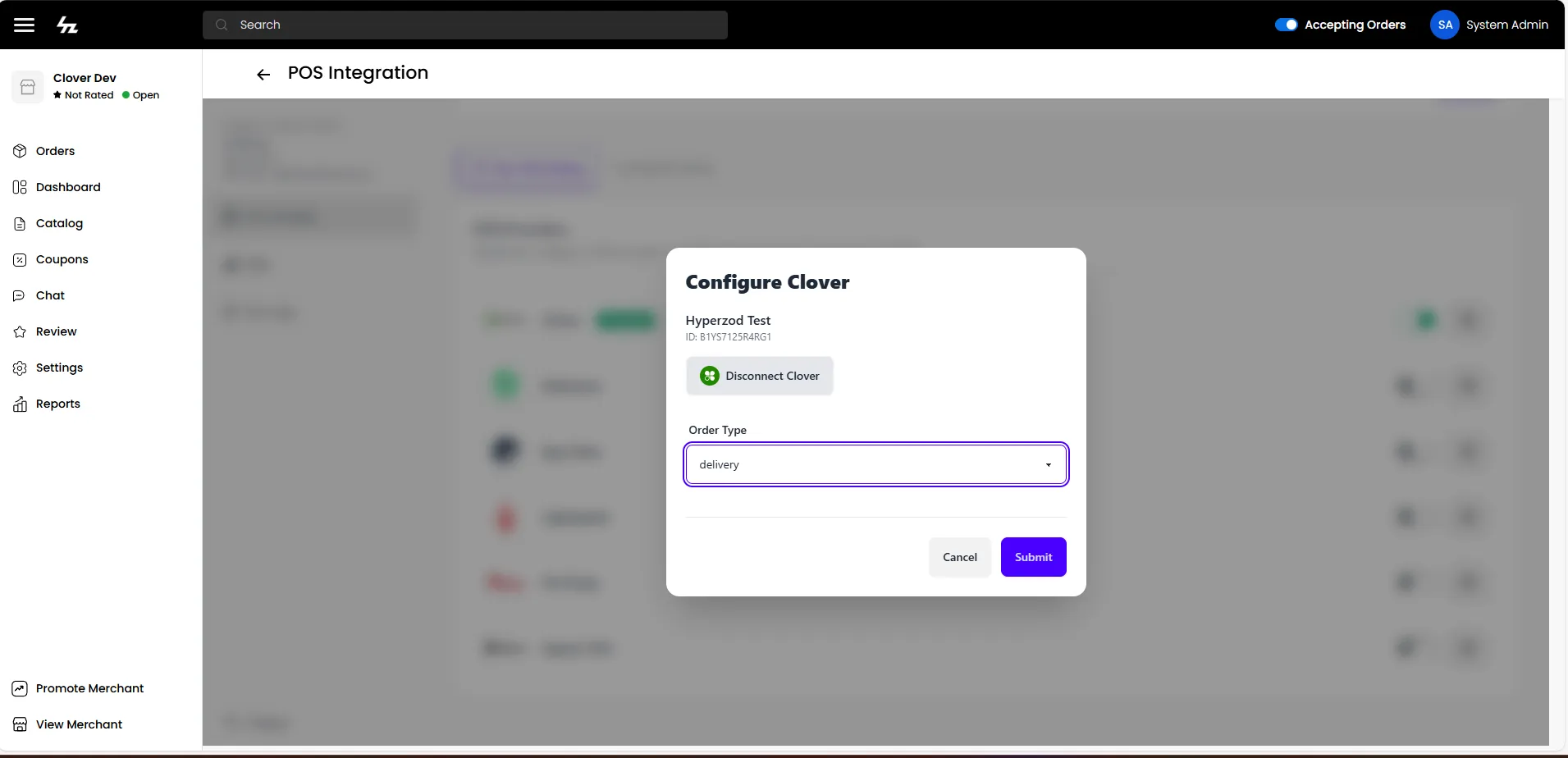
- Select an order type from the dropdown menu
- Click Submit
STEP 4: Activate
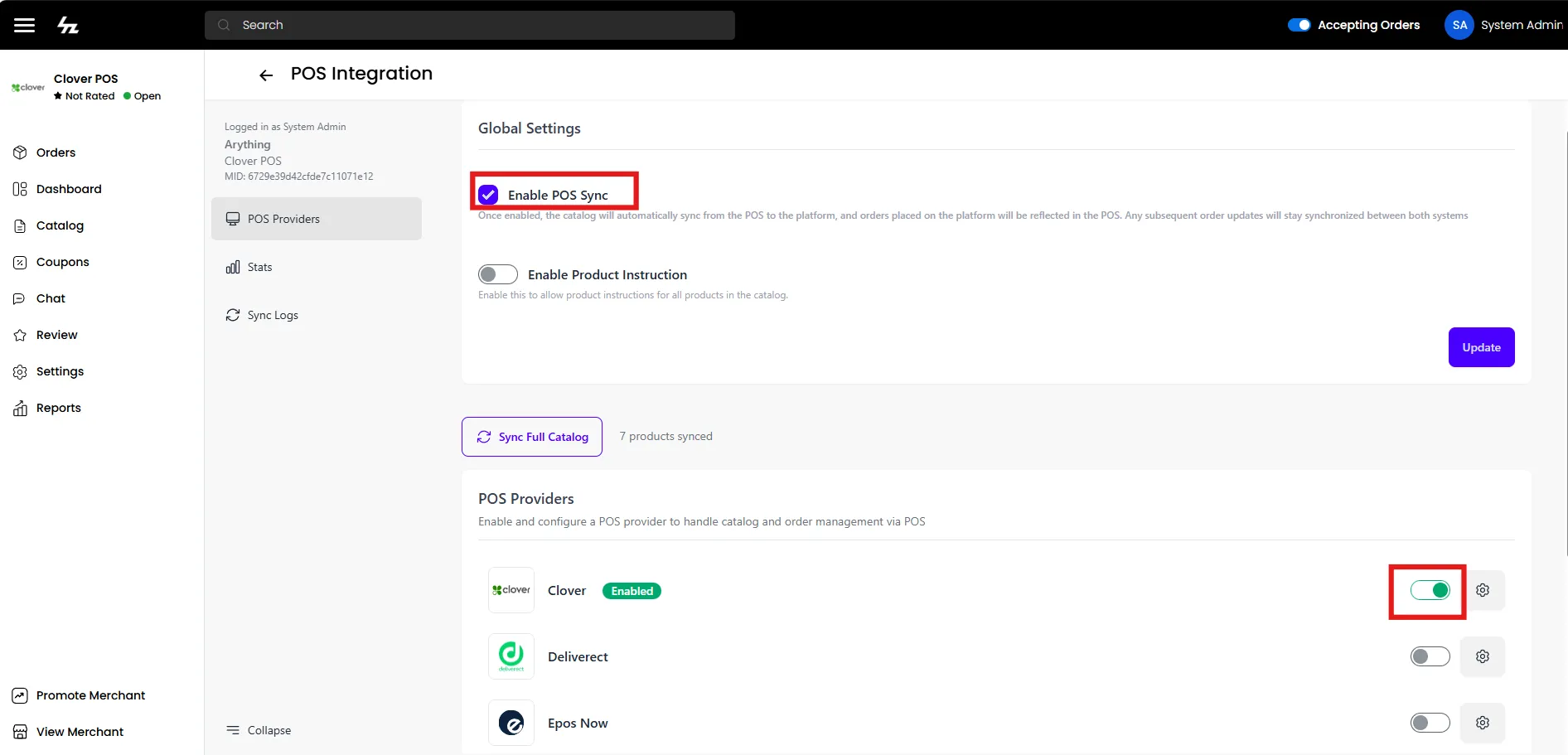
Finally, activate the Clover POS and Enable POS Sync option from Global Settings.
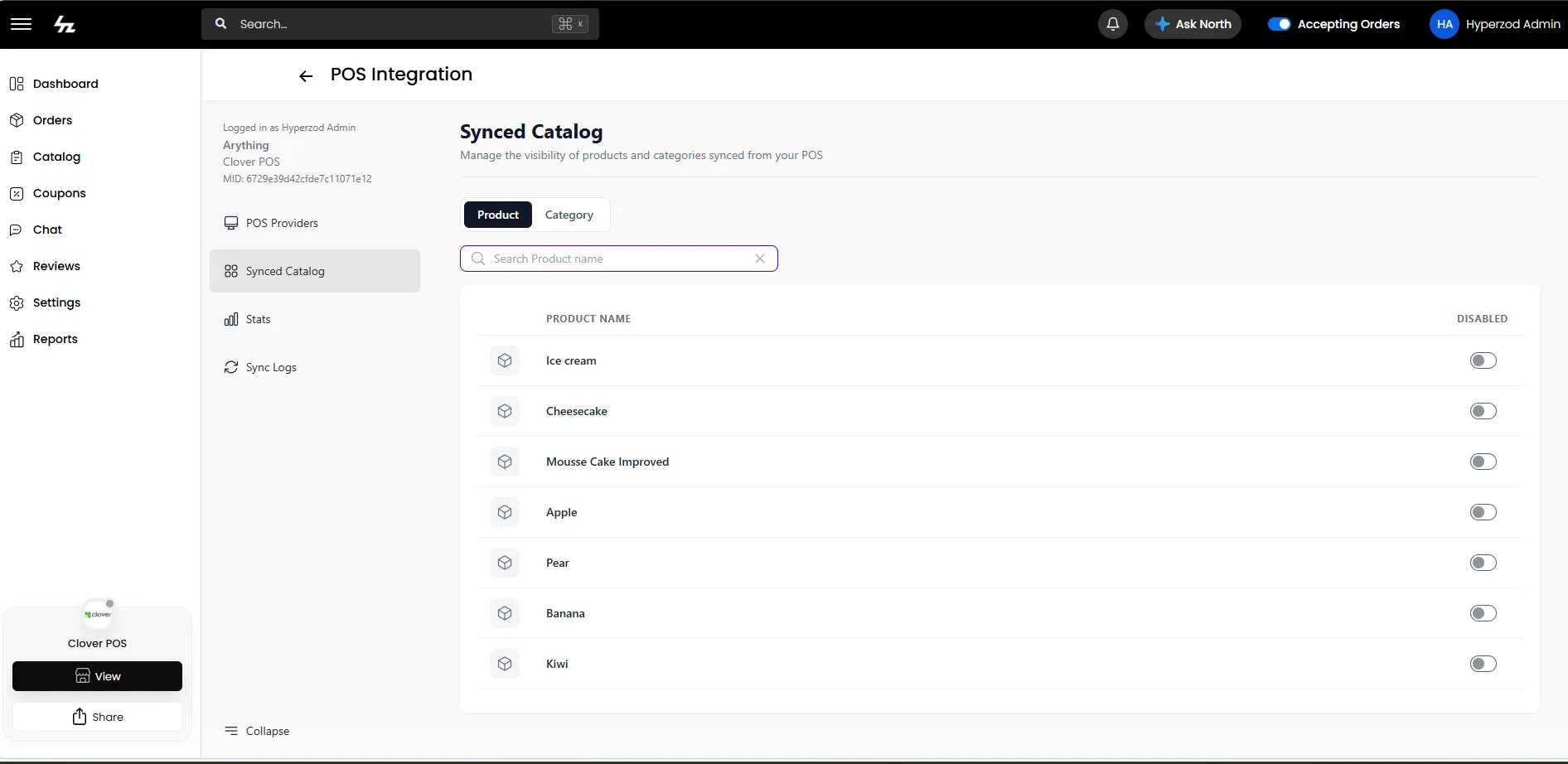
Synced Catalog
After the merchant setup is complete and the catalog is synced, you can manage the visibility of synced products and categories from the Synced Catalog page.
When a product or category is disabled, it is unpublished from your store, and future status updates from Clover for that product or category are ignored.
When a product or category is re-enabled, it is published to your store again, and future status updates from Clover are processed normally.