Revolut Business Payouts
You can choose between Stripe Connect and Revolut Business as your payout method. Select the option that best suits your business requirements and configure it accordingly.
Once configured, you can specify how order amounts are split between the Admin and the Merchant in your settlement settings.
Note: If you wish to use Stripe as the payout method, you can refer to the Stripe Payout guide
Configure Revolut Business
Follow these steps to configure Revolut Business:
- From the Admin Panel, go to Settings and select the Payouts section
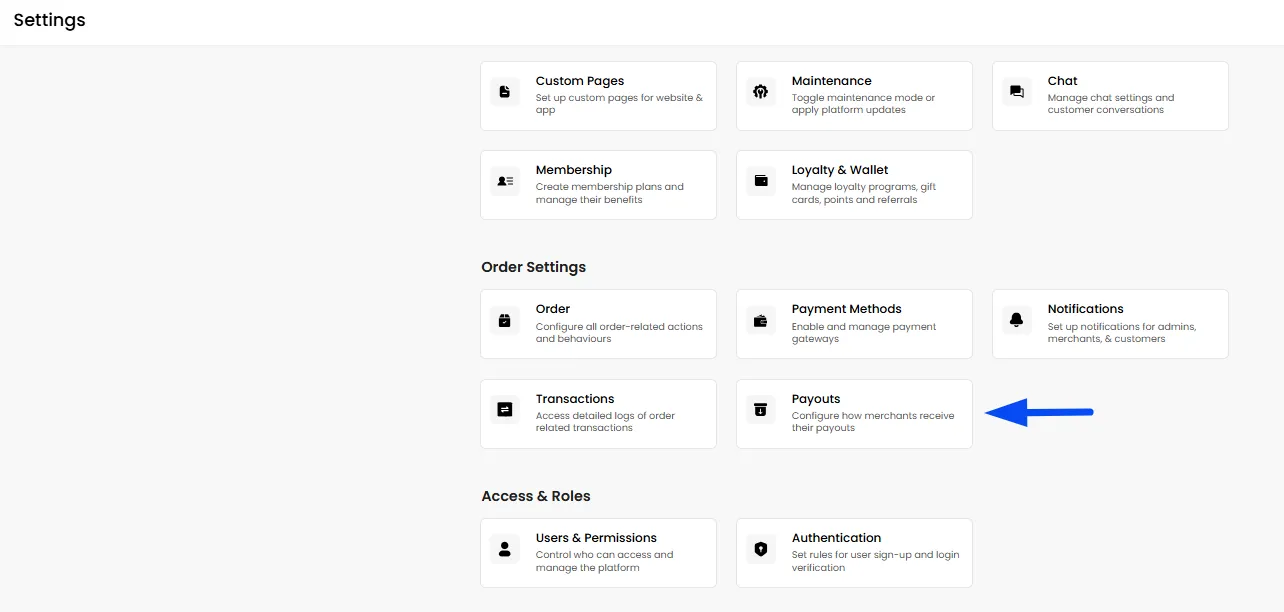
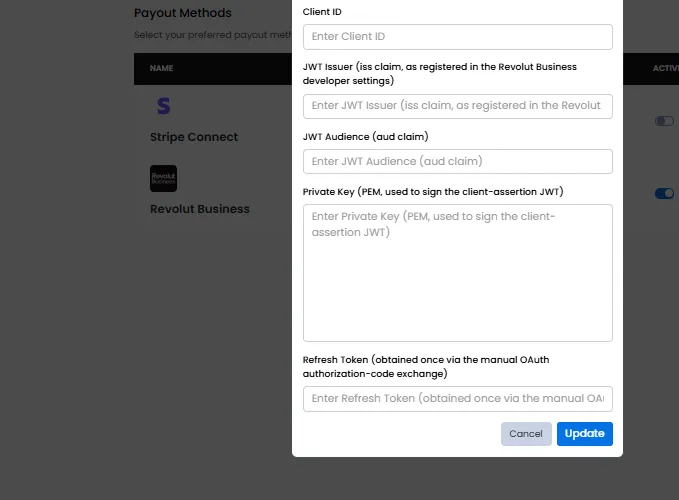
- Choose Revolut Business in the Payouts section
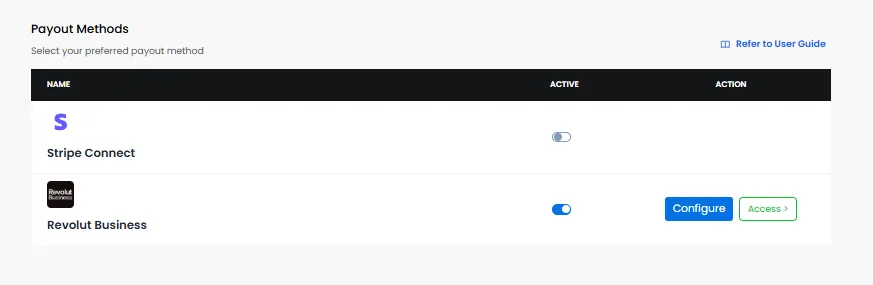
- Enable the Active toggle, enter your Revolut Business credentials for the Sandbox and Live environments, and click Update to save the configuration.
Note: To configure your Revolut Business credentials, please contact the Hyperzod Support Team for assistance.
Note: To use Revolut payouts, ensure that you have a Revolut Business account
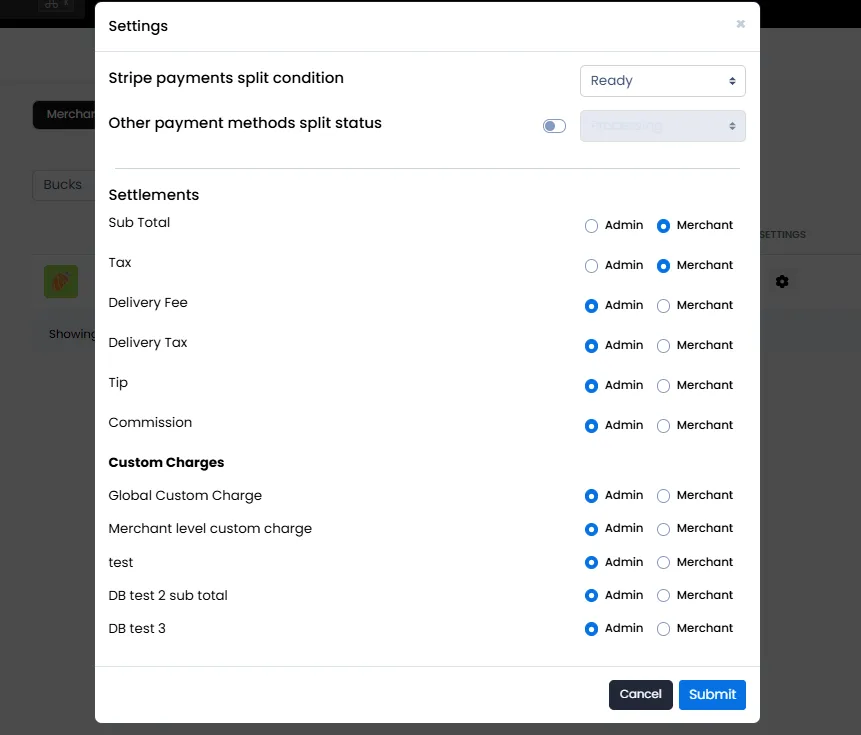
Defining the splits for the merchant
After configuring Revolut Business, you can define how different components of an order should be split between the Admin and Merchant. Enable and configure the payments that are required to be transferred for each merchant.
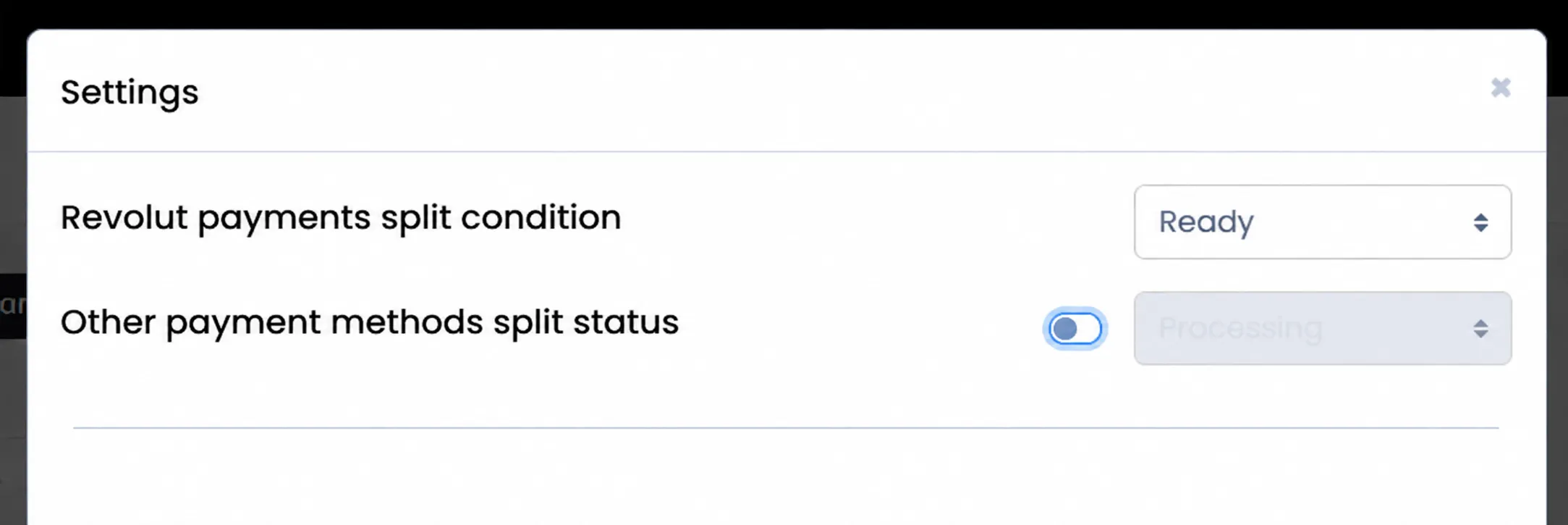
Configure the payout status
You can also define the order status at which the payout split should take place.
For other payment methods, you can enable Other payment methods split status and select the appropriate order status.
Once the defined status is reached, Hyperzod applies the configured split and processes the payout accordingly.
Link a Revolut Payout Account to a Merchant
Unlike a Stripe Connect onboarding flow, Revolut payout accounts can be created separately and then linked to the corresponding merchant in Hyperzod.
To link a payout account:
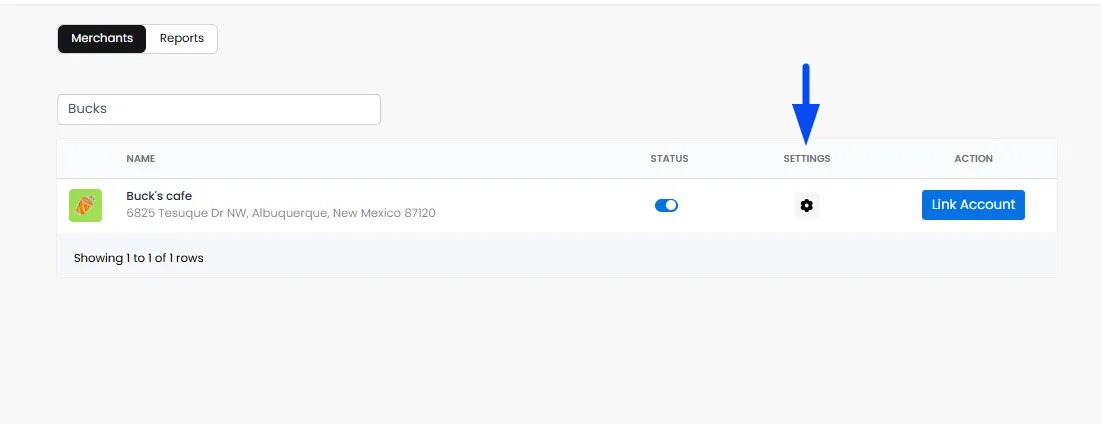
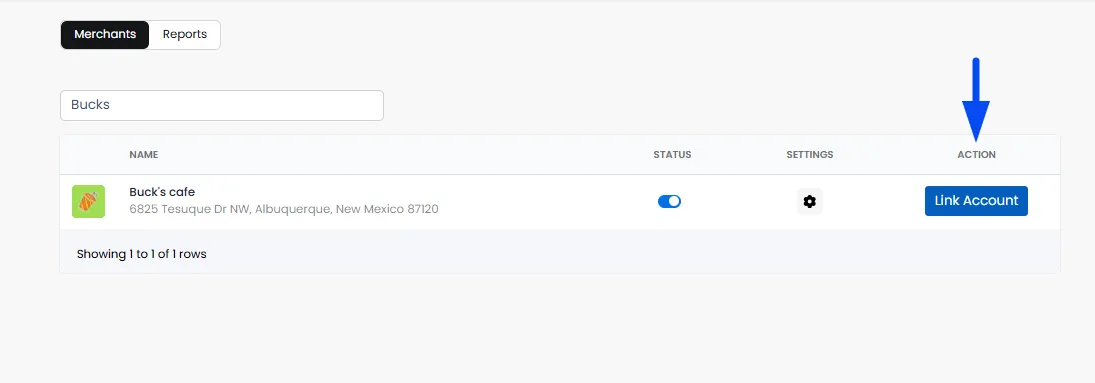
- Go to the Merchants tab in Revolut payouts
- Find the merchant you want to configure.
- Click Link Account.
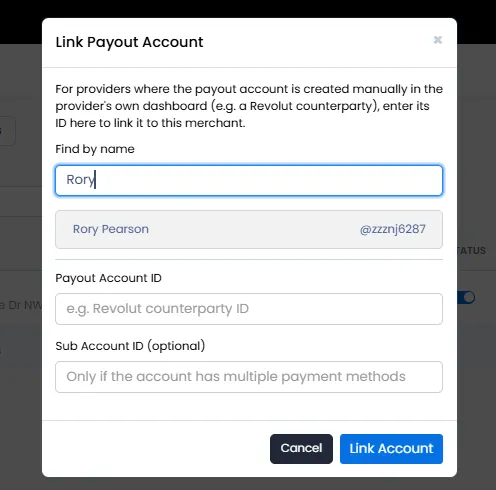
- Search for the relevant Revolut recipient by name using Find by name. Once the recipient is selected, the remaining details will be automatically fetched from the Revolut account.
How Revolut Payouts Work
Once Revolut Business is configured, the merchant's payout account is linked, and the split rules are defined, the payout flow works as follows:
Customer places an order > Order reaches the configured split status > Hyperzod calculates the configured split > Admin and merchant portions are determined > Merchant's portion is transferred to the linked Revolut payout account.
Review Payout Reports
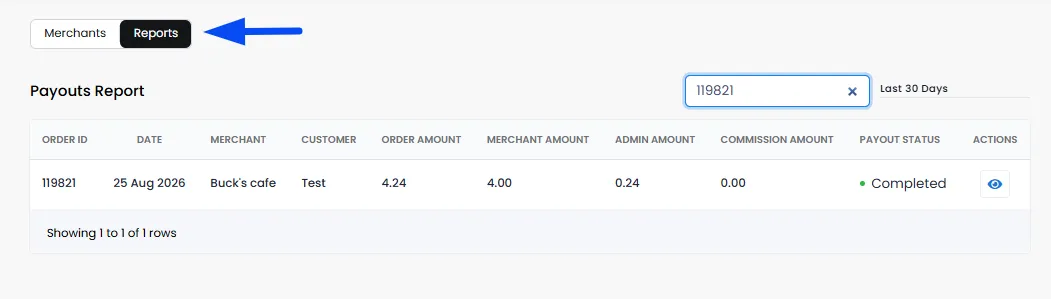
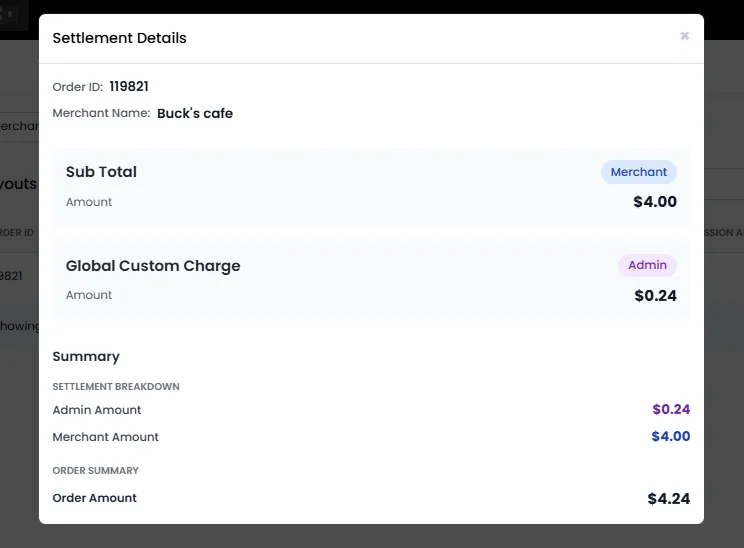
You can view and review your payout details from the Reports section. The payout report provides an overview of each transaction, including the Order ID, Date, Merchant, Customer, Order Amount, and other payout details, allowing you to review all transactions in detail.
You can also use the Search Payouts option to search by Order ID and date filter to find specific payout records.