Webhooks and API Keys
Integrating your platform with the wider digital ecosystem is essential for automation and growth. The Webhooks & API Keys section serves as the technical "communication hub" of your Hyperzod platform. It allows you to connect your business to third-party tools such as marketing automation, accounting software, or CRM systems, ensuring that data flows seamlessly without manual intervention.
Navigating to the Webhooks and API page
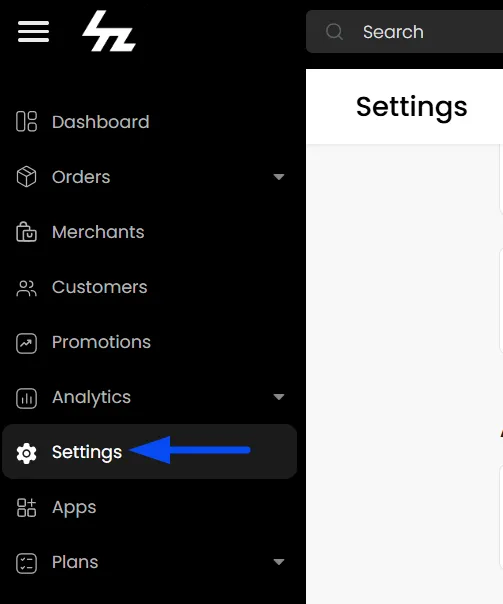
- On the Admin panel, navigate to the Settings section.
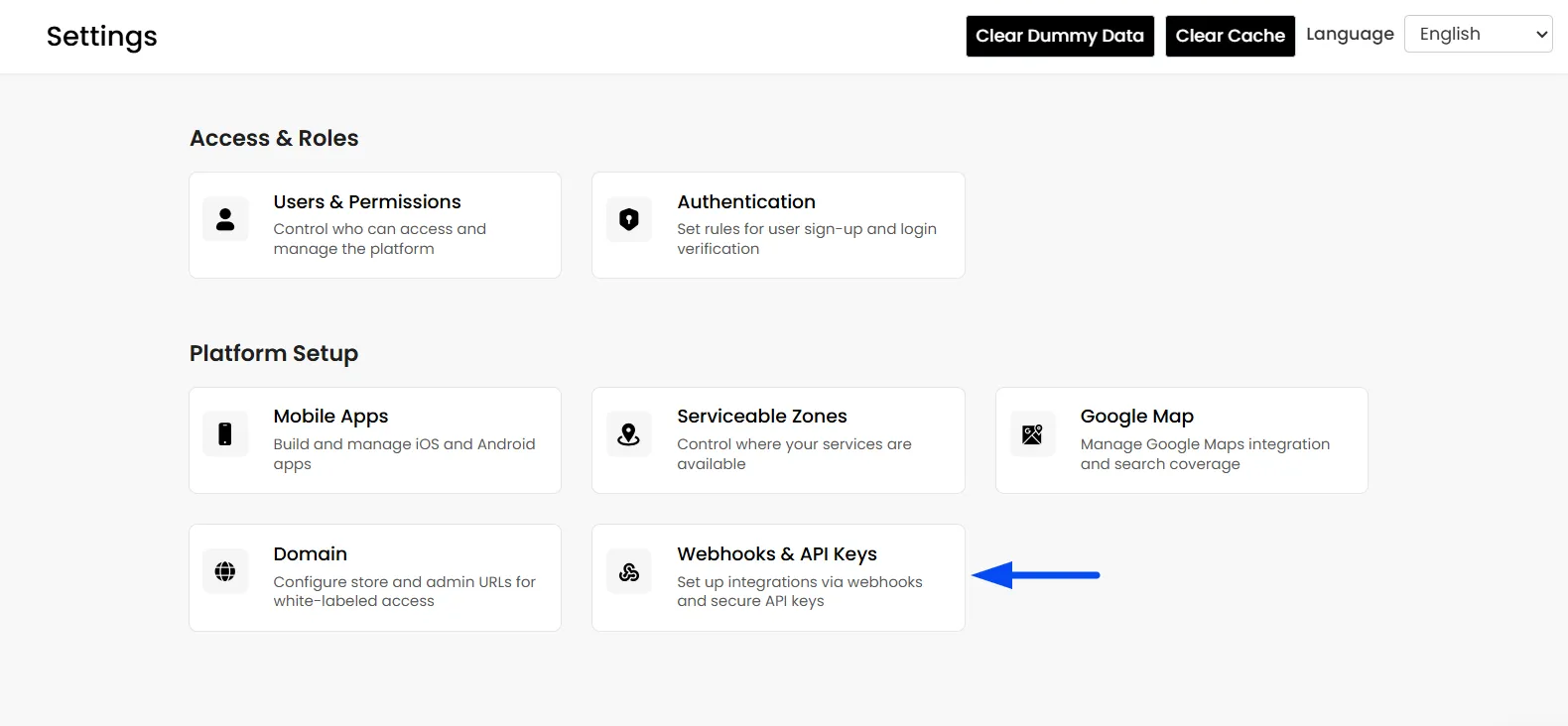
- Once in the settings section, under the Platform Setup section, click on Webhooks & API Keys.
Managing Webhooks
Webhooks are automated messages sent from Hyperzod to another app whenever a specific "event" happens (for example, a new order is created).
How to Add a New Webhook
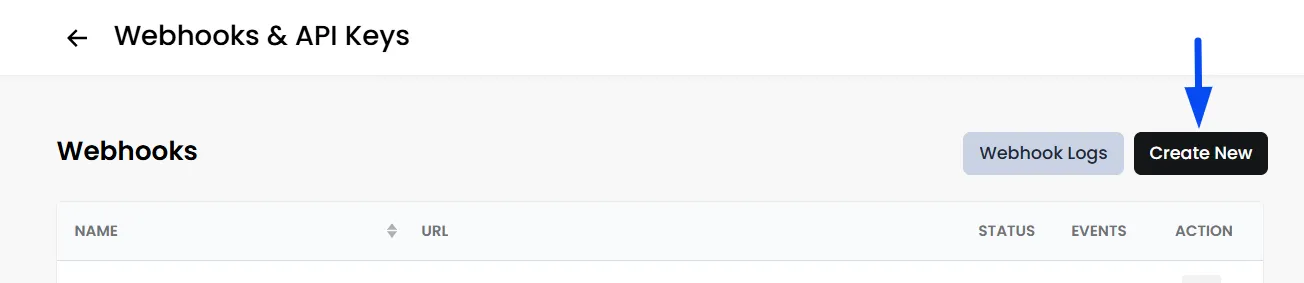
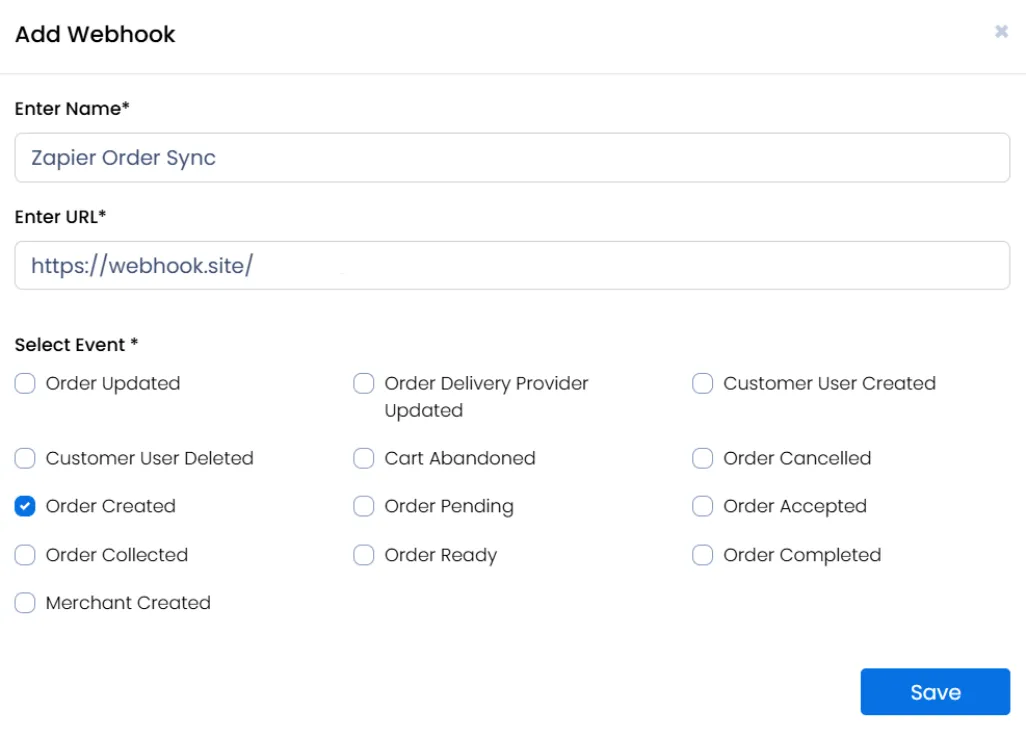
- Click the Create New button in the top right of the Webhooks table.
- Enter Name: Give your webhook a clear name.
- Enter URL: Paste the Destination URL provided by the external app you are connecting to.
- Select Events: Choose exactly which actions should trigger this message. You can select multiple events, such as: Order Ready: Triggers when a merchant marks an order as ready.
- Click Save.
Managing Existing Webhooks
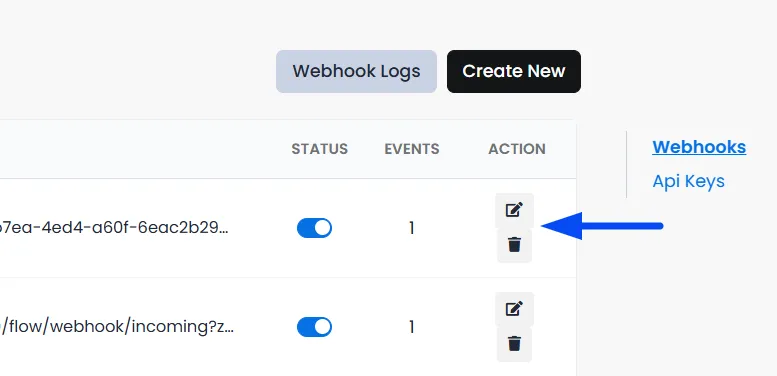
- Status Toggle: Use the status switch to quickly enable or disable a webhook without deleting it.
- Edit/Delete: Use the icons under the "Action" column to update your URL or permanently remove a webhook.
Webhook Logs
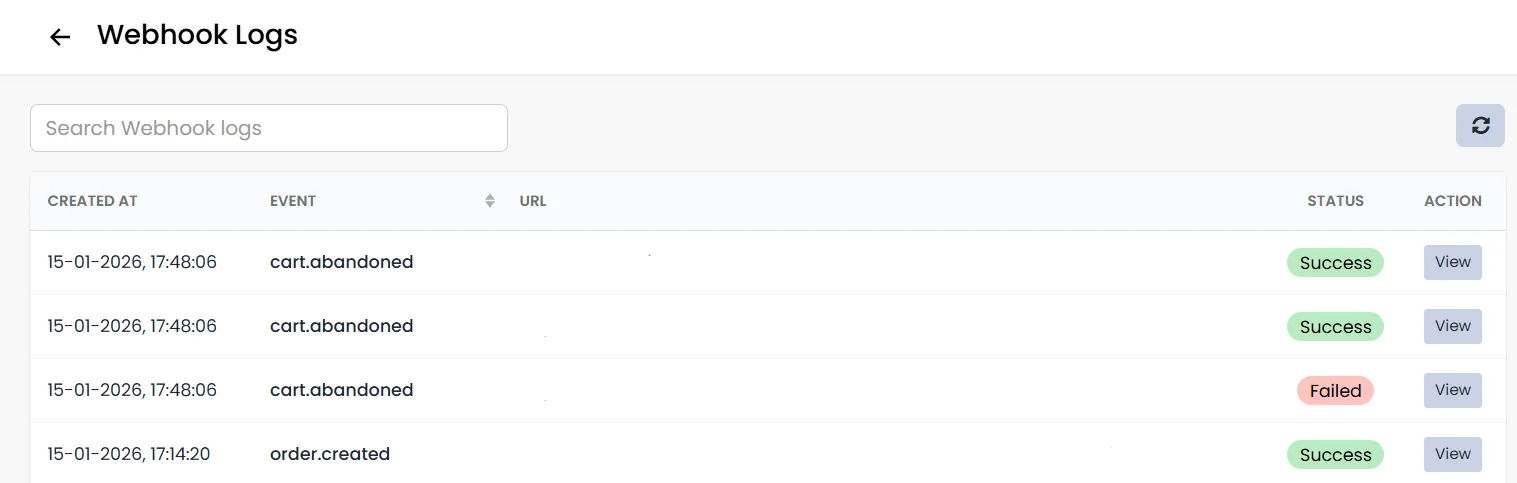
- Click the Webhook Logs button at the top to see a history of messages sent and check for any errors.
How to Generate a New API Key
An API Key is essentially a "digital key" or a secure password that allows two different software programs to talk to each other.
- Switch to the Api Keys tab on the screen.
- Click on Create New.
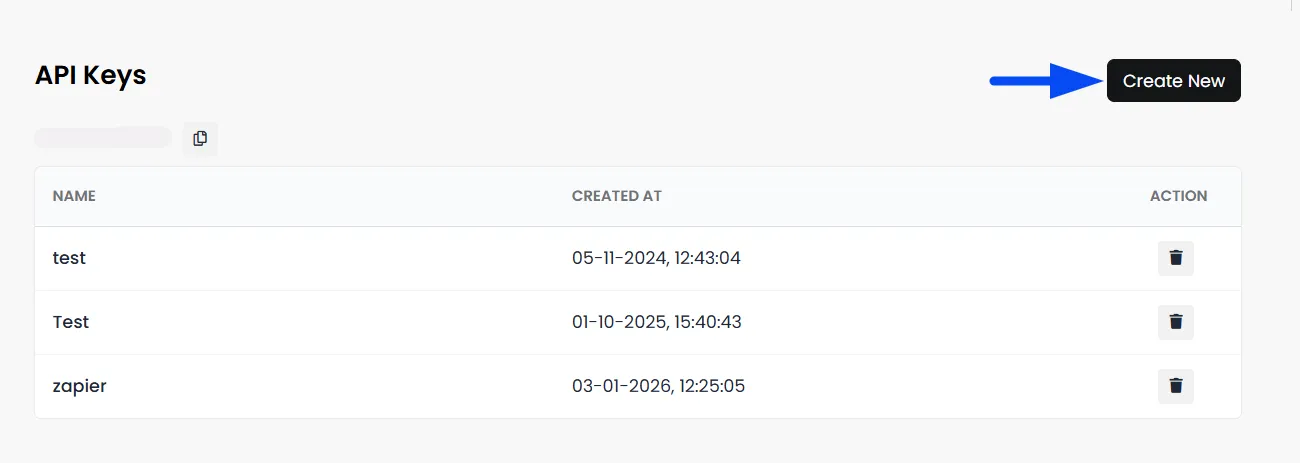
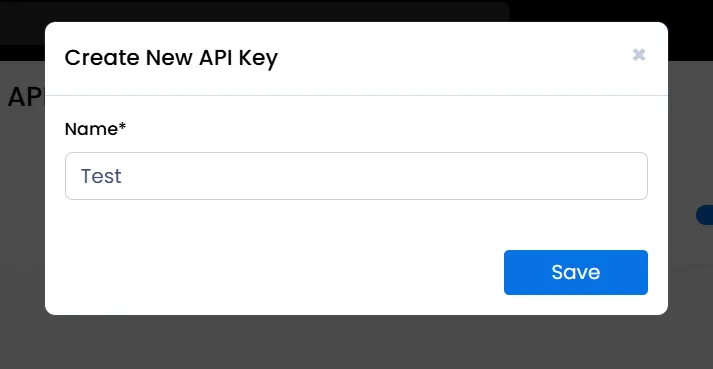
- Name your Key: Give it a name that describes what it’s for (e.g., "Marketing App Key").
- Click Save.