Zone Management
Zones allow you to divide your platform into manageable areas so each team can focus only on the operations they are responsible for. This means different managers can handle different areas. Each manager can only view and manage data for their assigned zone.
This helps keep your operations organized, structured, and easy to manage, especially when multiple teams or managers are involved.
Navigating to the Zones Section
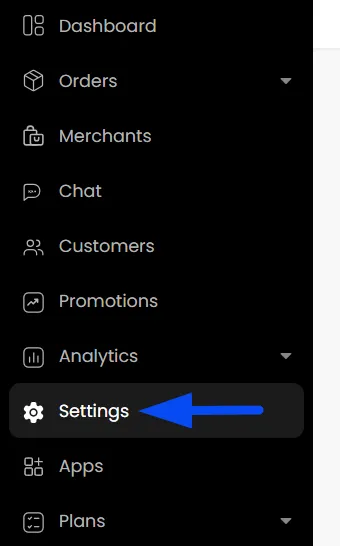
- On the admin panel, navigate to Settings.
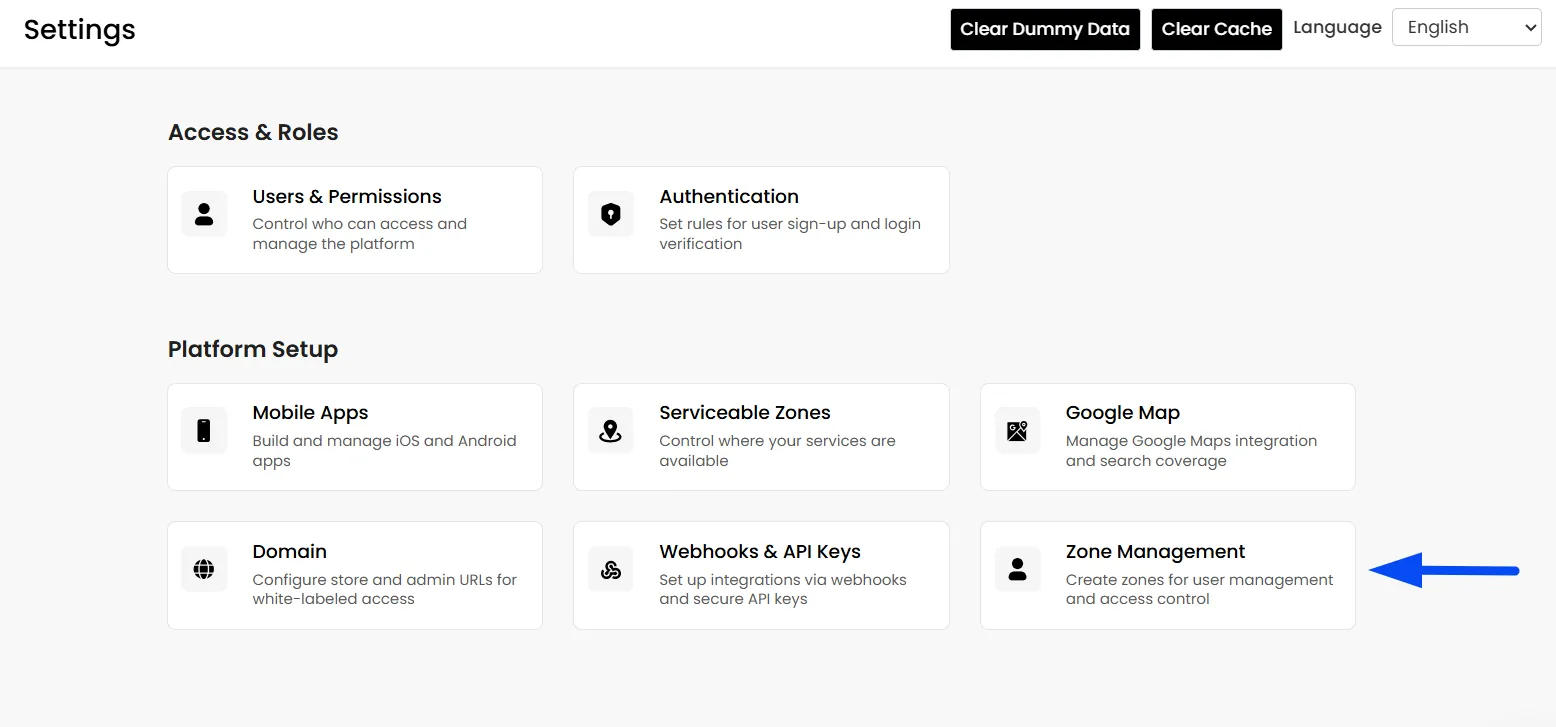
- Once on the Settings page within the Platform setup, click on "Zone Management."
How to Create a New Zone
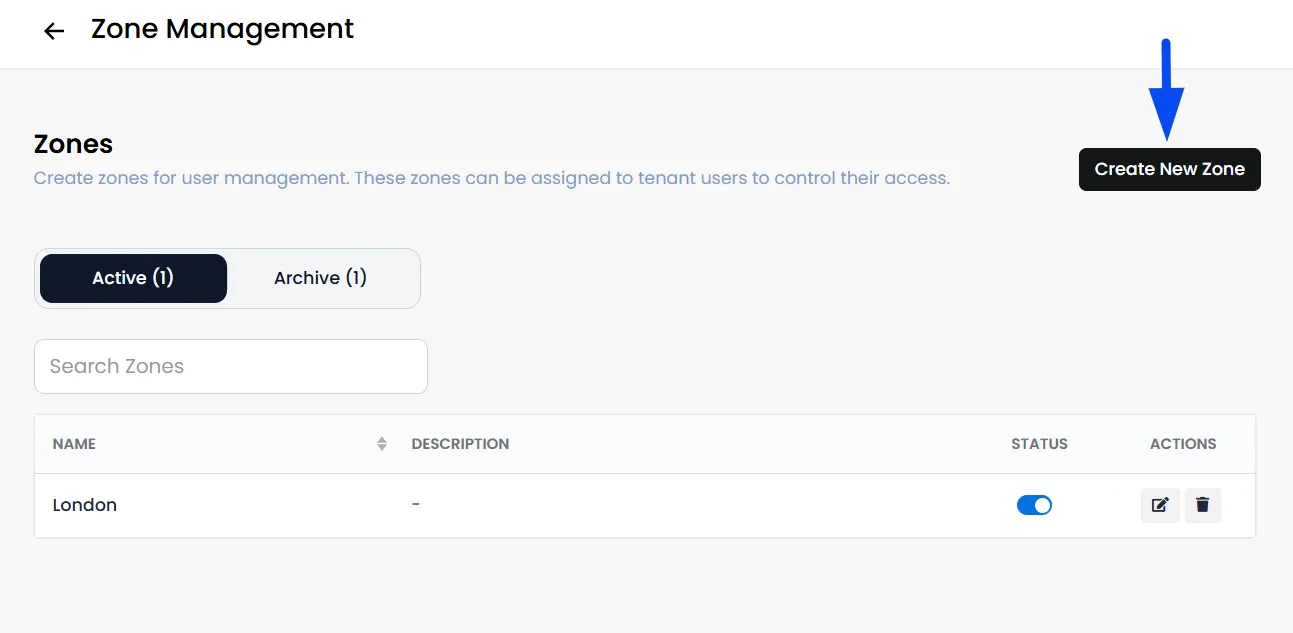
- Click Create New Zone
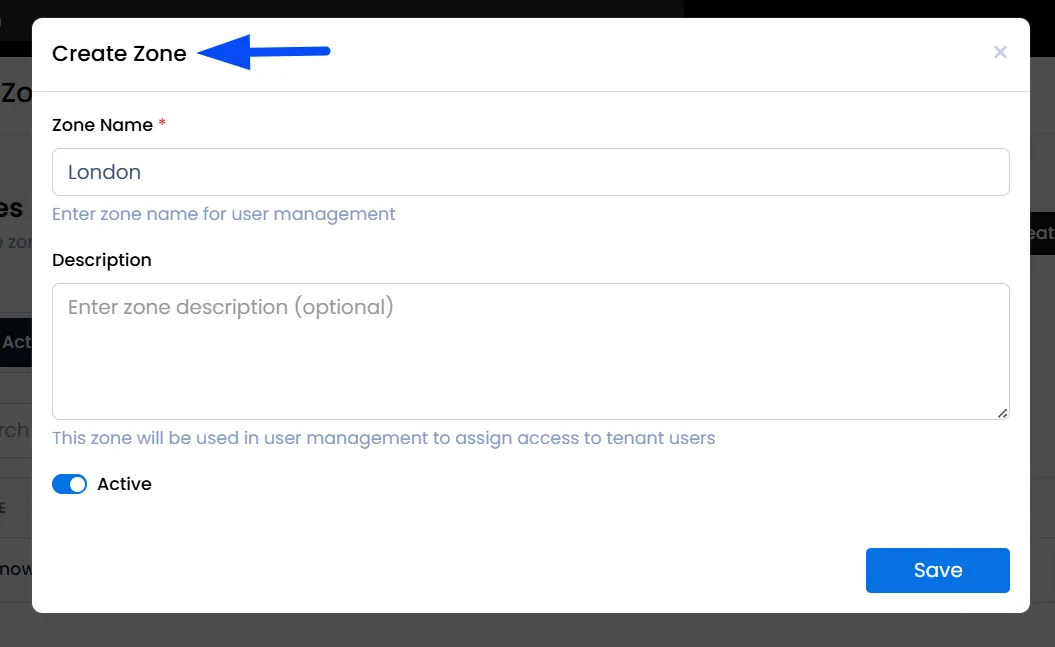
Zone Name
Enter the name of the zone. For instance, if your platform operates in the United Kingdom, you can create zones based on specific areas or cities.
You may create a zone for London. All merchants located in London can then be assigned to the London zone.
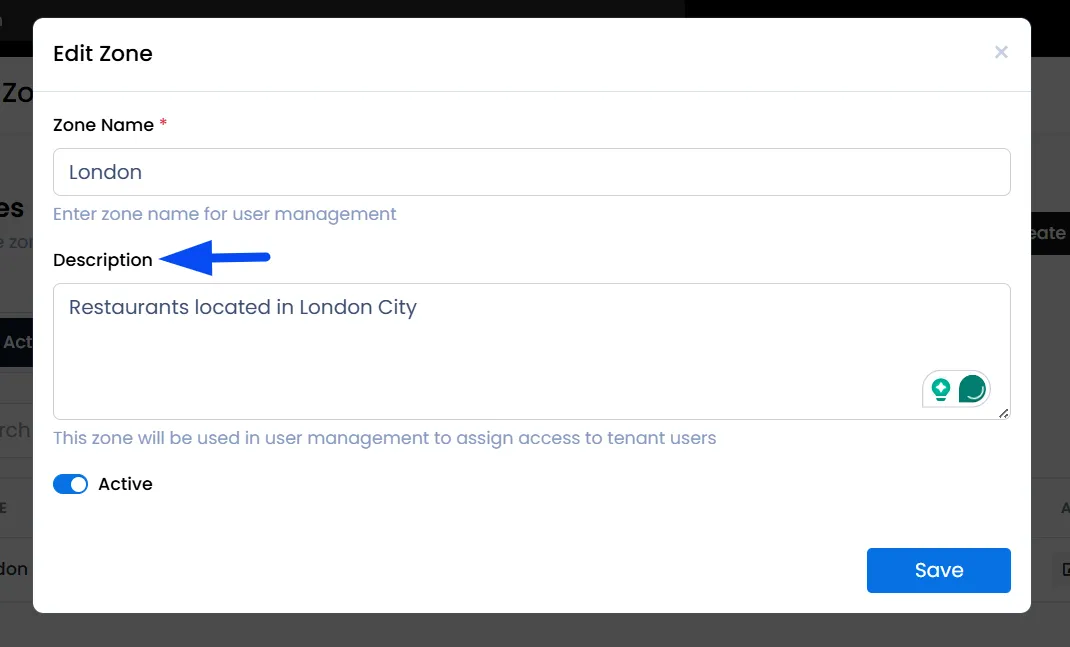
Description (Optional)
Write a short description. Example: Restaurants located in London.
This helps explain the purpose of the zone.
Assigning Zones
Once your zones are created, the next step is to assign them to the relevant merchants and managers. This ensures that each zone is properly managed and that users only have access to the data related to their assigned area.
Assign Zone to a Merchant
After creating zones, you must assign merchants to them.
- Navigate to the Merchants section in the Admin panel.
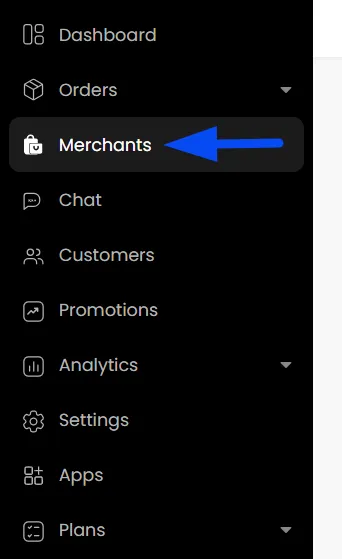
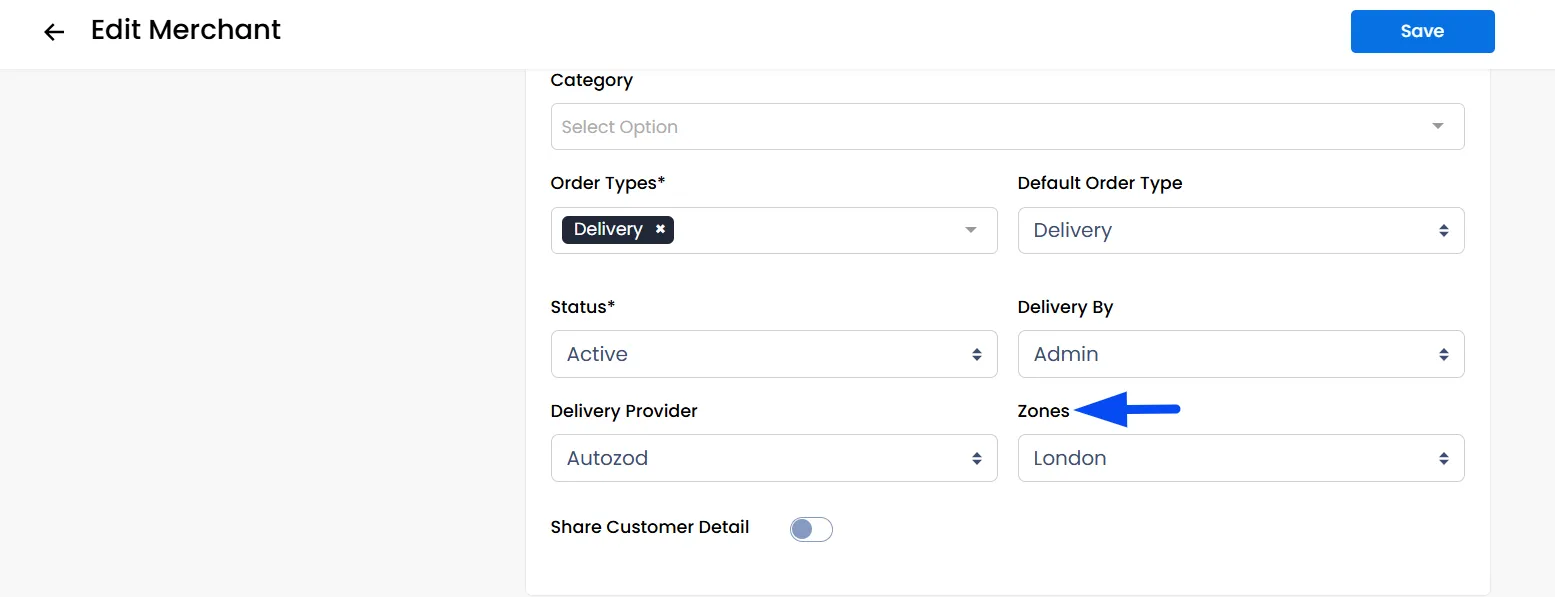
- Open the Merchant profile you want to assign to a zone, then click Edit. Then scroll down to the Zones field and select the appropriate zone.
Assign Zone to Admin Users
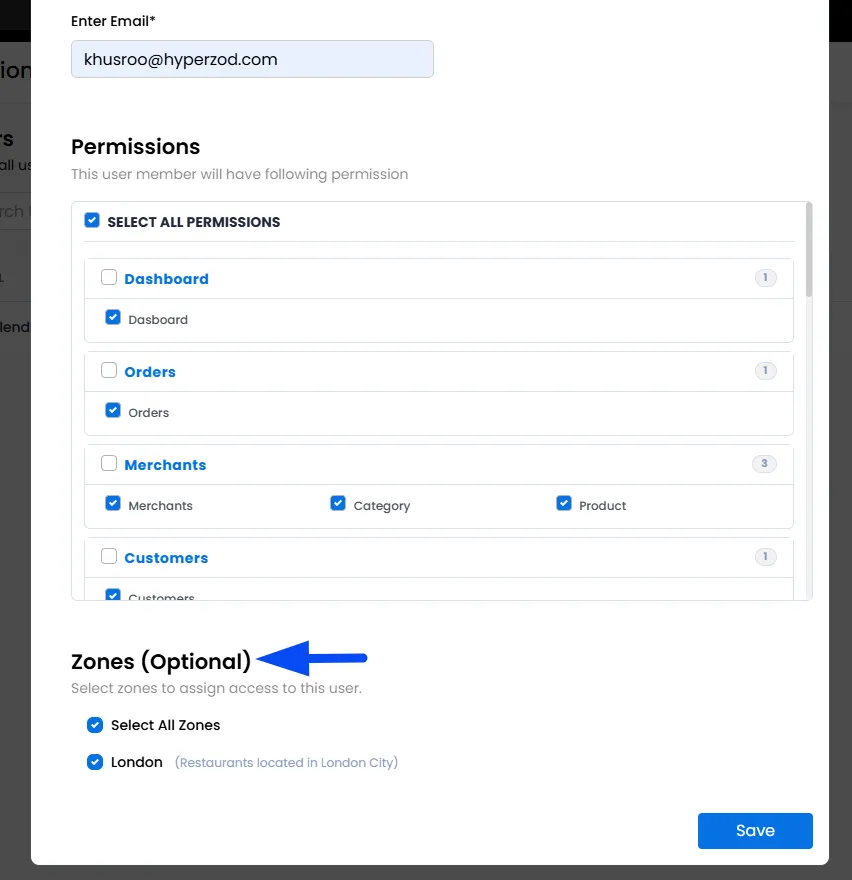
As the next step, you can now invite the admin users or managers and assign them their respective zones.
Note: Once the admin user or manager is assigned to a specific zone, they will only be able to view and manage the orders, merchants, and reports related to that assigned zone.
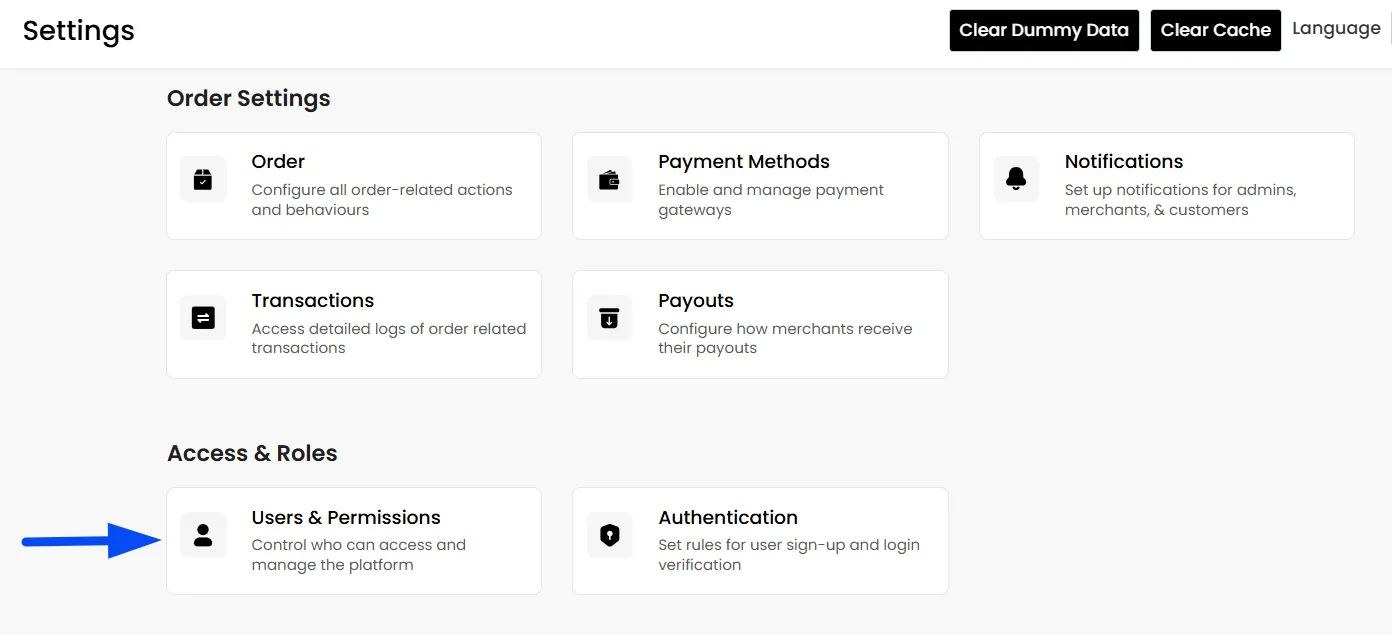
- Navigate to Settings in the admin panel and click Users and Permissions under the Access and Roles section.
- Invite the Admin User or Manager using their email address. Then select the required permissions and assign the zone that the user will manage.
Managing Zones
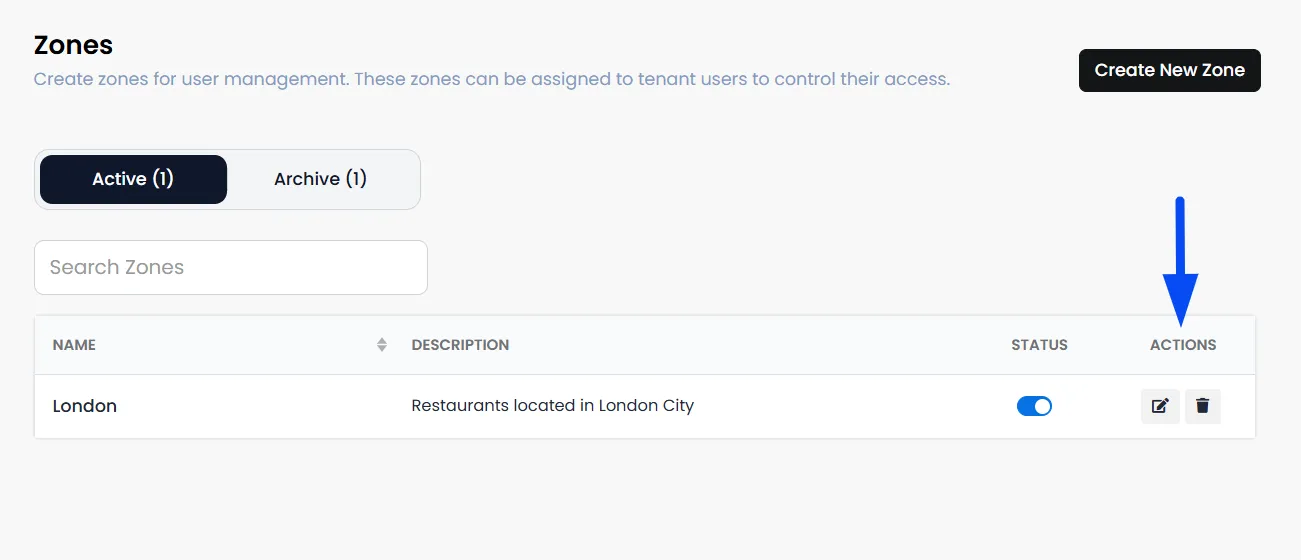
After creating zones, you can manage them at any time from the Zone Management section. This allows you to update zone details, control whether a zone is active, or remove a zone if it is no longer needed.
Edit a Zone
- If you need to update the information for a zone, you can edit it.
Toggle Zone Status (Active / Inactive)
- You can control whether a zone is currently usable by turning its status ON or OFF.
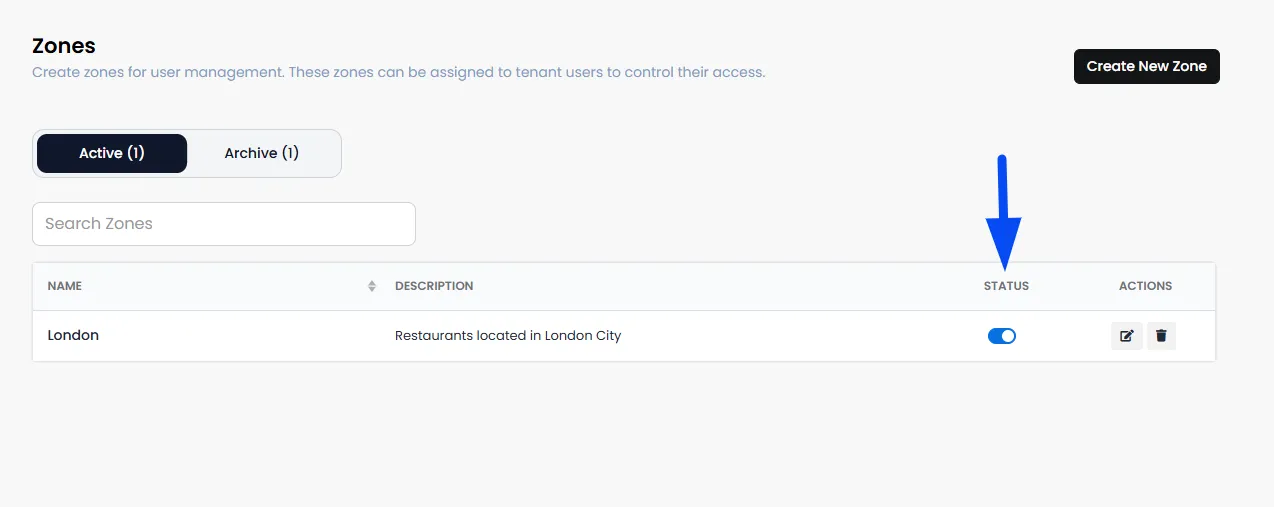
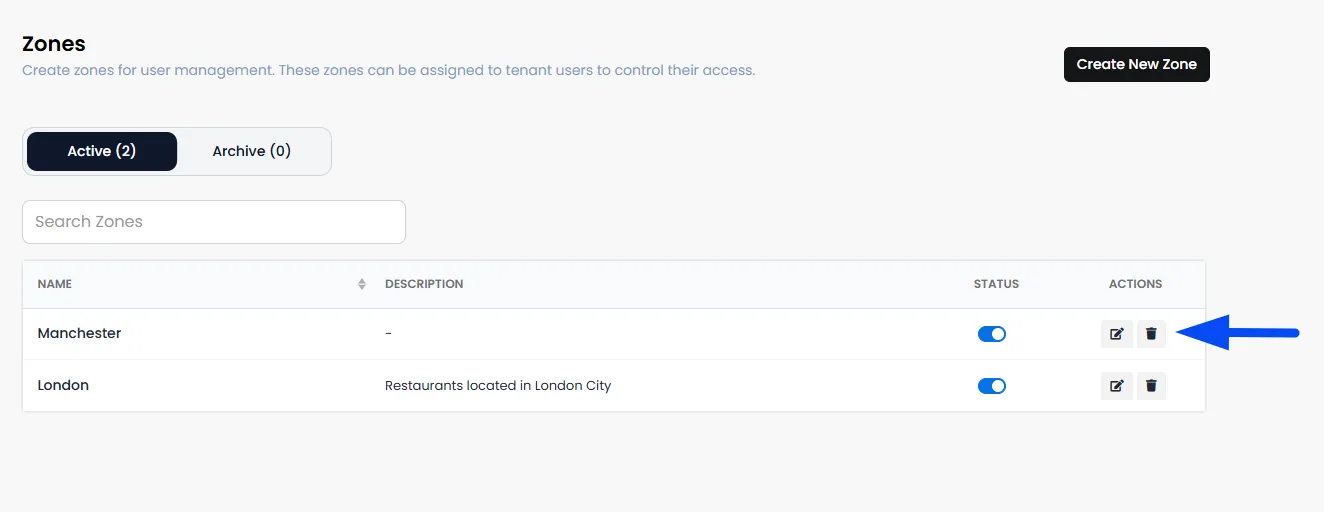
Delete a Zone
- If a zone is no longer needed, you can remove it by clicking the Delete option next to the zone.
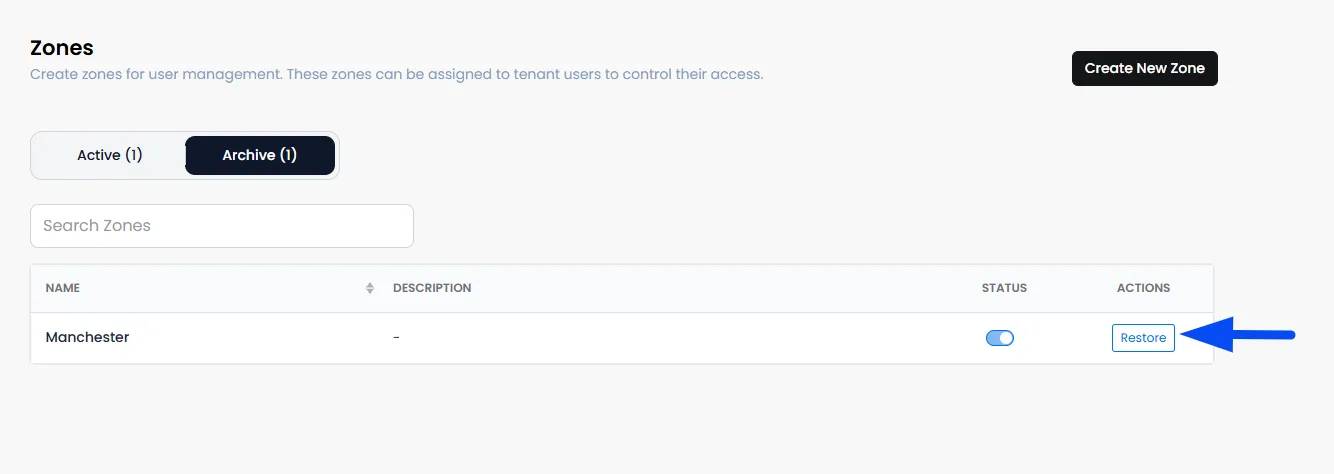
Note: When a zone is deleted, it is not permanently removed. Instead, it moves to the Archive tab. From there, you can restore the zone anytime if you need to use it again.