Autozod Integration in Hyperzod
The Autozod Delivery Integration allows you to connect your store with Autozod for seamless delivery management. Through this integration, you can automatically send orders to Autozod, manage multiple delivery teams, assign merchants to specific teams, and monitor delivery activity through detailed logs.
Navigating to the Autozod App Settings
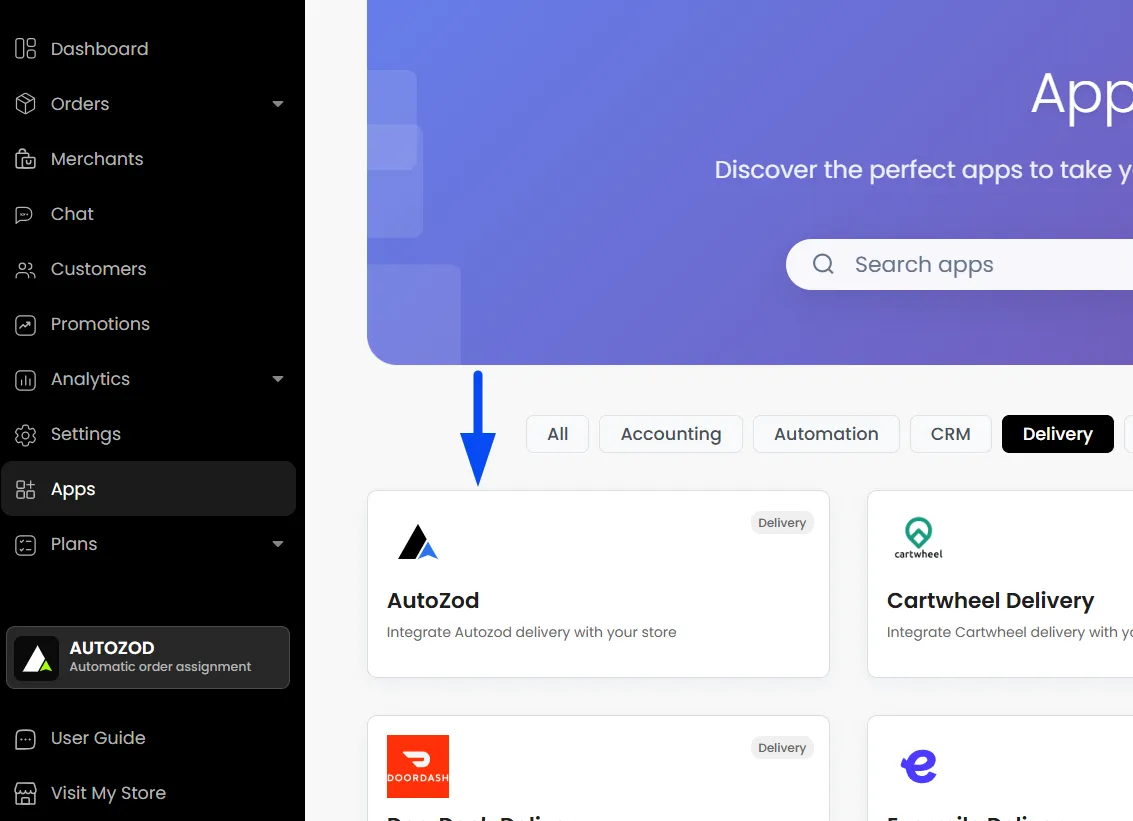
In the Admin panel, click the Apps section, then select Autozod in the delivery section.
Configure Autozod
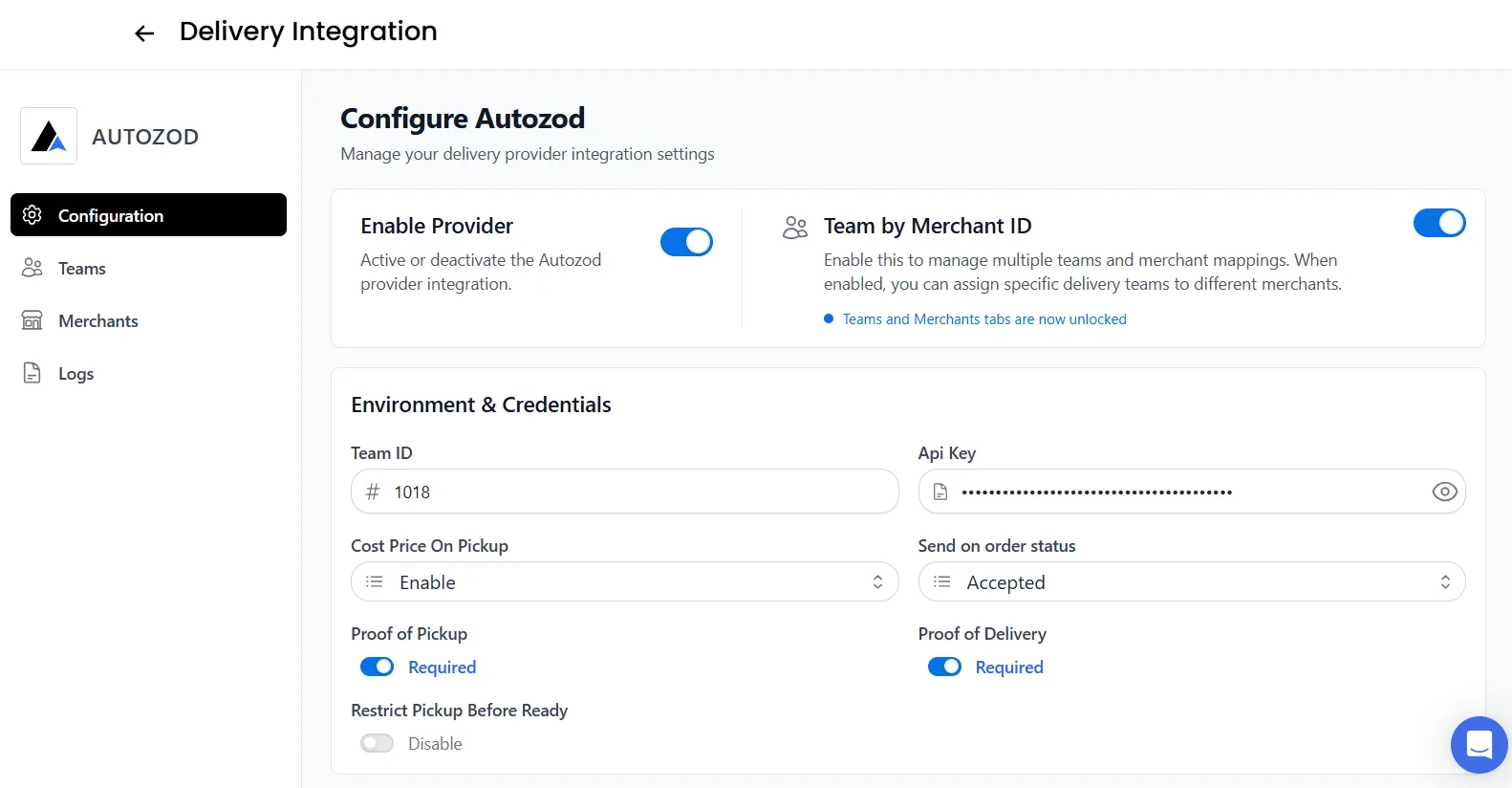
The Configuration section is where you connect and manage your Autozod integration settings.
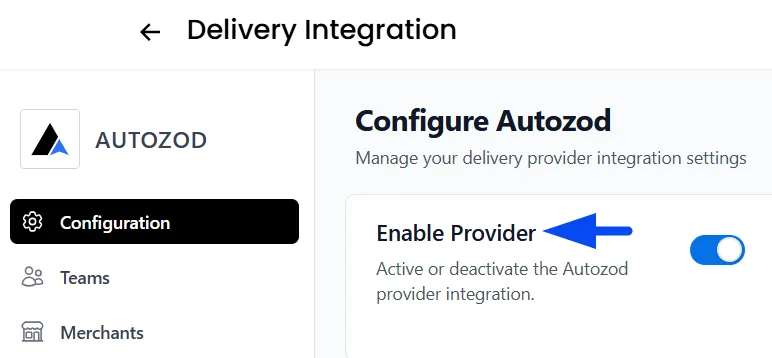
Enable Provider
Enable or disable the Autozod integration for your store.
Environment & Credentials
This section connects your Autozod account to Hyperzod by configuring the required team details, API credentials, delivery behavior, and order-handling preferences.
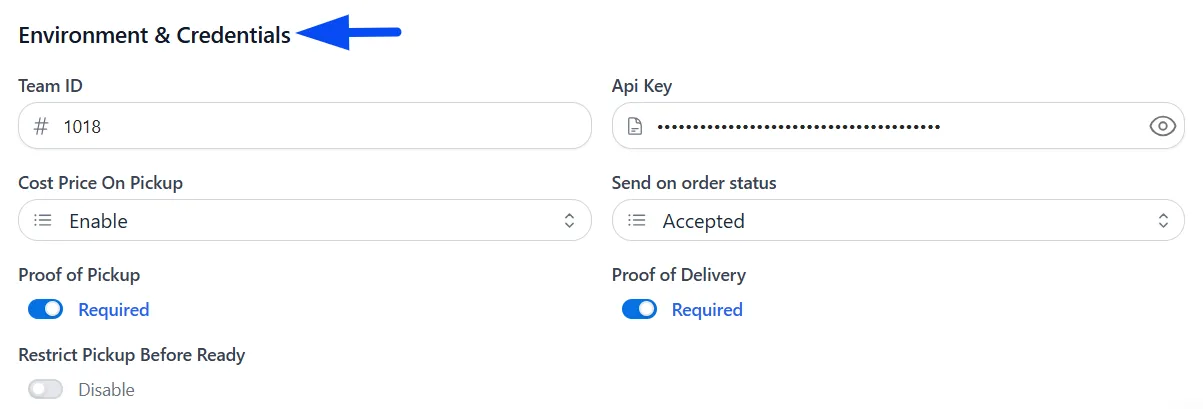
Team ID
Enter your Autozod Team ID.
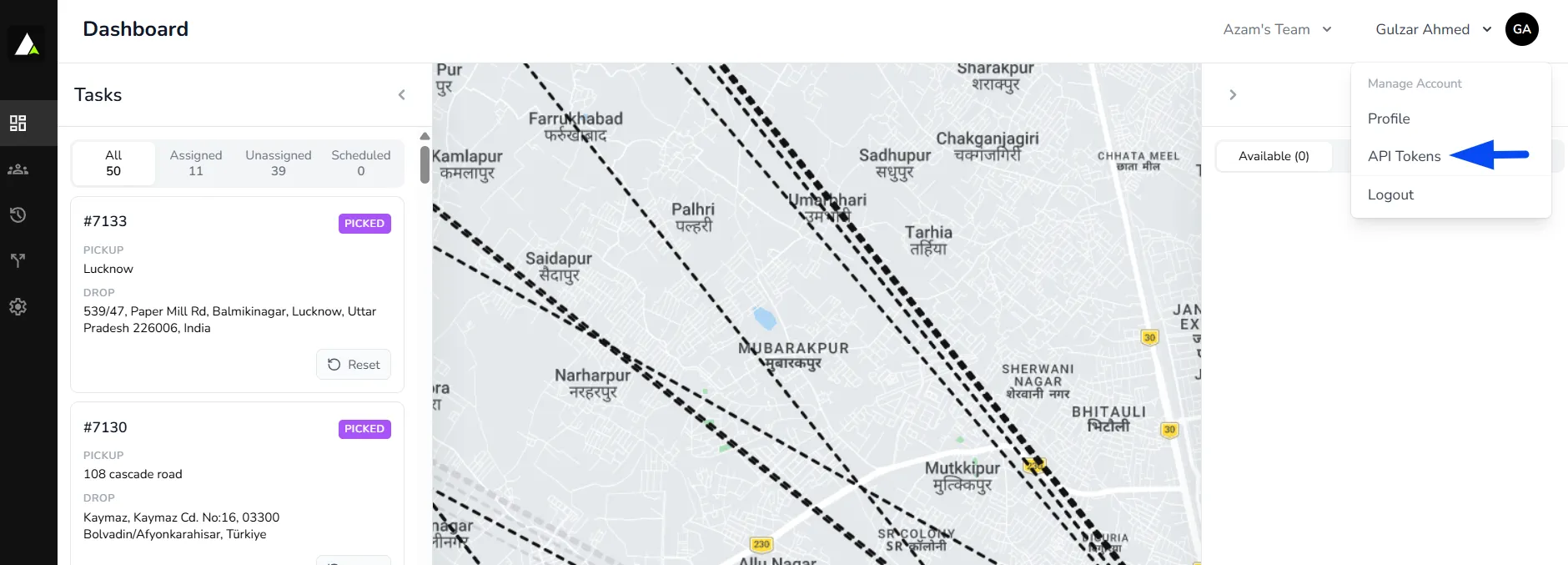
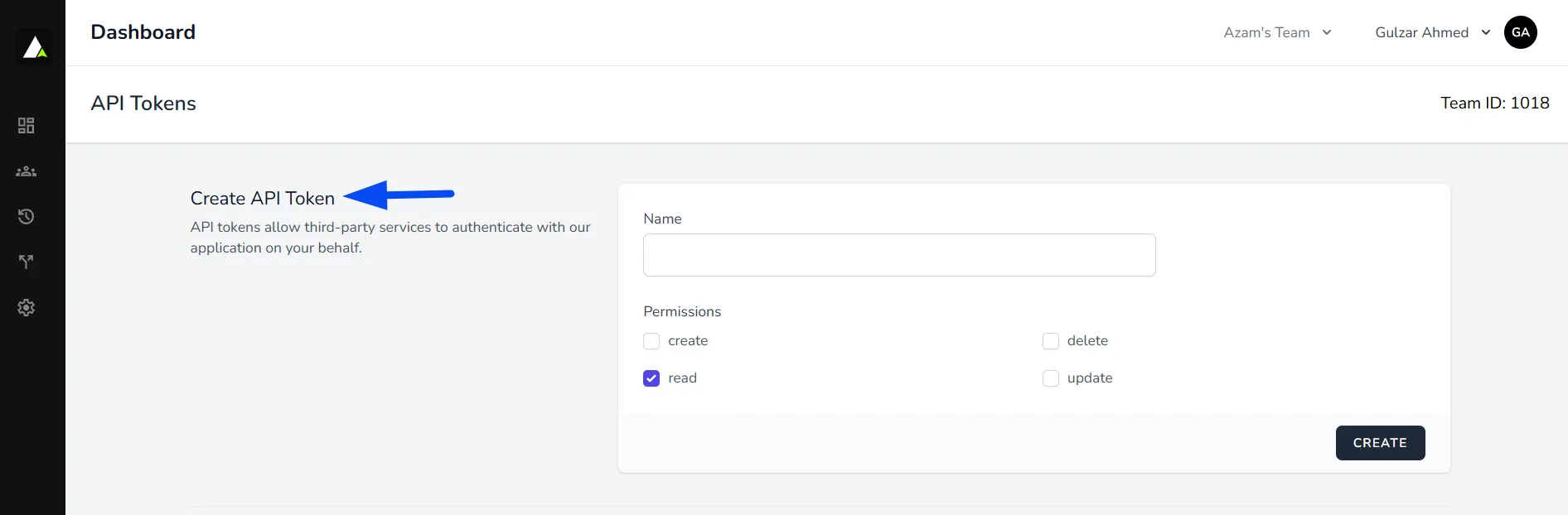
To fetch the Team ID, log in to the Autozod panel, then in the top right corner, click on the Profile > API Tokens and copy the Team ID
API Key
Enter the API key provided by Autozod to securely connect your account to Hyperzod.
To get the API key, log in to the Autozod panel, then in the top right corner, click on Profile > API Tokens, and then you can create the API with the needed permissions
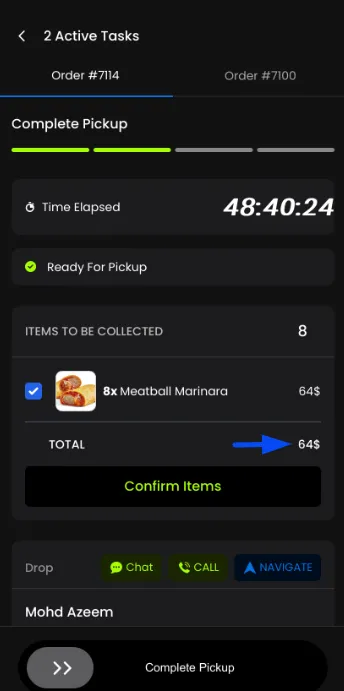
Cost Price On Pickup
Once you enable the option for Cost Price on Pickup, the driver will be able to see the cost price of the item upon reaching the merchant store, and can accordingly provide the cash to the merchant
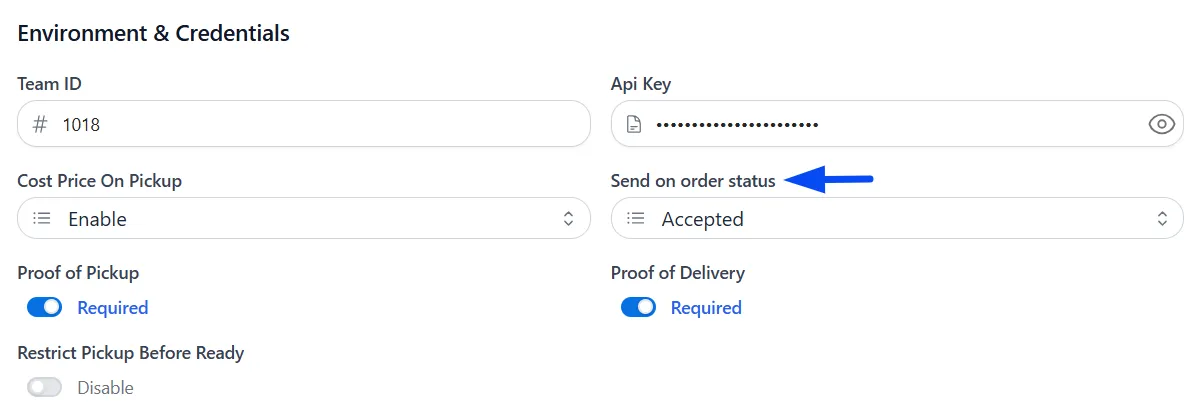
Send on Order Status
Choose the order status at which the order should automatically be sent to Autozod. For example, if you have configured the order status as Accepted, then once the order is accepted, it will be sent to the Autozod panel automatically and will accordingly start looking for the driver to assign the order.
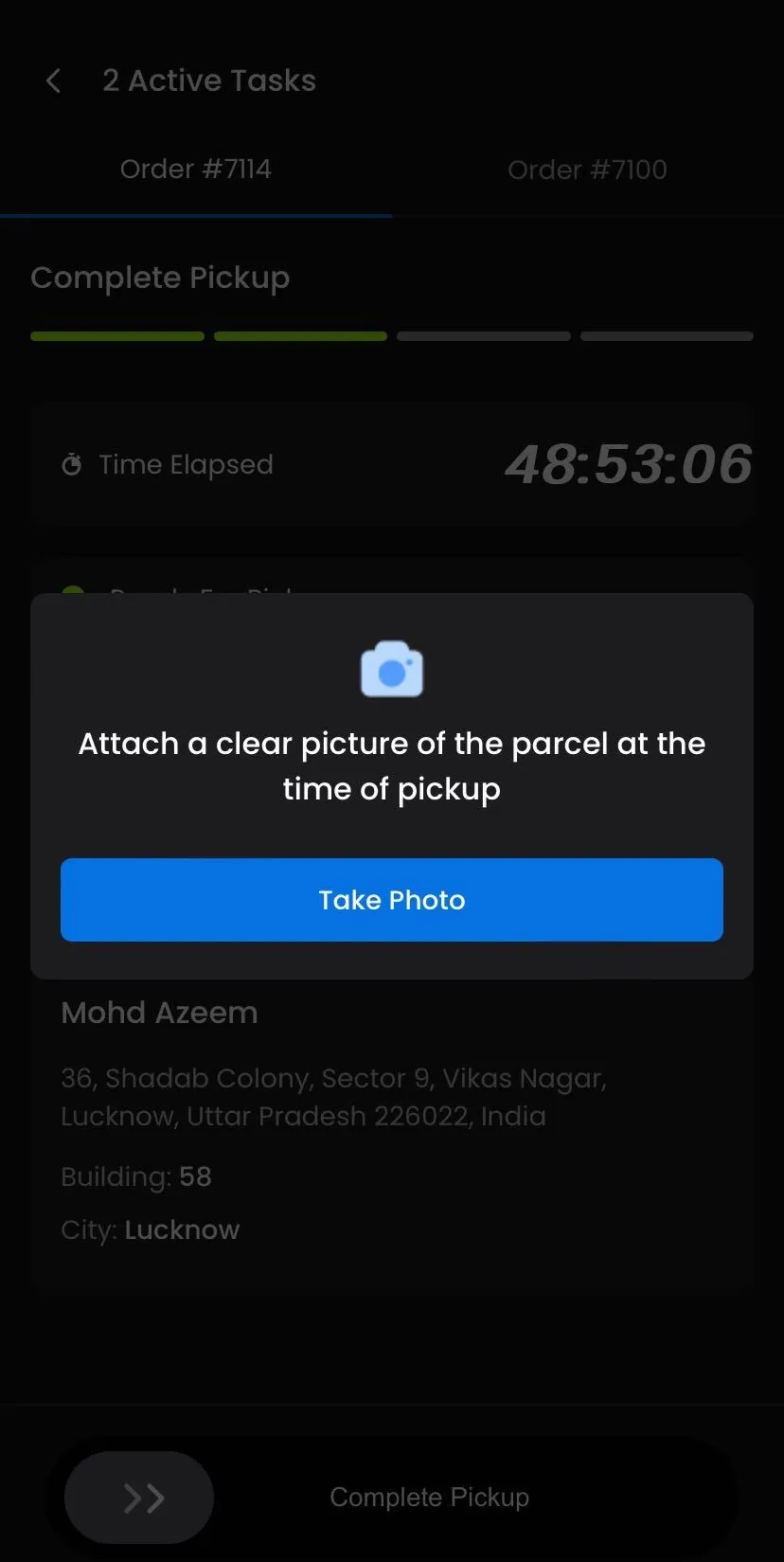
Proof of Pickup
The "Proof of Pickup" feature allows the driver to click an image of the order at the time they pick up the order from the merchant.
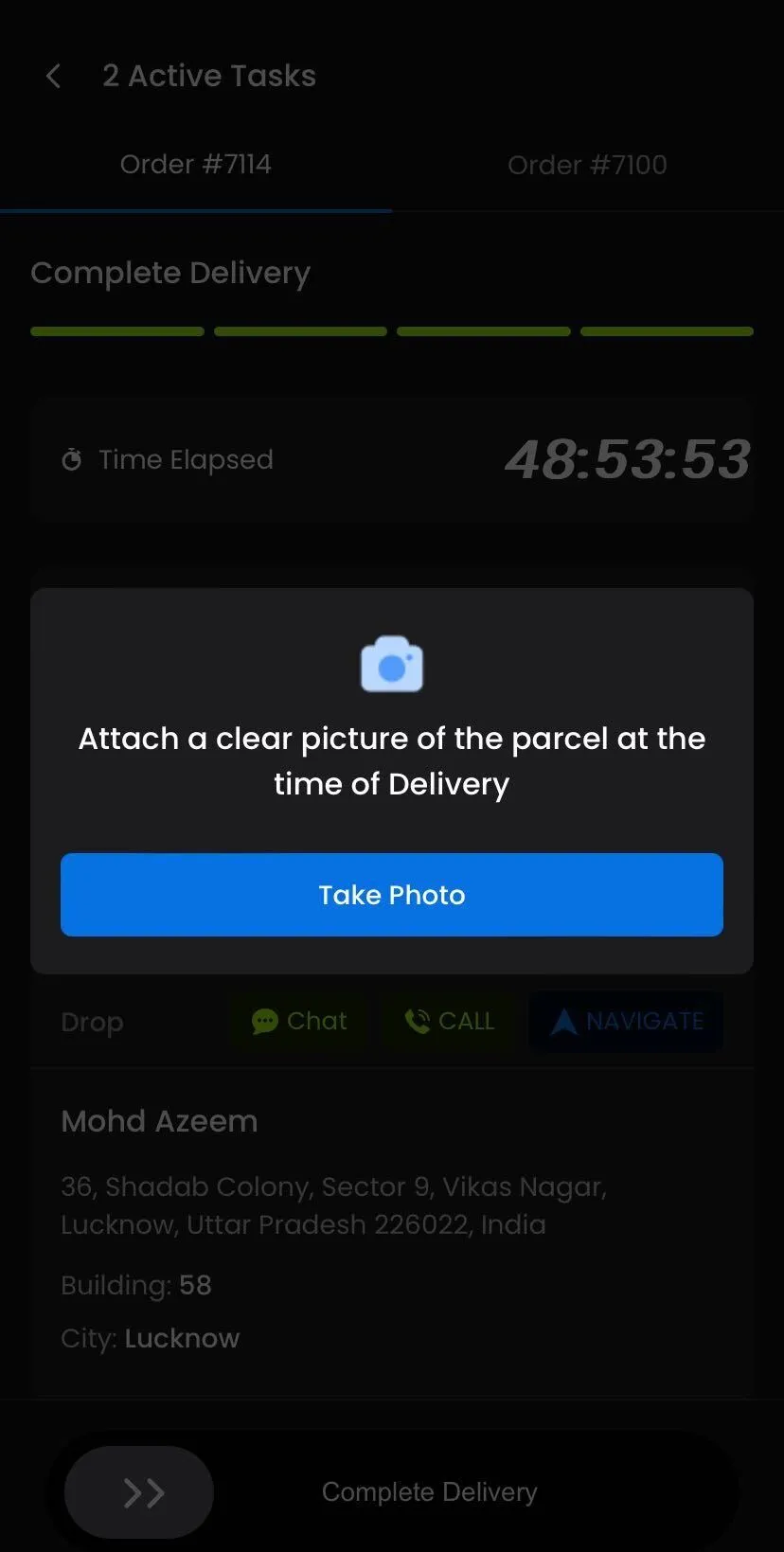
Proof of Delivery
The "Proof of Delivery" feature allows the driver to click an image of the order at the time of Delivery before handing it to the customer.
Note: To review the Proof of Pickup and Proof of Delivery images, go to Autozod Panel > Tasks, select the relevant task, and review the uploaded images accordingly.
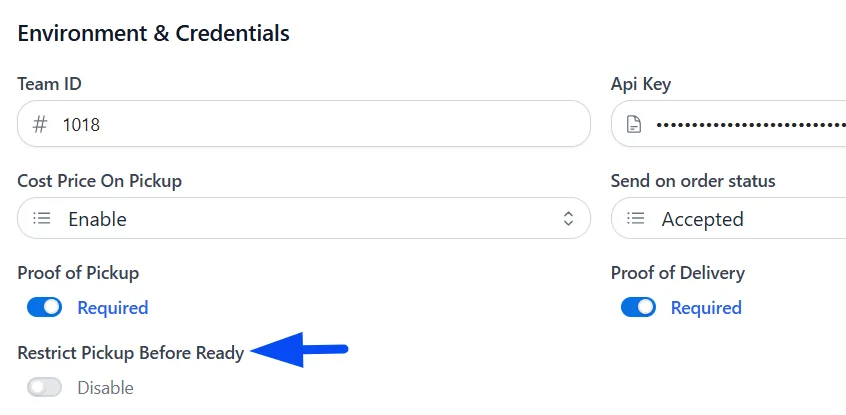
Restrict Pickup Before Ready
Prevent drivers from marking the order as picked up before the merchant marks them as ready.
Webhook Configuration
The webhook URL is used to receive delivery updates from Autozod back into Hyperzod. Simply copy the provided webhook URL and configure it inside your Autozod dashboard, and select the events on which you want the webhook to be triggered.
You can configure the Webhook within the Autozod panel > Settings > Webhooks

Team by Merchant ID
Enable this to manage multiple teams, and once enabled, you can assign specific delivery teams to different merchants.
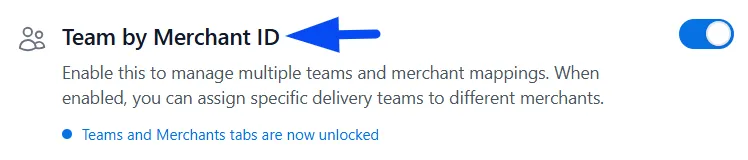
Once you enable the toggle for "Team by Merchant ID," a new section will pop up named "Teams." Click on the Teams section, and this is where you will configure the additional delivery teams.
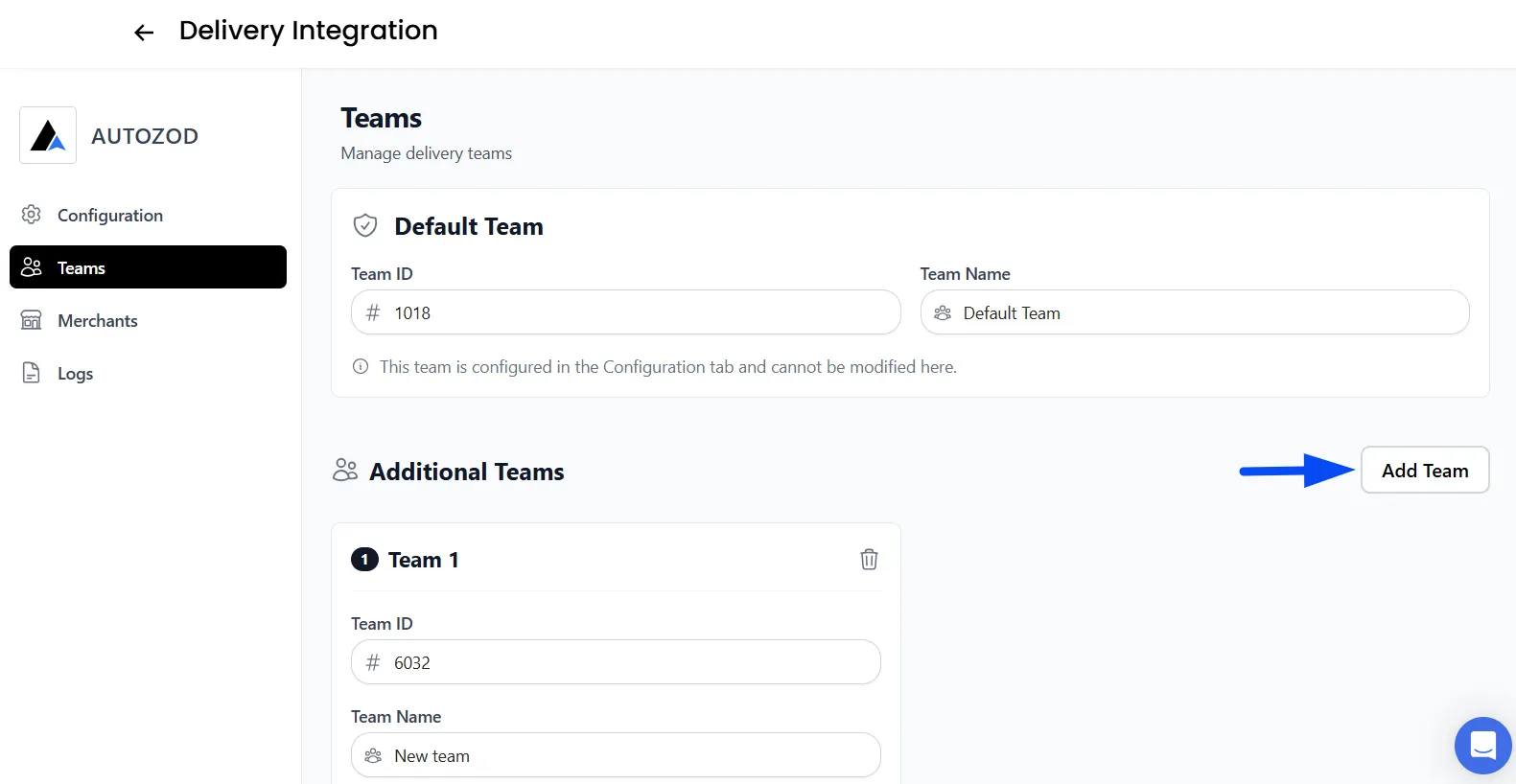
How to Configure Additional Autozod Delivery Teams
To create and configure additional delivery teams, first log in to the Autozod panel. In the top-right corner, click on the Team dropdown and select “Create New Team” to create a new delivery team.
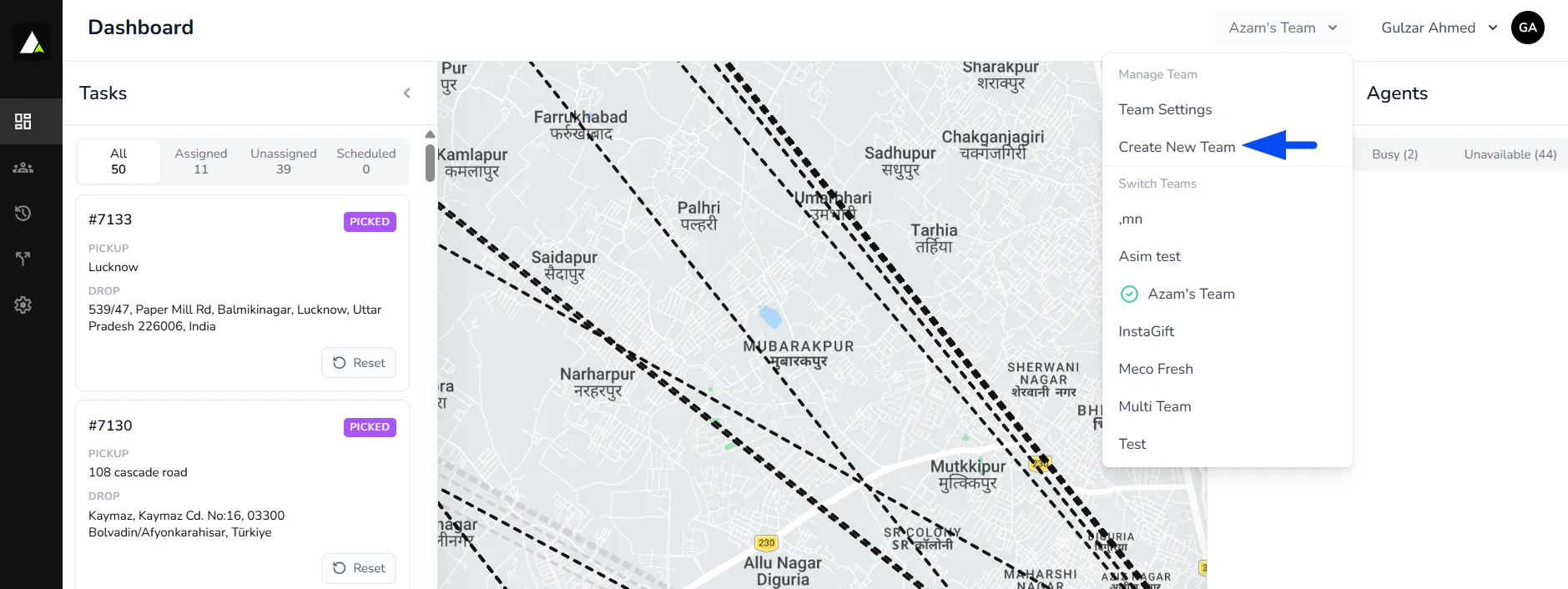
Once the team is created, you will need the following details:
- Team ID
- Team Name
- API Key
Fetching the Team ID
Make sure you are currently switched to the newly created team in the Autozod panel. Then:
- Click on the Profile section in the top-right corner
- Navigate to API Tokens
- Copy the Team ID
Team Name
Enter the same team name that was created in the Autozod panel to ensure proper mapping.
Creating the API Key
To generate the API key:
- Go to Profile > API Tokens
- Create a new API token with the required permissions
- Copy the generated API key and use it in the integration settings
Note: Once the teams are configured, please inform the Hyperzod team, as an app update will be required for the newly created teams to appear within the Driver app
Assigning Merchants to Teams
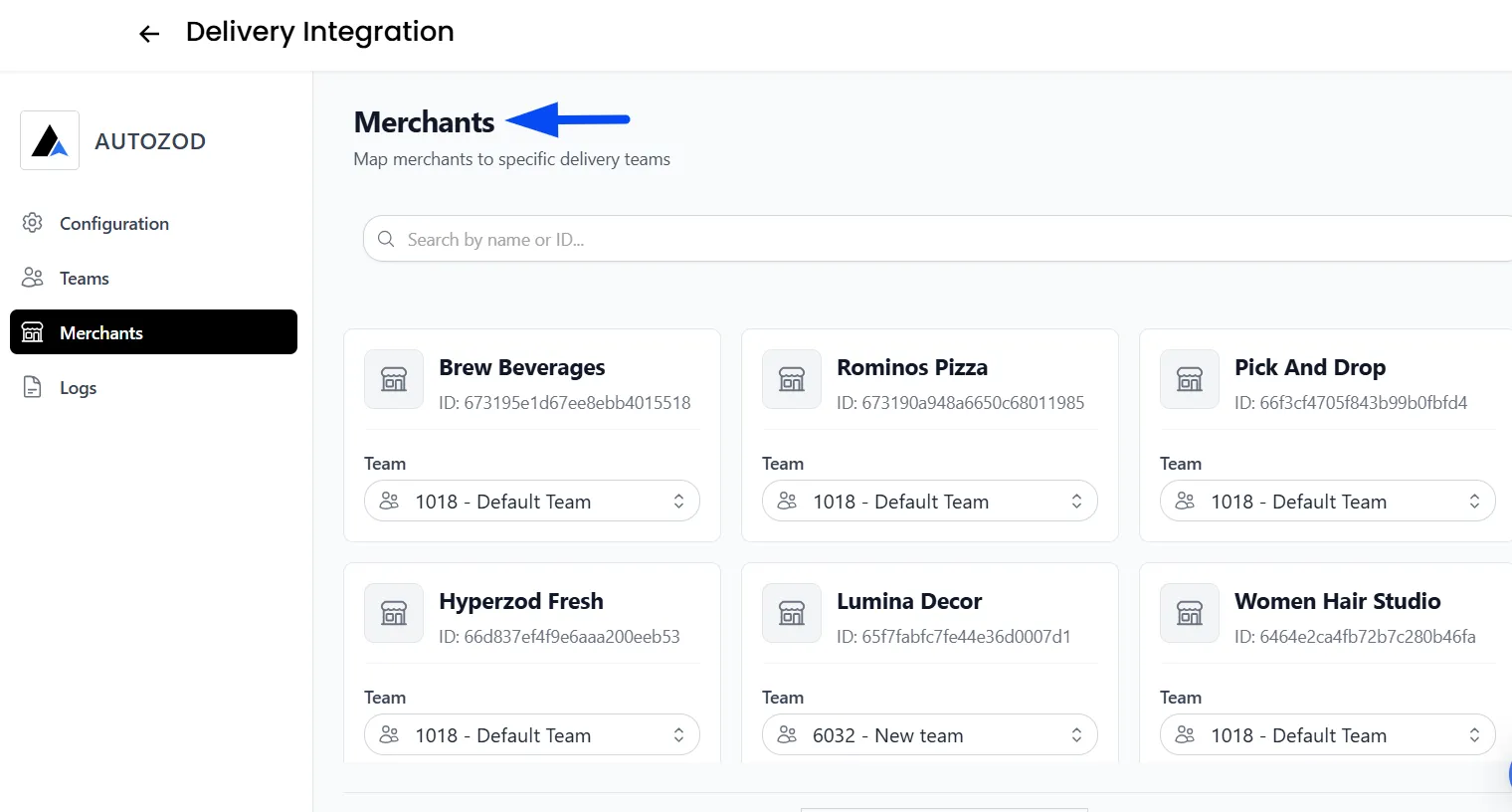
Upon enabling the "Teams by Merchant ID," click on the "Merchants" section. The Merchants section allows you to map merchants to specific delivery teams.
Use the search bar to quickly locate merchants by:
- Merchant Name
- Merchant ID
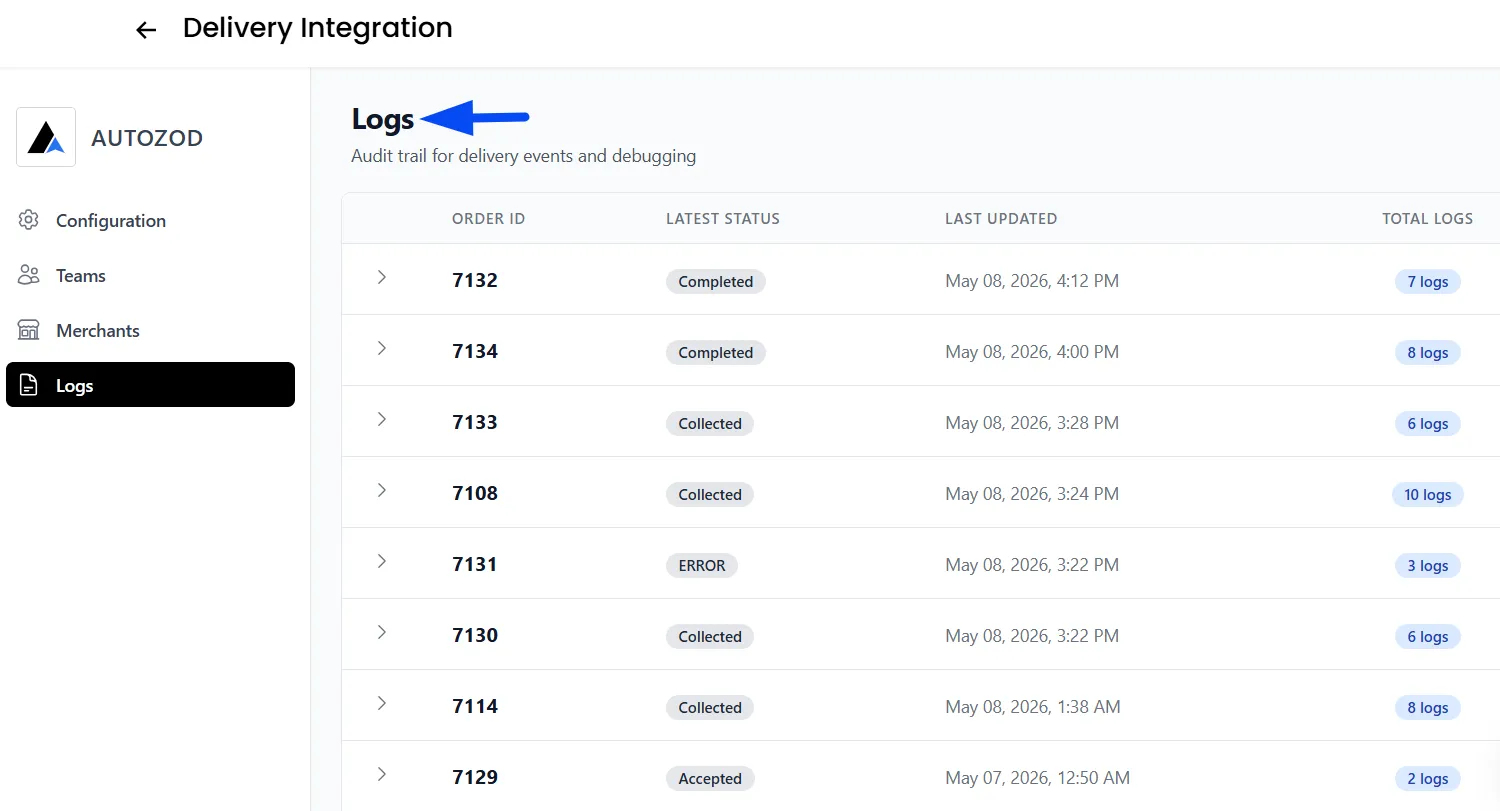
Logs
The Logs section provides a complete audit trail of delivery activity. This helps monitor the progress of order delivery and troubleshoot issues as needed.