Mobile App Setup
The Mobile App section lets you customize the appearance and certain app-level configurations of your Ordering, Merchant, and Driver mobile apps. Depending on the app and platform, you can personalize elements such as the app icon, splash screen, colors, and other app-specific settings to create a consistent and branded mobile experience.
Some changes can be applied without releasing a new app version, while others are built into the app and therefore require an app update.
Accessing the App Build Profile
To configure your mobile app:
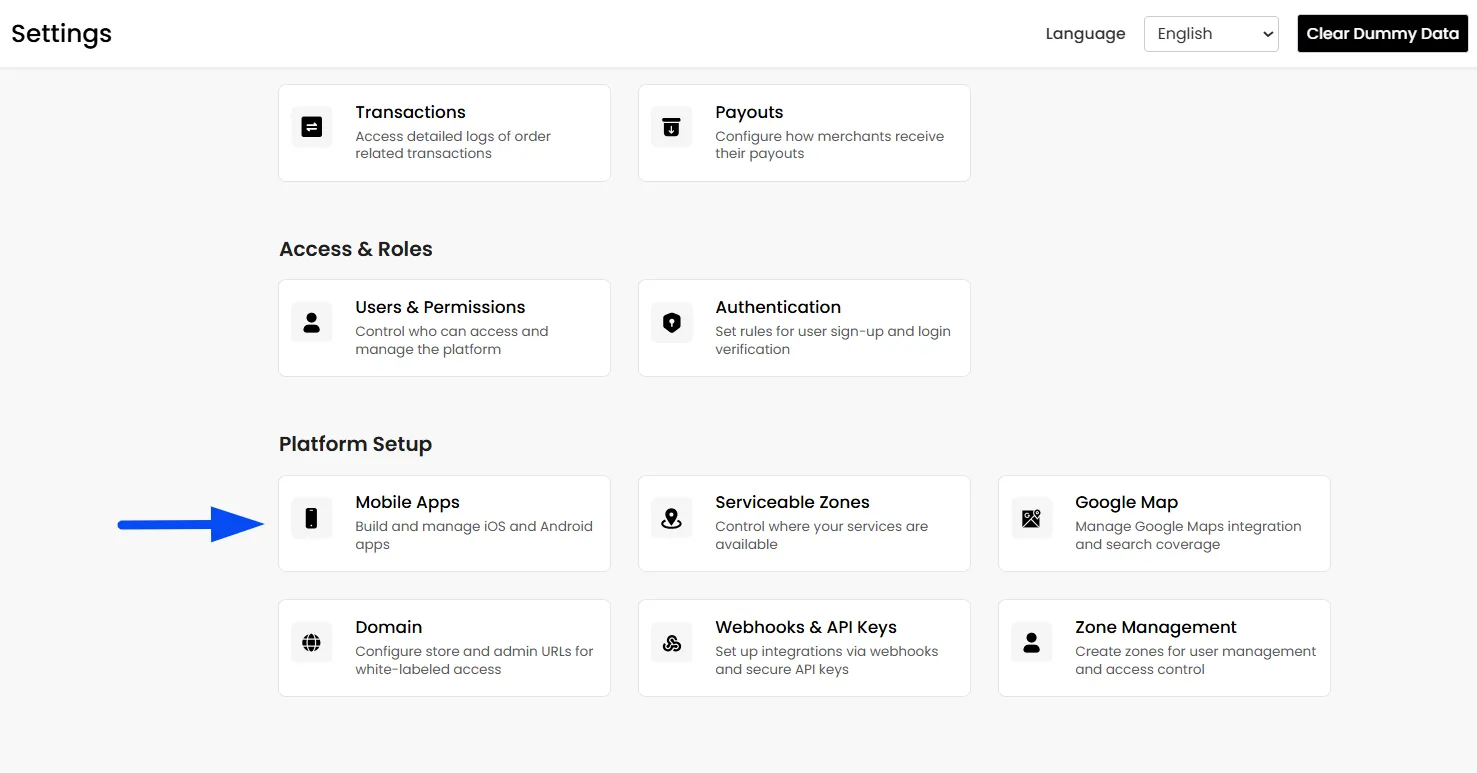
- In the Admin Panel, navigate to Settings > Mobile App, then select the mobile app you want to configure.
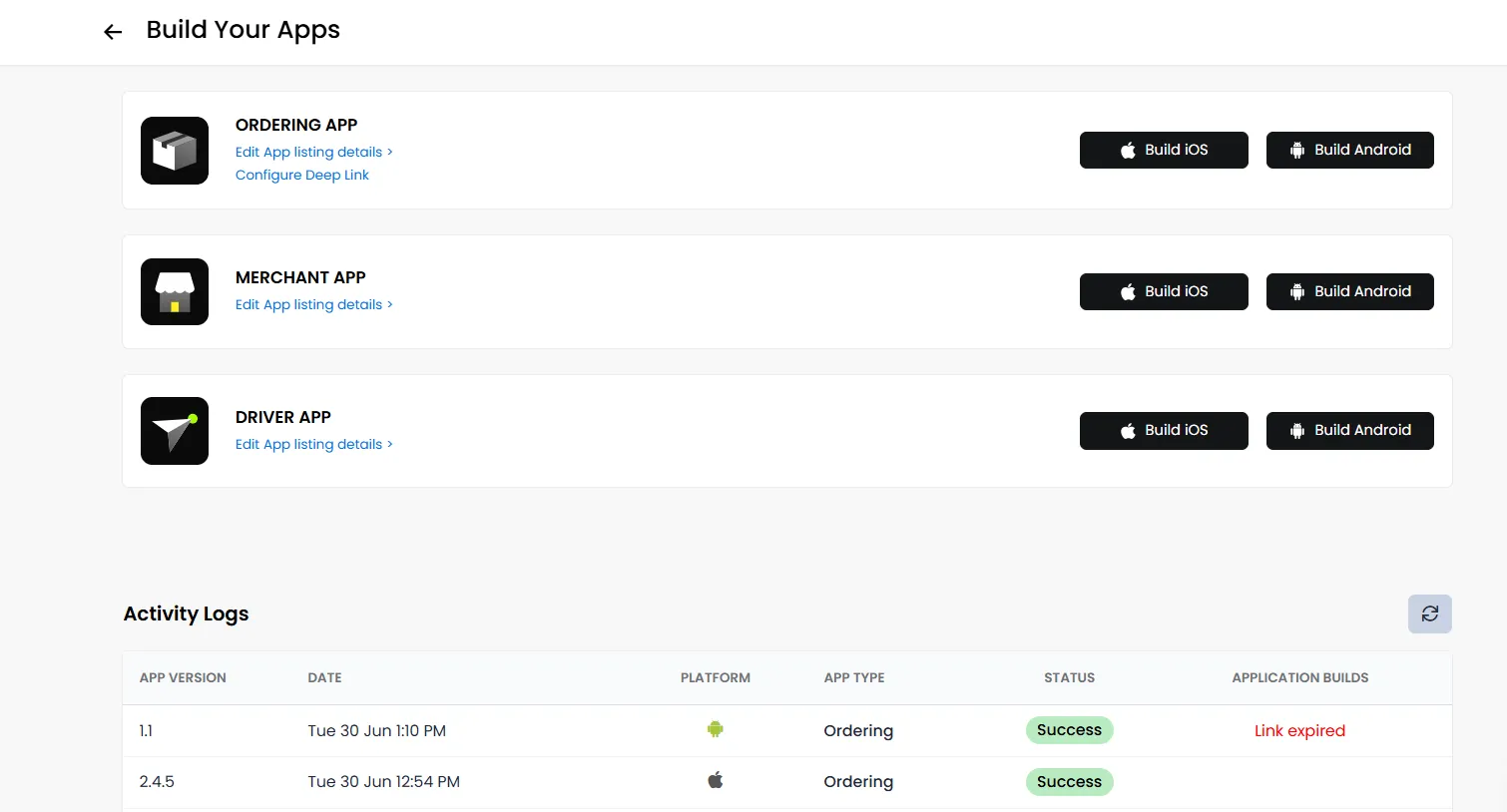
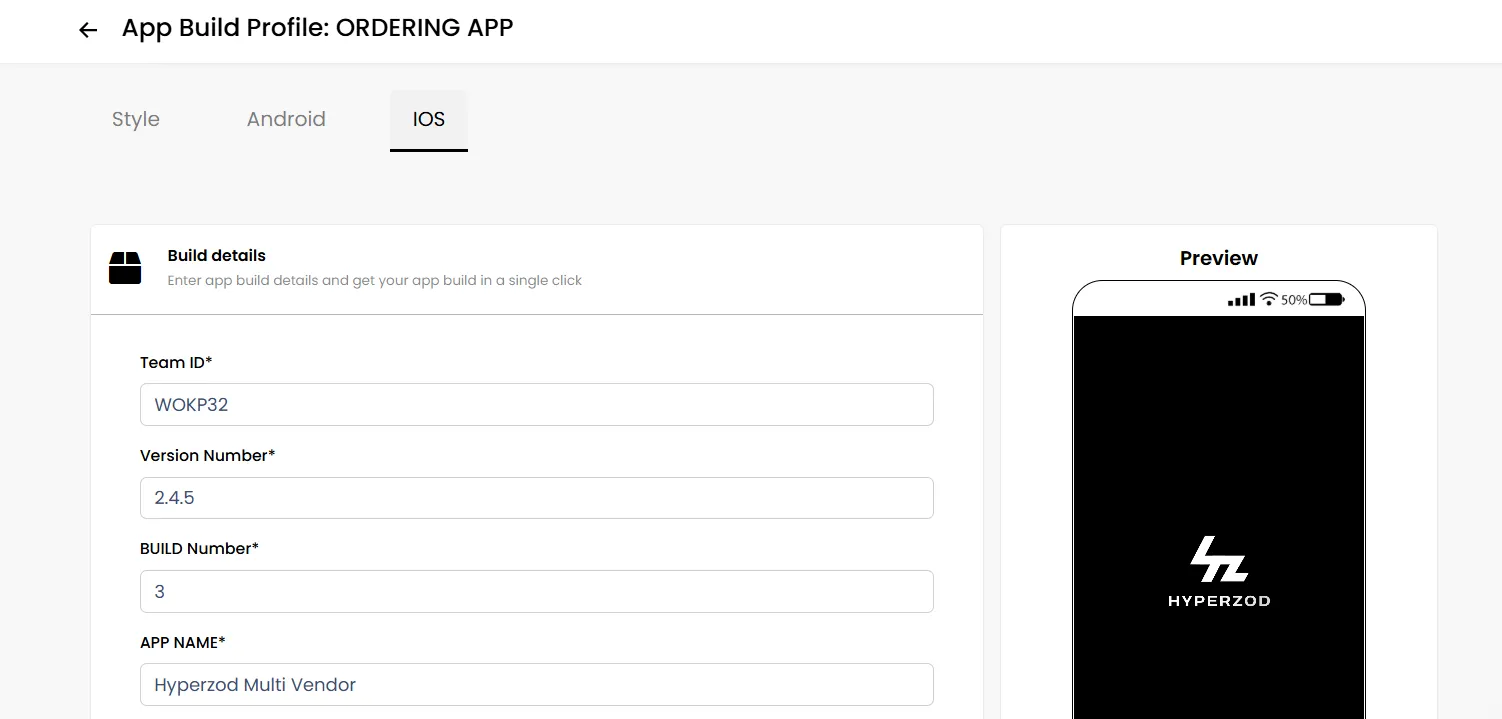
- Select the app you want to update and click "Edit App Listing Details." You will then see the available configuration tabs, where you can make the required changes. The Style tab allows you to customize the app’s appearance, while the Android and iOS tabs contain platform-specific settings.
Note: The available configuration options may vary depending on whether you are configuring the Ordering, Merchant, or Driver app, as well as the platform.
Configuring Your Mobile App
After selecting the app and clicking Edit App Listing Details, you can configure the available settings through the Style, Android, and iOS tabs.
Style Tab
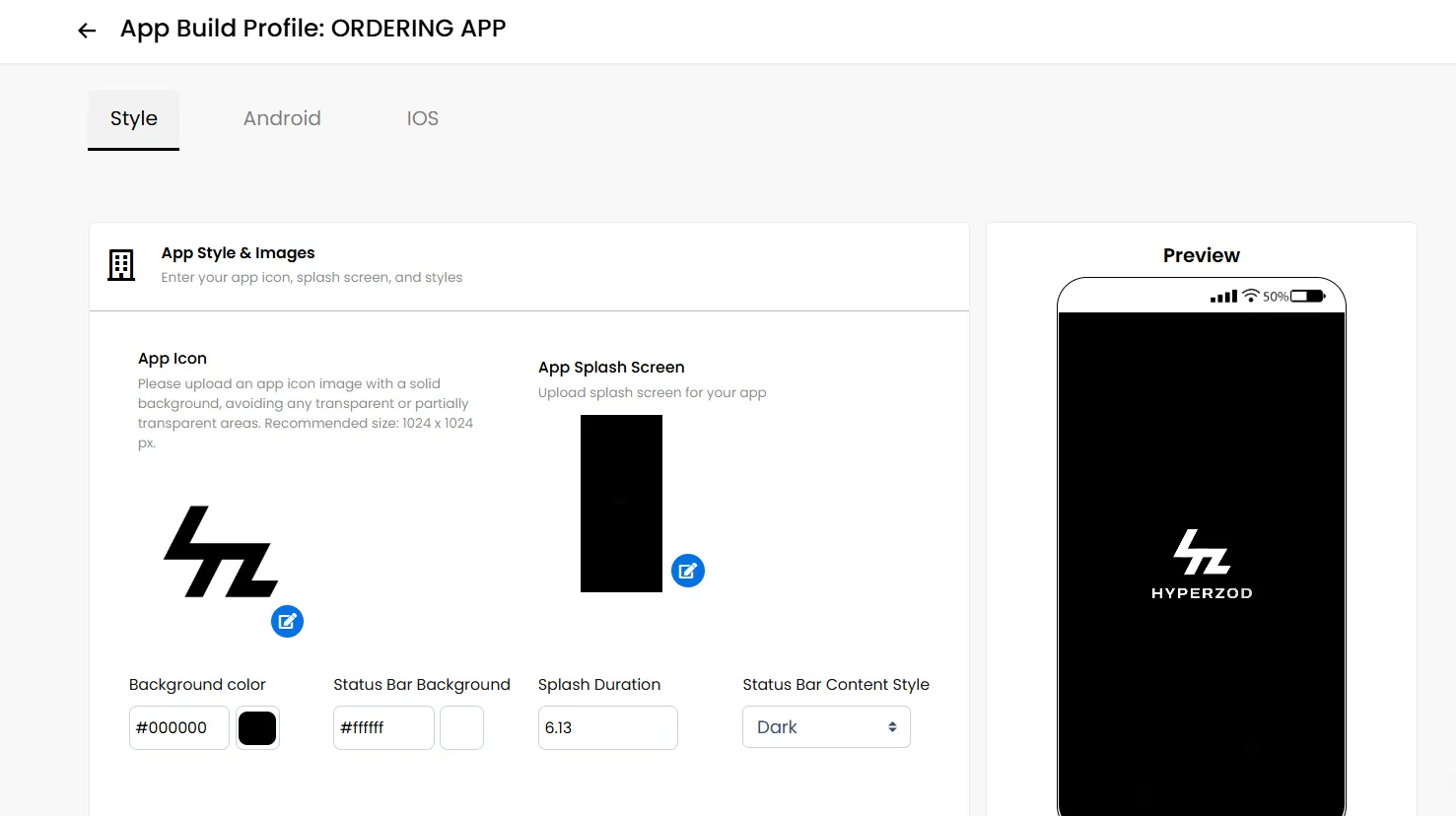
The Style tab allows you to customize the visual appearance and branding of your mobile app. These settings can be used across the Ordering, Merchant, and Driver apps, depending on the available configuration.
App Icon
Upload the icon that represents your mobile app. The icon size should be 1024 × 1024 pixels. Upload an app icon image with a solid background, avoiding any transparent or partially transparent areas
Note: Changes to the app icon require a new app version to be released.
Splash Screen
Customize the screen displayed when the app is launched. The splash screen should have an aspect ratio of 3:5. You can also configure the background color, status bar background, splash duration, and status bar content style to further customize the splash screen experience.
Note: Changes to the splash screen do not require an app update. Once the splash screen is updated, you can close the app a few times, and the updated splash screen will appear accordingly.
Live Activity Appearance
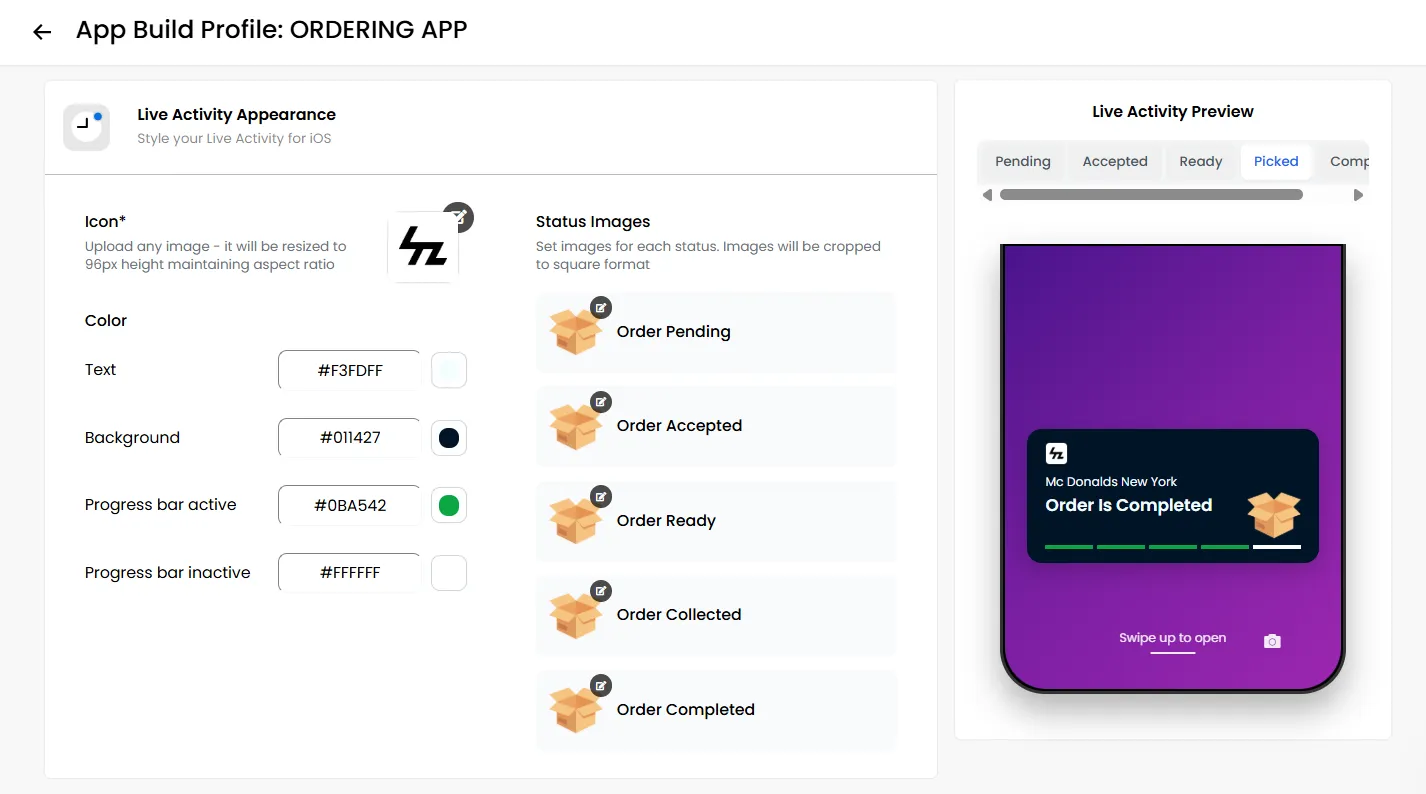
The Live Activity Appearance settings are available specifically for the iOS Ordering App. They allow you to customize how customers see their order progress through supported iOS Live Activities.
Live Activity Icon
Upload the icon that will be displayed within the Live Activity. You can upload any image; it will be resized to 96px height, maintaining the aspect ratio
Status Images
You can configure images for the different stages of an order, allowing customers to visually follow their order progress.
Live Activity Colors
You can customize the appearance of the Live Activity by configuring options such as:
- Background Color
- Text Color
- Active Progress Color
- Inactive Progress Color
Use your brand colors to keep the Live Activity consistent with your ordering app.
Note: Changes to the Live Activity icon and status images require a new iOS Ordering App update.
Android & iOS App Updates
To request an update for your Android or iOS app, or to publish changes that require a new app version, please get in touch with the Hyperzod Support Team to initiate the update process.
Deep Linking (Ordering App)
Deep Links allow links to specific merchants, products, and other pages shared by users to open directly in the mobile app instead of redirecting them to the web version. Deep Link configuration is available specifically for the Ordering App.
Note: To redirect users to the mobile app upon clicking the link, the app must be installed on the user's device. If the app is not installed, the link will automatically open the corresponding page on the website instead.
Accessing Deep Links Section
- Go to Admin Panel > Settings > Mobile Apps.
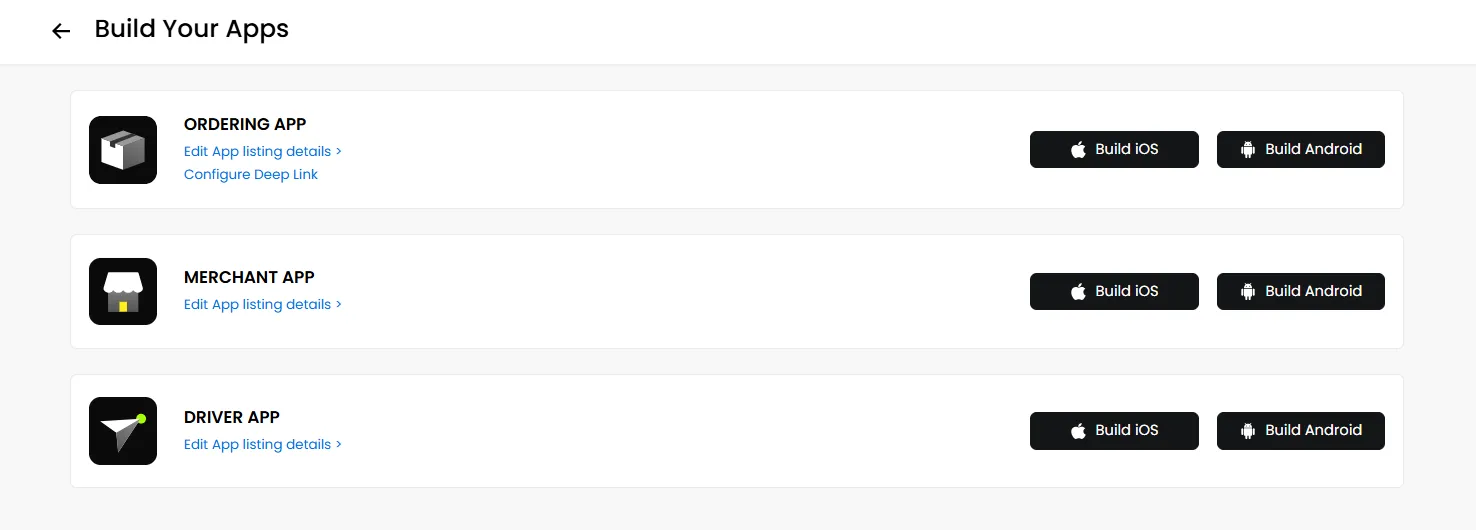
- Select the Ordering App and click Configure Deep Links.
- Open the Deep Links section, and you will find separate sections for Android and iOS, where the respective deep-link scripts need to be added.
Configuring Deep Links for Android
To configure deep links for your Android Ordering App:
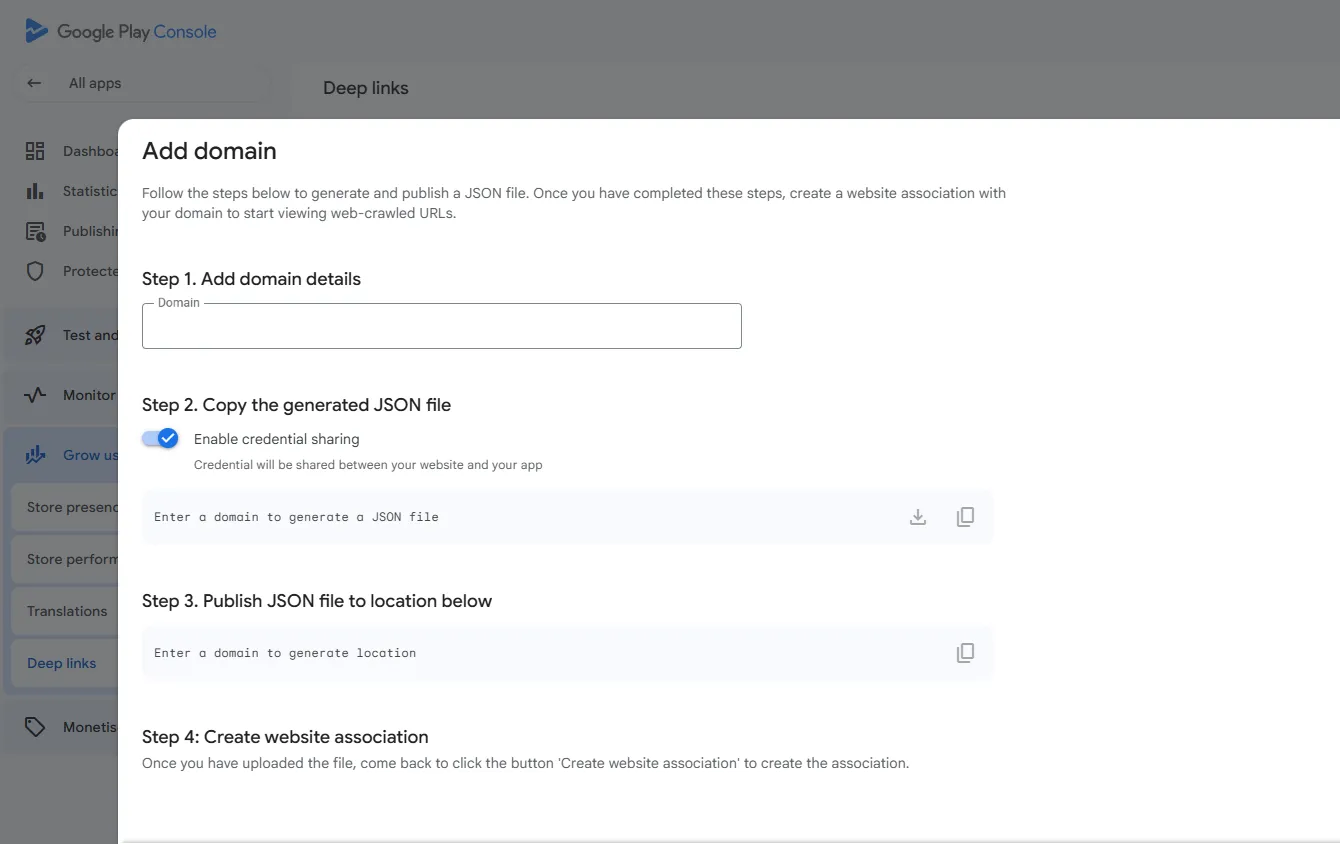
- Log in to your Google Play Console account. From the left panel, navigate to Grow Users > Deep Links.
- Within the Deep Links section, click on Add Domains and add your site's domain.
- Once the domain is added, Google will generate the required Digital Asset Links JSON. Copy this JSON and paste it into the Deep Links > Android section in the Hyperzod platform.
Configuring Deep Links for iOS
For iOS, use the script provided below. Replace the team ID with the one assigned to your iOS app in the Mobile Ordering Apps section. Also, copy the package name and insert both values into the iOS script in place of the placeholders. This will configure the deep links for the iOS app.
Note: To find the required Team ID and Package Name, click Edit App Listing Details for your Ordering App and navigate to the iOS tab. Copy the Team ID and Package Name, then replace their respective placeholders in the provided deep-link script.