Offer Builder
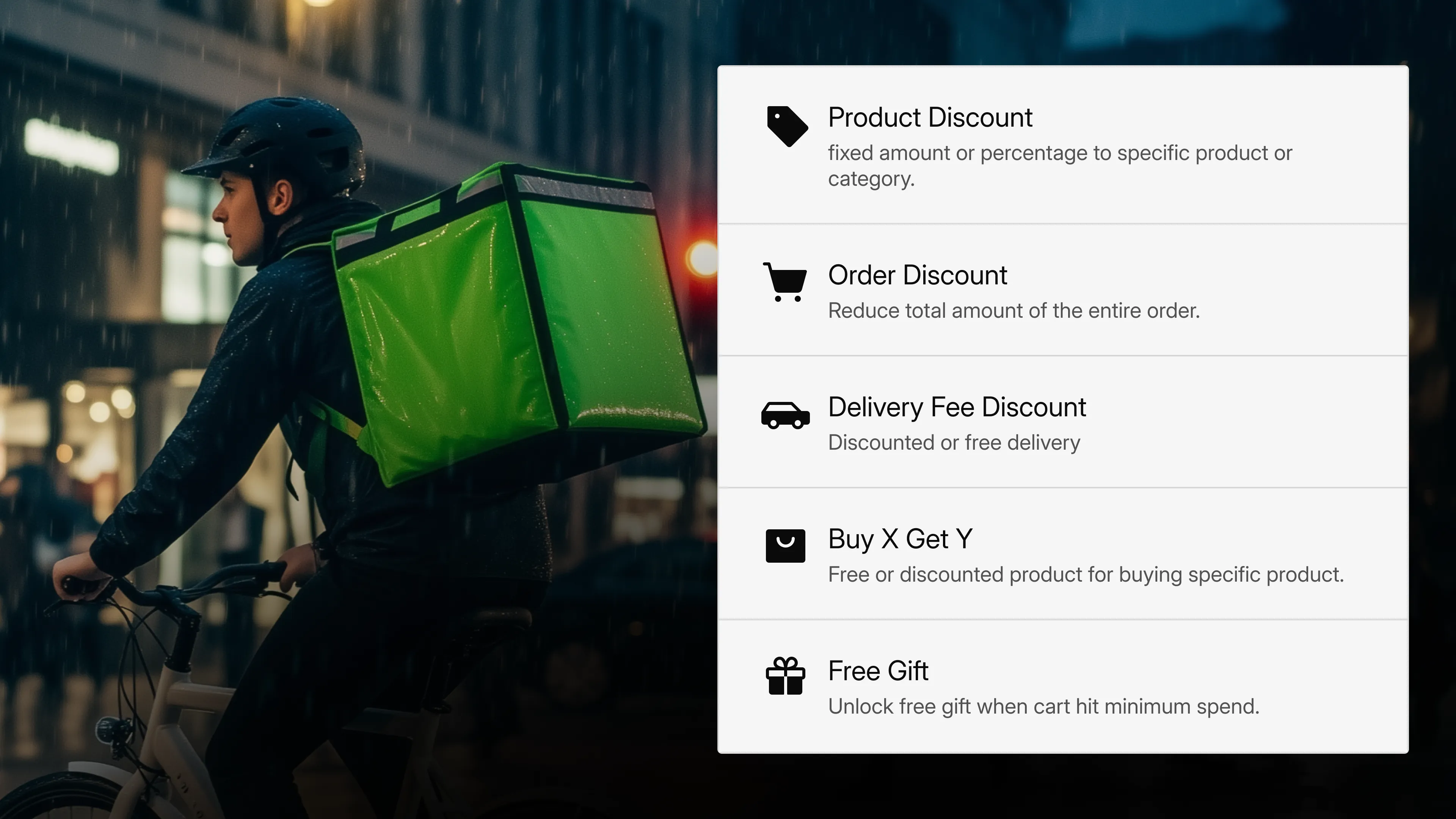
The Offer Builder allows you to create and manage different types of promotions. Whether you want to offer product discounts, order-level savings, free delivery, bundle deals, or free gifts, the builder gives you all the tools you need to set up and control your discounts in just a few steps.
Navigating to the Coupons Page
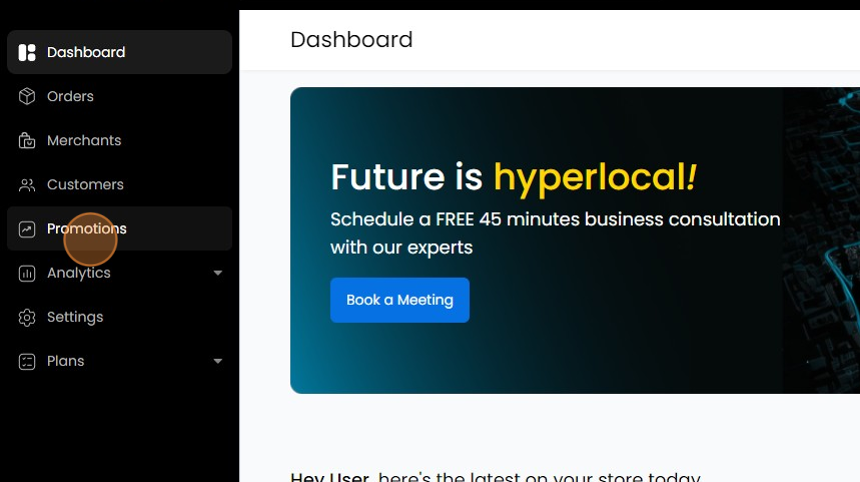
- On the Admin Panel, click on "Promotions."
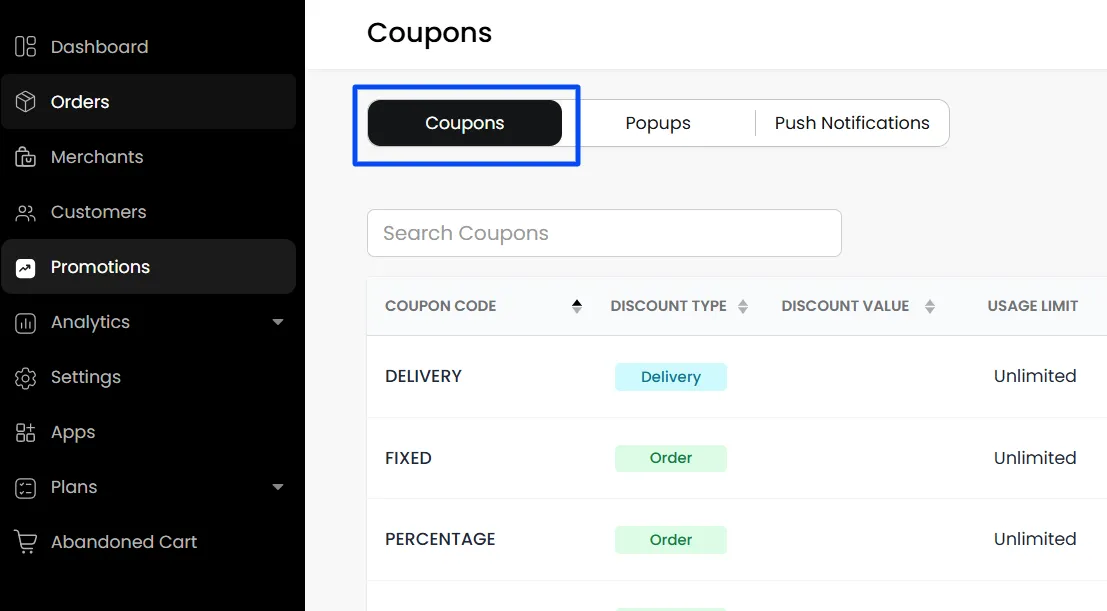
- Then click "Coupons."
Creating a Discount
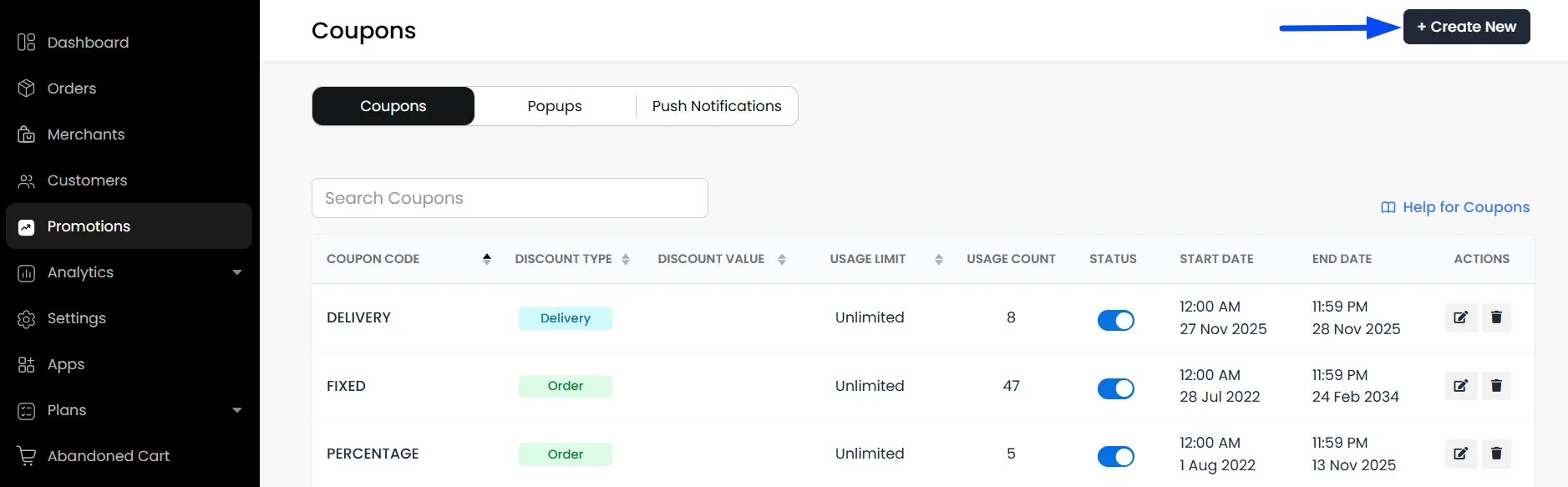
- To add, click "Create New."
- The Offer Builder pop-up window opens.
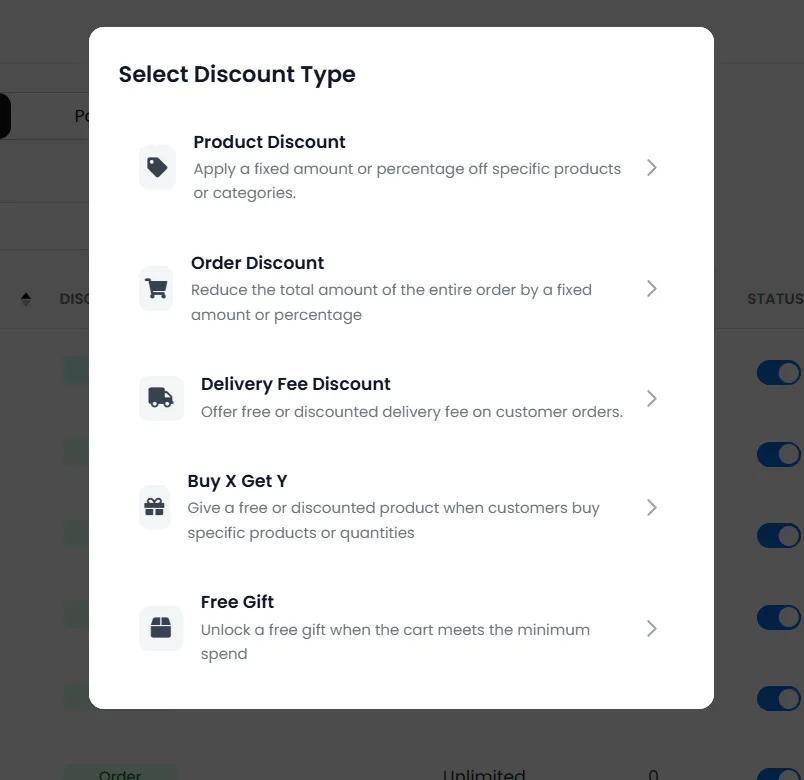
Select Discount Type
Hyperzod’s Offer Builder provides different types of promotions to help you boost sales, whether you want to discount products, remove delivery fees, or offer bundle deals.
To help you choose the right discount for your campaign, the following section explains each discount type one by one.
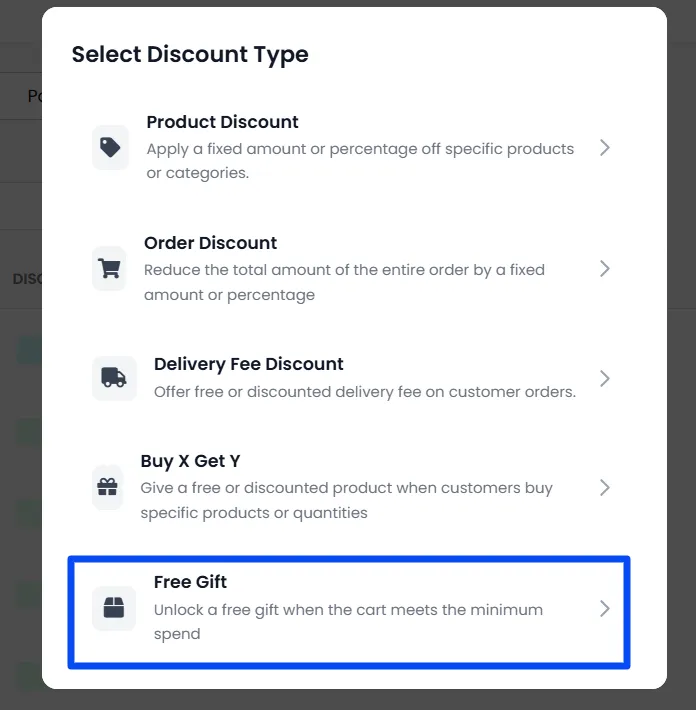
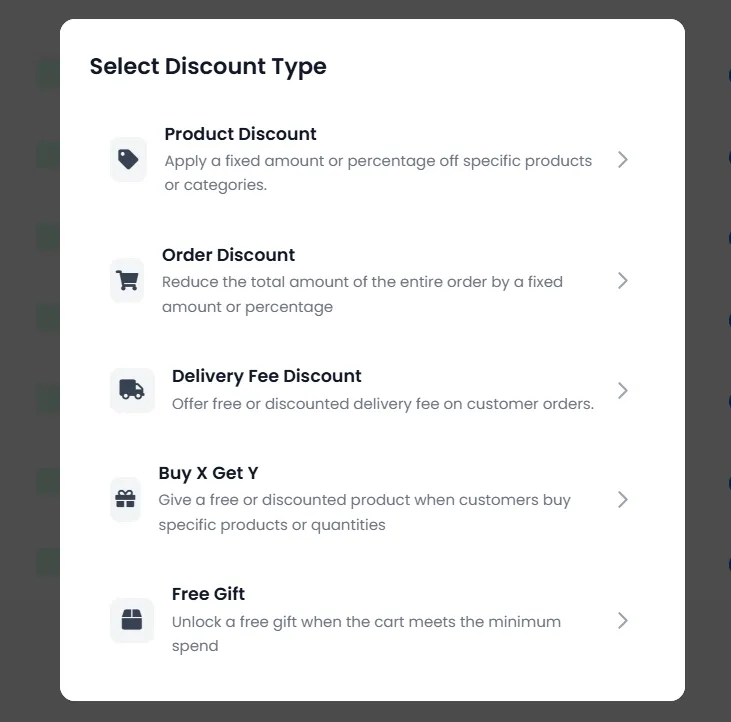
Here are the discount types you can choose from:
- Product Discount - Applies a percentage or fixed amount off selected products or categories. Example: 10% off all Beverages; ₹50 off Large Pizza.
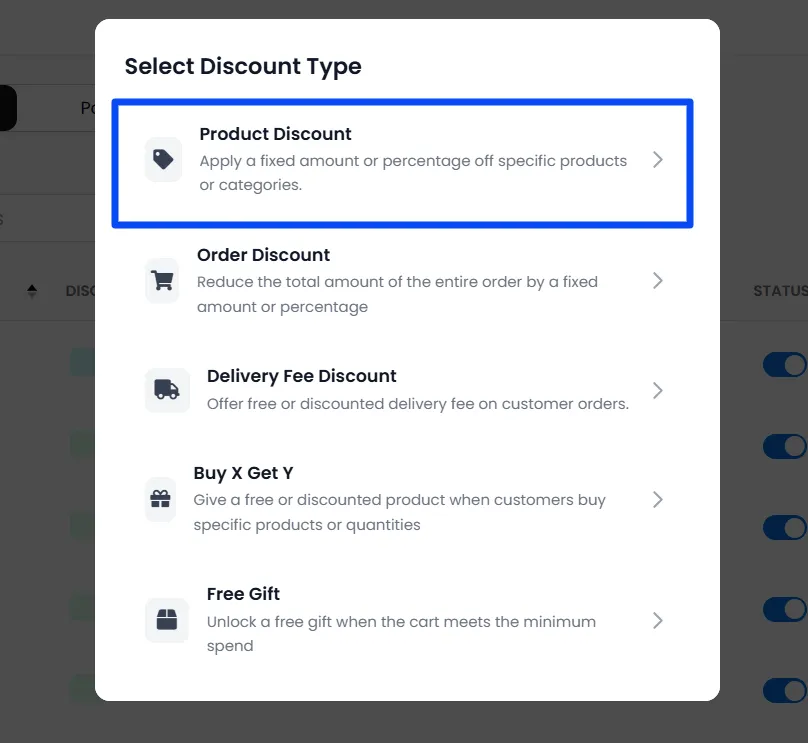
- Order Discount - Reduces the total amount of the entire order by a fixed value or percentage, often with a minimum spend. Example: 15% off orders above ₹599; ₹100 off any order.
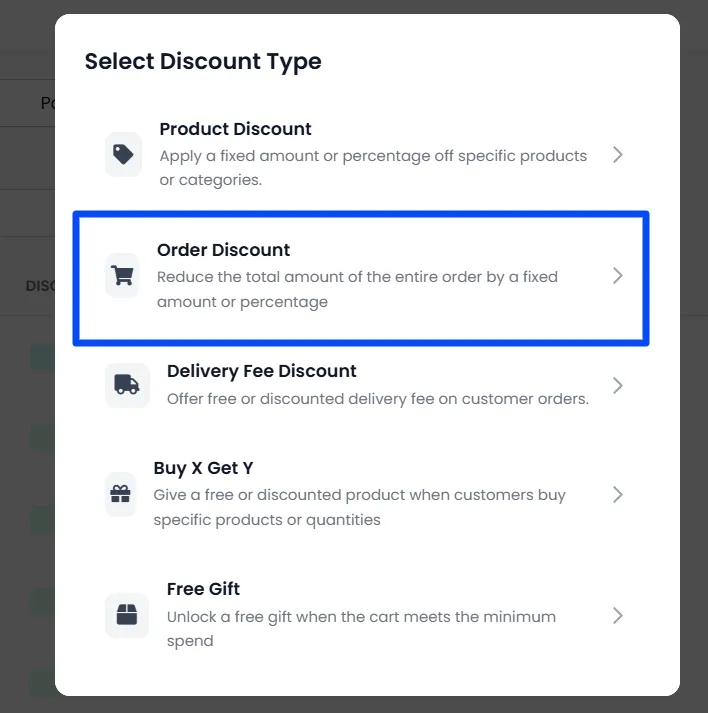
- Delivery Fee Discount - Offer a free delivery fee on customer orders. Example: Free delivery on orders above ₹299.
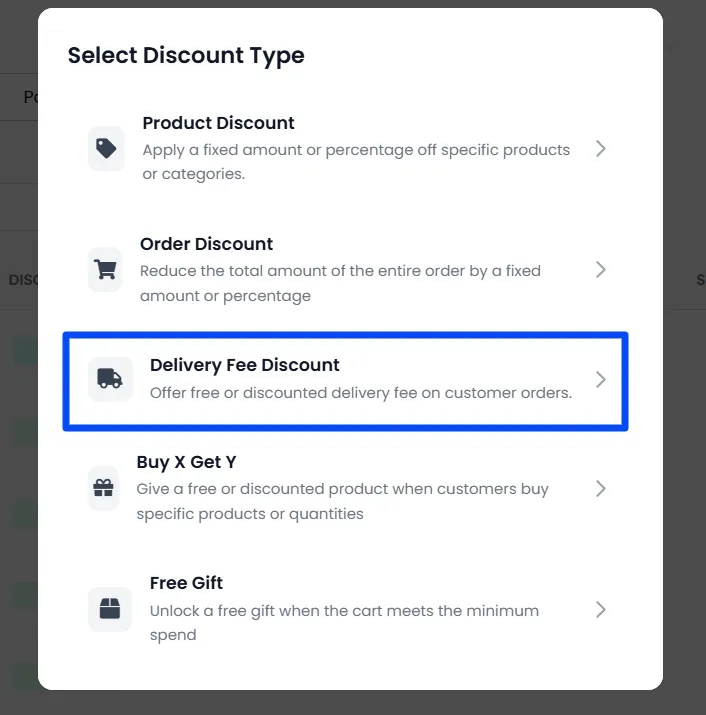
- Buy X Get Y - Gives a free or discounted item when customers buy certain products or quantities. Example: Buying 2 Burgers, Getting Fries at a discounted price.
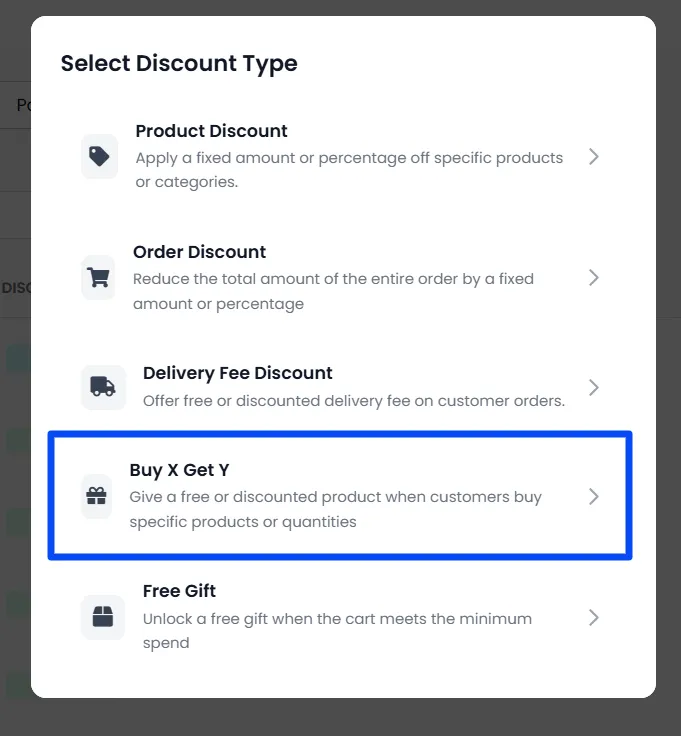
- Free Gift - Unlock a free gift once the cart meets a minimum spend. Example: Free dessert for orders above ₹799.
General Discount Settings
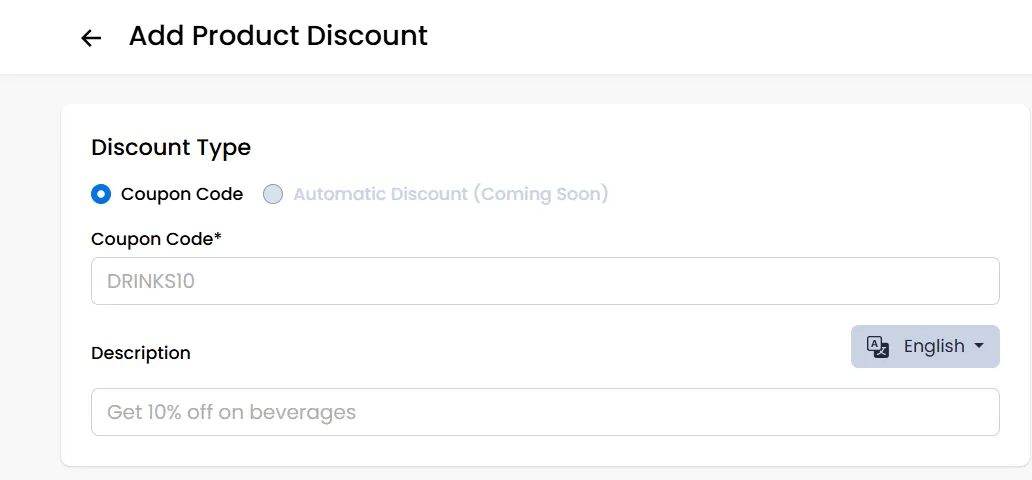
Enter basic Discount details. Enter the code customers will use and a short description line explaining the offer.
Example: "10% off on Beverages"
Tailor your description to customer choices. Use language settings to add or remove options or choose the default language.
Basic Details
- Public Coupon - When enabled, the coupon becomes visible and discoverable to all customers. When disabled, only customers who have the specific code can use it.
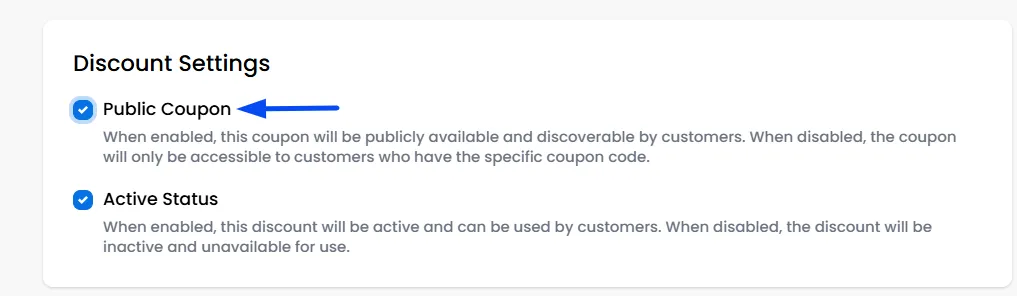
- Active Status - When enabled, the discount is active and available for customers to use. When disabled, it becomes inactive and cannot be applied.

Discount Value
This section lets you choose how the discount will be calculated, either as a percentage or a fixed amount.
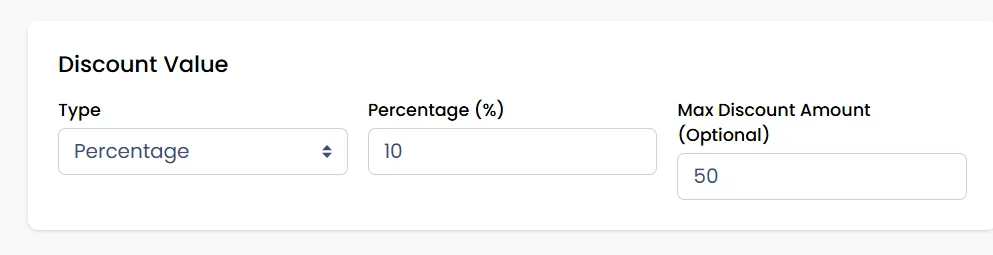
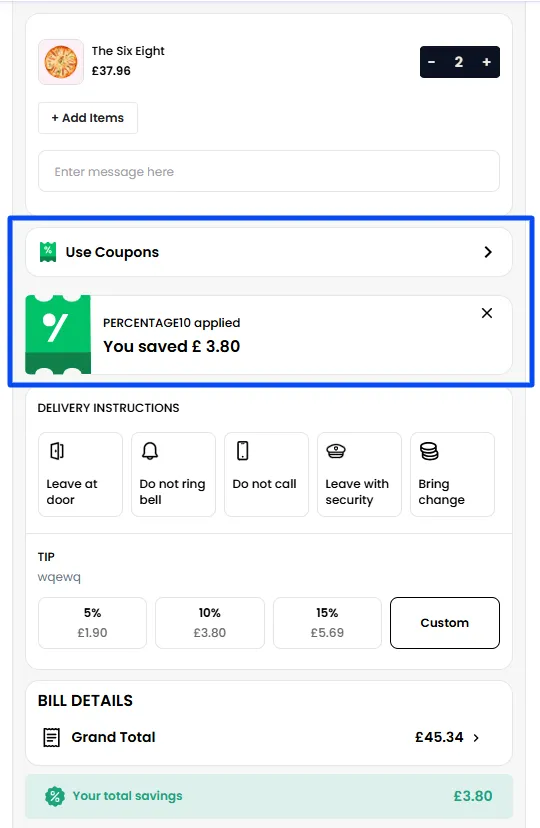
- Percentage - Enter a percentage for a discount. "Max Amount" allows you to set a threshold amount; for example, if you set $50, even if the % calculation results in a $90 discount, the maximum applied discount will be $50
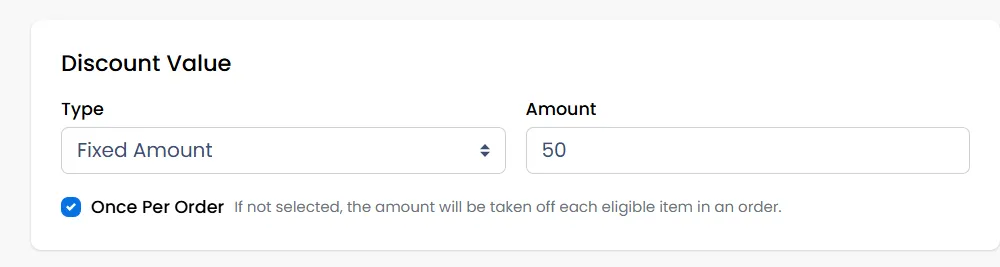
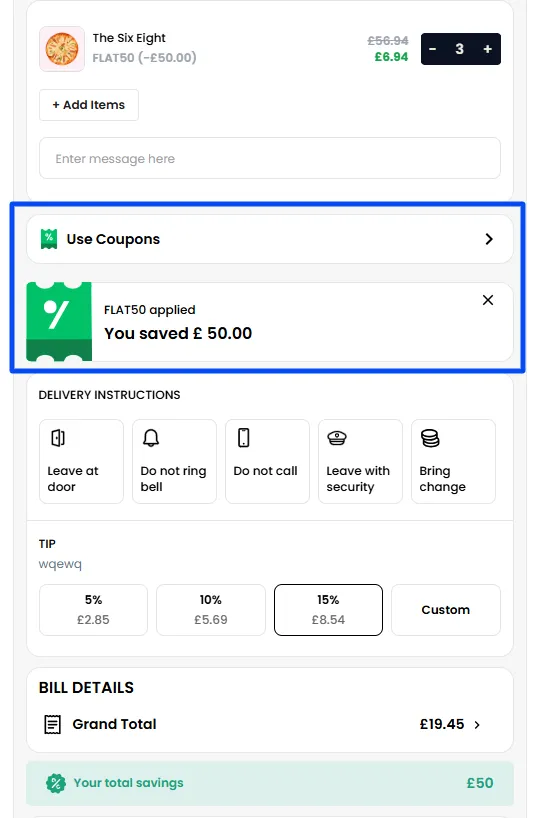
- Flat Amount - Enter a fixed amount to be applied to the customer's cart as a discount.
If the checkbox for Once Per Order is enabled, the discount is applied only once. If disabled, the fixed amount applies to each eligible item in the order.
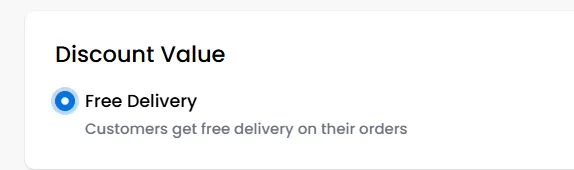
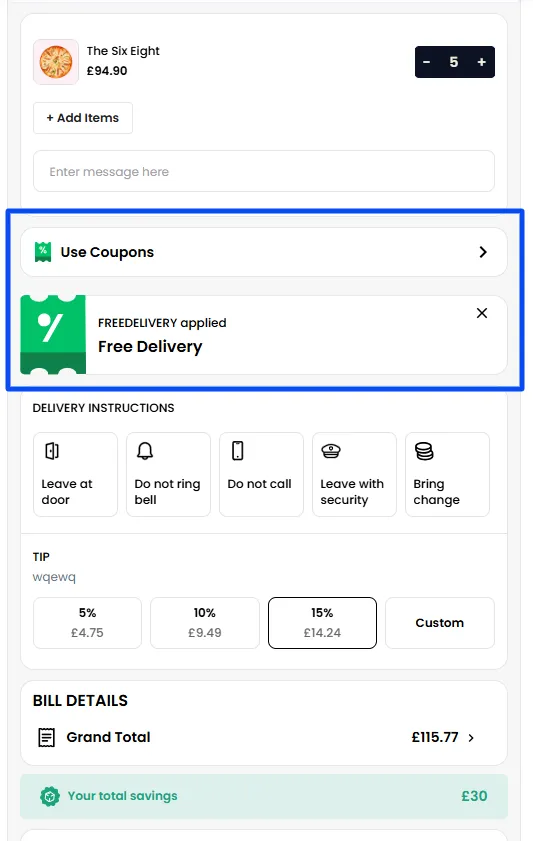
Free Delivery - Waive the delivery fee from the customer's cart.
Buy X Get Y Configuration
This section lets you create offers where customers buy certain items and receive another item for free or at a discount.
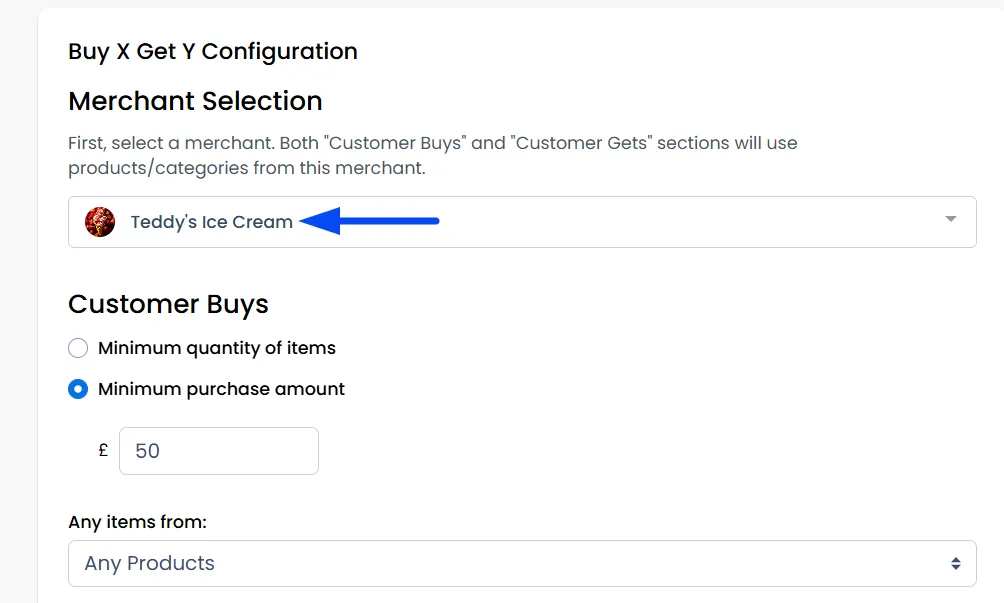
- Merchant Selection - Start by selecting the merchant. Once a merchant is chosen, the system will use that merchant’s products and categories in both the “Customer Buys” and “Customer Gets” sections.
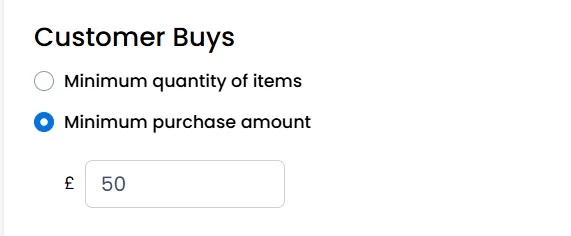
- Customer Buys - Here, you define what the customer must buy to unlock the offer.
You can choose between:
- Minimum quantity of items - For example, A Customer must buy 2 items.
- Minimum purchase amount - For example, A Customer must spend £50.
You can also decide whether the customer must buy:
- Any products, or
- Specific products/categories
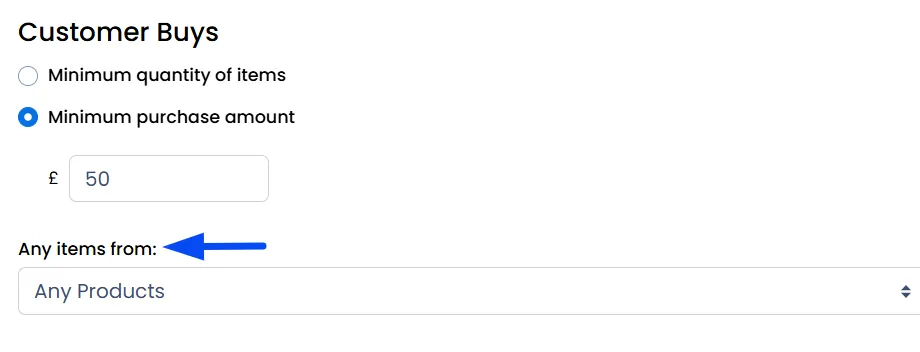
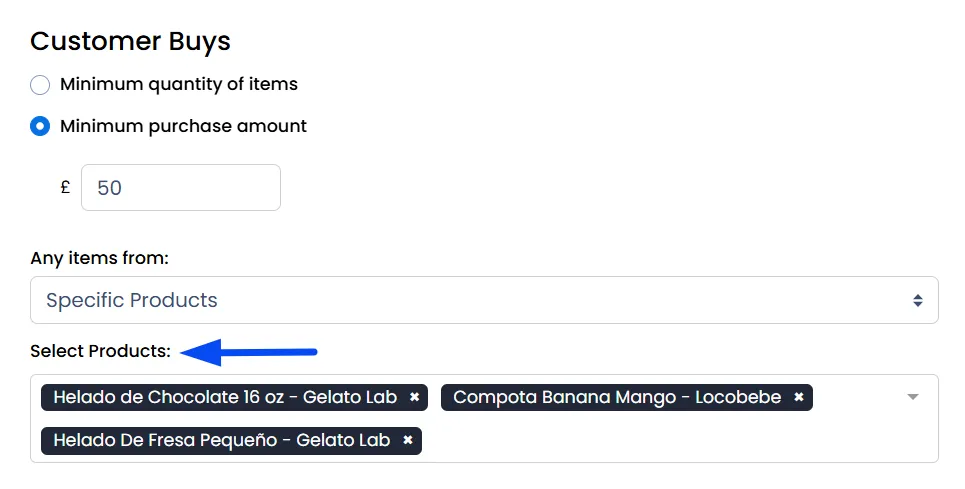
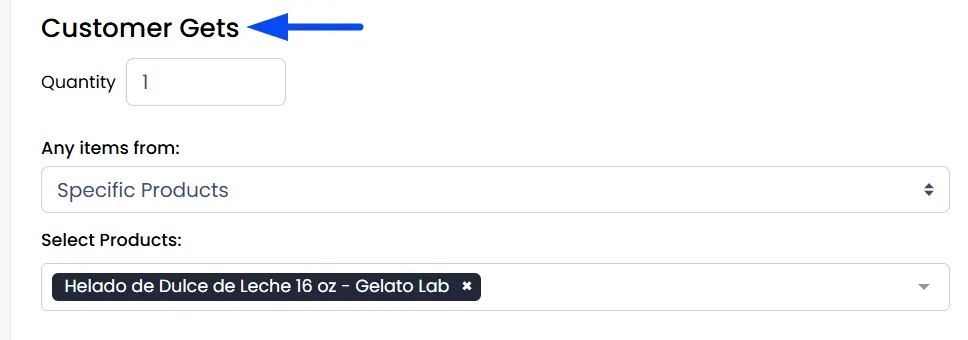
- Customer Gets - Next, define what the customer will receive once the “Buy X” condition is met.
Options include:
- The quantity they will get (e.g., 1 free fries)
- Whether they can get an item from specific products or specific categories
This allows you to configure classic offers like “Buy 1 Get 1 Free” or cross-sell offers like “Buy a Pizza, Get a Drink.”
- At a Discounted Value - Choose how the reward item will be discounted:
Percentage - Example: Get the second item at 15% off.
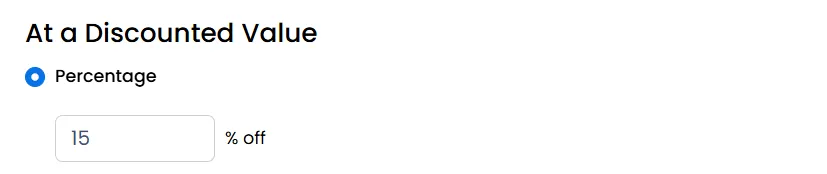
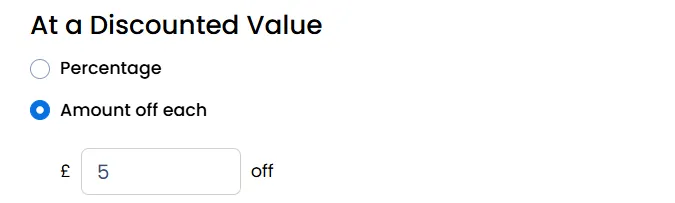
Amount off each - Example: Get £5 off the selected reward item.
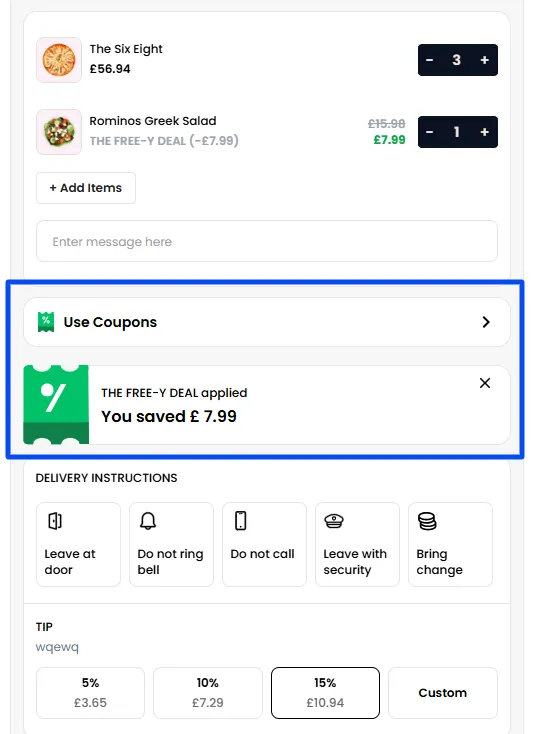
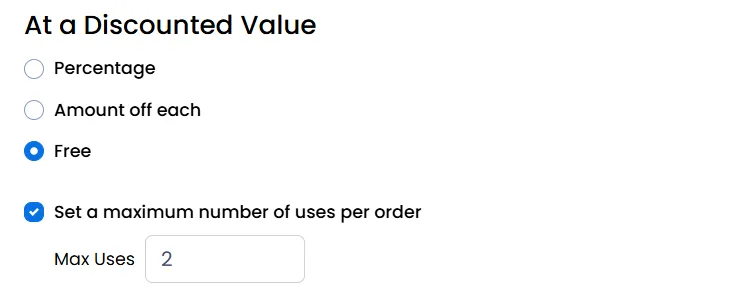
Free - The reward item becomes completely free.
Maximum uses per order - Useful when you want to prevent customers from stacking the offer too many times in a single order.
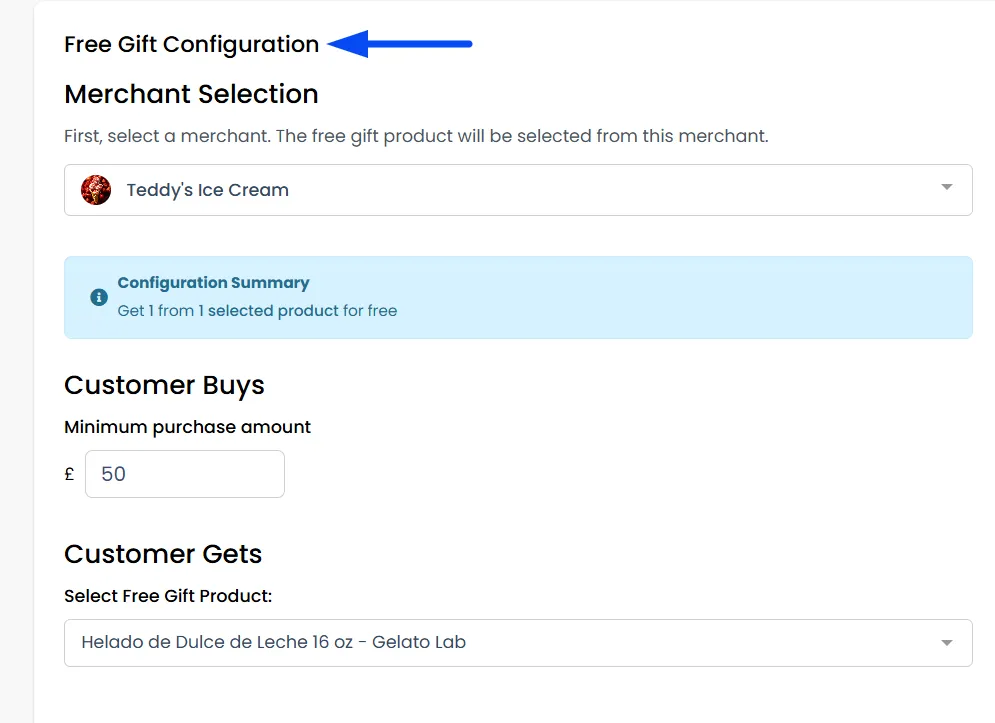
Free Gift Configuration
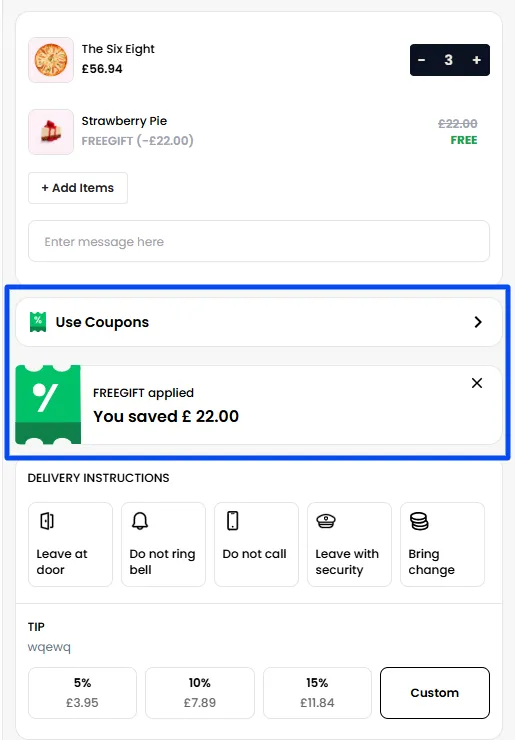
The Free Gift Configuration lets you offer a free product when a customer spends a minimum amount.
- Merchant Selection - Start by selecting the merchant. The free gift product will be chosen from this merchant’s product list.
- Customer Buys - Set the minimum purchase amount required for the customer to unlock the free gift
- Customer Gets - Choose the item the customer will receive for free.
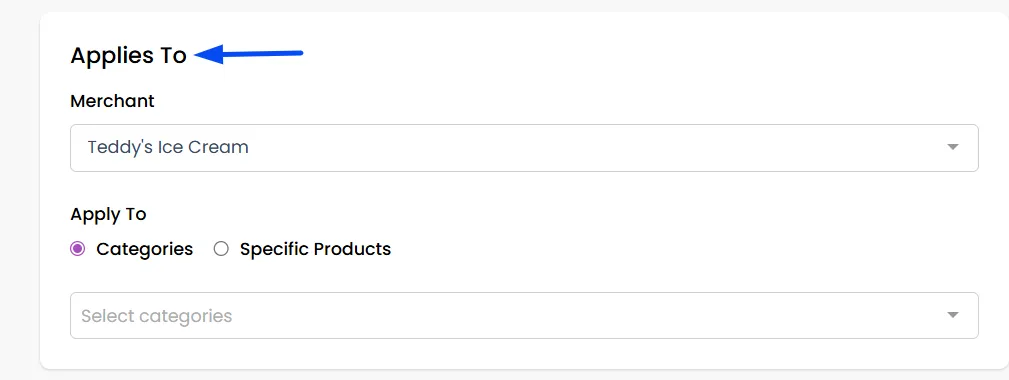
Selecting Where the Discount Applies
This section lets you choose where the discount should work.
- If you don’t select any merchant, the discount will apply to all merchants by default.
- If you select a merchant, you can then choose whether the discount applies to:
- Specific Categories, or Specific Products within that merchant.
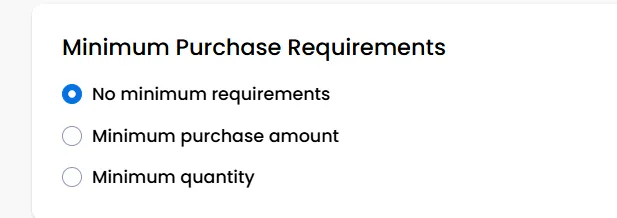
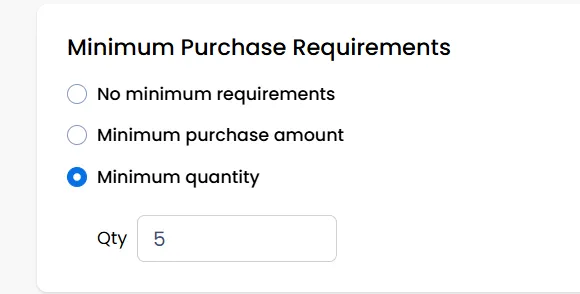
Minimum Purchase Requirements
Use this section to set conditions the customer must meet before the discount applies.
- No minimum requirements - The discount applies without any conditions.
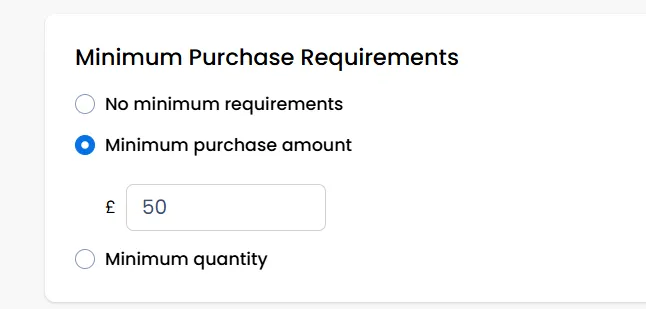
- Minimum purchase amount - The customer must spend a certain amount to use the discount.
- Minimum quantity - The customer must buy a specific number of items
Eligible Customers
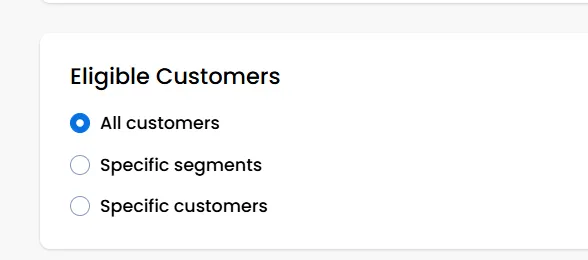
Choose who can use this discount.
- All customers - The discount is available to everyone.
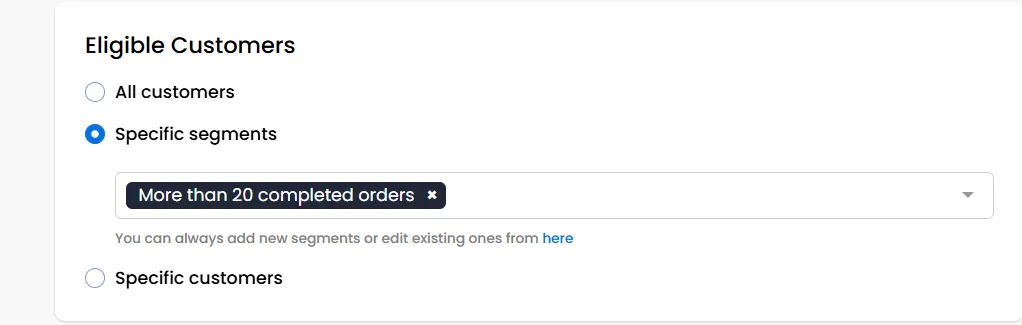
- Specific segments - Apply the discount only to certain customer groups (e.g., loyal customers who have ordered more than 20 times).
You can create different custom segments of your choice from the segmentation section.
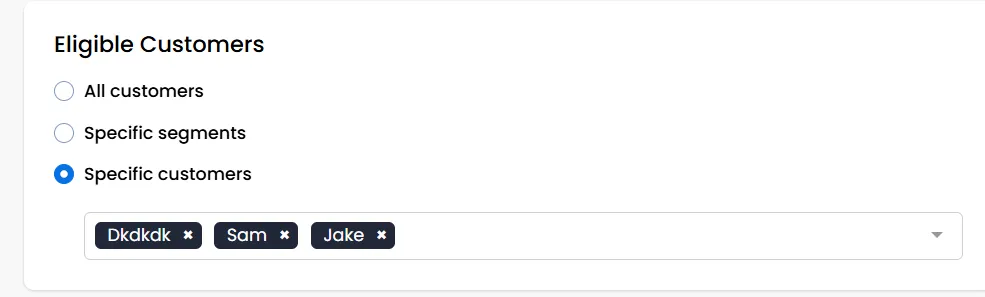
- Specific customers - Limit the discount to selected individual customers only.
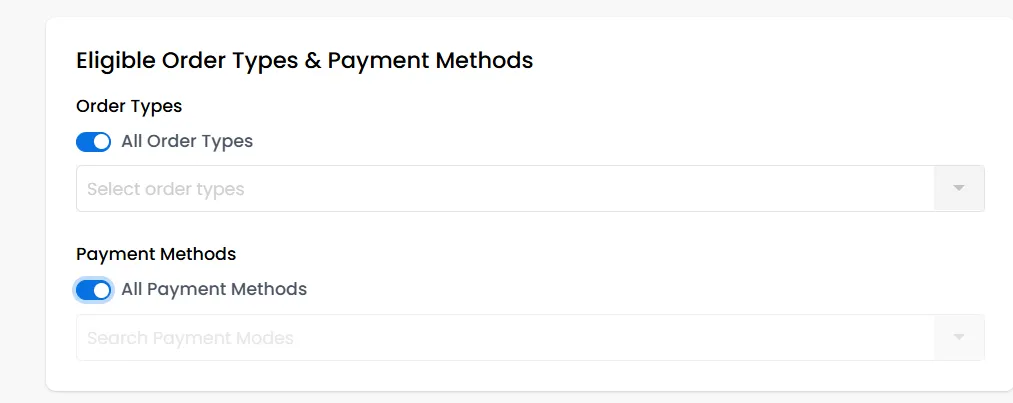
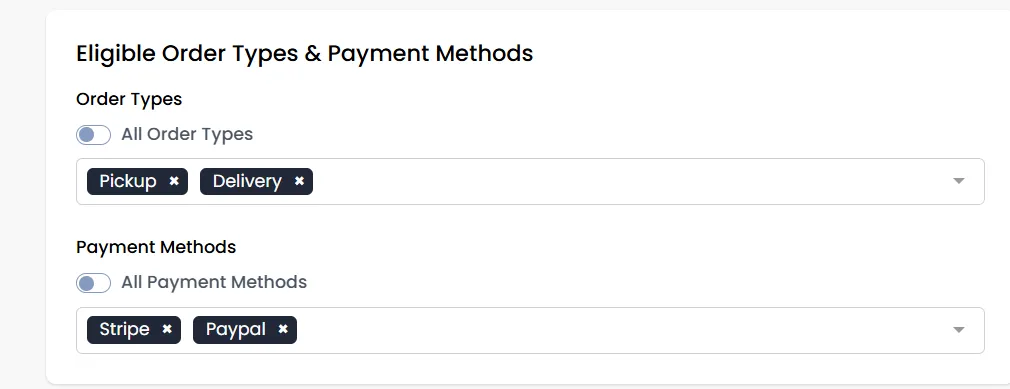
Eligible Order Types & Payment Methods
This section lets you control when the discount can be used.
Order Types
- All Order Types - The discount applies to every order type (delivery, pickup, etc.).
- Or you can choose specific order types if you want the discount to apply only in certain cases.
You can configure the order type from the Order Settings.
Payment Methods
- All Payment Methods - The discount works with all payment options.
- Or you can limit it to specific payment methods such as Stripe, PayPal, etc.
You can configure the payment options from the Payment Methods option in the Admin panel.
Set Discount Usage Limits
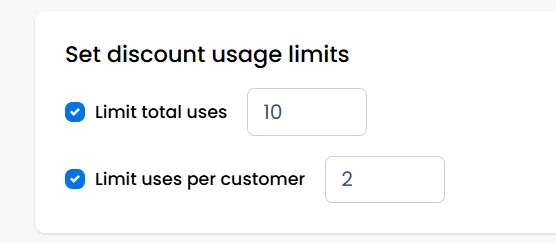
Use this to control how many times the discount can be used.
- Limit total uses - The discount will stop working after it reaches this number of total redemptions.
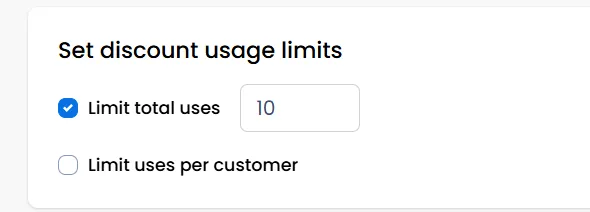
- Limit uses per customer - Each customer can only use the discount a set number of times.
If you leave both unchecked, the discount can be used an unlimited number of times.
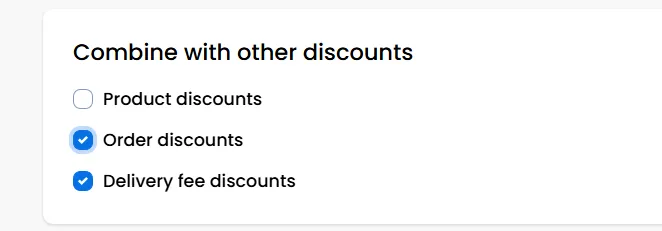
Combine With Other Discounts
Choose whether this discount can work alongside other active discounts.
- Product discounts
- Order discounts
- Delivery fee discounts
If enabled, customers can apply multiple types of discounts in the same order. If disabled, the discount will not stack with others.
Active Dates
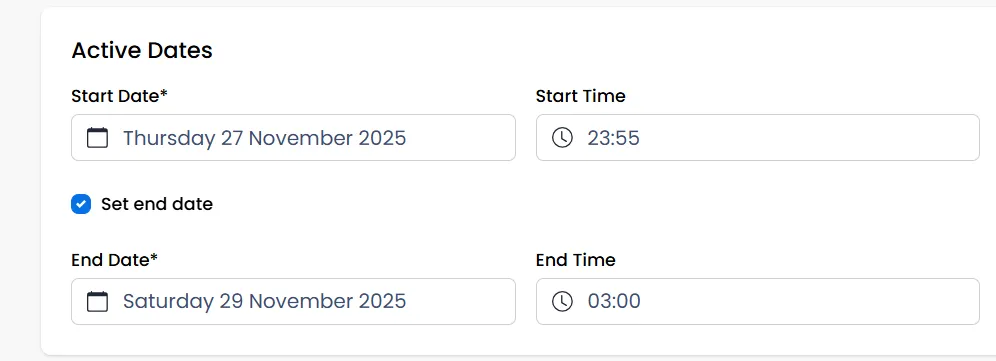
Set when the discount becomes active and when it should end.
- Start Date & Start Time - The exact date and time the discount begins working.
- Set end date (optional) - Choose an end date if it’s a limited-time offer. If left unchecked, the discount continues indefinitely.
Automatic Discounts
An Automatic Discount is a promotion that the system applies automatically once the customer meets the defined criteria.
Customers do not need to enter a coupon code.As soon as the conditions you configured are met, the discount is automatically applied to the cart and at checkout.
How to create an Automatic Discount
- Navigate to Promotions > Coupons and click Create New.
- First, select the discount type you want to create, such as Product Discount, Order Discount, Delivery Fee Discount, Buy X Get Y, Free Item, or another available promotion.
- Next, under Discount Type, select Automatic Discount.
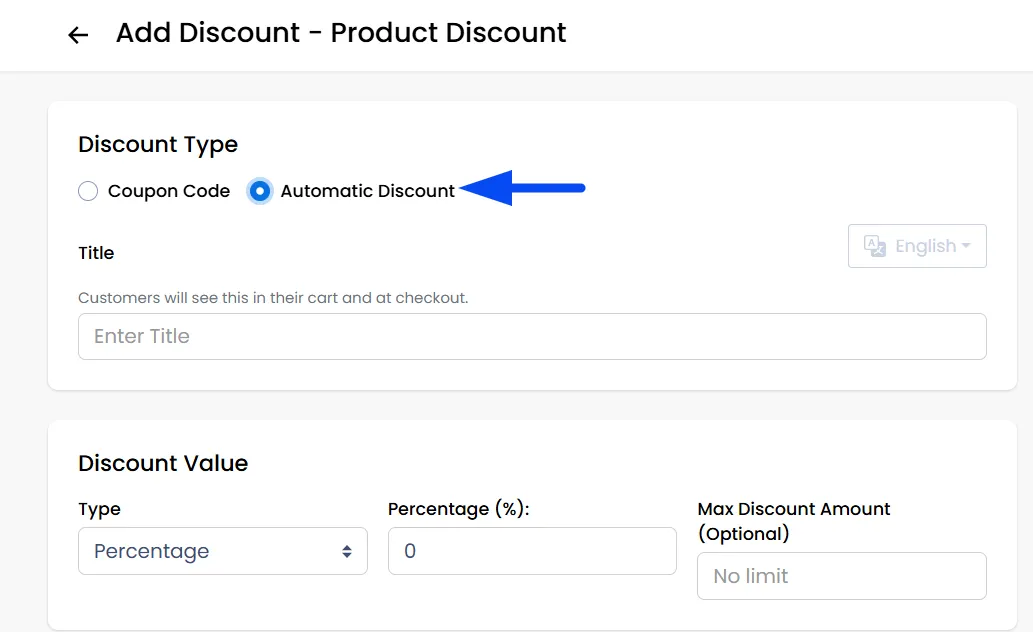
- Configure the promotion using the previously explained settings, like discount value, eligibility conditions, and order or payment options.
- Once configured, click Save. The discount will automatically apply whenever the defined conditions are met.

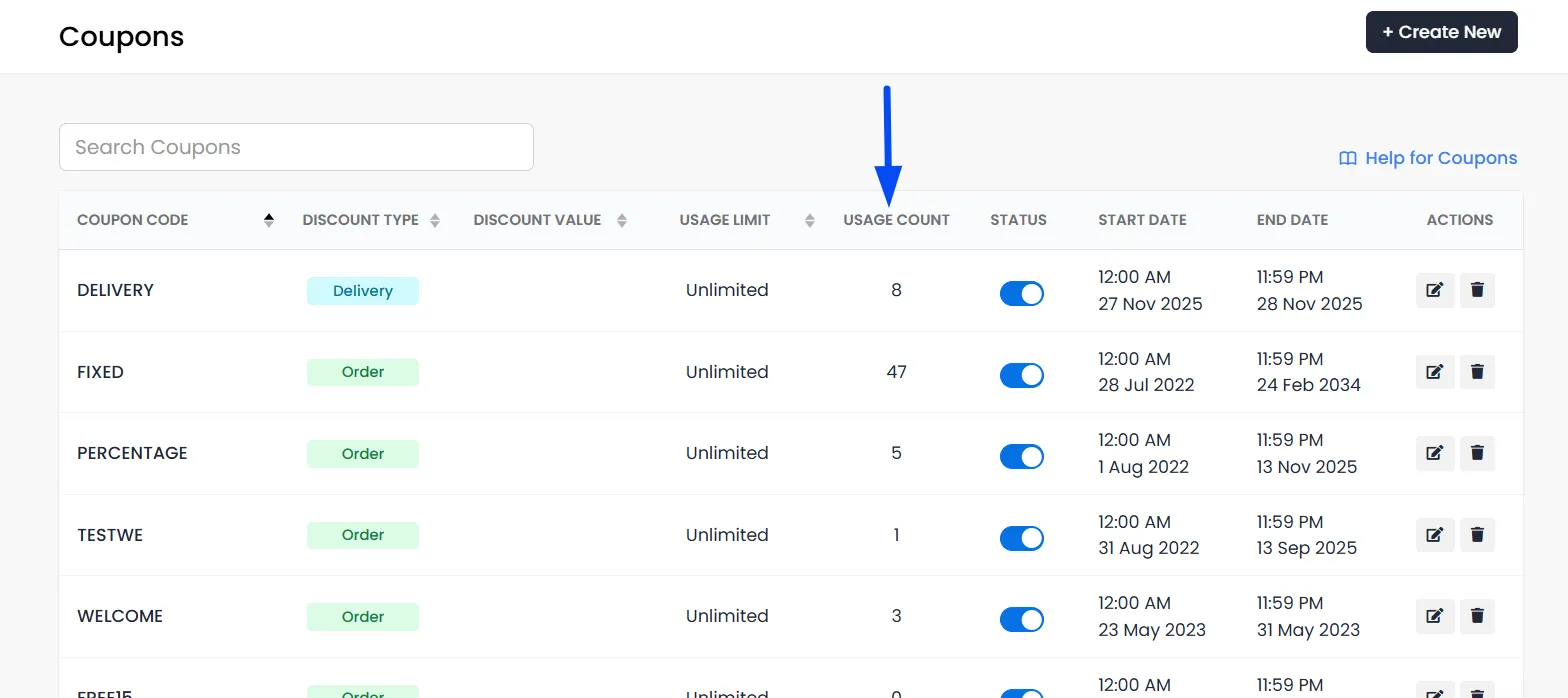
Track Coupon Usage
Usage Count - Now you can keep track of your Coupon Usage Count under the list.
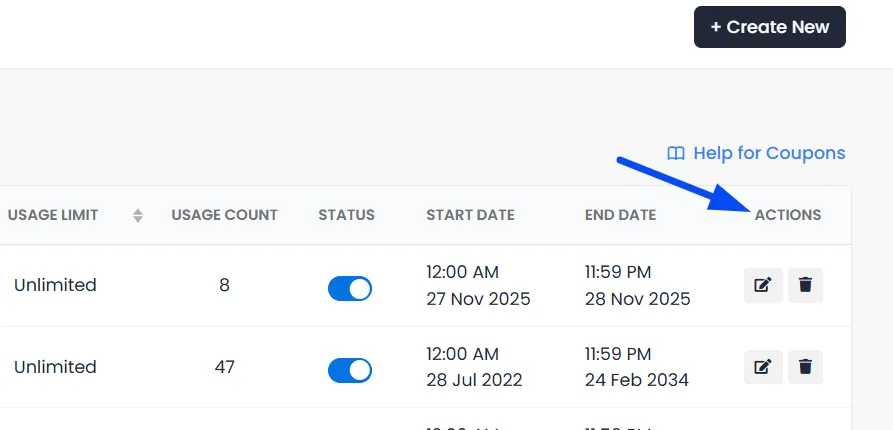
Actions - Even perform actions such as temporarily disabling/enabling, editing, or deleting from the list.
Frequently Asked Questions (FAQs)