Admin Order Dashboard
The Order Dashboard is your central workspace for managing every order from one place. It provides complete visibility into your order operations, allowing you to monitor orders as they progress through each stage of fulfillment.
Whether you're monitoring daily operations, resolving customer queries, or tracking deliveries, the Order Dashboard gives you everything you need to manage the complete order lifecycle from a single interface efficiently.
Accessing the Order Dashboard
To access the Order Dashboard: Admin Panel > Orders
Once opened, all orders are displayed based on their current status.
Note: The Admin Order Dashboard displays both current and historical orders. In the Merchant Panel, only orders for the current day and orders that are still active (such as pending or in progress) are visible. Completed orders from previous dates are not displayed in the Merchant Panel.
If a merchant needs to review orders from previous dates, they can navigate to the Reports section in the Merchant Panel, select the desired date range, and view all orders for that period. They can also download the report for further analysis or record-keeping if needed.
Understanding the Order Dashboard
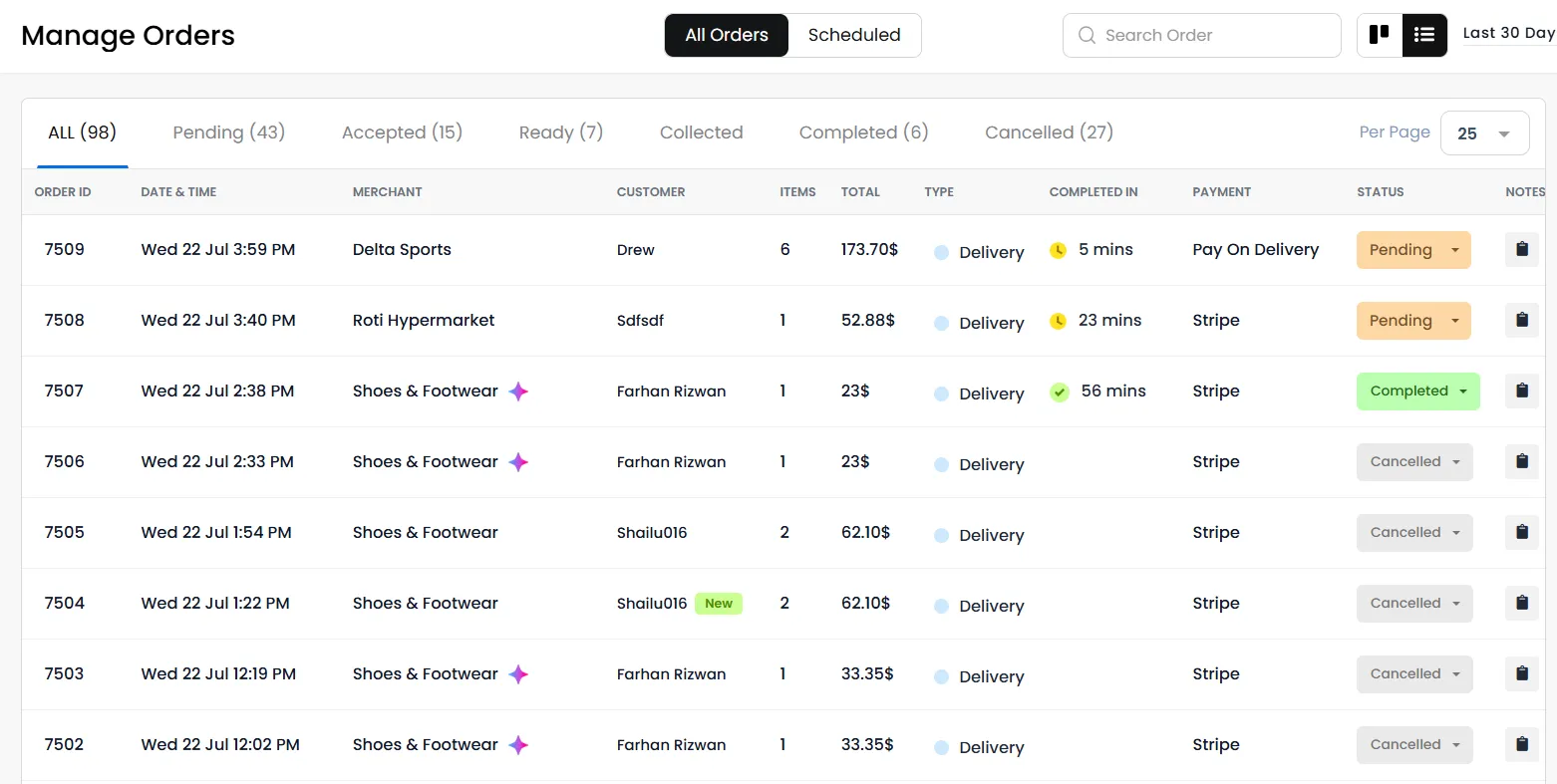
Once you open the Order Dashboard, you'll be able to view all the essential information related to your orders in one place. Each order presents all the essential details at a glance, allowing you to quickly identify the merchant and customer, review the order value and payment method, monitor its current status, and track its progress throughout the fulfillment process.
This gives you a quick overview of every order, making it easy to monitor order progress, identify its current stage, and access detailed order information whenever needed.
Note: Orders are currently displayed and sent to the Admin and the Merchant panel in the language selected by the end user when placing the order. The order language is not automatically changed to the language configured by the Admin/Merchant.
All Orders
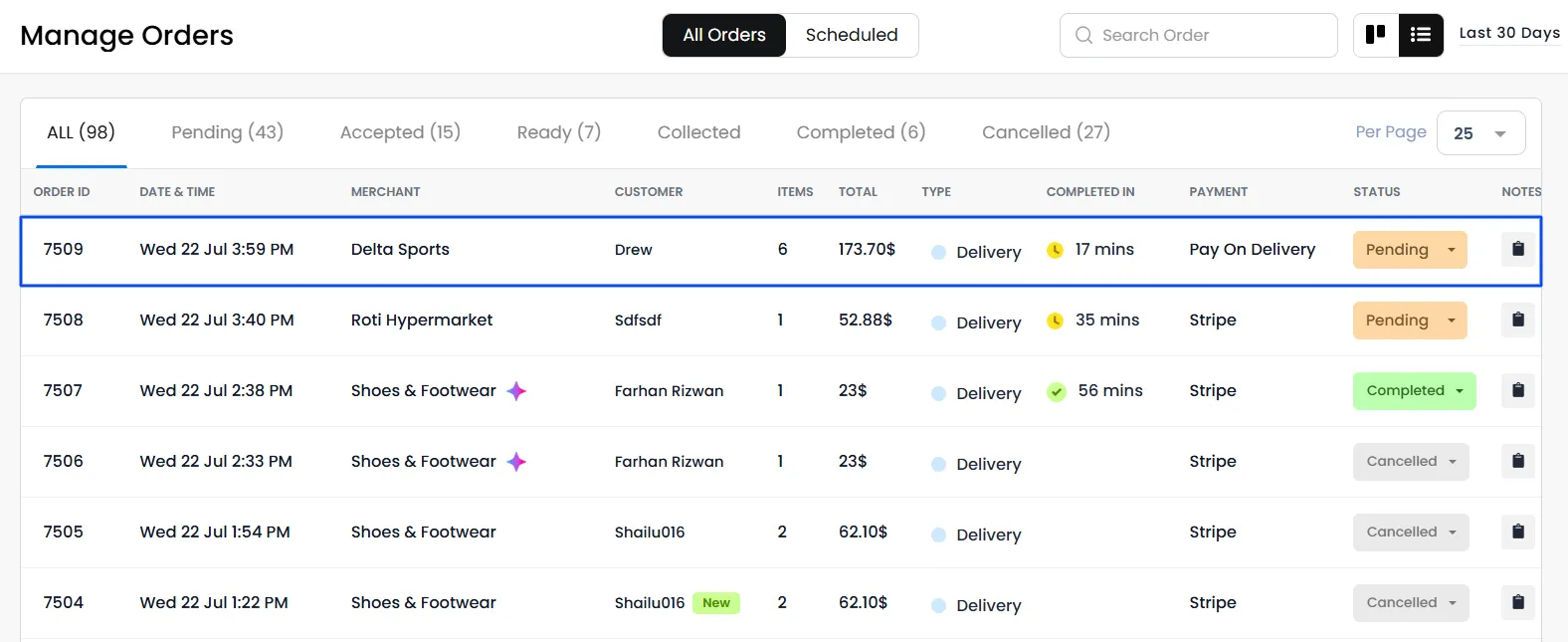
The All Orders tab displays every order received on your platform, regardless of its current status. This provides a complete overview of your order history, allowing you to search, filter, and review both active and completed orders from a single location.
Scheduled Orders
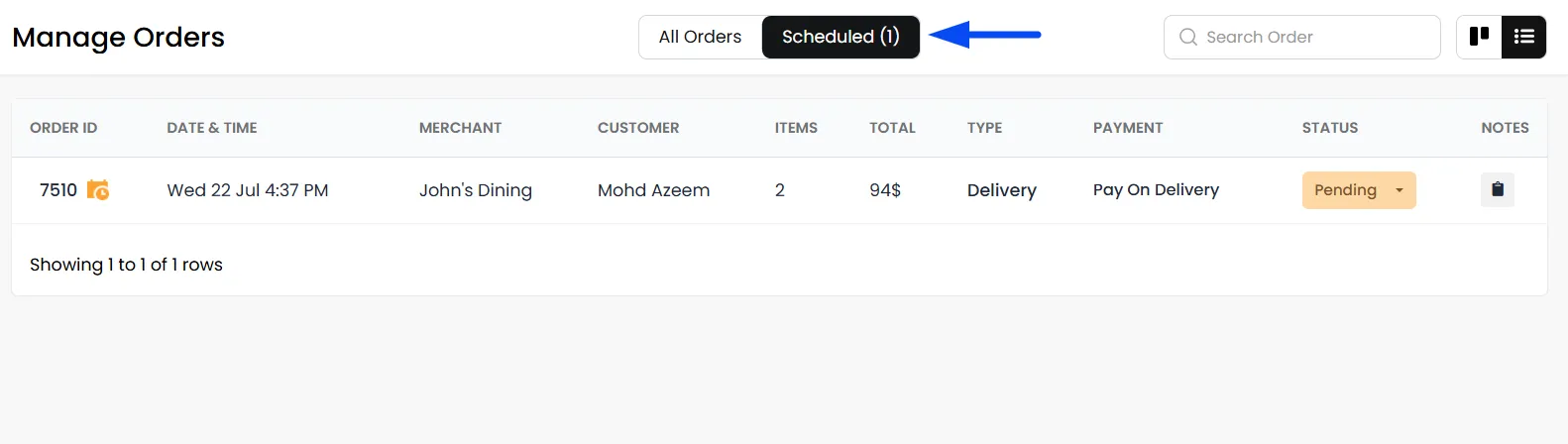
The Scheduled Orders tab displays all orders that have been placed for a future date or time. These orders remain separate from your regular order queue, making it easier to prepare for upcoming deliveries or pickups without affecting your active orders.
Once the scheduled date and time arrive, the order will move to the All Orders tab
Order Status Tabs
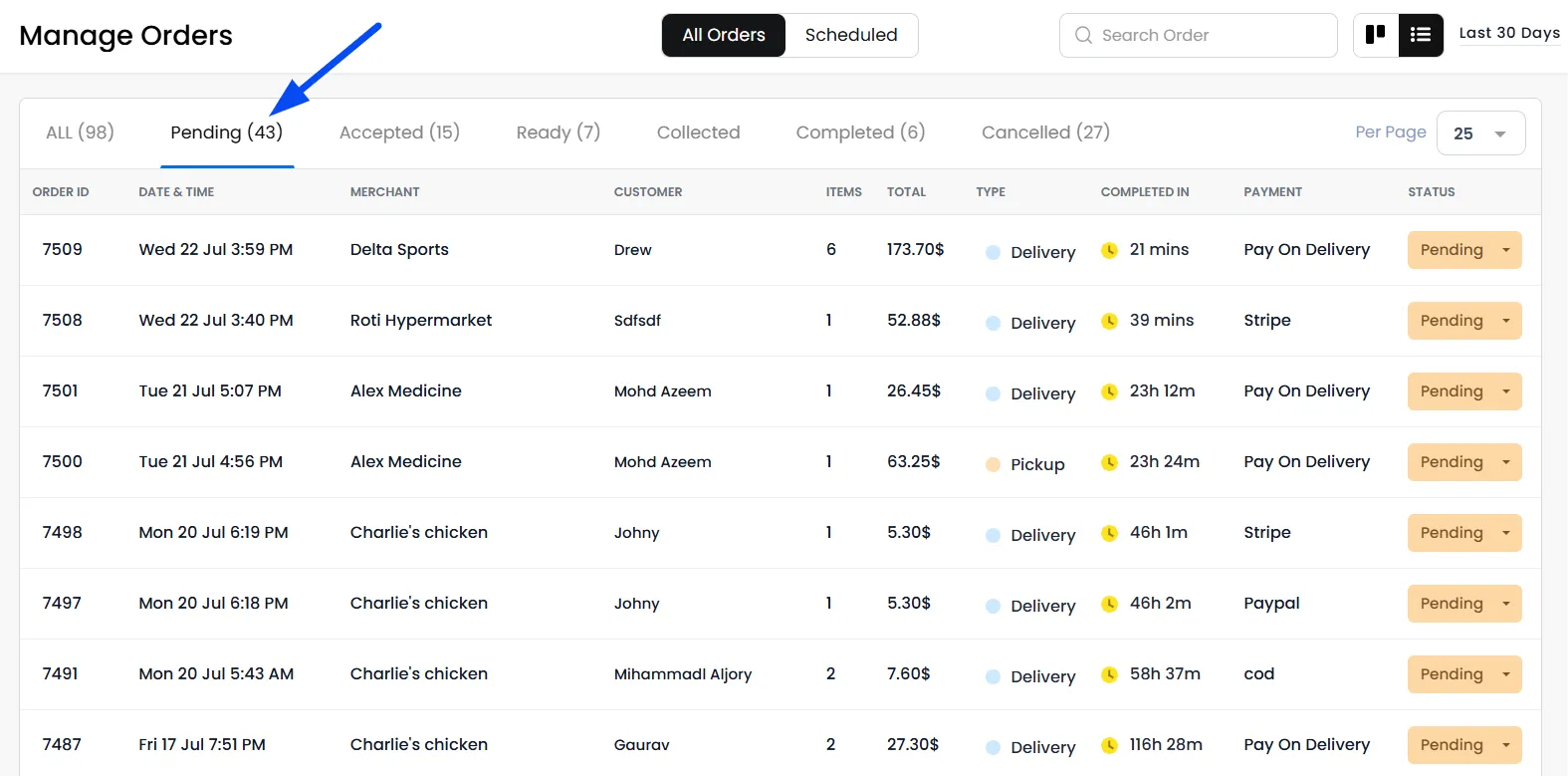
Orders are automatically grouped into different tabs based on their current status.
These include:
- All – Displays every order regardless of status.
- Pending – Orders awaiting confirmation or processing.
- Accepted – Orders accepted by the merchant and being prepared.
- Ready – Orders ready for pickup or delivery.
- Collected – Orders picked up by the delivery partner.
- Completed – Successfully delivered orders.
- Cancelled – Orders that have been cancelled.
Selecting any tab filters the dashboard to display only orders in that particular stage.
Order Dashboard Views
The Order Dashboard offers two different viewing modes, allowing you to choose the layout that best fits your workflow.
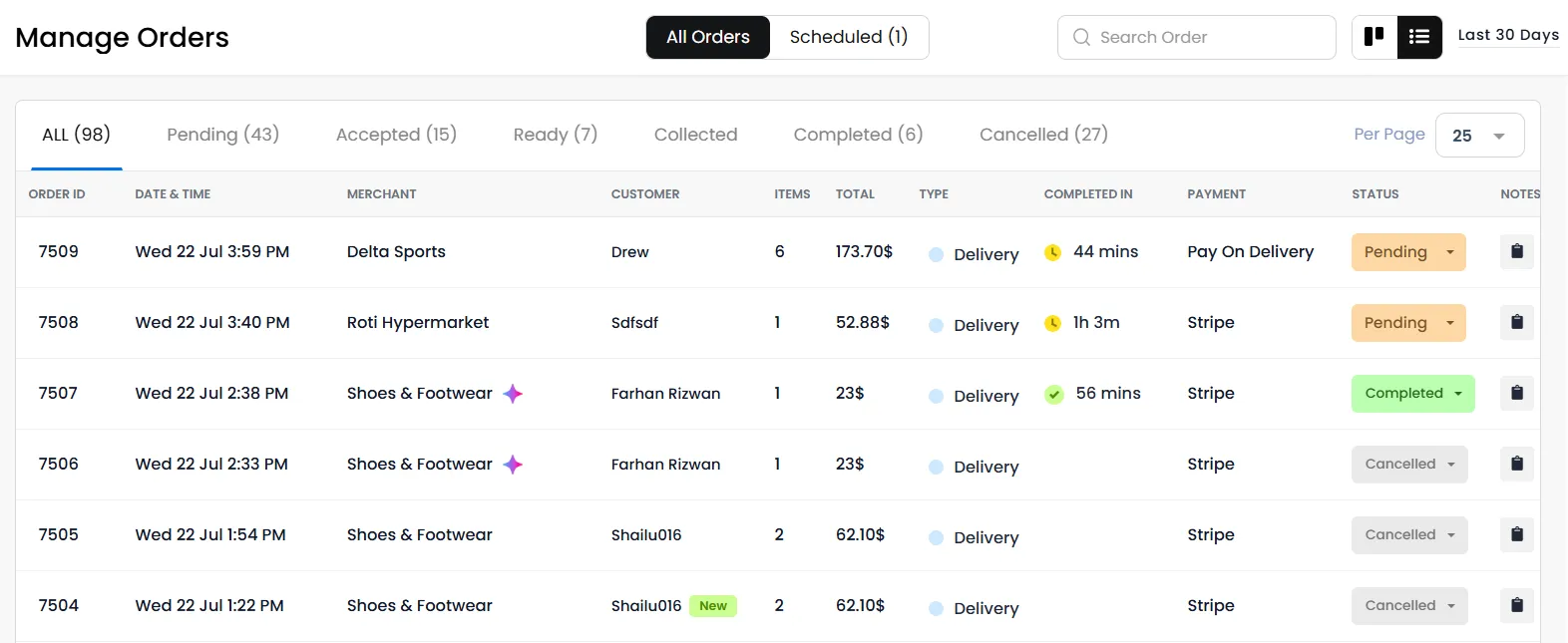
List View
The List View displays orders in a structured table, making it ideal for reviewing large volumes of orders.
Kanban View
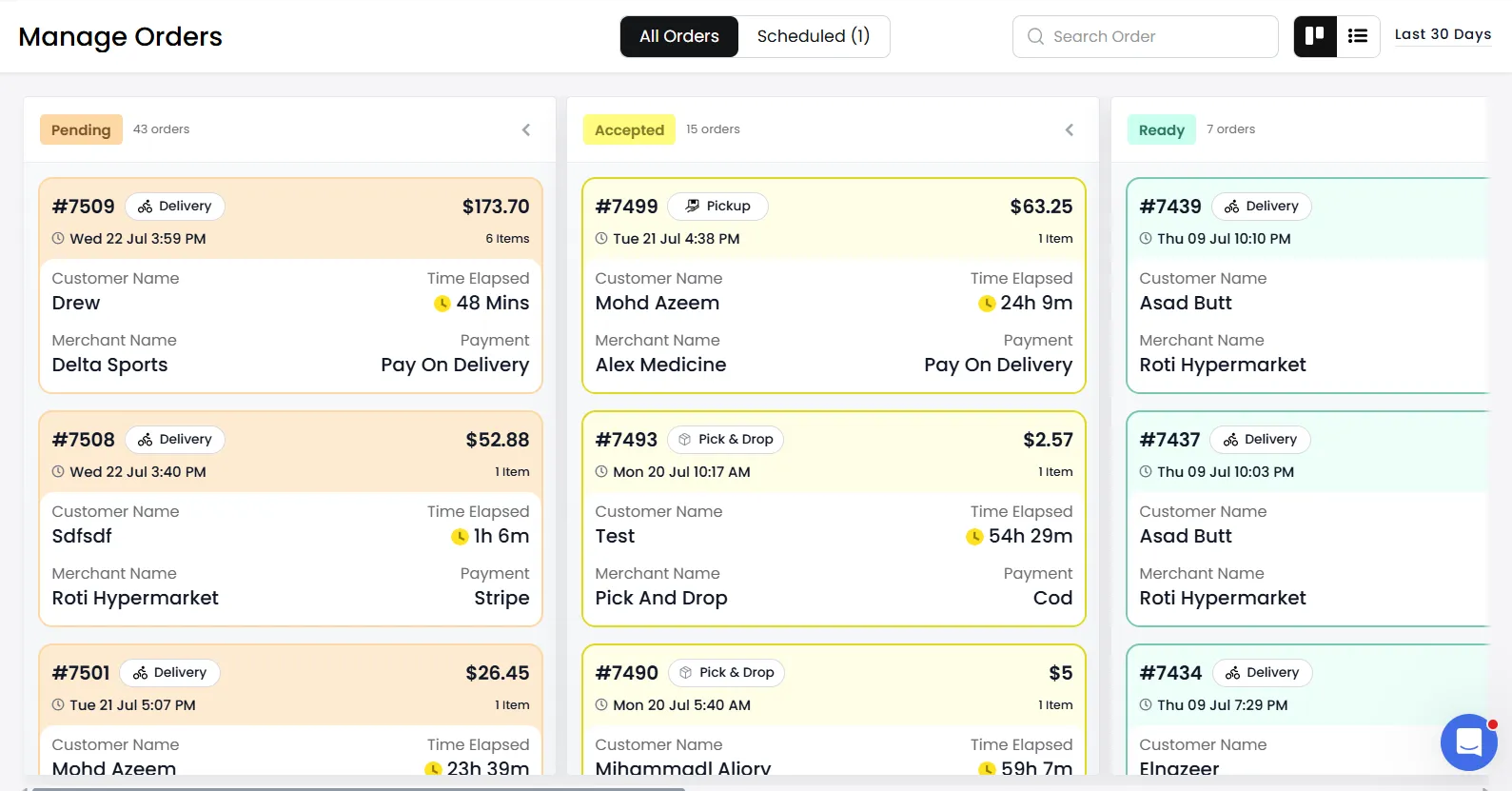
The Kanban View organizes orders into columns based on their current status, providing a visual representation of your order workflow. As orders progress through different stages, they automatically move under the corresponding status column, making it easy to track fulfillment at a glance.
Search and Filter Orders
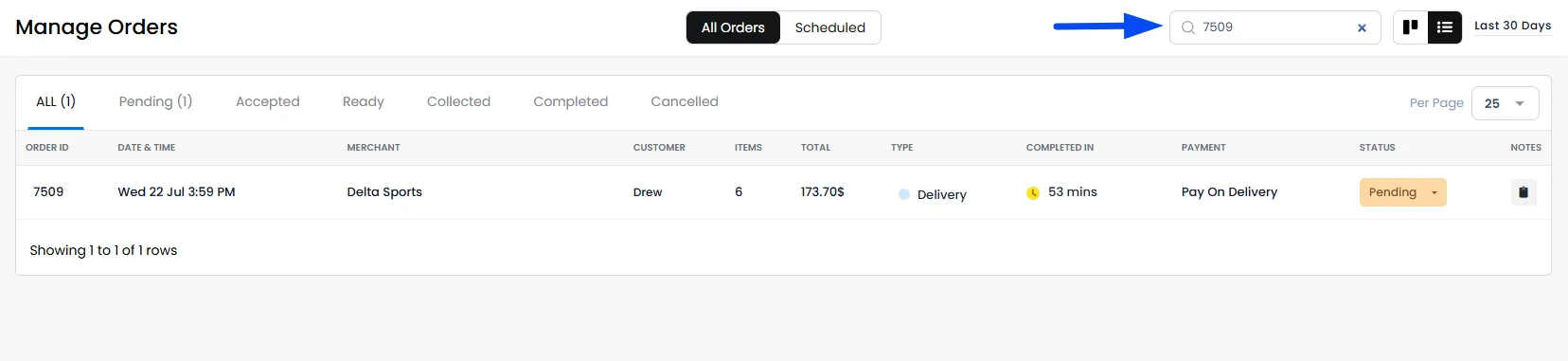
The Order Dashboard includes multiple filtering options to help locate orders quickly.
You can:
- Search using the Order ID.
- Filter by a specific date range.
- View scheduled orders separately.
This makes it easier to locate historical orders without manually browsing through the entire list.
Understanding the Order Details Page
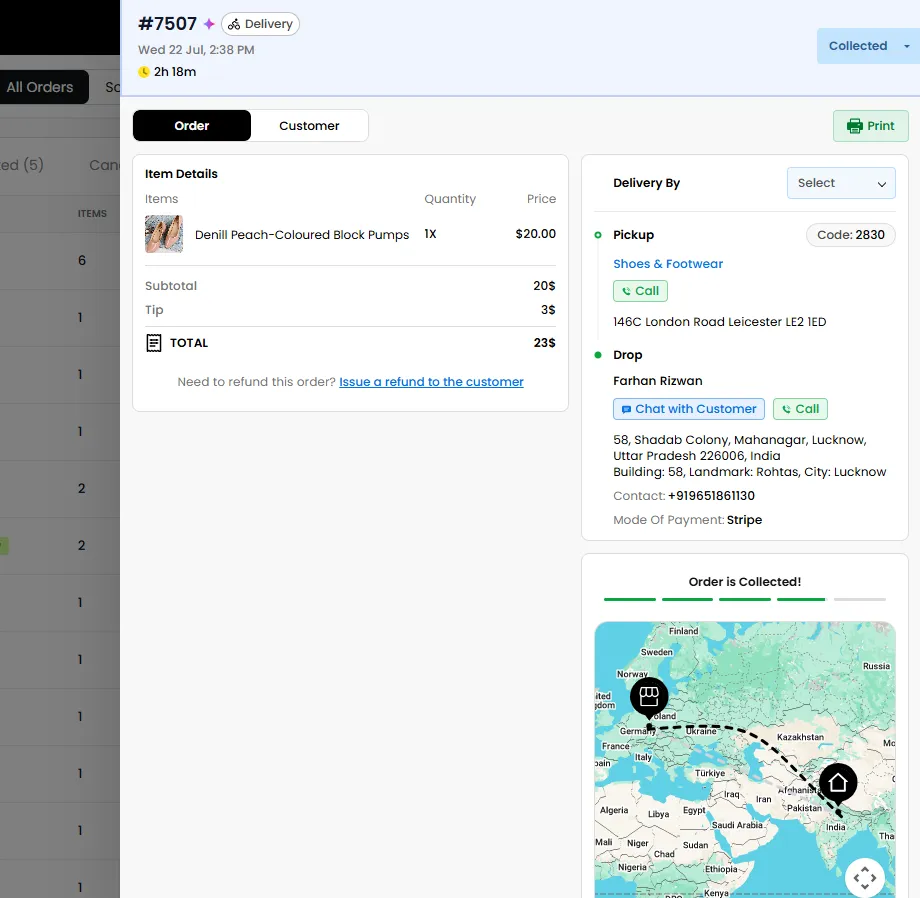
Clicking on any order from the Order Dashboard opens the Order Details page, where you can view comprehensive information about the selected order.
The Order Details page is divided into multiple sections, each providing specific information to help you manage the order more efficiently.
Order Information
The Order Information section provides a complete summary of the selected order. Here, you can review the ordered items, quantity, pricing breakdown, and other relevant information.
Pickup & Delivery Details
The Pickup & Delivery section displays all the information required to fulfil the order. This includes the merchant's pickup location, the customer's delivery address, contact details, and any delivery instructions.
Order Timeline
The Order Timeline provides a chronological view of the order's progress, showing every stage from when the order was placed until it is completed or cancelled. This allows you to easily track the order's journey and identify when each status update occurred.
Printing an Order
You can also utilise the Print button to generate a printable version of the order. Printing an order is useful for kitchen preparation, packing and verification, and sharing order details with delivery staff, etc.
Note: The platform supports a wide range of compatible printers. For the best experience, we recommend using the EPSON TM-m30III or Netum printers. We suggest testing using one of these models first before making a bulk purchase to ensure it meets your operational requirements.
Customer Insights with North AI
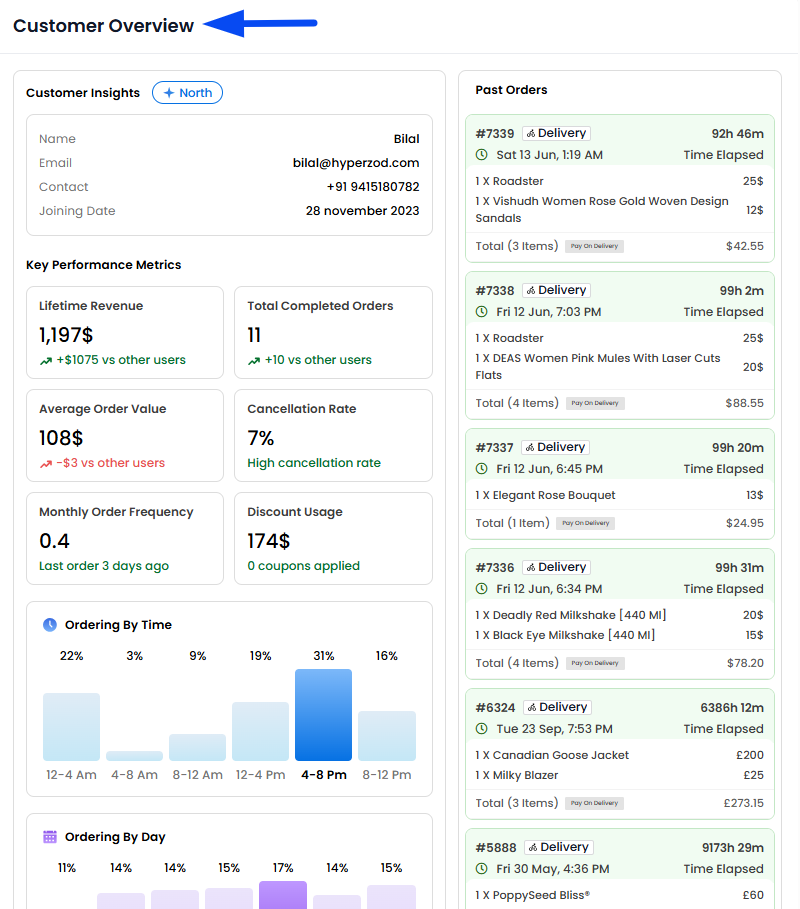
Hyperzod now includes AI-powered Customer Insights, generated by North AI, to help you better understand customer behaviour directly. By identifying purchasing patterns, engagement trends, spending habits, and customer preferences, North AI helps you better understand what drives customer activity on your platform. You can click on the specific order and then move to its customer tab to view the detailed information for that customer.
Note: Refer to the guide below for a complete overview of the Customer AI Insights feature.