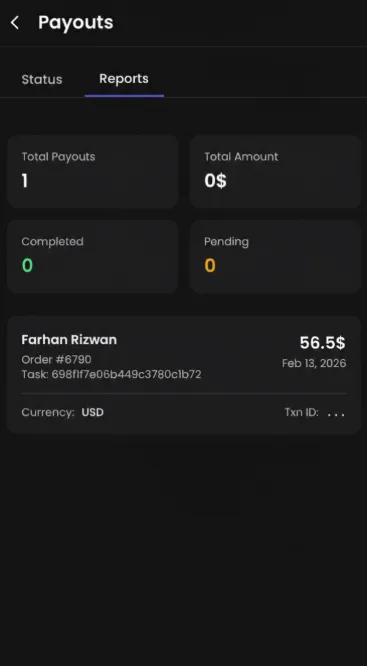
Driver Payouts
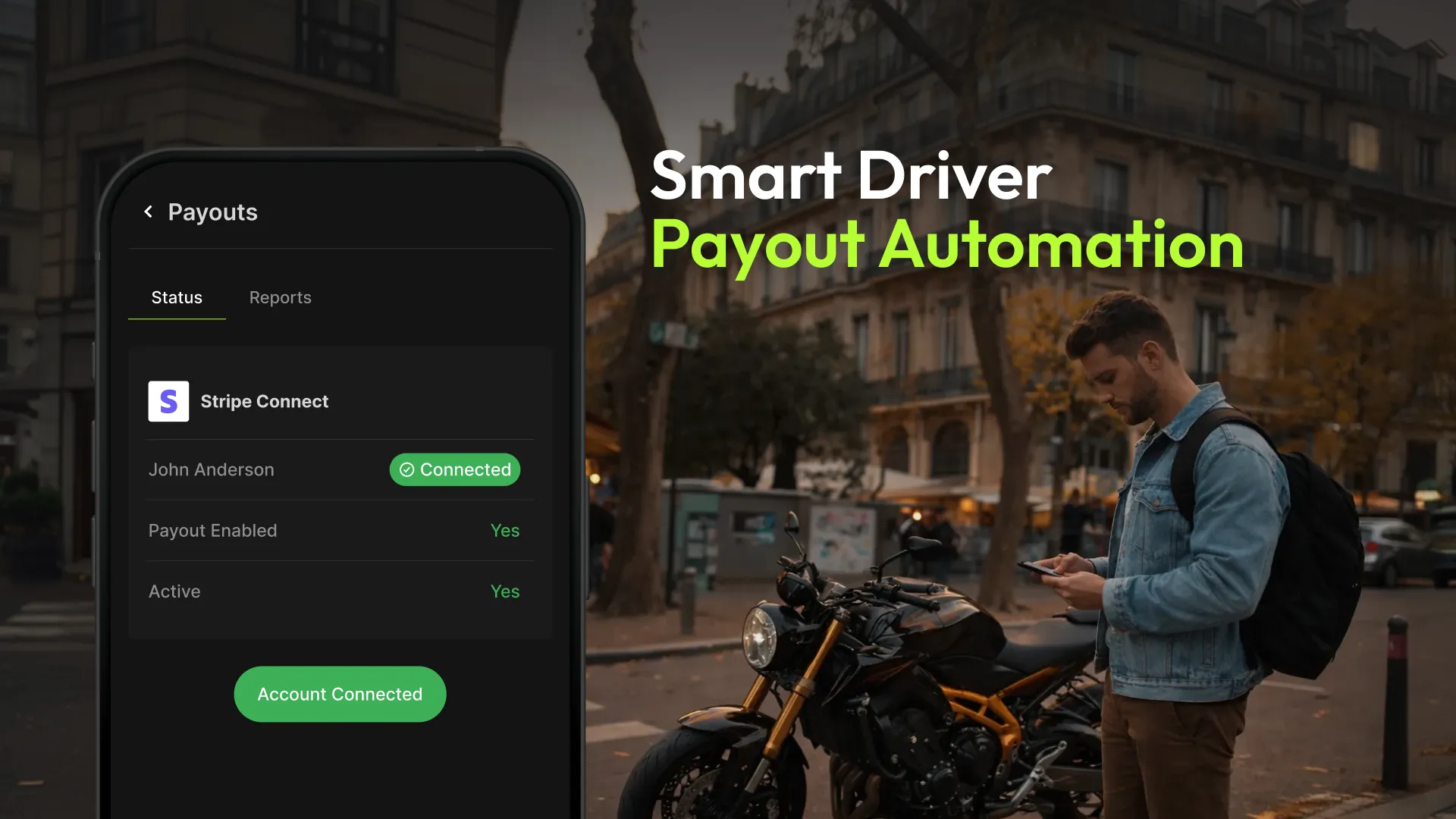
Select your desired payout method
Follow the steps below to configure Stripe Connect for Driver payouts.
Once Stripe Connect is properly set up and enabled, whenever a delivery agent completes an order and the defined task lock minutes are completed, the system will calculate the driver’s commission and transfer the amount directly to the driver’s connected Stripe account without any manual intervention.
Know more about the "Task Lock Minutes."
Prerequisites Before Configuring Stripe on the Autozod Panel
Make sure the prerequisite steps are completed before you configure Stripe Connect on the Autozod panel.
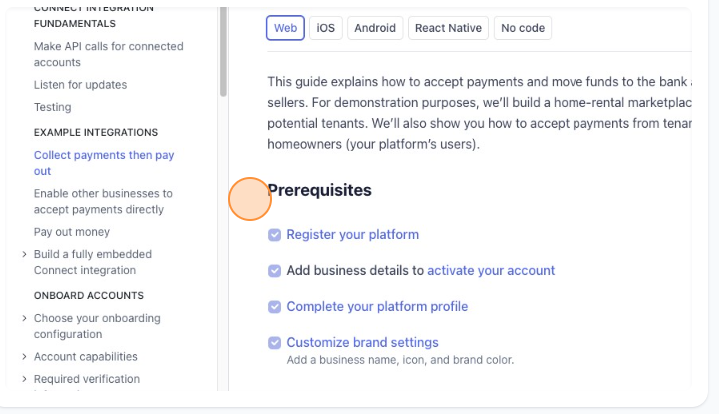
Configure the Stripe Payouts
- Navigate to the Autozod panel from your admin panel
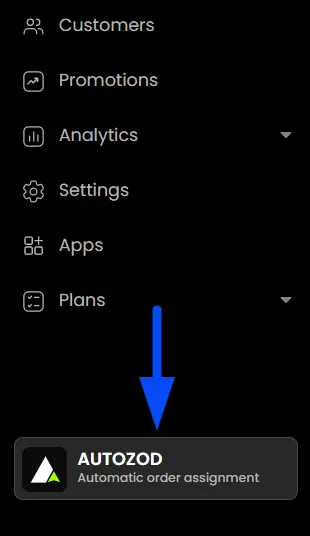
- Once on the Autozod panel, navigate to the "Payouts" section

- Once in the payouts section, configure the Admin's Stripe keys
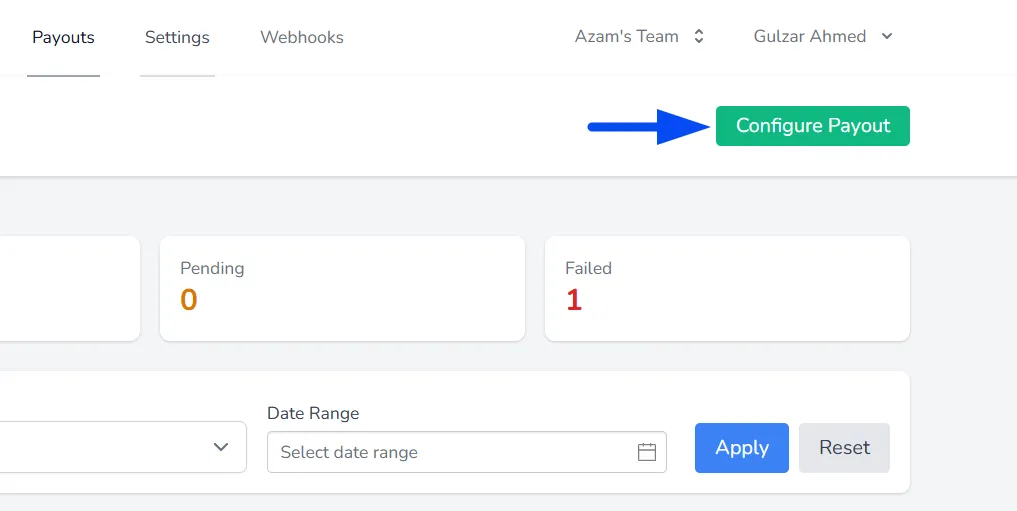
Driver Stripe Setup Options
Choose how you would like to set up Stripe for your drivers. You can either configure and connect the driver’s Stripe account directly from the Autozod Panel or allow drivers to complete their own Stripe onboarding through the Driver App once payouts for the respective drivers are enabled.
Note: Before proceeding with either setup option, make sure to enable the toggle for the payouts for the driver. Navigate to the "Agents" section in the Autozod panel, locate the respective driver, and turn on the Payout toggle to activate Stripe setup for that driver.
Enable Payouts for Drivers (Admin Side)
Once Stripe is configured globally, you can enable payouts per driver.
- Navigate to the "Agents" section in the Autozod panel.
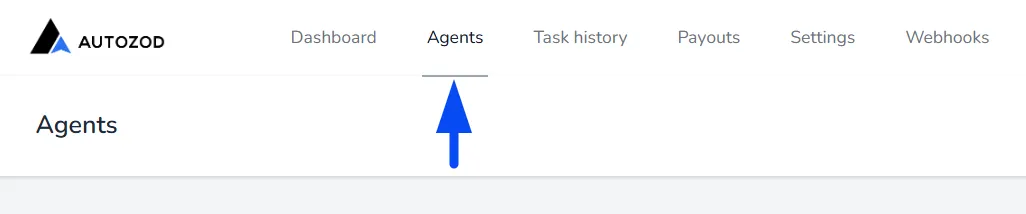
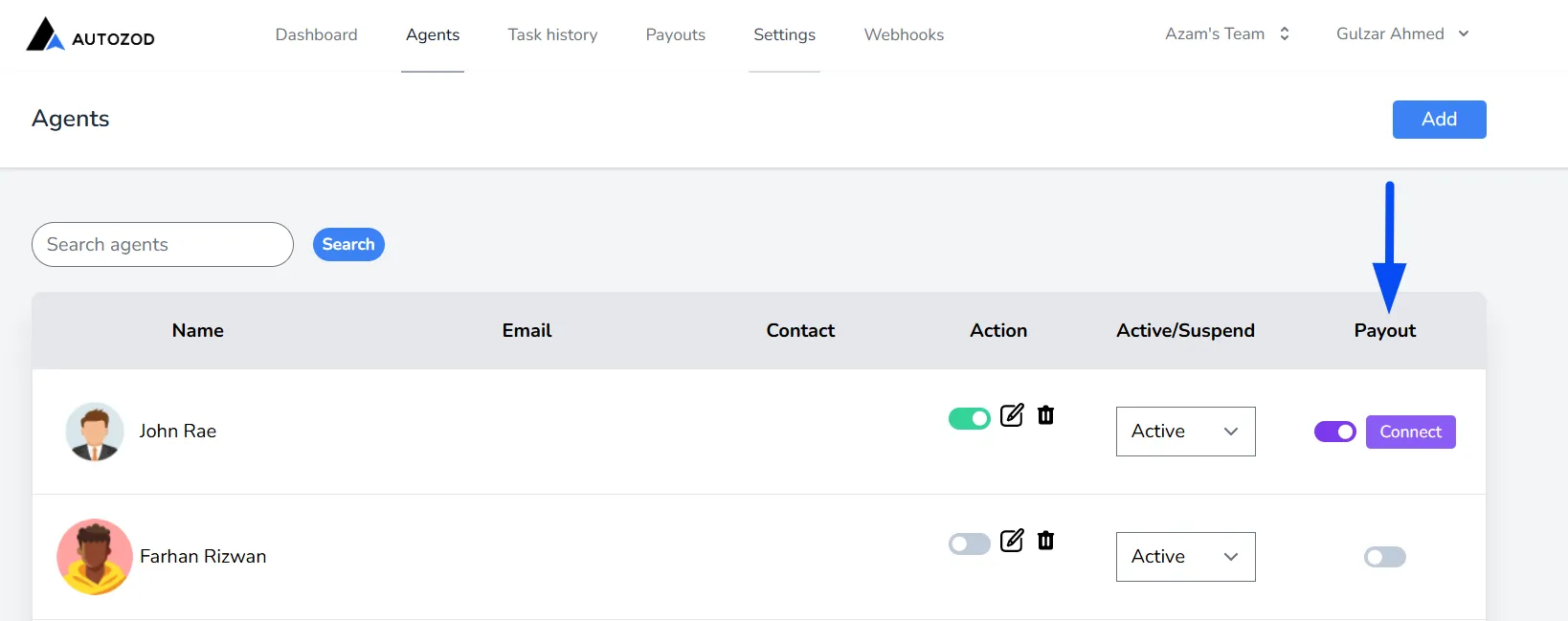
- You can simply enable the payout-per-driver toggle and configure it for the driver you wish to set it up for. You will be redirected to the Stripe dashboard, and you have to fill in all the driver's banking details.
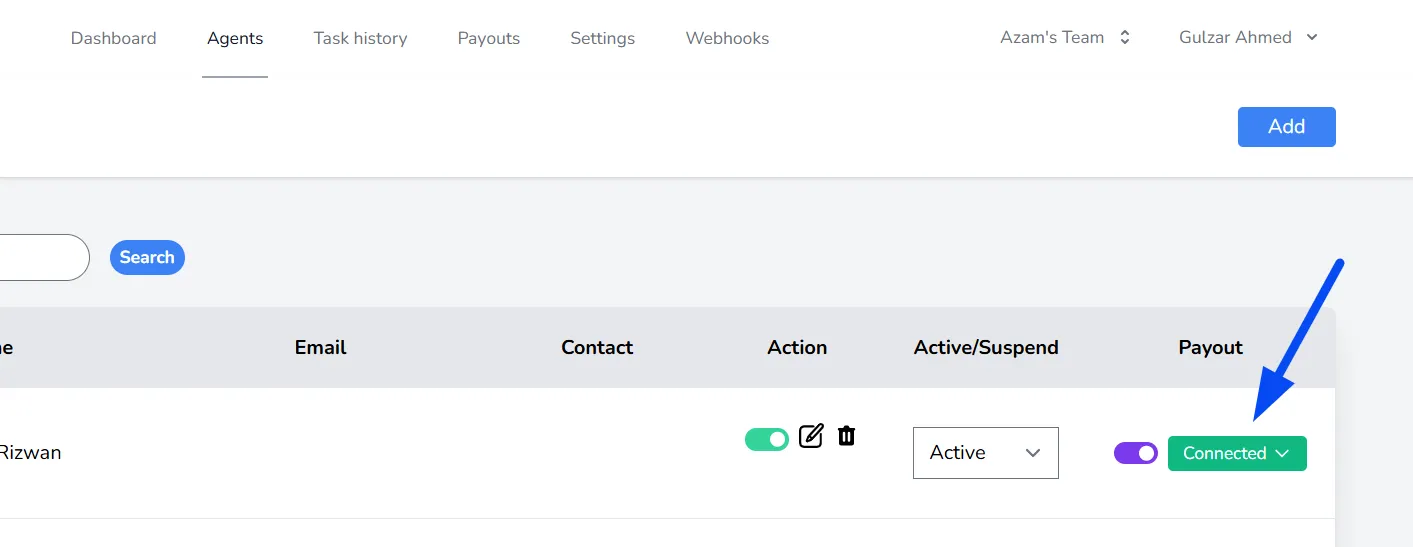
- Once the Stripe account for the driver is set up successfully, it will show as connected both on the Autozod panel and the Driver app for the driver as well.
Driver App – Stripe Setup (Driver Side)
Drivers can also set up their Stripe payouts themselves via the Driver App.
Note: Make sure the toggle for Payouts is enabled for the driver in the Autozod panel > Agents so that the driver can connect their Stripe account accordingly.
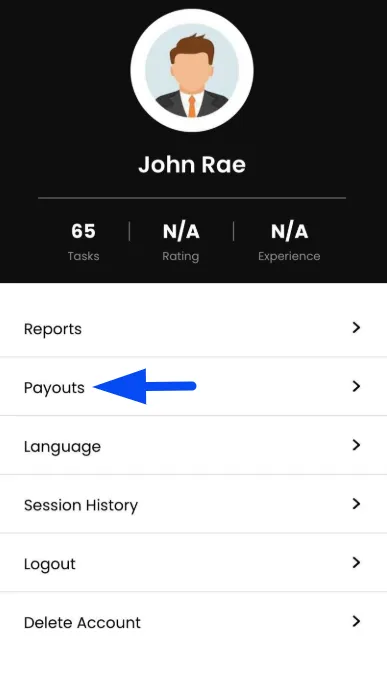
- On the Driver app, navigate to Profile > Payouts
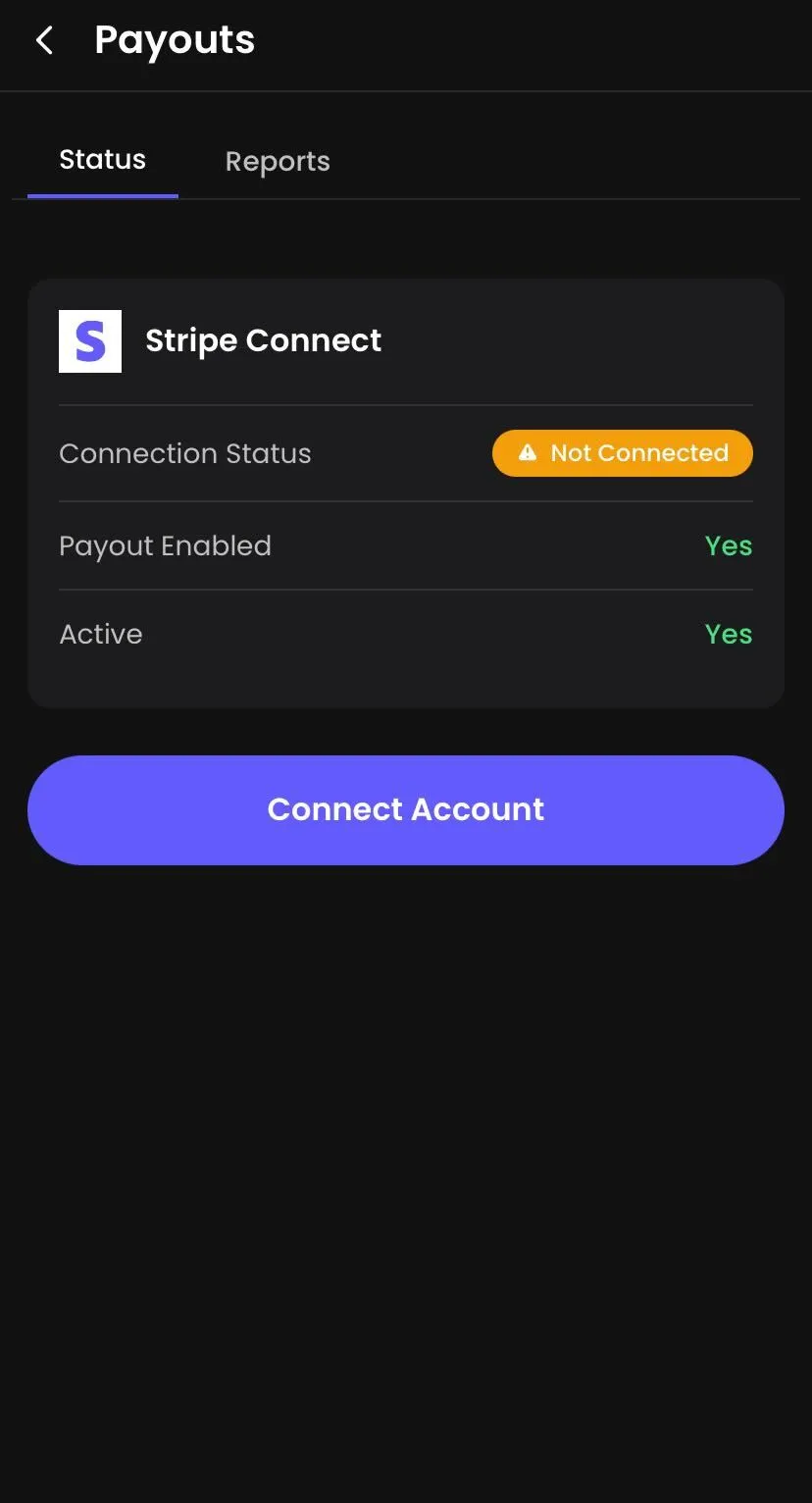
- On the payouts section in the Driver app, click on "Connect Account," and the driver will be redirected to the Stripe dashboard, where they will have to fill in all their banking details.
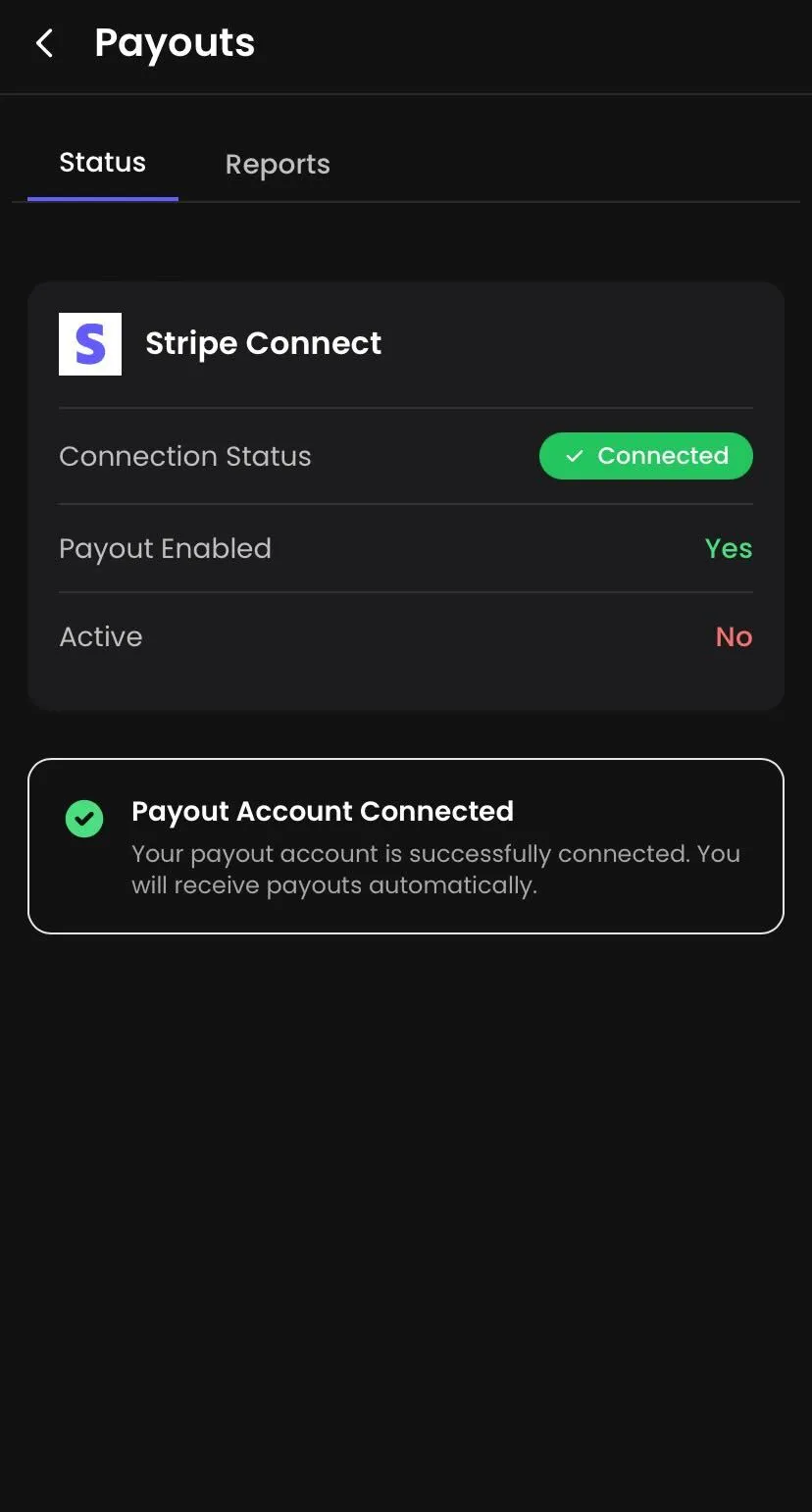
- Once the account is connected successfully, it will show "Payout Account Connected."
Payout Reports & Monitoring (Admin View)
- After payouts start processing, you can monitor and view all the reports for each driver from the Autozod panel > Payouts.
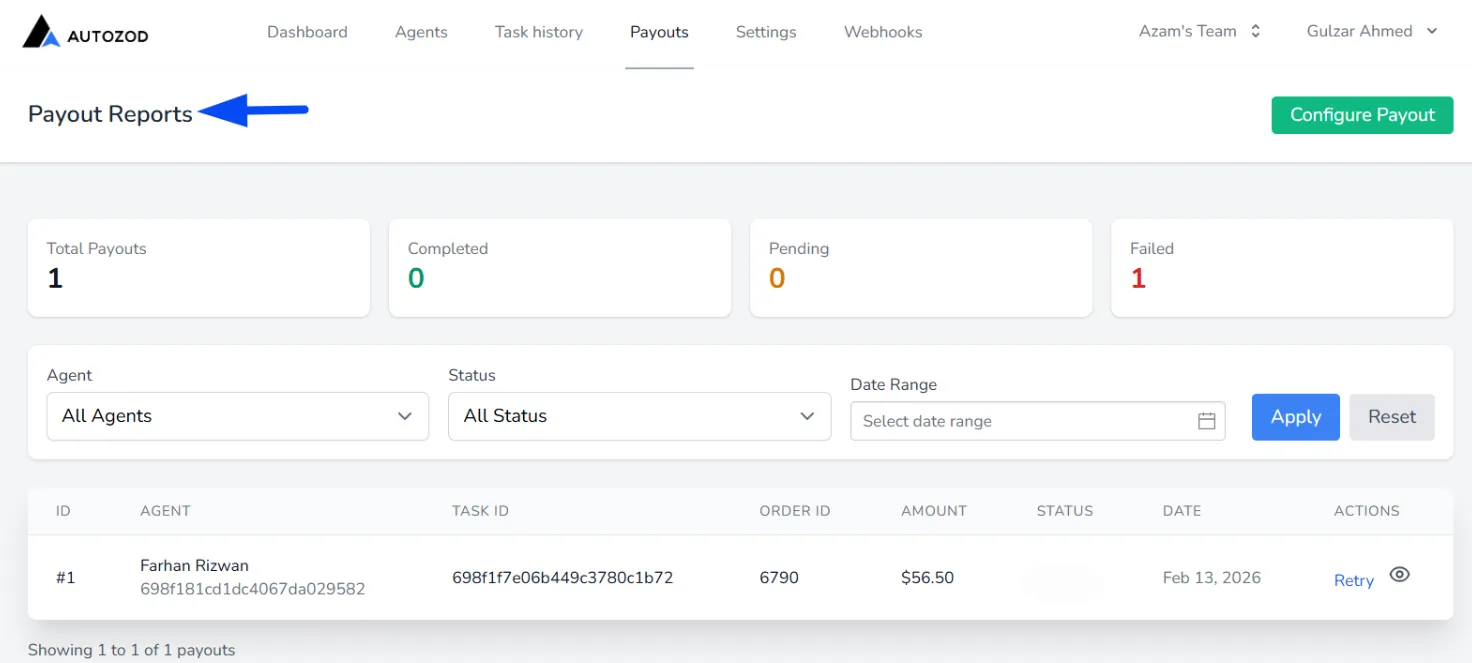
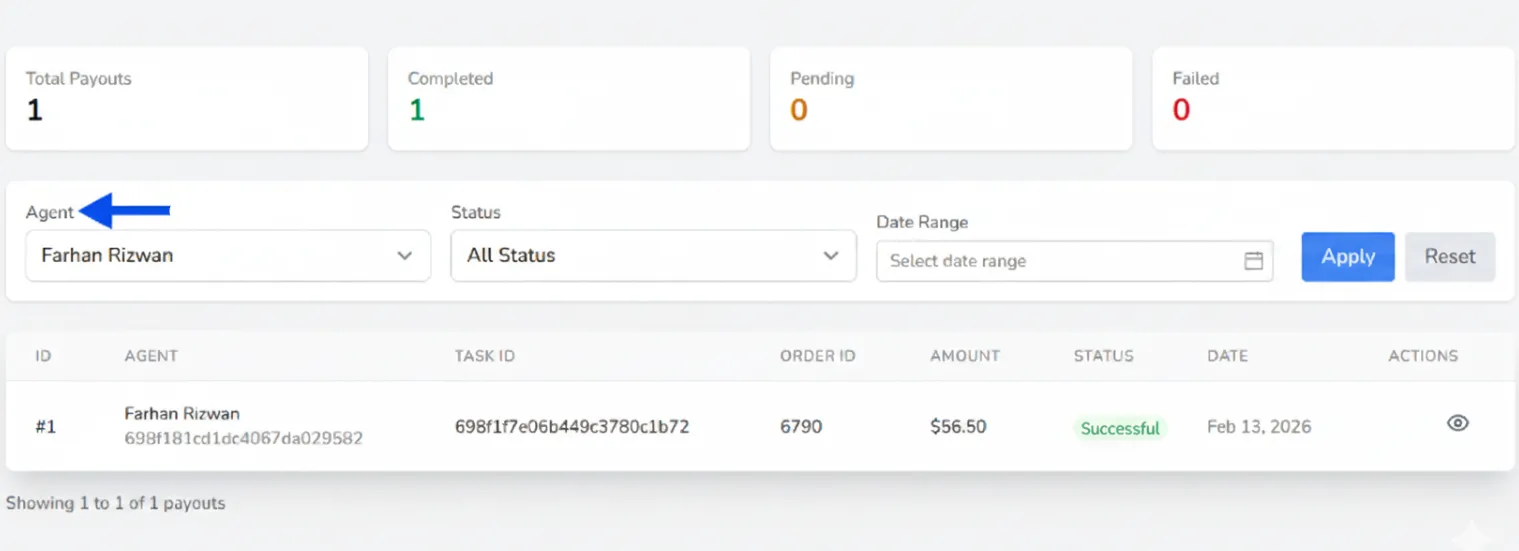
Filter by Agent
Select a specific driver to view their individual payout history and transaction details.
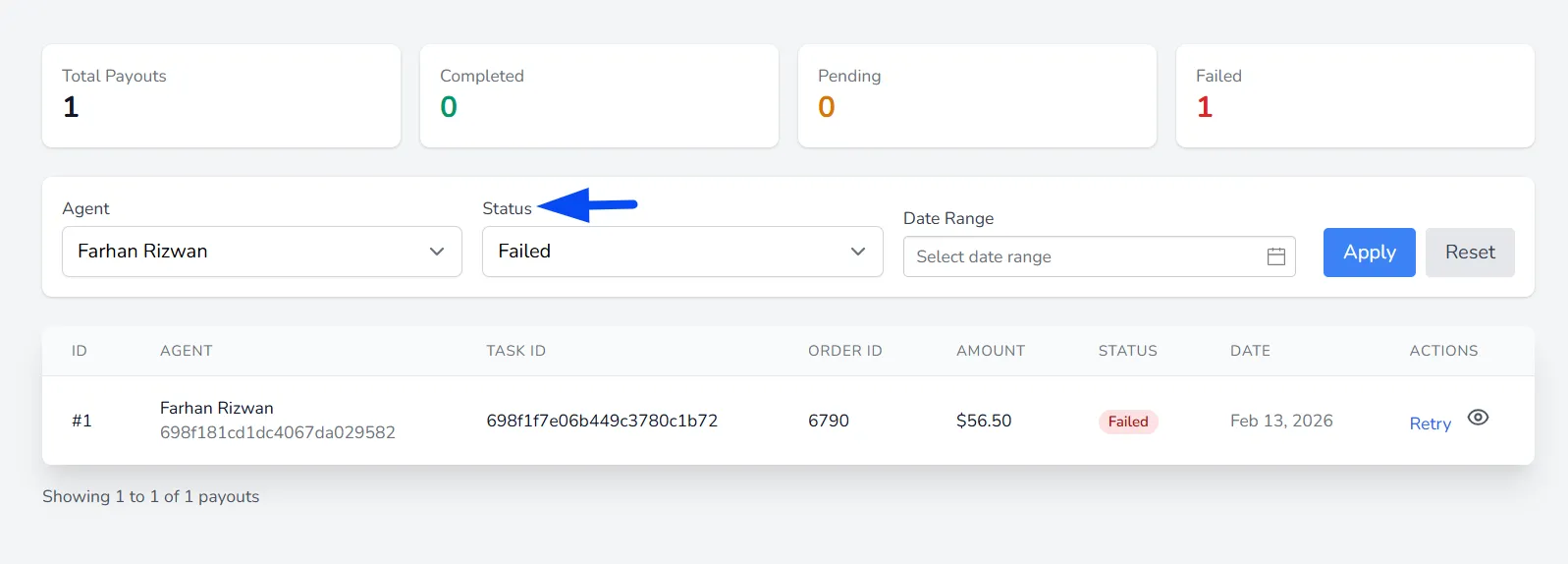
Filter by Status
Sort payouts by Completed, Pending, or Failed to identify successful transfers or payouts that require attention quickly.
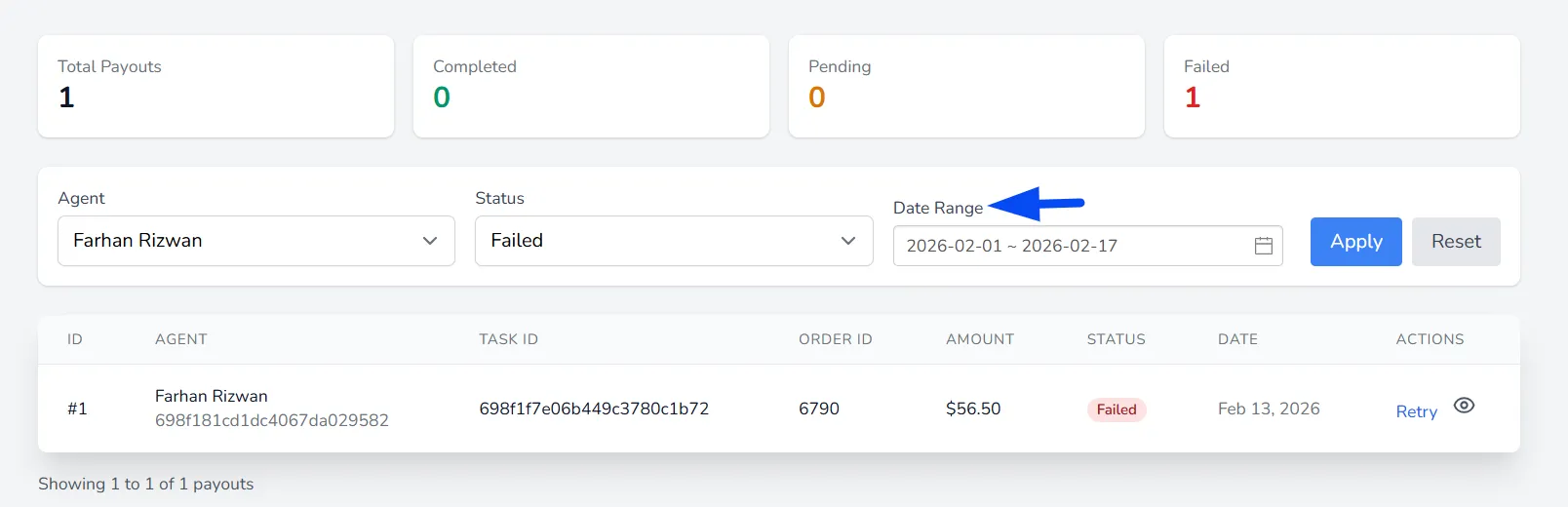
Filter by Date Range
Apply a custom date range to review payouts within a specific time period for reporting and reconciliation purposes.
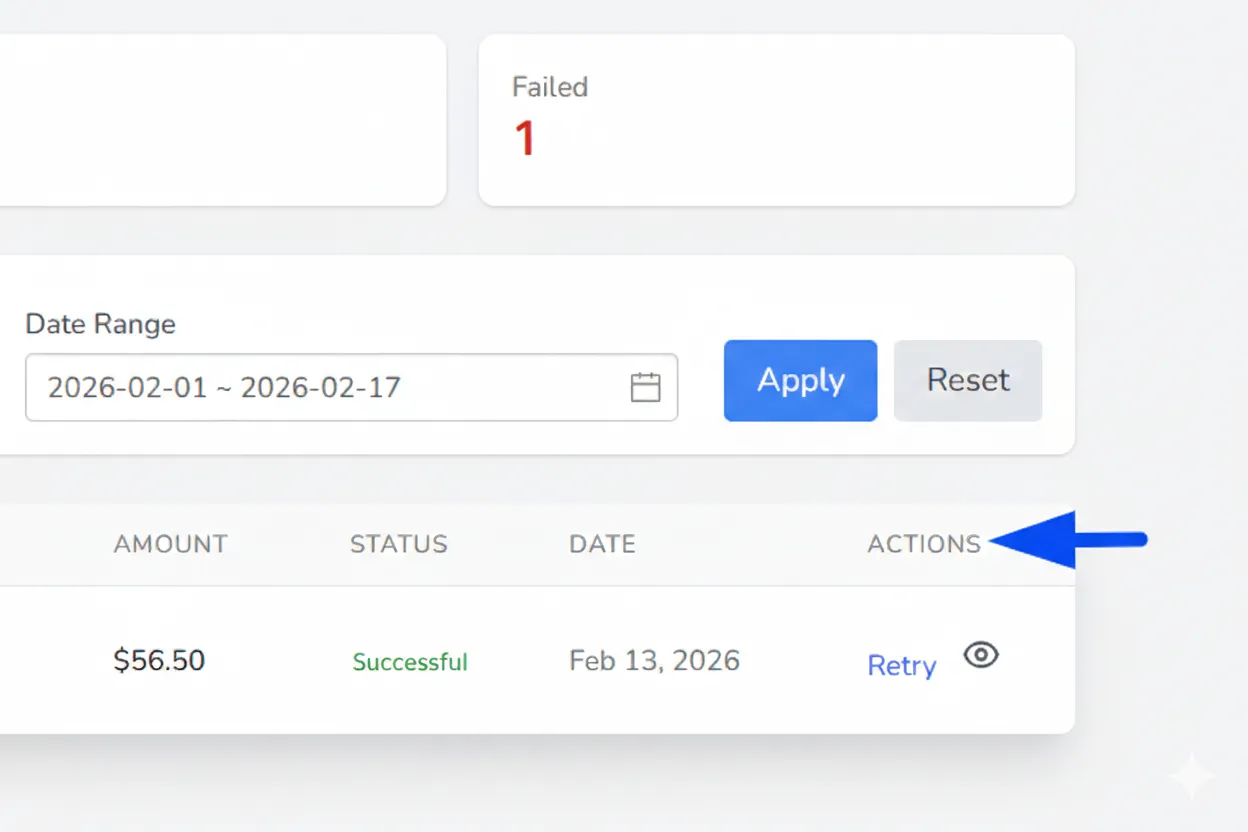
View & Retry Actions
Open detailed payout records to review transaction information and retry failed payouts once issues are resolved.
Driver Payout Reports (Driver App)
From the Payouts > Reports section in the Driver App, drivers can view a complete summary of their earnings, including total payouts, completed, and pending transactions. They can see detailed information for each payout, allowing them to track their commissions transparently.